As an Amazon Associate, we earn from qualifying purchases. Some links on this site are affiliate links at no extra cost to you. Our recommendations are based on thorough research and editorial judgment.

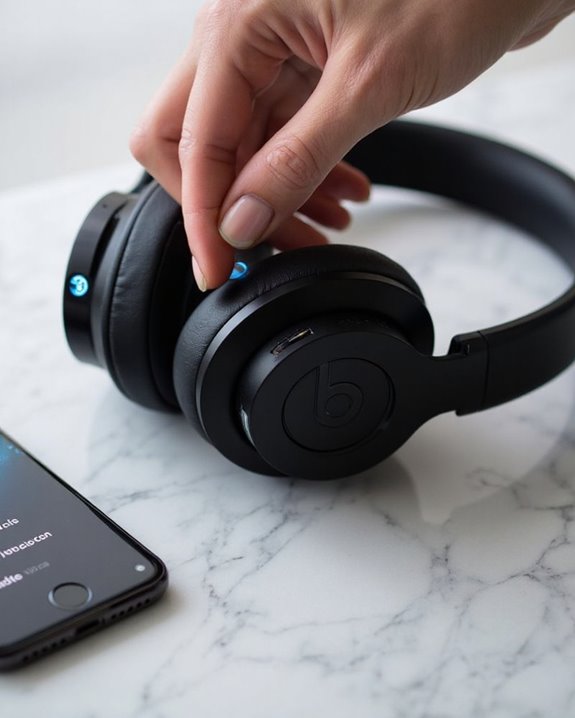
How to Pair Beats Studio Wireless Headphones Easily

To pair Beats Studio Wireless headphones, first verify both devices have sufficient battery. Place headphones in pairing mode by holding the power button for 5 seconds until the LED indicator flashes. On your device, navigate to Bluetooth settings, enable Bluetooth, and select “Beats Studio Wireless” from the available devices list. Wait for confirmation of successful connection. Regular firmware updates and maintaining proximity within 30 feet maximize connection stability and performance. Further instructions can resolve any connectivity challenges that arise.
Key Takeaways
- Press and hold the power button on the left earcup for 5 seconds until the LED indicator light flashes.
- Ensure your headphones are within 30 feet of your device and have sufficient battery power.
- Navigate to Bluetooth settings on your device and select “Beats Studio Wireless” from the available devices list.
- Confirm the “Connected” status appears on your device to verify successful pairing.
- For connection issues, try resetting headphones or forgetting the device before re-pairing.
Preparing Your Beats Studio Wireless for Pairing
You may be interested
10 Best Wireless Headphones
May 2, 2024
Before attempting to pair Beats Studio Wireless headphones with any device, users must properly prepare the headphones to guarantee a smooth connection process. A thorough Power Check is essential—ensure the headphones have sufficient battery and are powered on by pressing the power button until the LED indicator illuminates.
Users should position themselves within the recommended Bluetooth range (approximately 30 feet) of the device they wish to connect to. Additionally, verify that the headphones aren’t already connected to another device, as this can interfere with new pairing attempts.
For model-specific instructions, a Manual Review is highly recommended. The user guide contains detailed steps for entering pairing mode and troubleshooting common connectivity issues. Checking for available firmware updates before pairing can also prevent potential compatibility problems.
Because the Beats Studio Pro headphones support Bluetooth 5.3, ensuring your device’s compatibility with Bluetooth 5.3 can enhance connection stability and range.
Recommended Products
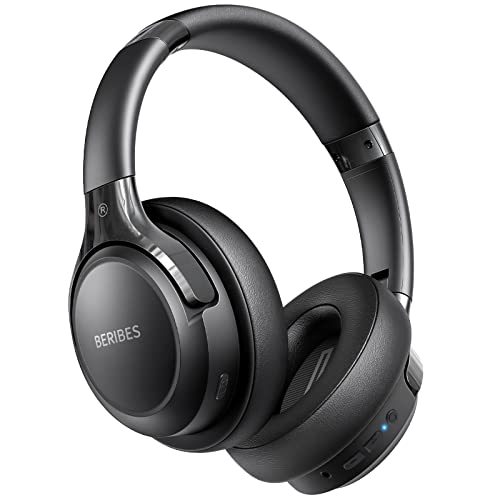
65 Hours Playtime: Low power consumption technology applied, BERIBES bluetooth headphones with built-in 500mAh battery can continually play more than 65 hours, standby more than 950 hours after one fully charge. By included 3.5mm audio cable, the wireless headphones over ear can be easily switched to wired mode when powers off. No power shortage problem anymore.

【40MM DRIVER & 3 MUSIC MODES】Picun B8 bluetooth headphones are designed for audiophiles, equipped with dual 40mm dynamic sound units and 3 EQ modes, providing you with stereo high-definition sound quality while balancing bass and mid to high pitch enhancement in more detail. Simply press the EQ button twice to cycle between Pop/Bass boost/Rock modes and enjoy your music time!

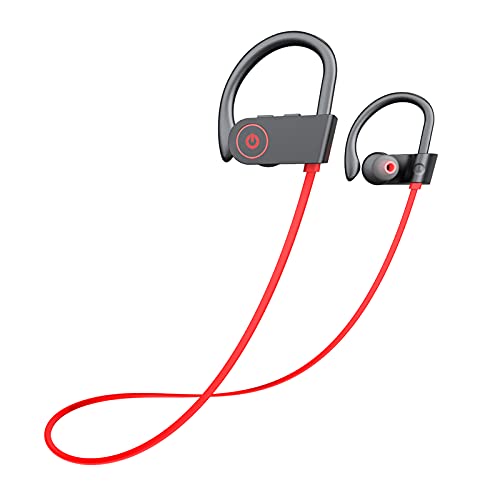
Secure & Flexible Earhook Design for Sports:Built with soft flexible earhooks and an ultra lightweight 7.8g structure, these sports earbuds stay comfortably secure during workouts, jogging, cycling, fitness training, and outdoor activities without slipping or causing ear fatigue.
Activating Bluetooth on Your Device
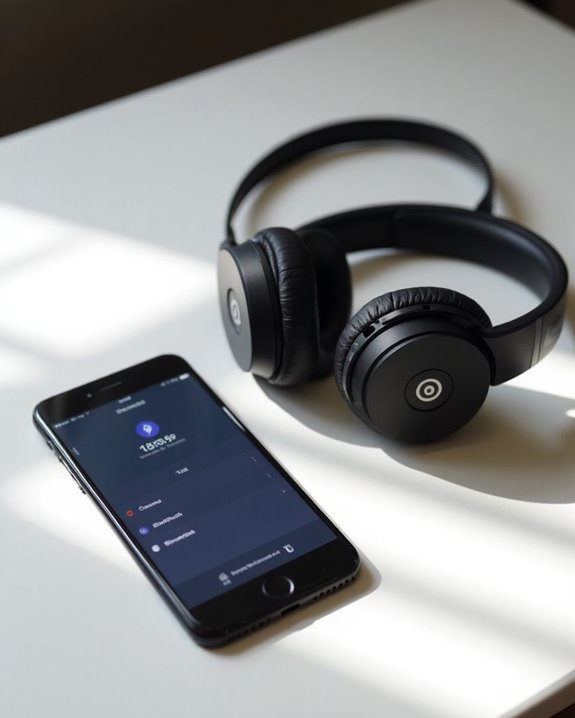
Successful connection between Beats Studio Wireless headphones and your device depends on properly activating the Bluetooth functionality. Understanding Bluetooth Basics is essential for establishing a stable connection between devices.
For Android users, open Settings, tap Bluetooth or Connections > Bluetooth, and toggle the switch to on (it should appear blue when active). Windows users should click the Network icon and select Bluetooth & devices settings to enable the connection.
Ensure both devices have sufficient battery and are within proper range—typically 30 feet. Many modern Bluetooth connections incorporate Security Features that require confirmation when pairing. If connection issues persist, restart both devices or check for software updates that might affect compatibility.
For troubleshooting, verify no physical obstructions are blocking signals and that both devices have Bluetooth enabled. Some advanced headsets like the LEVN Bluetooth Headset offer Bluetooth 5.0 dual-device connectivity for seamless switching between multiple devices.
Entering Pairing Mode on Your Beats Headphones
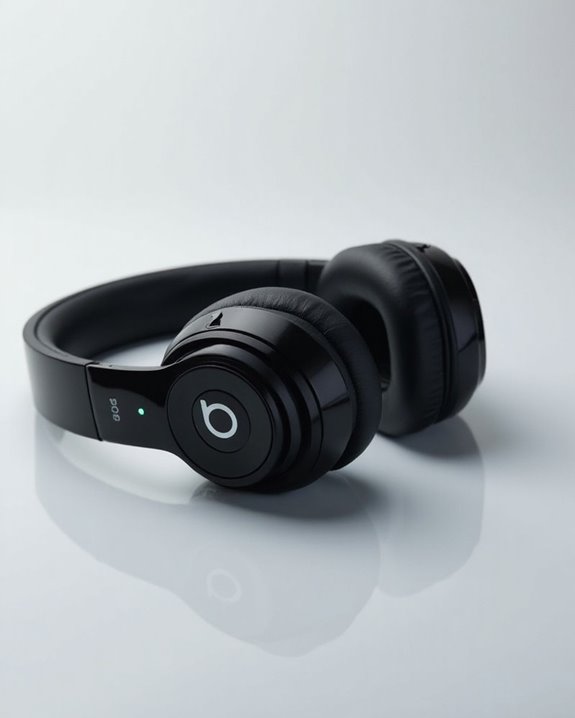
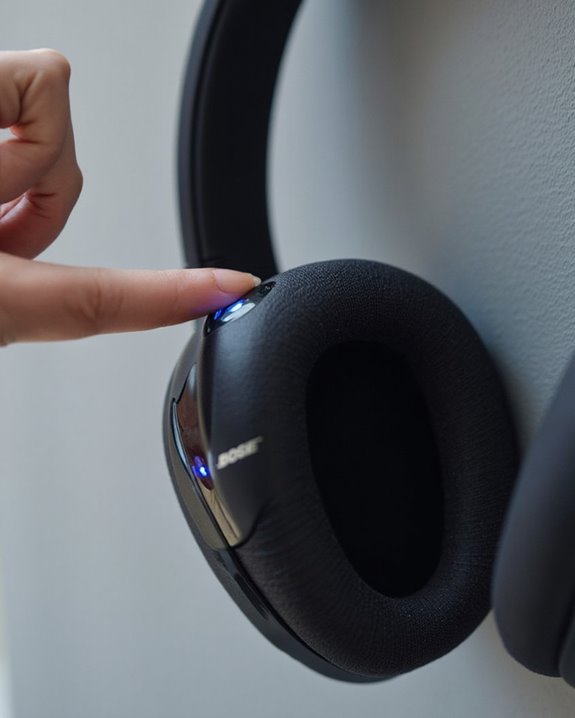
Entering pairing mode on your Beats Studio Wireless headphones represents the next key step after activating Bluetooth on your device. To begin, make sure the headphones are powered off, as this is required before initiating the pairing sequence. Next, press and hold the power button located on the left earcup for approximately 5 seconds until the LED indicator begins to flash.
If your headphones have a Pairing History with other devices, you may need to reset them before establishing a new connection. Mode Alternatives exist for different Beats models—Studio Pro requires pressing the system button for 3 seconds, while Solo Pro uses the right earcup power button. Keep the headphones within close proximity to your device to minimize interference and make sure reliable connection establishment. For enhanced connectivity, many modern headphones utilize Bluetooth 5.0 technology, which offers improved range and stability.
Recommended Products

65 Hours Playtime: Low power consumption technology applied, BERIBES bluetooth headphones with built-in 500mAh battery can continually play more than 65 hours, standby more than 950 hours after one fully charge. By included 3.5mm audio cable, the wireless headphones over ear can be easily switched to wired mode when powers off. No power shortage problem anymore.
✅ End Charging Anxiety with 90-Hour Marathon Battery Life: Designed for the long-haul commuter or international traveler, these wireless headphones deliver up to 90 hours of playtime. A quick 10-minute charge fuels 5 hours of listening, and the included aux cable is your zero-power backup plan, ensuring your music, podcasts, or movies never stop.

✅ Never Run Out of Music with 80-Hour Marathon Battery: Experience ultimate freedom. These over ear bluetooth headphones play for 80 hours on a single charge—enough for cross-country flights, a full workweek, or a month of gym sessions. The included AUX cable and quick charge ensure your audio never stops, making them perfect for travelers and busy commuters.
Connecting Your Device to Beats Studio Wireless
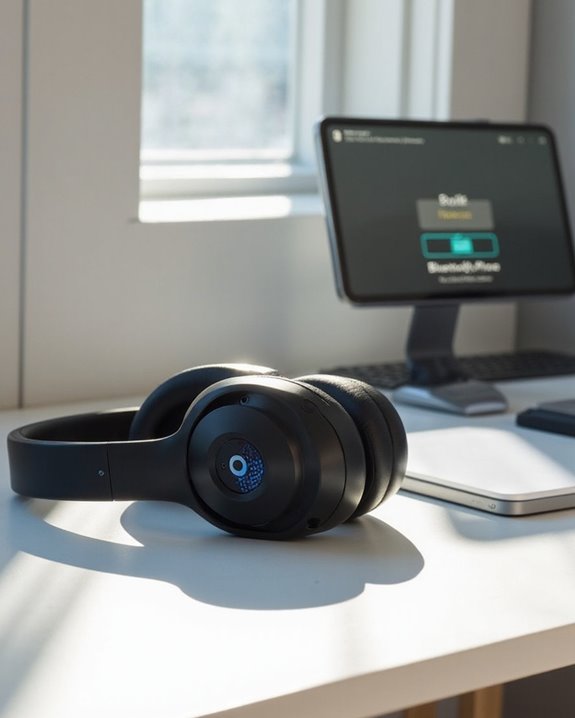
After your Beats Studio Wireless headphones enter pairing mode, the next essential step involves accessing your device’s Bluetooth settings. Users should navigate to the appropriate menu based on their operating system—iPhone users tap Settings > Bluetooth, while Android users find it under Settings > Connections.
Once in the Bluetooth menu, look for “Beats Studio Wireless” in the available devices list and select it to initiate pairing. The device will display “Connected” when successfully paired, enabling immediate access to audio controls.
For ideal performance, users should check for firmware updates through app integration after connecting. The Beats app provides additional functionality, including battery monitoring and sound customization options. When switching between multiple devices, disconnect from the current device first to prevent connection conflicts and guarantee seamless audio switch.
Recommended Products
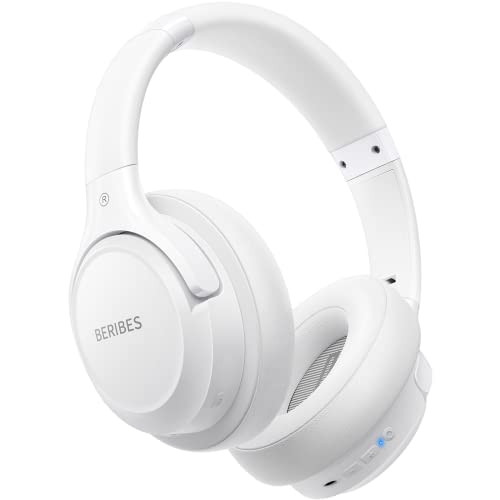
Optional 6 Music Modes: Adopted most advanced dual 40mm dynamic sound unit and 6 EQ modes, BERIBES updated headphones wireless bluetooth black were born for audiophiles. Simply switch the headphone between balanced sound, extra powerful bass and mid treble enhancement modes. No matter you prefer rock, Jazz, Rhythm & Blues or classic music, BERIBES has always been committed to providing our customers with good sound quality as the focal point of our engineering.

Hybrid Active Noise Cancelling Bluetooth Over Ear Headphones Wireless, Hi-Res Audio, Memory Foam Earcup, ANC Headphone Dark Blue Black
[Stable Bluetooth 5.3 Connection] Adopting the latest Bluetooth 5.3 technology and superior acoustic component, ensures faster and more stable connection. Boean wireless headphones up to 30ft Bluetooth range in the open space and 10ft in the obstacles space.
Maintaining Optimal Connection Quality

Maintaining the Bluetooth connection between Beats Studio Wireless headphones and your device requires understanding several key factors that affect signal quality. Users should position their headphones within reasonable proximity to the paired device and minimize physical obstacles that might block signals.
Regular Firmware Updates are essential for best performance. iOS users benefit from automatic updates when connected to iPhones, while Android users should install the Beats app to check for the latest firmware. These updates often resolve volume and connectivity issues.
Interference Management is vital for stable connections. Users should:
- Keep headphones away from Wi-Fi routers
- Limit nearby active Bluetooth devices
- Reset connections periodically by forgetting and re-pairing devices
- Check device settings for volume limitations or safety features that might impact sound quality
Recommended Products

Turn Your Wired Earphones, Headphones & Speakers into Wireless Devices!

Make Wired Headphones Wireless (Receiver Only): Receives Bluetooth audio from phones or tablets and plays it through wired headphones via a 3.5mm AUX connection. Receiver only — not a transmitter for TVs, PCs,or game consoles

BTR11 supports the LDAC Bluetooth audio format, providing HiFi-level wireless Bluetooth sound quality, and also supports Bluetooth 5.3!
Resolving Common Pairing Problems
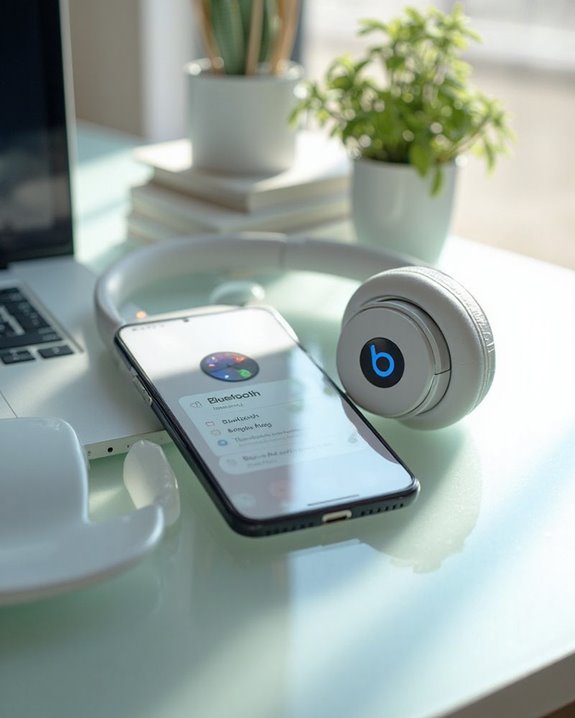
When Beats Studio Wireless headphones refuse to connect properly, users face a range of typical issues that can be systematically addressed. Most pairing failures occur when the device remains connected to another source or when the battery requires troubleshooting due to insufficient charge levels.
To resolve these issues, users should first verify no RemoteTalk cable is connected and that the battery has adequate power. If problems persist, performing a factory reset by holding the power button for 10 seconds will clear previous connection data, often fixing one-sided audio issues and connection failures.
After reset, the headphones automatically power on ready for pairing. Regular firmware updates guarantee compatibility with newer devices and resolve known pairing bugs. When initiating pairing mode, watch for pulsing white LEDs—red lights typically indicate errors requiring attention before successful connection.
Recommended Products

The battery is manufactured and tested under strict quality control standards before sent out

COMPATIBILITY: Fit perfectly on Microsoft Xbox Series Wireless Headset(Xbox X|S, Xbox One,)
Frequently Asked Questions
Can I Pair Beats Studio Wireless With Non-Bluetooth Devices?
While ironically named “wireless,” Beats Studio Wireless can’t directly connect to non-Bluetooth devices wirelessly. Users must utilize wired compatibility through 3.5mm audio cables or explore adapter solutions like Bluetooth transmitters for wireless functionality.
How Many Devices Can Remain Paired With Beats Simultaneously?
Beats Studio Wireless can store pairing information for multiple devices (typically up to 8), but has limitations regarding simultaneous connections. The headphones can only actively connect to one device at a time for audio playback.
Will Pairing Affect Sound Quality or Battery Life?
Pairing itself does not cause audio distortion in modern Beats headphones. The process consumes minimal power, though maintaining an active Bluetooth connection will contribute to gradual battery drain during normal headphone operation.
Can I Use Beats While They’re Charging?
Yes, Beats Studio Wireless headphones can be used while charging. With 80% of users reporting uninterrupted audio during charging sessions, this feature offers convenience while maintaining charging safety. Regular battery monitoring is still recommended for best performance.
How Do I Switch Between Previously Paired Devices?
Users can switch between previously paired devices using Fast Switching or Manual Switch methods. For iOS, manage connections in Bluetooth settings. Android requires disconnecting current devices. On computers, right-click the device name to disconnect before reconnecting elsewhere.