As an Amazon Associate, we earn from qualifying purchases. Some links on this site are affiliate links at no extra cost to you. Our recommendations are based on thorough research and editorial judgment.

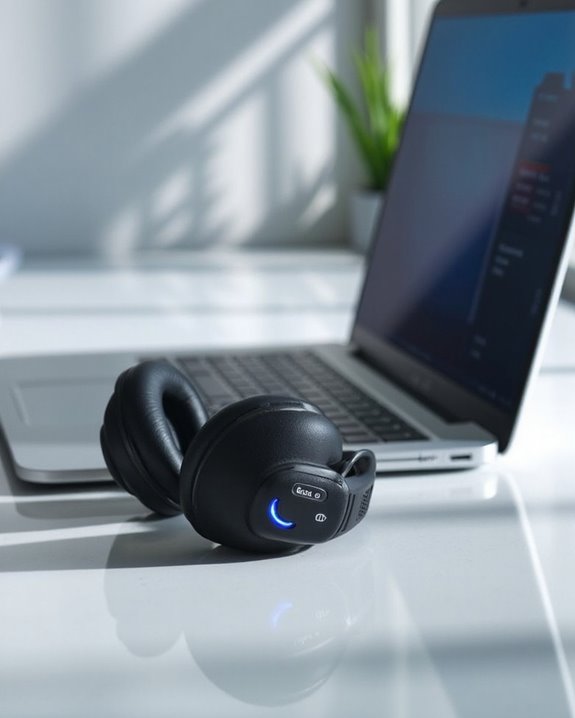
How to Connect Bluetooth Headphones to Your PC

Connecting Bluetooth headphones to a PC requires five key steps. First, verify both devices are charged and Bluetooth is enabled in PC settings. Next, activate pairing mode on the headphones by holding the power button until indicator lights flash. Navigate to Bluetooth settings in Windows (Settings → Bluetooth & devices), then select “Add device” and choose your headphones from the list. Complete the pairing process by following on-screen prompts. The following instructions reveal optimization techniques for superior audio performance.
Key Takeaways
- Ensure your PC’s Bluetooth is enabled through Settings and your headphones are in pairing mode with sufficient battery.
- Access Bluetooth settings via Start → Settings → Bluetooth & devices in Windows 11 or Devices → Bluetooth in Windows 10.
- Click “Add Bluetooth or other device,” select the Bluetooth option, and choose your headphones from the available devices list.
- Enter PIN code if prompted (typically 0000 or 1234) and wait for Windows to configure audio routing automatically.
- Keep devices within 10 meters of each other and update Bluetooth drivers to resolve connection issues or audio drops.
Before You Begin: Essential Preparation Steps
You may be interested
10 Best Bluetooth Earpiece
June 23, 2024
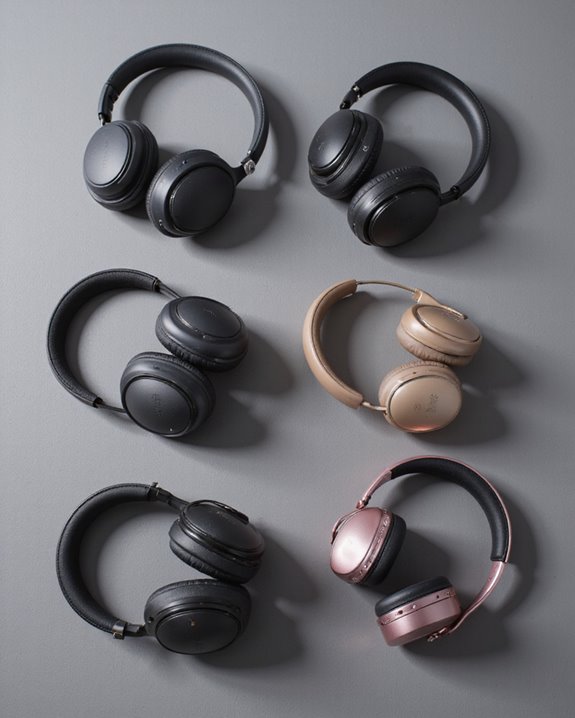
Before attempting to connect Bluetooth headphones to a PC, users should complete several essential preparation steps to guarantee a smooth pairing process. A thorough Compatibility Check should confirm that the PC has both Bluetooth hardware installed and updated drivers. Users must verify that the operating system supports Bluetooth functionality, preferably Windows 10 or later for best performance.
Battery Maintenance is equally critical—headphones should be sufficiently charged before attempting connection. Low battery levels frequently cause pairing failures or unstable connections. Additionally, users should make sure their PC’s Bluetooth is enabled through the Settings app and not blocked by airplane mode or power-saving features.
Environmental factors also impact connectivity; keeping devices within the recommended 10-meter range and minimizing interference from other wireless devices will greatly improve pairing success rates. For optimal audio and connection stability, consider Bluetooth versions 5.0 or higher, which support cross-platform compatibility and extended wireless range.
Recommended Products

Upgraded Bluetooth 5.3 Adapter: This bluetooth adapter for pc uses the latest upgraded Bluetooth 5.3 BR+EDR technology, greatly improves the stability of the connection data transfer speed, reduces the possibility of signal interruption and power consumption.

User-Friendly: Connect your wireless headphones to your PS5 or other gaming consoles with the UGREEN adapter and enjoy high-quality audio with no wires, drivers, or software required. Also Add Bluetooth audio capability (AUDIO devices ONLY, no data) with ease to your Desktop, Computer, iMac

Bluetooth 5.4 + Broad Compatibility - Provides Bluetooth 5.4 plus EDR technology and is backward compatible with Bluetooth V5.3/5.0/4.2/4.0/3.0/2.1/2.0/1.1.
Activating Pairing Mode on Your Bluetooth Headphones
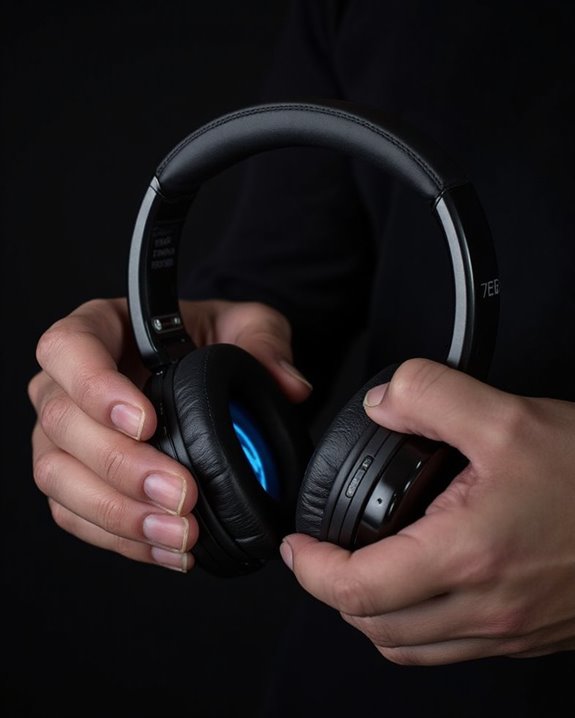
Successfully activating pairing mode represents the essential first step when connecting Bluetooth headphones to a PC. Different headphones employ various Pairing Methods, but most follow standard Activation Techniques.
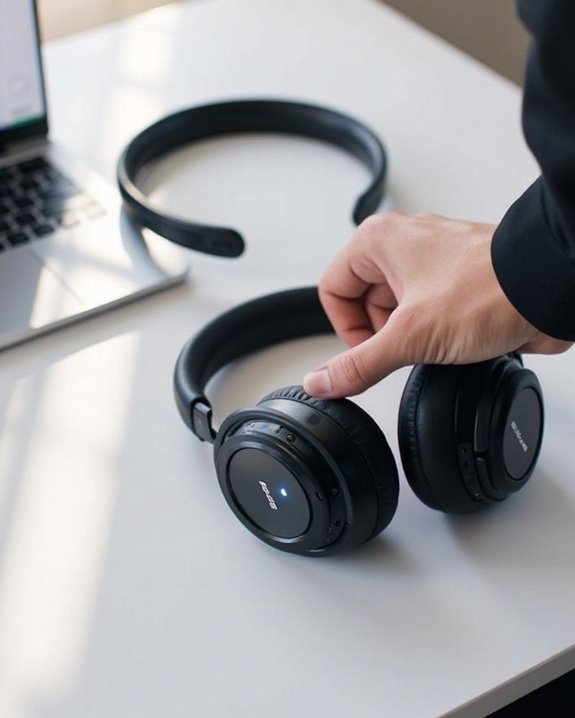
Most headphones enter pairing mode when users press and hold a designated button—typically the power or multi-function button—until indicator lights flash or voice prompts announce “Bluetooth pairing.” Sony headphones automatically enter pairing mode when removed from their charging case, while Jabra devices require holding the Answer/End button until a blue light appears.
For best results, make sure headphones are charged before attempting to pair. If connection issues arise, consult the device’s manual for model-specific instructions, reset the headphones to default settings, or restart both devices to resolve potential interference problems. Additionally, newer models often support Bluetooth 5.3 connectivity, which can enhance pairing stability and device compatibility.
Recommended Products
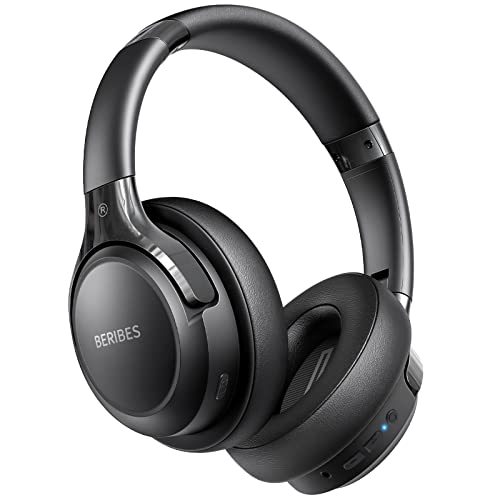
65 Hours Playtime: Low power consumption technology applied, BERIBES bluetooth headphones with built-in 500mAh battery can continually play more than 65 hours, standby more than 950 hours after one fully charge. By included 3.5mm audio cable, the wireless headphones over ear can be easily switched to wired mode when powers off. No power shortage problem anymore.
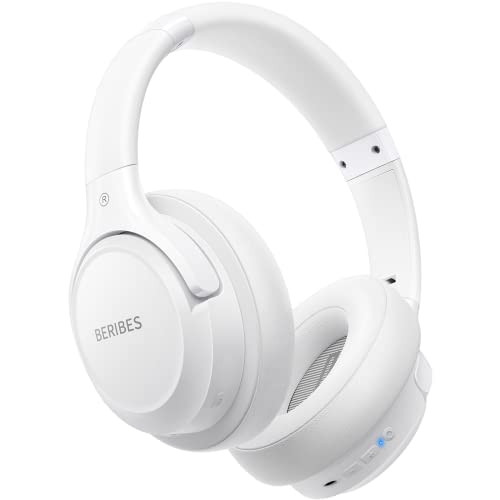
Optional 6 Music Modes: Adopted most advanced dual 40mm dynamic sound unit and 6 EQ modes, BERIBES updated headphones wireless bluetooth black were born for audiophiles. Simply switch the headphone between balanced sound, extra powerful bass and mid treble enhancement modes. No matter you prefer rock, Jazz, Rhythm & Blues or classic music, BERIBES has always been committed to providing our customers with good sound quality as the focal point of our engineering.

【ASTONISHING SOUND PRODUCTION 】: High Definition Stereo Headphones, specially developed software and noise reduction technology designed to prevent you from heating ambient noises and makes you focus on what you want to hear. Lose yourself in immersive music even in the lowest volume levels! The goal that provide Customers with outstanding sound quality is our constant pursuit.
Navigating Windows Bluetooth Settings
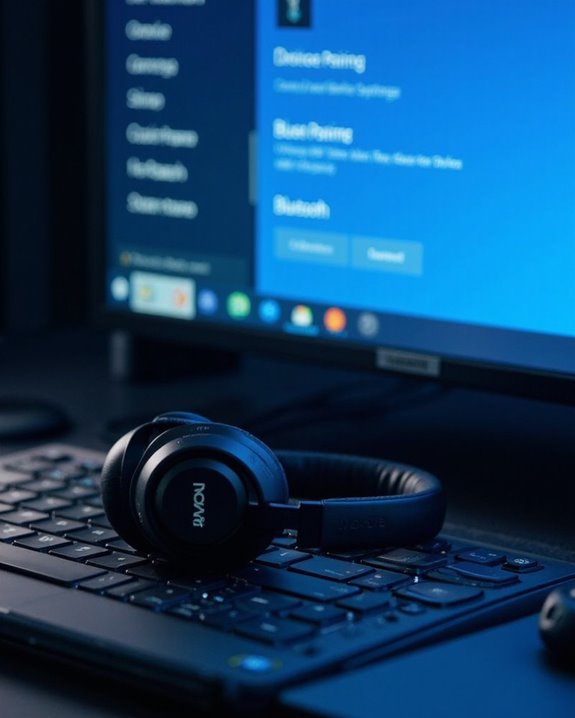
Accessing your PC’s Bluetooth settings marks the essential second step in connecting wireless headphones. In Windows 11, users navigate to Start → Settings → Bluetooth & devices, while Windows 10 users follow Start → Settings → Devices → Bluetooth & other devices.
The Interface Layout differs slightly between Windows versions, but both present a clear toggle switch to activate Bluetooth functionality. When enabled, the toggle appears blue, indicating the system is ready to discover devices. Below this control, Windows displays previously paired devices organized by category.
For efficient Menu Navigation, users can also access Bluetooth quickly through the Action Center in Windows 11 or use Device Manager for advanced troubleshooting. If the Bluetooth toggle appears grayed out, check Device Manager to verify the adapter is properly installed and enabled.
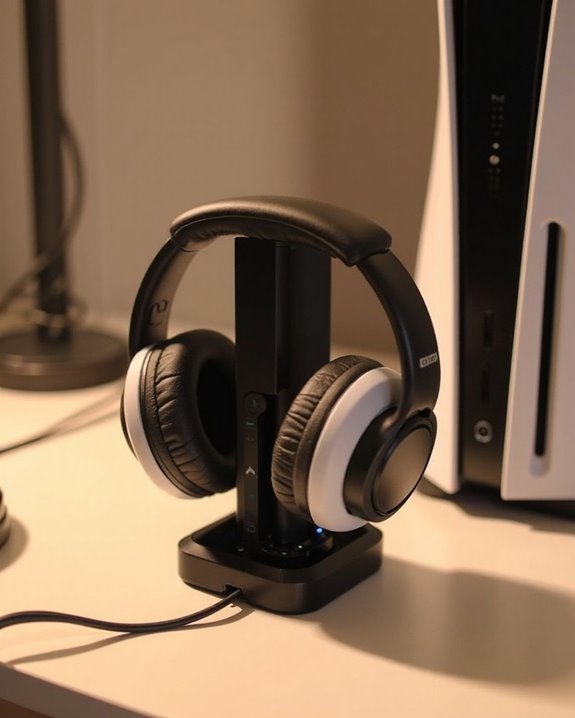
Many modern gaming headsets, like the NUBWO G06, utilize Bluetooth 5.3 for seamless wireless connectivity and low latency when paired with PCs.
Recommended Products

EXCLUSIVE PS5 DESIGN - This wireless gaming headset features a new generation upgraded design aligned with the gaming family, delivering high-end performance for hardcore gamers, eSports athletes and casual gamers.

【Upgraded Wireless Connected to The Official xbx Controller】The Captain 200 for xbx headset wireless offers Dual-Lock Dongle for xbx Wireless connectivity for official xbx controllers (compatible with xbx Series X/S and xbx One). It is also compatible with PC, PS5/4, Mac, and Nintendo Switch (mic not supported on Switch). Enjoy low-latency gameplay (≤20ms) and clear sound with wide compatibility for popular games.

【For PS5 Users Only】 Specifically designed for PS5 to connect Bluetooth headphones (e.g., AirPods, Bose, & more) for audio playback. For optimal voice chat experience, please use the PS5 controller microphone instead of headphone mics.
Completing the Connection Process
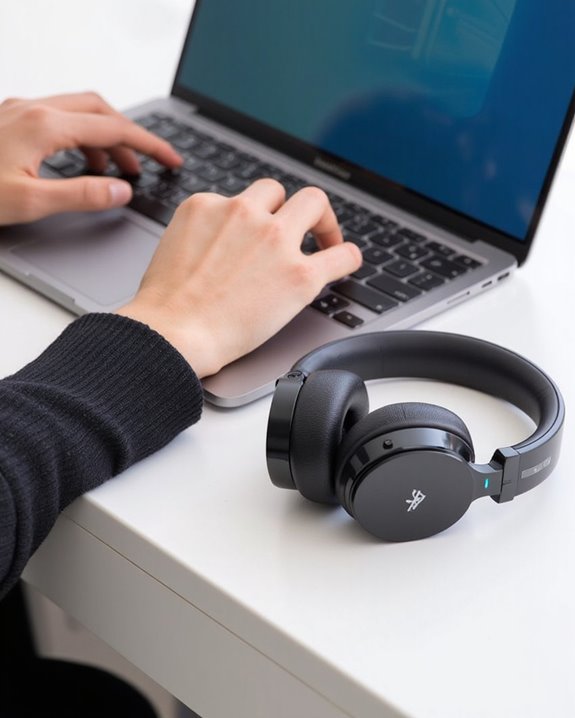
Pairing your Bluetooth headphones with your PC requires completing several critical steps after accessing the Bluetooth settings. Once in the appropriate menu, click “Add Bluetooth or other device” and select “Bluetooth” to initiate device discovery.
When your headphones appear in the available devices list, select them to begin the pairing sequence. The system’s Firmware Integration will establish communication protocols between devices, occasionally requiring a PIN (typically 0000 or 1234). After successful pairing, Windows automatically configures audio routing to your headphones.
For users experiencing difficulties, Connection Alternatives include restarting both devices or temporarily disabling other Bluetooth connections to reduce interference. Keep headphones within ideal range—typically 30 feet—of your PC for stable connectivity. Once paired, the devices should reconnect automatically during future use, streamlining your audio experience.
Troubleshooting Common Connection Problems
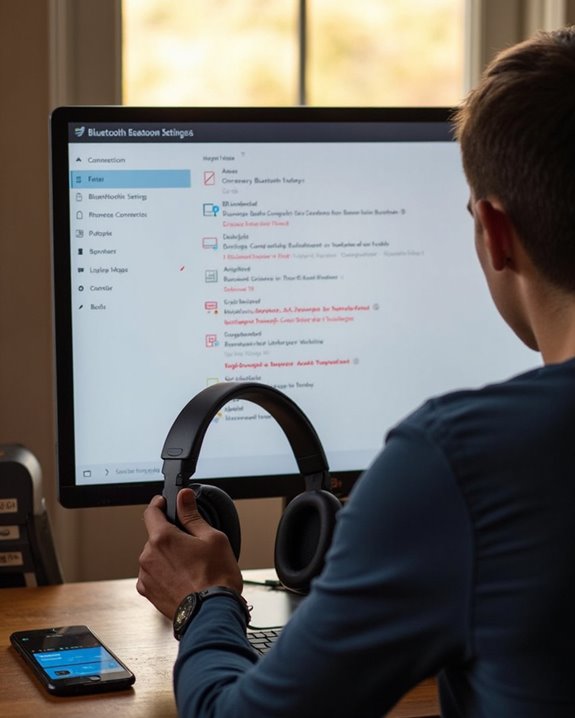
Even with proper pairing procedures, Bluetooth headphone connections to PCs can encounter various obstacles that prevent smooth operation. Users often experience Signal Drops when interference from other wireless devices or physical obstructions disrupt transmission between headphones and computer.
Device Conflicts commonly occur when headphones remain paired to multiple devices simultaneously. To resolve this issue, users should disconnect the headphones from other devices before attempting PC connection. Additionally, outdated Bluetooth drivers frequently cause compatibility issues that prevent proper device recognition.
For persistent problems, users should:
- Update both Bluetooth and audio drivers
- Reset headphones to factory settings
- Check Windows Sound Settings for correct output device selection
- Remove any previously paired instances of the headphones
- Consider using an external Bluetooth adapter if internal hardware is unreliable
Recommended Products

𝐁𝐥𝐮𝐞𝐭𝐨𝐨𝐭𝐡 𝟓.𝟑 𝐒𝐮𝐩𝐩𝐨r𝐭 – Applies the latest Bluetooth 5.3 plus EDR technology and is backward compatible with Bluetooth V4.2/4.0/3.0/2.1/2.0/1.1. UB500 Plus turns non-Bluetooth PC, desktop or laptop into Bluetooth-capable

Long Range Bluetooth Adapter: Techkey USB Bluetooth 6.0 dongle utilizes Class 1 radio technology and features an extended antenna, providing a transmission range of up to 600ft/200m in open areas, ensuring that Bluetooth connections are no longer limited by distance. (Please note that physical obstructions and wireless interference may affect the actual transmission range.)

Bluetooth 5.3 dongle: Applies the latest Bluetooth 5.3+EDR technology, compatible with Bluetooth 5.2/4.2/4.2 LE/4.0/2.1+EDR, and supports Dual mode (BR/EDR+ Bluetooth Low Energy) to achieve low energy consumption and high speed. Quick response and better anti-interference.
Optimizing Your Headphone Settings for Best Performance
Fine-tuning your Bluetooth headphones after establishing a connection can dramatically enhance audio quality and overall listening experience. Users should begin by configuring Windows audio enhancements, disabling artificial processing elements and setting the audio format to 24-bit, 48 kHz for higher fidelity playback.
Sound Equalization plays a vital role in customizing audio output. Adjusting bass, mids, and treble to match headphone characteristics can greatly improve clarity. Many manufacturers offer pre-made EQ profiles specifically designed for their headphone models.
Volume Balancing between system settings and applications guarantees best performance. Setting headphone volume to 100% in system settings while controlling listening levels through individual applications helps preserve dynamic range and reduces distortion. Regular driver updates and software maintenance further enhance Bluetooth headphone performance and compatibility.
Recommended Products

【Enjoy Wireless Streaming Music】This car Bluetooth adapter can be connected to non-Bluetooth car audio systems, home stereos, speakers, wired headphones via the 3.5mm AUX adapter; And equipped with a Bluetooth 5.0 chip for stable connection / fast transmission / wide signal range. Just pair it with your phone and start listening to your favorite music!

Latest Bluetooth 6.0 Technology: With Bluetooth 6.0, connect the device faster and get a more stable signal transmission. Whether watching videos or playing games, the synchronization of audio and video is significantly improved, reducing the trouble caused by delay and improving the entertainment experience. (If pairing fails, please reset the adapter: With the device powered off, press and hold the multifunction button for 10 seconds.)

SHARE IN-FLIGHT AUDIO — Connect two pairs of Bluetooth headphones or earbuds to one airplane entertainment screen, so you and a travel partner can listen together without wires.
Frequently Asked Questions
Can I Connect Multiple Bluetooth Headphones to One PC Simultaneously?
Multiple Bluetooth headphones cannot connect to one PC simultaneously using standard Windows features. Users require specialized Bluetooth Multipoint adapters or virtual audio software to create a Multi Headphone Setup that bypasses native limitations.
How Do I Switch Between Different Paired Bluetooth Headphones?
Seamless switching between paired Bluetooth headphones requires accessing the sound settings. Users can click the volume icon in the taskbar, then select their desired headphone from the headphone selection dropdown menu.
Will Connecting Bluetooth Headphones Affect My Pc’s Gaming Performance?
Bluetooth headphones typically have minimal impact on gaming performance. They may cause slight CPU usage increases during audio processing, but this effect is negligible on modern systems. Battery impact only applies to laptops during extended gaming sessions.
Can I Use Bluetooth Headphones While They’re Charging?
Nearly 70% of Bluetooth headphones cannot be used wirelessly while charging. Most require wired connections during charging for safety reasons. This approach helps preserve battery longevity by preventing simultaneous battery drain and recharge cycles.
How Do I Prevent Audio Lag When Watching Videos?
To reduce video-audio lag, users should prioritize codec optimization in media players and adjust audio buffering settings. Updating Bluetooth drivers, using aptX-compatible devices, and disabling unnecessary audio enhancements can greatly improve synchronization during playback.