As an Amazon Associate, we earn from qualifying purchases. Some links on this site are affiliate links at no extra cost to you. Our recommendations are based on thorough research and editorial judgment.

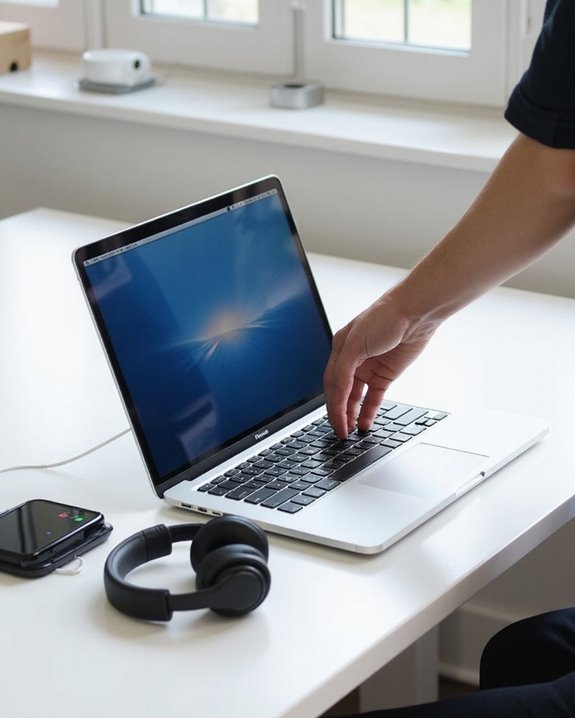
How to Connect Headphones to MacBook: A Step-by-Step Guide

Connecting headphones to a MacBook varies by model and headphone type. For wired options, plug directly into the 3.5mm headphone jack or use a USB-C adapter for newer models. Bluetooth headphones require pairing through System Settings > Bluetooth while in discoverable mode. Once connected, select your headphones as the output device in Sound preferences. Adjust audio quality through Audio MIDI Setup for best sound. The following guide covers each connection method with troubleshooting techniques for common issues.
Key Takeaways
- For 3.5mm wired headphones, simply plug directly into the headphone jack on your MacBook.
- Connect USB-C headphones to newer MacBook models via Thunderbolt 4 ports or use a USB-C adapter for traditional headphones.
- For Bluetooth headphones, put them in pairing mode, then connect through System Settings > Bluetooth on your Mac.
- After connecting, select your headphones as the output device in System Settings > Sound.
- If connection fails, restart both devices, check for physical obstructions, or reset Bluetooth module.
Understanding MacBook Headphone Connectivity Options
You may be interested
10 Best Active Noise Cancelling
July 5, 2024
10 Best Bone Conduction Headphones
May 4, 2024
The modern MacBook lineup offers several distinct methods for connecting headphones, with options varying by model and release year. Apple’s Port History shows a shift from dedicated audio jacks to multi-function ports across their product range, though many models still retain the traditional 3.5mm headphone port.
Trend Analysis indicates MacBook Pro models (14-inch and 16-inch from 2021 onwards) feature Thunderbolt 4 ports supporting audio, video, and data simultaneously. These ports accommodate USB-C headphones and adapters for conventional headphones. Meanwhile, the 3.5mm headphone jack on many MacBooks provides advanced support for high-impedance headphones without requiring external amplification.
For models with USB-C/Thunderbolt ports only, users can connect headphones through adapters or select Bluetooth wireless options, which macOS seamlessly integrates for cable-free listening experiences. Additionally, many USB-C headphones come equipped with built-in DAC chips that ensure high-resolution audio quality when connected directly to compatible MacBooks.
Recommended Products

SUPERIOR COMFORT — Unlike traditional circular ear buds, the design of EarPods is defined by the geometry of the ear. Which makes them more comfortable for more people than any other ear bud–style headphones.

INSTANT PLUG & PLAY USB-C CONNECTIVITY: Forget frustrating Bluetooth pairing and dead batteries. These wired headphones feature a modern USB-C connector for a stable, lag-free audio experience. Simply plug into your MacBook, iPad Pro, Galaxy, Google Pixel, or any USB-C enabled laptop or tablet for immediate sound. [IMPORTANT NOTE]: These headphones use the modern USB-C Digital Audio standard. While compatible with most new devices, some older or entry-level USB-C ports may not support this feature. Please ensure your device is compatible.

5-in-1 Connectivity: Equipped with a 4K HDMI port, a 5 Gbps USB-C data port, two 5 Gbps USB-A ports, and a USB C 100W PD-IN port. Note: The USB C 100W PD-IN port supports only charging and does not support data transfer devices such as headphones or speakers.
Connecting Wired Headphones to Your MacBook
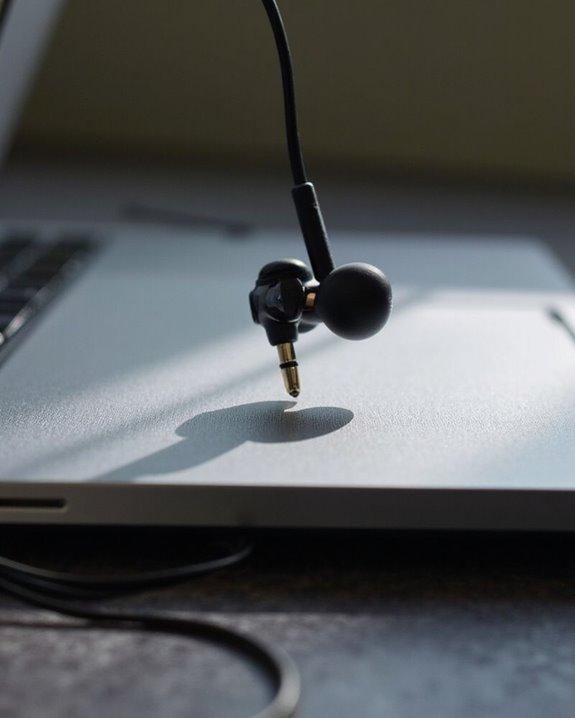
When connecting wired headphones to your MacBook, users need to identify which ports their specific model offers before proceeding with the setup process. Newer MacBook models typically require a USB-C to 3.5mm headphone jack adapter, while older versions and the M4 Mac Mini feature built-in headphone jacks.
For adapter-required models, simply connect the adapter to any available USB-C port, then plug the headphones into the adapter. Next, verify the connection by checking Sound preferences in System Settings to make sure headphones are selected as the output device.
Proper cable management prevents damage to both the adapter and headphone wires during use. Consider dedicated headphone storage solutions to maintain cable integrity when not in use, extending the lifespan of your audio equipment while avoiding tangled wires. USB headsets with plug-and-play USB setup offer a convenient alternative for clear audio without needing additional adapters.
Recommended Products

【Multi-function Dongle】This compact usb c to aux adapter can connect your usb c devices without audio jack to headphones, headset, speakers and other audio devices. Call, volume control, pause via function keys on the headphones are possible. [Note: Microphone functionality and volume adjustment function of Apple EarPods Headphones with 3.5mm Plug are not supported!]

【High-Fidelity Sound Quality】With 48,000 samples per second, listen to every note with this small USB Type-C to 3.5mm Audio Headphone Adapter. Featuring a Smart DAC Chip, this precision captures deep bass, crisp highs, and a balanced midrange, enriching your music experience. [NOTE: The volume adjustment function of Apple EarPods headphones is not supported !!!]

【Universal Compatibility】This headphone audio adapter compatible with most of the type c phones Compatible with iPhone 17/iPhone Pro/ iPhone 16/iPhone 16 Pro/ iPhone 15/ 15 Pro/ 15 Pro Max, Galaxy S21 Ultra/ S21 Plus/ S21 5G 2021, Google Pixel 5, 4, 4 XL, 3, 3 XL, 2, 2 XL, S20 FE 5F 2020, S20 5G, S20 Plus, S20 Ultra, Note 20, Note 20 Ultra, Note 10, Note 10+, Galaxy Tab S5e, Tab S6, Huawei P40 Pro, P30 Pro, P20 Pro, Mate 20 Pro, Mate 30 Pro, Mate 40 Pro, HTC, More.
Setting up Bluetooth Headphones With Your Macbook
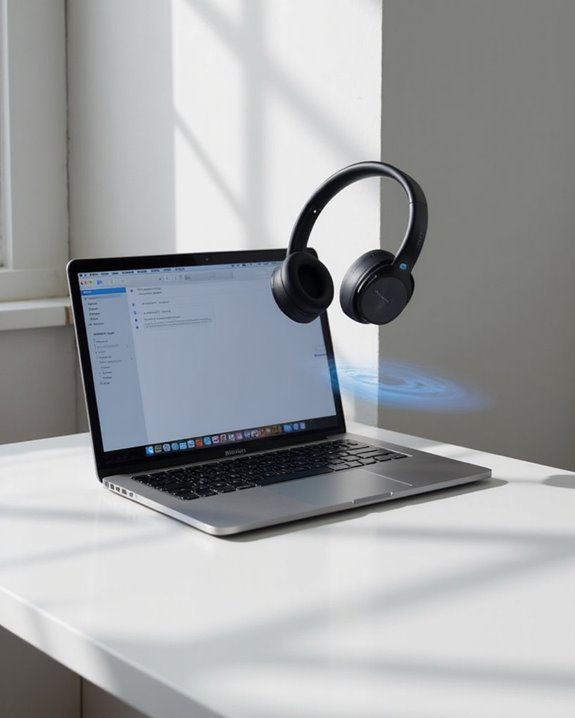
Connecting Bluetooth headphones to a MacBook provides wireless freedom while enjoying audio content without disturbing others nearby. The process requires placing headphones in discoverable mode, typically by holding the power button until an indicator light flashes.
Users should navigate to System Preferences or System Settings and select Bluetooth to begin pairing. Make sure the MacBook’s Bluetooth is activated and the headphones are within the 30-foot connectivity range. Battery monitoring is essential to prevent unexpected disconnections during use.
Regular firmware updates for both the MacBook and headphones help maintain ideal connectivity and resolve potential compatibility issues. If connection problems occur, users should check that the headphones aren’t paired with another device and restart the MacBook if necessary. For disconnection, select the device in Bluetooth settings and click “Forget” to prevent automatic reconnection.
Many advanced headphones now use Bluetooth 5.0 connectivity for improved range and stability during use.
Recommended Products

LONG BATTERY LIFE: With up to 50-hour battery life and quick charging, you’ll have enough power for multi-day road trips and long festival weekends.(USB Type-C Cable included)
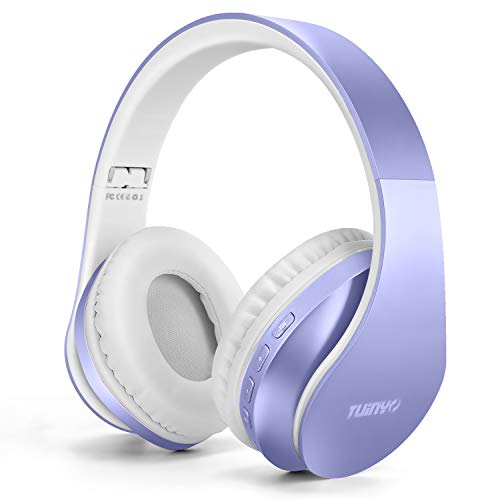
Amazing Sound Quality : Providing customers with outstanding sound quality and satisfaction is our paramount goal. High definition stereo headphones together with advanced software and noise reduction technology are designed to reduce ambient noises. It is ideal for phone calls, music, and entertainment. Lose yourself in immersive music even in the lowest volume levels! <br>

🔄 【Dual-Mode Compatibility】One gaming headset with mic, endless gaming possibilities. Press mic 2s to toggle modes. 2.4GHz mode for PS5, PS4, PC, Phone, Laptop, Switch & Mac, and Bluetooth mode for PC, Mac, Switch, Mobile, Laptops & Tablets. ❗ Note: Use 2.4GHz USB + Type-C together for PS5/PS4/PC/Laptop/Mac; cannot be used alone. ❌Both modes are NOT compatible with Xbox. ❌The Mic is NOT compatible with Switch via Bluetooth mode. ❌Bluetooth mode is NOT compatible with PS5/PS4.
Configuring Audio Settings for Optimal Sound Quality
Once Bluetooth headphones are successfully connected to a MacBook, proper audio configuration becomes the next step toward an exceptional listening experience. Users should navigate to System Settings > Sound > Output to select their headphones as the primary output device and adjust volume levels accordingly.
For Audio Optimization, setting appropriate sample rates (44.1kHz or 48kHz) and bit depth (24-bit) in Audio MIDI Setup helps achieve balanced performance without system strain. Headphone Accommodations can amplify soft sounds and customize frequency responses to personal preferences.
Effective Resource Management includes disabling system animations through Accessibility settings and removing unnecessary startup items. Users should regularly update audio drivers and firmware for ideal compatibility. For professional audio work, adjusting buffer sizes (64-128 samples for recording, higher for mixing) minimizes latency while maintaining system stability.
Troubleshooting Common Headphone Connection Issues
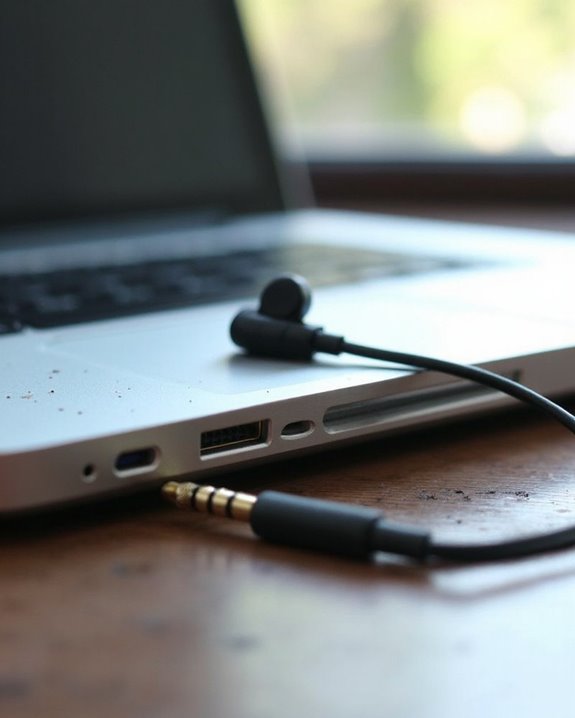
Despite their seamless design, MacBook headphone connections occasionally encounter frustrating issues that disrupt the audio experience. Users facing connection problems should first try a Device Restart for both the MacBook and headphones, which resolves many unexpected glitches.
For Bluetooth headphones not appearing in the connection menu, make sure they’re fully charged and in discoverable mode. Signal Interference from nearby electronic devices can cause audio dropouts or distortion, so relocating potential interference sources may improve performance.
Physical connections should be thoroughly inspected—make sure headphone jacks are fully inserted and ports are free of debris. For persistent Bluetooth issues, resetting the module via Terminal can be effective by running the command `sudo pkill bluetoothd` followed by a system restart.
If problems continue after these steps, check for software updates or contact technical support.
Recommended Products

Bluetooth 5.4 + Broad Compatibility - Provides Bluetooth 5.4 plus EDR technology and is backward compatible with Bluetooth V5.3/5.0/4.2/4.0/3.0/2.1/2.0/1.1.

Upgraded Bluetooth 5.3 Adapter: This bluetooth adapter for pc uses the latest upgraded Bluetooth 5.3 BR+EDR technology, greatly improves the stability of the connection data transfer speed, reduces the possibility of signal interruption and power consumption.

User-Friendly: Connect your wireless headphones to your PS5 or other gaming consoles with the UGREEN adapter and enjoy high-quality audio with no wires, drivers, or software required. Also Add Bluetooth audio capability (AUDIO devices ONLY, no data) with ease to your Desktop, Computer, iMac
Using Multiple Headphones With Your Macbook Simultaneously
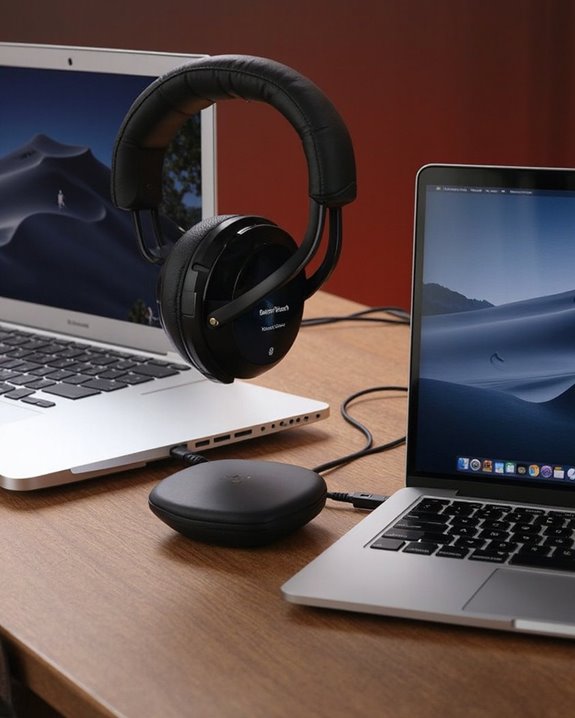
While resolving connection issues guarantees one headphone works properly, MacBook users often need to share audio with friends or colleagues. MacBooks support connecting multiple Bluetooth headphones simultaneously without requiring third-party applications, making Social Sharing seamless in quiet environments.
For Work Collaboration scenarios requiring audio monitoring, users can create a Multi-Output Device through Audio MIDI Setup. This native macOS tool combines audio streams to both wired and wireless headphones with synchronized playback. To set this up:
- Pair all Bluetooth headphones individually in System Settings
- Open Audio MIDI Setup from Applications > Utilities
- Create a Multi-Output Device by selecting the + button
- Check boxes next to all desired output devices
Remember that while volume must be controlled separately for each device, drift correction settings help maintain synchronized audio across different headphone types.
Recommended Products
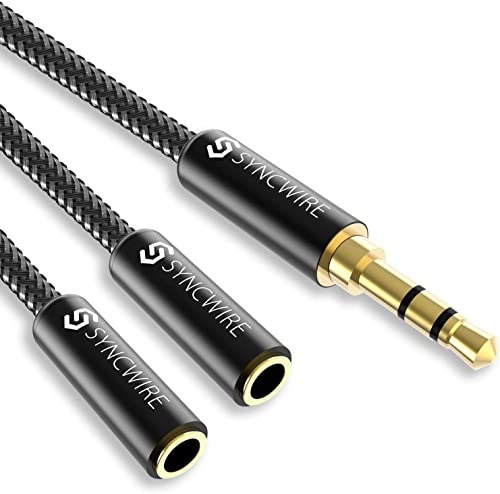
Perfect connection: This standard 3. 5mm jack headphone splitter extension cable can transfer audio from your iPhone, iPod, iPad, Samsung, MP3 players, CD players, Laptops, tablets, PlayStation, WII to 2 output devices including headphones, speakers and more. Compact and lightweight design is ideal for your road trips and plane rides.
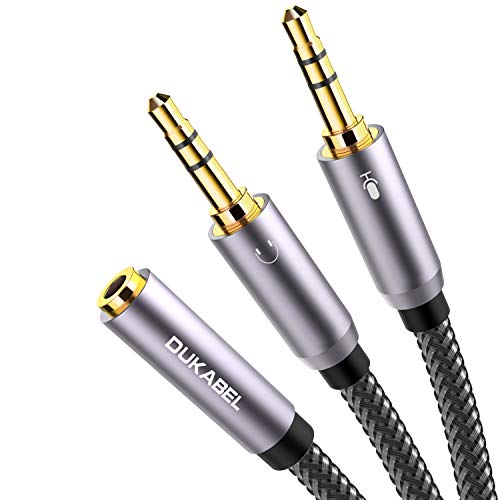
For wide-ranging use: The DuKabel 4-Position 3.5mm to dual 3.5mm Headset Splitter Adapter features one 3.5mm Female and two 3.5mm Male connectors, enabling you to connect a 4-position headset with Audio and Microphone input to your PC or Laptop. Perfect solution for online gaming or use with VOIP applications- Skype, MSN Messenger, Yahoo, Google Voice etc. (NOT for IOS Earphones or BEATS headset)

♪【3 IN 1 Dual Headphone Adapter】This iPad headphone adapter with double 3.5mm headphone Jack and Type-C charging port, supporting multiple ports running at the same time. Ideal for sharing music or playing videos with your friends and family using 2 sets of earplugs while traveling. For iPhone 15, iPad, Android phones, and tablets, etc. This USB C headphone splitter also supports in-line controls such as answering calls, volume control, pause and play functions, very convenient to use.
Frequently Asked Questions
Can I Connect My Macbook to a Home Theater System via Headphone Jack?
While 40% of users attempt it, a MacBook’s headphone jack isn’t ideal for theater connection without a proper jack adapter. The output is designed for headphones rather than the line-level input home theaters require.
Do Airpods Automatically Switch Between My Iphone and Macbook?
Yes, AirPods feature Automatic Switching between Apple devices signed into the same Apple ID. This Handoff Compatibility allows seamless switches between iPhone and MacBook when running iOS 14 and macOS Big Sur or later.
Will Using Wired Headphones Drain My Macbook Battery Faster?
Minimal drain, negligible impact, virtually unnoticeable difference. Wired headphones draw minimal power from MacBooks, causing substantially less Battery Drain compared to wireless options. Their Power Impact is considerably lower than screen brightness or processor-intensive tasks.
Can I Use My Macbook as a Headphone Amplifier?
Modern MacBooks do offer decent headphone amplification capabilities. They can drive high-impedance headphones (150-1000 ohms) with up to 3V RMS output, making audio boosting possible without external equipment for many headphone models.
How Do Noise-Cancelling Headphones Affect Macbook Microphone Performance During Calls?
Noise-cancelling headphones can sometimes cause audio interference during MacBook calls. The technology may amplify microphone input in certain applications, resulting in call distortion. Using alternative microphone settings can mitigate these issues.