As an Amazon Associate, we earn from qualifying purchases. Some links on this site are affiliate links at no extra cost to you. Our recommendations are based on thorough research and editorial judgment.


How to Pair Sony Headphones: A Step-by-Step Guide

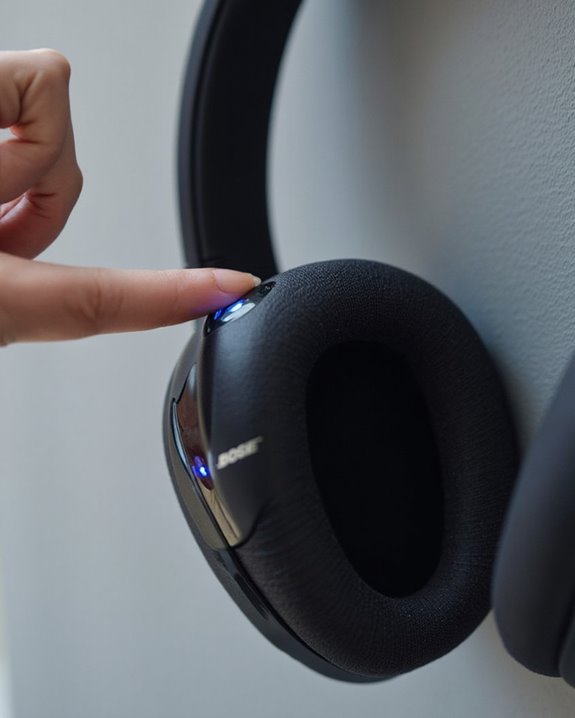
Pairing Sony headphones requires powering them on and activating pairing mode, typically by holding the power button until LED indicators flash. Enable Bluetooth on your device, open settings, and select the headphones from available devices. Most Sony models automatically enter pairing mode when first used or can connect via NFC on compatible devices. Successful connections are confirmed through voice prompts or steady indicator lights. The detailed process varies slightly between smartphone platforms and computer operating systems.
Key Takeaways
- Turn on your Sony headphones and activate pairing mode by holding the power button until indicators flash blue.
- Open Bluetooth settings on your device, enable Bluetooth, and select your Sony headphones from the available devices list.
- For earbuds like WF-1000XM4, simply remove them from the charging case to automatically enter pairing mode.
- Download the Sony | Headphones Connect app for enhanced features, firmware updates, and easier device management.
- Verify successful connection through audio cues (“Bluetooth connected”) or by testing audio playback on your device.
Understanding Your Sony Headphones’ Pairing Mode
You may be interested
Do TVs Still Have Headphone Jacks in 2026?
August 15, 2025

How Do Bone Conduction Headphones Work?
June 17, 2025
Before connecting Sony headphones to any device, users must first activate the headphones’ pairing mode. This critical first step initiates the Bluetooth discovery process that allows devices to recognize and connect to the headphones.
Sony headphones typically enter pairing mode in one of two ways: automatically upon first use or through manual activation. Many models provide audio cues such as beeps or voice prompts to confirm when pairing mode is active. Users should pay attention to these signals as well as flashing LED indicators, usually blue in color.
The pairing mode duration is limited, typically remaining active for 3-5 minutes before timing out to conserve battery. If the mode expires before connection is established, users will need to reinitiate the process by holding the designated button again.
Sony headphones also support Bluetooth 5.2 connectivity, which enhances multipoint pairing and ensures a stable connection during use.
Preparing Your Device for Bluetooth Connection
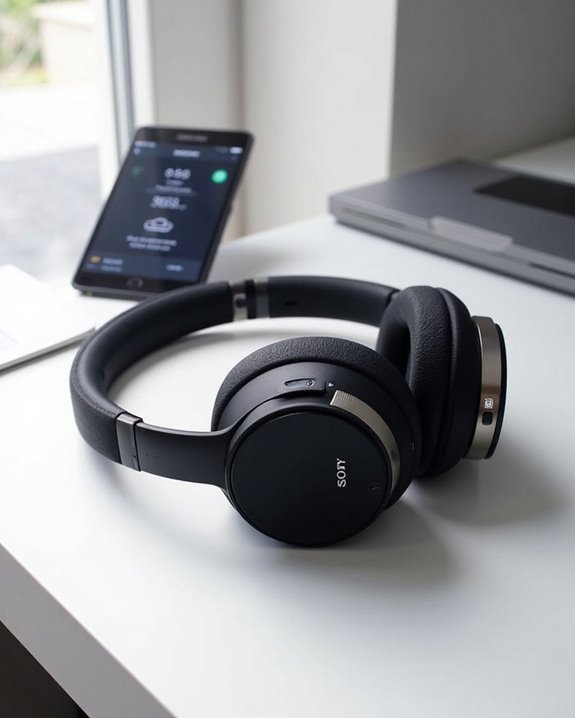
Successful Bluetooth pairing requires proper device preparation before attempting to connect Sony headphones. Users should first verify their device supports Bluetooth and is compatible with Sony’s headphones. Enabling Bluetooth functionality and installing the latest Software Updates guarantees ideal connection stability and feature access.
Before pairing, perform a Battery Check on both the headphones and source device to prevent interruptions during the setup process. Verify the headphones aren’t currently connected to another device, as this can interfere with new connection attempts.
Some Sony models support pairing with up to eight devices simultaneously, though connecting to a ninth device will overwrite the oldest pairing. For multipoint connectivity, verify your specific model supports this feature, as not all Sony headphones can maintain active connections to multiple devices simultaneously. For improved connection stability and range, consider devices with Bluetooth 5.0-5.3 connectivity, which offers enhanced performance and wider compatibility.
Recommended Products

[Up to 60 Hours of Playtime] With up to 60 Hours of listening time for our headphone wireless bluetooth in bluetooth mode, triple as much as other bluetooth headphones, you'll always have music to inspire you. Come with a 3.5mm audio cable, regardless of whether you want to use a wireless headset or headphones wired, Tuitager over-ear headphones can satisfy you

【40MM DRIVER & 3 MUSIC MODES】Picun B8 bluetooth headphones are designed for audiophiles, equipped with dual 40mm dynamic sound units and 3 EQ modes, providing you with stereo high-definition sound quality while balancing bass and mid to high pitch enhancement in more detail. Simply press the EQ button twice to cycle between Pop/Bass boost/Rock modes and enjoy your music time!
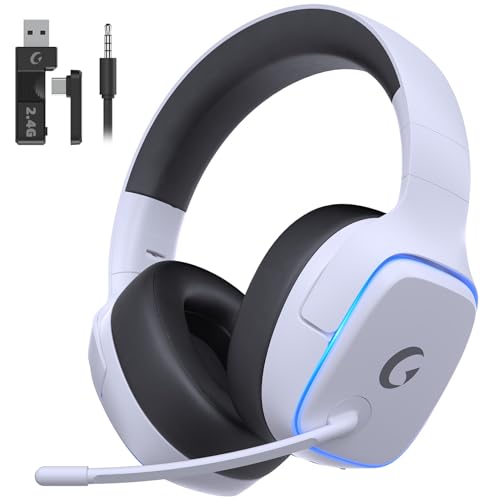
EXCLUSIVE PS5 DESIGN - This wireless gaming headset features a new generation upgraded design aligned with the gaming family, delivering high-end performance for hardcore gamers, eSports athletes and casual gamers.
Pairing With Android Smartphones and Tablets
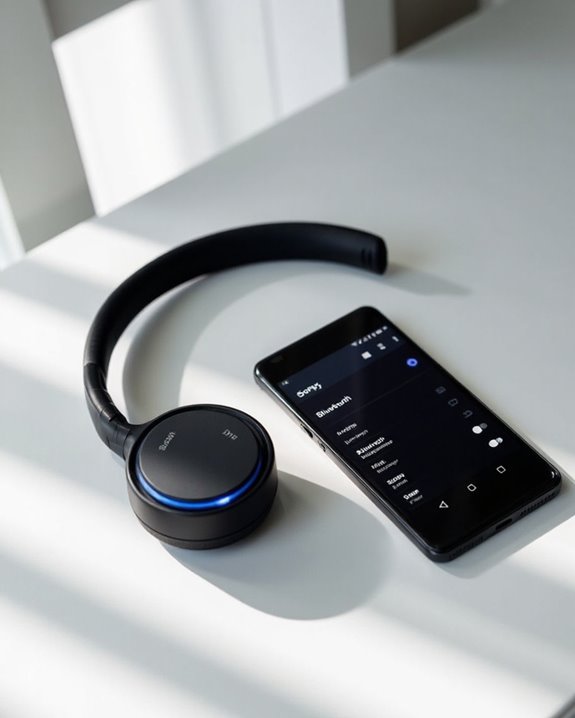
Connecting Sony headphones to Android devices follows a straightforward process that guarantees best wireless performance. Users should first verify their headset is sufficiently charged and within one meter of their Android device to maintain ideal signal strength.
To begin pairing, remove the earbuds from their charging case, which automatically powers them on. For models like WF-1000XM4, the headset typically enters pairing mode automatically when new. Navigate to Settings on the Android device, select “Device connection,” and enable Bluetooth.
Various Android Apps can enhance the Sony headphone experience after connection is established. Battery Tips: monitor power levels through the Sony Headphones Connect app to prevent interruptions during use. Once successfully paired, the headphones will announce “Bluetooth connected” and automatically reconnect during future use.
For optimal use with Android devices, consider headphones that support multipoint connectivity for seamless switching between multiple gadgets.
Connecting to Iphones and Ios Devices
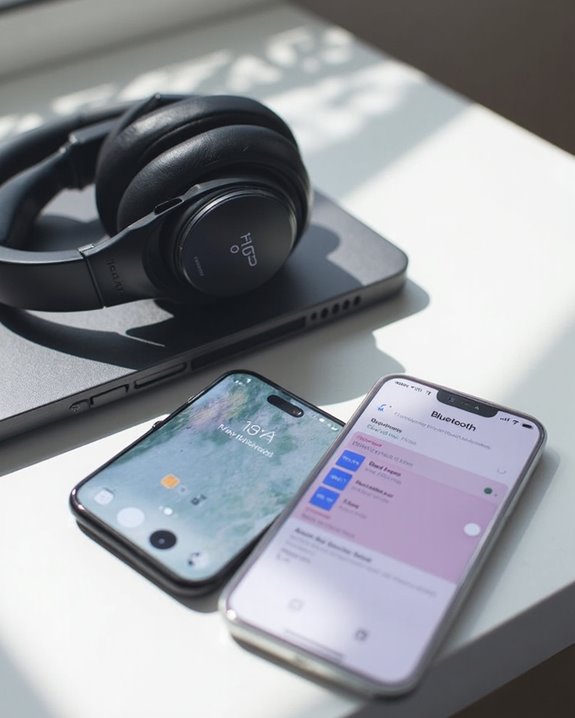
Apple’s iOS devices offer a seamless connection process with Sony headphones, though it differs slightly from the Android pairing method. iPhone and iPad users need to follow specific steps that align with Apple’s Bluetooth implementation to establish a reliable wireless connection.
To begin pairing, power off the Sony headphones first, then press and hold the power button until the indicator lights begin blinking. Next, open the Settings app on the iOS device and make sure Bluetooth is enabled. The iOS Security features may require additional confirmation steps during first-time connections.
Select the Sony headphones from the discovered devices list. Unlike Android’s quick-pair, iOS doesn’t support AirDrop Pairing with non-Apple headphones. After connection, test audio quality and explore additional features through the Sony Headphones app.
Setting up With Windows and Mac Computers
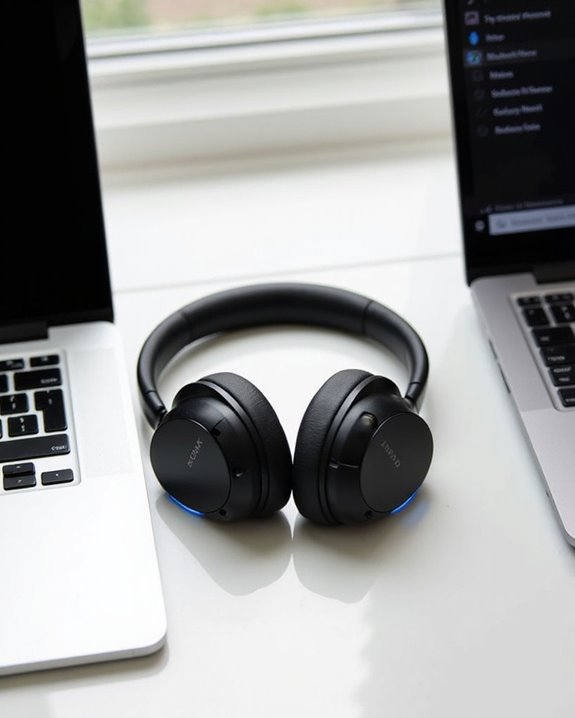
Pairing Sony headphones with a computer unlocks their full potential for both work and leisure activities. Windows Compatibility guarantees seamless integration across multiple devices, while Mac Integration provides equivalent functionality for Apple users.
For Windows setups, enable Bluetooth through Settings, activate pairing mode on the headphones, and select them from the available devices list. Configure sound settings to direct audio output properly.
Mac users should access Bluetooth through System Preferences or System Settings, place the headphones in pairing mode, and select them from the device list. For both platforms, testing functionality after pairing is essential.
Regular driver updates maintain peak performance across operating systems. Each platform offers straightforward connectivity, allowing users to enjoy Sony’s audio quality regardless of their preferred computing environment.
Troubleshooting Failed Pairing Attempts
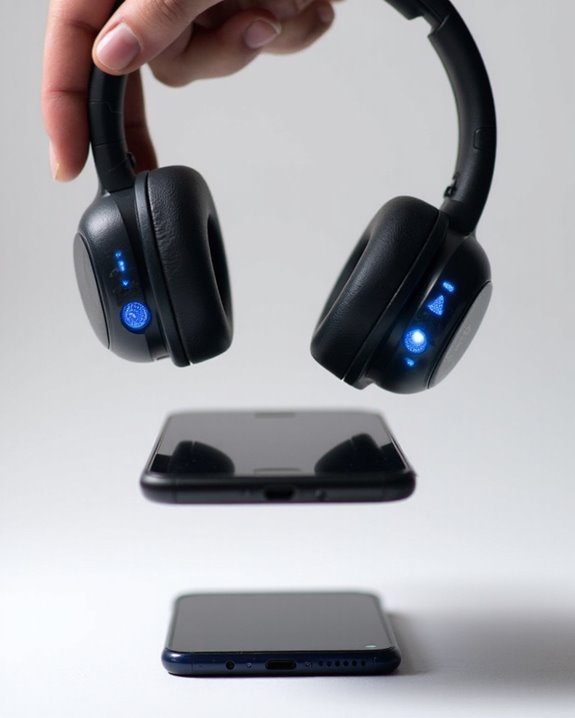
When Sony headphones refuse to connect properly, users often face frustration that can be resolved through systematic troubleshooting. Common issues include visibility problems, interference from other devices, and insufficient battery power. Checking Error Codes displayed on connected devices can provide valuable insights into specific connection failures.
For persistent problems, users should verify headphones are in pairing mode and visible in Bluetooth settings. Diagnostic Tools built into Sony’s companion app can identify connectivity issues through thorough connection testing. If problems continue, resetting the headphones by holding the power button for approximately 7 seconds often resolves stubborn pairing issues.
Distance limitations and physical obstructions can also interrupt connections. When multiple device pairing fails, disconnecting from previously paired devices before attempting new connections typically resolves these conflicts.
Recommended Products

Enjoy Wireless Audio on PS5 or PC: The UGREEN PS5 Bluetooth adapter is plug and play-no drivers required. Easily connect wireless headphones to PS5 or gaming consoles to enjoy high-quality game audio. This Bluetooth 6.0 adapter also allows PCs and iMac computers to add Bluetooth audio easily, providing a great listening experience. (Note: Supports Bluetooth audio devices only. Not compatible with mice, keyboards or other data devices.)

SHARE IN-FLIGHT AUDIO — Connect two pairs of Bluetooth headphones or earbuds to one airplane entertainment screen, so you and a travel partner can listen together without wires.

【Enjoy Wireless Streaming Music】This car Bluetooth adapter can be connected to non-Bluetooth car audio systems, home stereos, speakers, wired headphones via the 3.5mm AUX adapter; And equipped with a Bluetooth 5.0 chip for stable connection / fast transmission / wide signal range. Just pair it with your phone and start listening to your favorite music!
Using NFC for Quick Connection
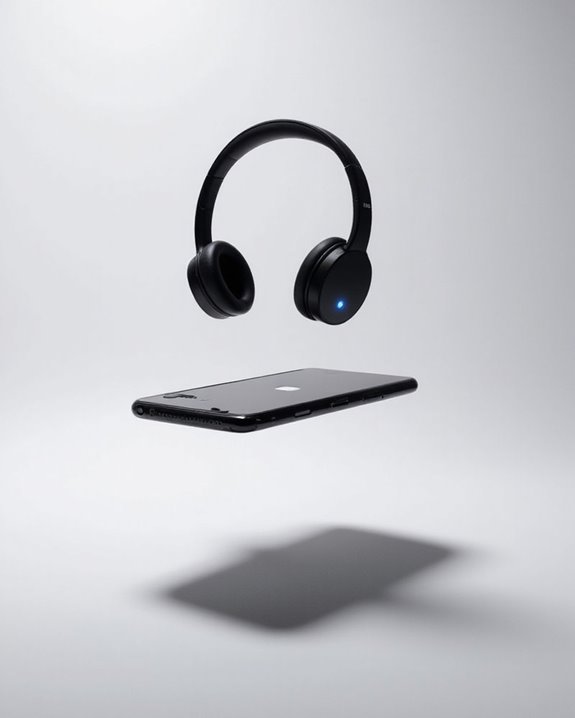
Near Field Communication (NFC) technology transforms the Sony headphones pairing process into a remarkably simple tap-and-connect experience. This method requires an NFC-compatible mobile device (typically Android 4.1+) and Sony headphones with built-in NFC capability, such as the WH-1000XM3 series.
To initiate pairing, users must:
- Enable both Bluetooth and NFC on their mobile device
- Power on the headphones in pairing mode
- Touch the device’s NFC logo directly to the headphones’ NFC contact point
NFC Security features guarantee connections occur only with deliberate physical proximity, preventing unauthorized access. When devices detect each other, the screen displays a confirmation prompt, automatically launching Bluetooth pairing protocols.
NFC Innovations like One-Touch Connection Switching allow users to quickly toggle between different paired devices without traversing complex menu settings—simply tap the new device against the headphones.
Recommended Products

【ASTONISHING SOUND PRODUCTION 】: High Definition Stereo Headphones, specially developed software and noise reduction technology designed to prevent you from heating ambient noises and makes you focus on what you want to hear. Lose yourself in immersive music even in the lowest volume levels! The goal that provide Customers with outstanding sound quality is our constant pursuit.

Hybrid Active Noise Cancelling: 2 internal and 2 external mics work in tandem to detect external noise and effectively reduce up to 90% of it, no matter in trains or offices.
Amazing Sound Quality : Providing customers with outstanding sound quality and satisfaction is our paramount goal. High definition stereo headphones together with advanced software and noise reduction technology are designed to reduce ambient noises. It is ideal for phone calls, music, and entertainment. Lose yourself in immersive music even in the lowest volume levels! <br>
Pairing Multiple Devices With Your Sony Headphones
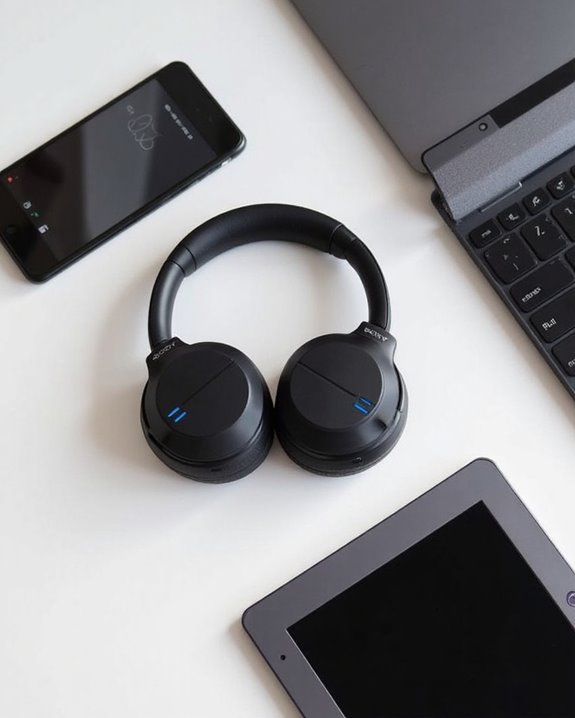
The versatility of Sony headphones extends beyond single-device connections, with many models supporting registration of up to eight different Bluetooth devices simultaneously. However, users should be aware of Multipoint Challenges, as most Sony headphones require manual switching between paired devices when changing audio sources.
Recent Firmware Enhancements have improved this experience greatly. Models like the WH-1000XM5 now offer true multipoint connections, allowing simultaneous connection to two devices, while the WF-1000XM4 earbuds can access this feature after installing the latest firmware update.
To pair multiple devices:
- Connect to each device individually through the standard Bluetooth pairing process
- Use the Sony | Headphones Connect app to manage device registrations
- Switch between connections manually when needed
- Check for firmware updates that may enable additional connectivity features
Recommended Products

Cutting-edge Noise Cancelling - Bluetooth headset with microphone adopts powerful ENC noise cancellation technology that eliminates 95% of harmful interfering noises, which means that the far-end caller won't notice even if you're calling in the noise-filled airport. Hence well loved by truckers and businessmen.

Advanced Noise Cancellation Technology: Maintain your focus with Life Q30’s hybrid active noise cancellation. Dual noise-detecting microphones pick up and filter out up to 95% of low-frequency ambient sound to ensure nothing distracts you from your music.
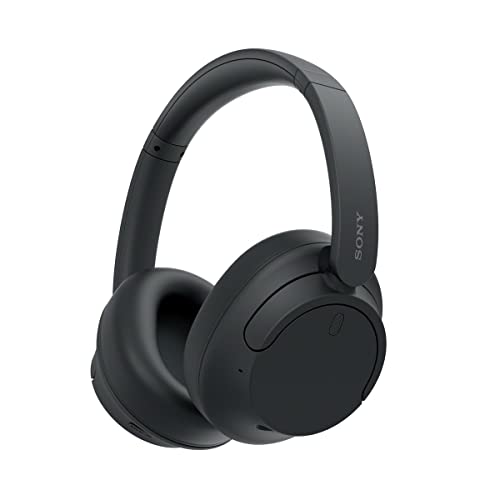
SONY’S LIGHTEST WIRELESS NOISE CANCELING HEADBAND EVER: Weighing just 192g, our lightest overhead wireless headphones with Noise Canceling yet, for incredible comfort without compromising on technology.
Maintaining Optimal Bluetooth Connectivity
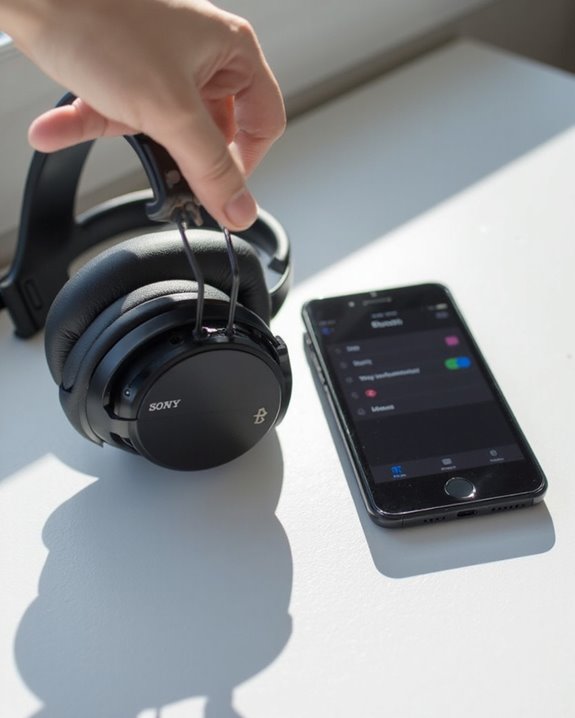
Maintaining a reliable wireless connection between Sony headphones and paired devices requires attention to several key environmental and technical factors. Proper Battery Maintenance guarantees stable connections, so users should keep both headphones and source devices adequately charged before pairing sessions.
For ideal Signal Enhancement, position devices within 1 meter of each other during initial pairing. Users should minimize interference by keeping headphones away from other wireless devices, metal objects, and solid barriers like walls. The “Sound Connect” app offers valuable troubleshooting features when connectivity issues arise.
Regular firmware updates improve compatibility and resolve common connection problems. When experiencing persistent disconnections, resetting the headphones according to the user manual specifications often resolves these issues. For model-specific optimization, the “Sony | Headphones Connect” app provides customized performance settings.
Recommended Products

Compatible with AfterShokz Aeropex, AfterShokz OpenRun, AfterShokz OpenComm, AfterShokz OpenRun Pro, AfterShokz OpenRun mini. Compatible with Shokz charging cable.

【ASTONISHING SOUND PRODUCTION 】: High Definition Stereo Headphones, specially developed software and noise reduction technology designed to prevent you from heating ambient noises and makes you focus on what you want to hear. Lose yourself in immersive music even in the lowest volume levels! The goal that provide Customers with outstanding sound quality is our constant pursuit.

Dual Charging, Zero Downtime: It is designed for the PS5 ecosystem, which can charge your PS5 controller & gaming headset at the same time, fully charging devices in just 6 hours. Featuring charging contacts/interfaces fully compatible with official PS5 accessories, this charging dock eliminates cable clutter and reduces outlet congestion – all designed to maintain a clean, battle-ready setup. The dock does not support charging XBOX series controllers.
Frequently Asked Questions
Can I Pair My Sony Headphones With Smart TVS Other Than Android TV?
Smart TV Pairing with Sony headphones extends beyond Android TV. Non-Android Options are available for any Smart TV that supports A2DP Bluetooth profile, though some models might require an external Bluetooth transmitter for compatibility.
How Do I Switch Between Paired Devices Without Re-Pairing?
For Fast Switching between paired devices, users can utilize Sony’s Device Multiplexing features through the Headphones Connect app, NFC technology, or by managing connections via Bluetooth settings without requiring re-pairing procedures.
Will Sony Headphones Work With Gaming Consoles Like Playstation or Xbox?
Nearly 70% of gamers prefer wireless headsets. Sony headphones are compatible with PlayStation and Xbox consoles, with specific models offering optimized wireless gaming performance. Users should check console latency specifications before purchasing for competitive gaming.
Can I Pair Sony Headphones While They’re Connected to the Charging Cable?
Sony headphones can be paired while connected to a charging cable. Cable pairing is possible as Bluetooth functionality operates independently of charging status. Charging impact is minimal, though users must make sure the headphones remain powered on.
Do Sony Headphones Support Simultaneous Connection to Multiple Audio Sources?
Imagine switching seamlessly between a conference call and podcast. Many Sony headphones support Simultaneous Pairing with two devices for Multi Source Streaming, requiring the Sony Headphones Connect app to enable this multipoint connection feature.