As an Amazon Associate, we earn from qualifying purchases. Some links on this site are affiliate links at no extra cost to you. Our recommendations are based on thorough research and editorial judgment.

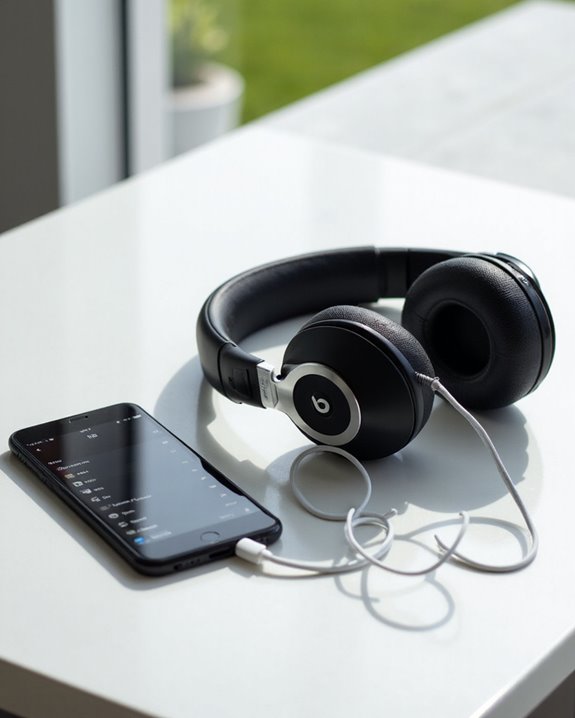
How to Rename Your Beats Headphones: A Step-by-Step Guide

Renaming Beats headphones enhances personalization and simplifies device management across platforms. For iOS devices, navigate to Settings > Bluetooth, tap the information icon beside your connected Beats, select the current name, and enter a new one. Mac users can right-click the device in System Preferences > Bluetooth and choose Rename. Windows users must access the Bluetooth devices menu in Settings to rename their headphones. The following guide details compatibility specifics and advanced renaming techniques for various Beats models.
Key Takeaways
- Rename Beats on iOS by going to Settings > Bluetooth, tapping the info icon, then editing the current name.
- Windows users can rename Beats by accessing Bluetooth settings, right-clicking the device, and selecting the rename option.
- On Mac, open System Preferences > Bluetooth, right-click your Beats device, and choose Rename to update the name.
- High-end Beats models with H1 chips automatically sync name changes across connected Apple devices.
- Renaming your Beats headphones personalizes your experience and simplifies identification in multi-device environments.
Why Renaming Your Beats Headphones Matters
You may be interested
Can You Track Beats Headphones If They Are Lost?
July 1, 2025
Do TVs Still Have Headphone Jacks in 2026?
August 15, 2025
When users invest in premium audio equipment like Beats headphones, they often overlook the significance of personalizing device names. This simple customization enhances User Identity by transforming a generic device into a personal accessory that reflects individual style and preferences.
Renaming offers practical benefits beyond aesthetics. In environments with multiple Bluetooth devices, custom names simplify identification and connection processes, reducing time spent browsing settings menus.
There are important Privacy Benefits as well. Generic device names like “Beats Studio3” publicly broadcast the model you own. A personalized name provides a modest security layer by obscuring the specific make and model from potential unauthorized users in crowded settings.
Additionally, custom naming facilitates better device management for users with multiple audio products or family members sharing similar devices.
Moreover, leveraging features like Bluetooth 5.3 with long-range connectivity ensures your personalized device name remains easily discoverable even in busy environments.
Recommended Products
【Bringing More Attention】 Conspicuous Blue Tag Catch More Eyesight When You Wear It On Exhibition, Trade Show, Party, Nightclub, Hotel, Ideal for Leave Message, Prompt and Advertisement. Multi-language Support Included English and 15 languages.

【Bringing More Attention】 Conspicuous white Tag Catch More Eyesight When You Wear It On Exhibition, Trade Show, Party, Nightclub, Hotel, Ideal for Leave Message, Prompt and Advertisement. Multi-language Support Included English and 15 languages.
Smart Wireless Id tag, bluetooth connected, free APP programmable, support IOS and Android(Above IOS 8.0 or Android 4.3), App support many languages, such as English, German, French, Spanish, Japanese, Korean, Russian, Portuguese and so on. Please do not directly use the Bluetooth connection of the mobile phone, direct connection may cause an error message. Please run APP and connect Bluetooth from APP
Renaming Beats Headphones on Apple Ios Devices
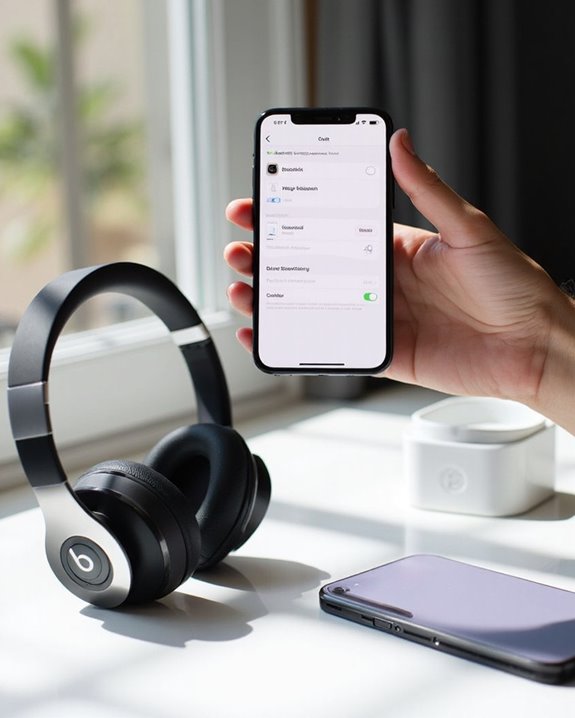
Customizing your Beats headphones’ identity on iOS devices requires just a few straightforward steps through the Settings app. Users should first verify their headphones are properly connected via Bluetooth and have the latest firmware updates installed for best functionality.
To rename the device, navigate to Settings > Bluetooth and tap the information icon (ℹ️) beside the connected Beats headphones. On the details screen, tap the current name to activate keyboard entry mode, where users can delete the existing name and input their preferred alternative. After typing the new name, tap “Done” to save changes.
If direct renaming isn’t available through iOS settings, alternatives include using the official Beats app or connecting to a Mac. Troubleshooting may involve restarting devices or updating iOS to verify full Bluetooth management capabilities. For an optimal audio experience, consider using Lightning headphones which offer high-fidelity 24-bit audio and stable connectivity with iOS devices.
Recommended Products

【TRUE PLUG & PLAY - ZERO SETUP】 Forget about frustrating Bluetooth pairing or annoying pop-up windows. These premium iPhone headphones wired feature a direct Lightning connection with a built-in smart chip. Simply plug wired headphones for iPhone into your phone and hit play. It is instant, uninterrupted audio right out of the box with absolutely no battery anxiety.
![[Apple MFi Certified] Wired Headphones for iPhone 14 13 12 11 Pro Max](https://m.media-amazon.com/images/I/31uuG9j5n+L._SL500_.jpg)
【Wired Headphones for iPhone 14 13 12】 Compatibility for iPhone devices, including compatible with iPhone 14/14 Plus/14 Pro/14 Pro Max/13/13 Mini/13 Pro/13 Pro Max/12/12 Mini/12 Pro/12 Pro Max/11/11 Pro/11 Pro Max/SE/XS/XS Max/X/XR/8/8 Plus/7/7 Plus/6/6 Plus/6s/6s Plus/5 and more lightning devices. Designed specifically for iPhone iPad series, with built-in decoding chip, perfectly support with all iOS systems.

Apple MFi Certification Headphones - Officially MFi certified Apple lightning headphones wired earbuds for iPhone, plug & play, perfectly compatible with iPhone 14/ 14 Plus, iPhone 14 Pro/ 14 Pro Max,iPhone 13/ 13 Mini/ 13 Pro/ 13 Pro Max, iPhone 12/ 12 Mini/ 12 Pro/ 12 Pro Max, iPhone 11/ 11 Pro/ 11 Pro Max, iPhone X/ XS/ XS Max/ XR, iPhone 8/ 8 Plus /iPhone 7 / 7 Plus/iPhone 6 /6S Plus/iPhone 5 s/c iPad and more devices has lightning port that without 3.5mm jack.
Renaming on Mac Computers: Step-by-Step Process
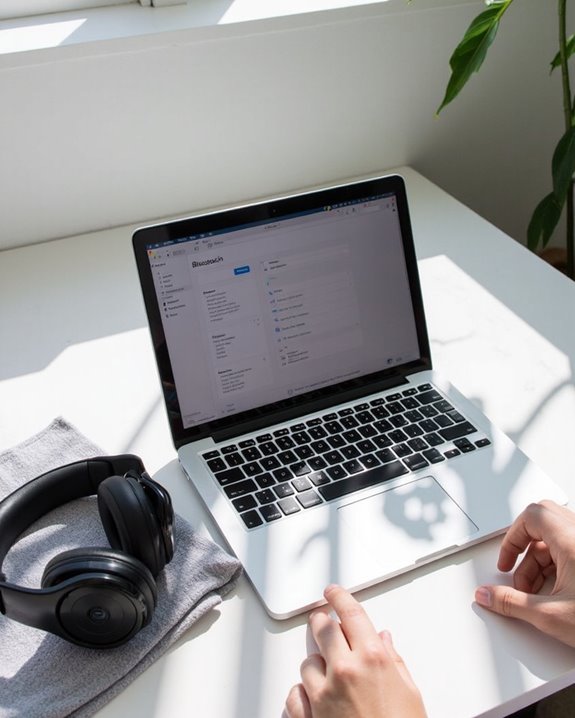
The process of renaming Beats headphones on Mac computers differs slightly from iOS devices but remains straightforward. Users need to access Bluetooth settings through System Preferences, where all paired devices are displayed.
To rename Beats headphones:
- Open System Preferences and select Bluetooth
- Make sure headphones are connected and visible in the device list
- Right-click on the Beats device
- Select “Rename” from the context menu
- Enter the desired name and confirm
Users may encounter Bluetooth bugs during this process. If renaming fails, try disconnecting the headphones first, then rename while they’re disconnected. Connection stability issues can sometimes prevent successful renaming; in such cases, turning the headphones off completely before attempting the rename process often resolves the problem.
Recommended Products

NOTE: If headset is too tight we suggest placing them over a ball or something of similar size/shape. Leave undisturbed for at least 24 hours. Repeat if necessary. Please also try length adjustments of either earpiece until both sides best fit you.
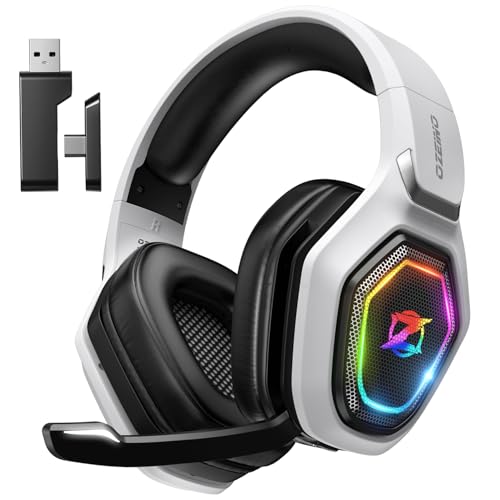
【Amazing Stable Connection-Quick Access to Games】Real-time gaming audio with our 2.4GHz USB & Type-C ultra-low latency wireless connection. With less than 30ms delay, you can enjoy smoother operation and stay ahead of the competition, so you can enjoy an immersive lag-free wireless gaming experience.

【ASTONISHING SOUND PRODUCTION 】: High Definition Stereo Headphones, specially developed software and noise reduction technology designed to prevent you from heating ambient noises and makes you focus on what you want to hear. Lose yourself in immersive music even in the lowest volume levels! The goal that provide Customers with outstanding sound quality is our constant pursuit.
Using the Beats App for PC Users
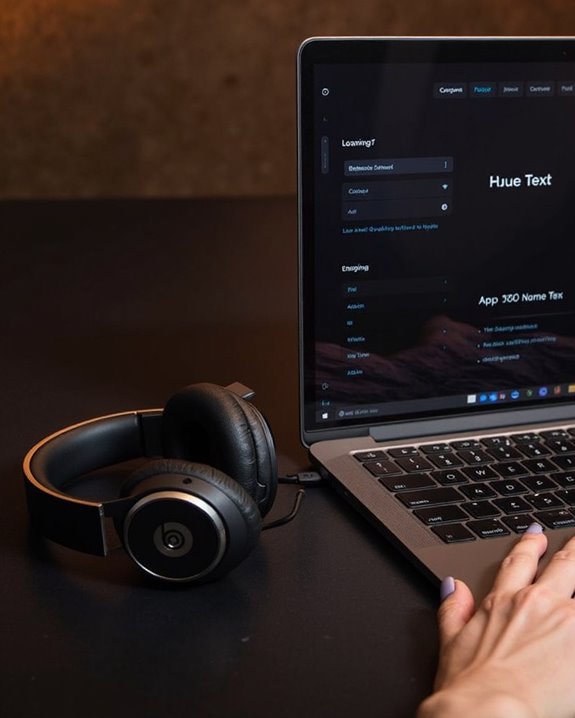
Windows PC users face a significant limitation when attempting to rename their Beats headphones, as Apple has not developed a native Beats application for the Windows operating system. This creates notable PC limitations when personalizing Beats devices compared to other platforms.
Despite the absence of official software, users can employ alternative app workarounds. The most straightforward method involves renaming the headphones through Windows Bluetooth settings:
- Make sure the Beats headphones are paired with the PC
- Access the Bluetooth devices menu in Settings
- Right-click on the Beats device
- Select the rename option and enter the preferred name
Be aware that names changed via PC may not automatically sync to other devices, potentially requiring manual updates across platforms.
Recommended Products

Bluetooth 5.4 + Broad Compatibility - Provides Bluetooth 5.4 plus EDR technology and is backward compatible with Bluetooth V5.3/5.0/4.2/4.0/3.0/2.1/2.0/1.1.

Upgraded Bluetooth 5.3 Adapter: This bluetooth adapter for pc uses the latest upgraded Bluetooth 5.3 BR+EDR technology, greatly improves the stability of the connection data transfer speed, reduces the possibility of signal interruption and power consumption.

𝐁𝐥𝐮𝐞𝐭𝐨𝐨𝐭𝐡 𝟓.𝟑 𝐒𝐮𝐩𝐩𝐨r𝐭 – Applies the latest Bluetooth 5.3 plus EDR technology and is backward compatible with Bluetooth V4.2/4.0/3.0/2.1/2.0/1.1. UB500 Plus turns non-Bluetooth PC, desktop or laptop into Bluetooth-capable
Compatible Beats Models and Cross-Platform Name Syncing
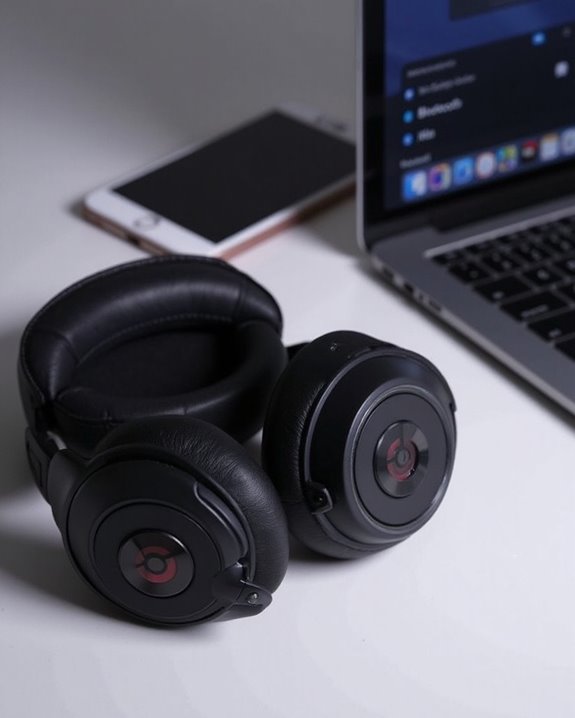
Not all Beats headphones offer the same renaming capabilities, with compatibility varying greatly across different models. Model compatibility plays a vital role in determining how easily users can customize device names across platforms.
High-end models like Beats Studio Pro and Beats Fit Pro feature the H1 chip, enabling seamless name syncing across Apple devices. Meanwhile, the Beats Studio Buds+ and Solo Buds offer standard Bluetooth renaming options, accessible through device settings.
Android users face more syncing challenges than iOS users, with limited functionality in the Beats companion app. While iOS devices automatically propagate name changes across all Apple products, Android requires manual renaming through Bluetooth settings on each device.
For cross-platform users, renamed devices typically retain their custom identifiers when switching between operating systems, though occasional reconnection may be necessary.
When considering alternatives, many Android users prefer wireless earbuds with multipoint connectivity that allow seamless device switching without losing custom device names.
Recommended Products

ALL DAY COMFORT: Light and compact to give you all-day comfort and designed for the ideal fit, for an exceptional all-round listening experience.

[Open-Ear Comfort for All-Day Wear] - Designed with a non-intrusive open-ear style, the Truefree DS1 headphones deliver breathable comfort without ear fatigue. Each earbud weighs just 8.9g and features ultra-flexible 0.6mm titanium memory wire hooks and a detachable neckband, comfortable even for glasses wearers.

42+ Hours Total Playtime 9+ Hours Per Earbud, 42+ Total — Charge Once And Cover Nearly A Full Work Week. Anc Mode Still Delivers 34+ Hours. No Fast Charge Listed; Plan Ahead On Longer Trips.
Frequently Asked Questions
Will Renaming My Beats Headphones Affect Their Sound Quality?
Renaming Beats headphones causes no sound degradation whatsoever. The change is purely cosmetic, affecting only device identification during Bluetooth pairing. Any perceived audio differences would be attributed to user perception rather than actual technical changes.
Can I Restore the Original Factory Name if Needed?
Yes, users can restore the original factory name. Performing a Factory Reset will revert all settings, including the device name. This Name Reversion process returns the headphones to their default model-specific identifier without affecting functionality.
Do I Lose Warranty Coverage by Renaming My Beats Headphones?
Renaming Beats headphones does not result in Warranty Voiding. There are no Coverage Risks associated with this cosmetic change. The Apple Limited Warranty remains fully intact, covering manufacturing defects for one year from purchase.
Will Renaming Work With Counterfeit or Replica Beats Headphones?
Studies show 10% of counterfeit electronics have unstable firmware. Renaming counterfeit Beats headphones often fails due to poor replica firmware implementation. Counterfeit compatibility issues prevent proper Bluetooth name customization in most knockoff devices.
How Many Times Can I Rename My Beats Headphones?
There are no rename limits for authentic Beats headphones. Users can change device names as frequently as desired. No frequency rules restrict this functionality, though repairing via Bluetooth may occasionally be necessary for changes to register properly.