As an Amazon Associate, we earn from qualifying purchases. Some links on this site are affiliate links at no extra cost to you. Our recommendations are based on thorough research and editorial judgment.

How to Connect Bluetooth Headphones to PS5 Without an Adapter

The PS5 doesn’t support Bluetooth headphones natively, but several workarounds exist. Users can connect headphones to their smart TV’s Bluetooth, use PS Remote Play on a device that supports Bluetooth audio, or route audio through a smartphone connected to the controller’s 3.5mm jack. Another option involves connecting a USB sound card to the PS5’s USB port. Each method introduces varying levels of latency, with TV connections typically offering the most straightforward setup for casual gaming.
Key Takeaways
- Connect Bluetooth headphones to your TV and route PS5 audio through the television for wireless listening without extra hardware.
- Use Remote Play app on a compatible device, then pair your Bluetooth headphones with that device to stream PS5 audio.
- Connect your PS5 to a smartphone using a controller jack, then use audio routing apps to send sound to Bluetooth headphones.
- Leverage smart TVs, laptops, or the PlayStation mobile app as intermediary devices to bridge PS5 audio to Bluetooth headphones.
- Enable TV as audio output in PS5 settings, then pair headphones with your television for a direct wireless connection.
Understanding PS5’s Bluetooth Limitations
You may be interested

Are Bluetooth Headphones Bad for Your Health?
June 3, 2025
Can You Connect Bluetooth Headphones to PS5?
May 26, 2025
The PlayStation 5 presents a significant challenge for users wanting to connect Bluetooth headphones directly to the console. Unlike smartphones and computers, the PS5 deliberately restricts native Bluetooth audio connections due to technical constraints.
This limitation stems from two primary factors: Latency Issues and Bandwidth Conflicts. The PS5’s Bluetooth module already manages the wireless connection to DualSense controllers, leaving insufficient bandwidth for high-quality audio streaming. Additionally, standard Bluetooth audio introduces latency that can disrupt gameplay, creating a noticeable delay between on-screen actions and corresponding sounds.
Sony prioritizes gaming performance over universal connectivity, designing the PS5 to avoid the audio synchronization problems that would impact the gaming experience. This explains why the console only officially supports Bluetooth for specific peripherals rather than general audio devices. Many gamers instead rely on specialized wireless headsets with low latency wireless technology to ensure seamless audio synchronization during play.
The Smart TV Connection Method
While native PS5 Bluetooth connections present challenges, many gamers discover an elegant workaround through their existing home entertainment setup. Modern Smart TV Alternatives eliminate the need for additional adapters by leveraging the television’s built-in Bluetooth capabilities.
The process is straightforward: users access their TV’s Bluetooth settings, activate pairing mode, and connect their wireless headphones directly to the television. When the PS5 outputs audio to the TV, the sound automatically routes through the connected headphones.
This Headphone Integration method offers several advantages:
- No additional adapters required
- Compatible with most Bluetooth headphone brands
- Reduces cable clutter
- Seamlessly switches between gaming and other TV content
Users should note potential latency issues may occur depending on the TV’s Bluetooth version, which could affect timing in competitive gaming scenarios. For the best experience, look for TVs supporting Bluetooth 5.2 or higher, which provide ultra-low latency around 40ms for improved audio-video synchronization.
Recommended Products
![[2026 Upgraded] Mini Projector Support 4K 1080P FHD Auto Keystone 270° Rotatable with WiFi 6 and Bluetooth 5.2 Projector Portable Compatibile with HDMI/TV Stick/Memory Stick/Laptop,Black](https://m.media-amazon.com/images/I/41AXn8PRiRL._SL500_.jpg)
【Dual Control Mode & Built-in Android Smart TV OS】: Mini projector can use wireless-mouse and remote control dual control mode, more convenient, the mouse is included in the package. mini projector is equipped with built-in smart Android TV OS, you can access millions of videos without using an additional TV stick, including content from YouTube,Prime Video and other Apps

【Enter Wireless Age w/ Minimal Cost】Upgrade non-smart/non-Bluetooth TV to pair headphones for enhancing your hearing or get an undisturbed personal space. Connected TV to Bluetooth Home Stereo, no need to replace your old TV, our Bluetooth audio transmitter for TV-RANGER help you upgrade the old one and CUT OFF the budget for a new. NOTE: This is a Bluetooth transmitter only, not a receiver
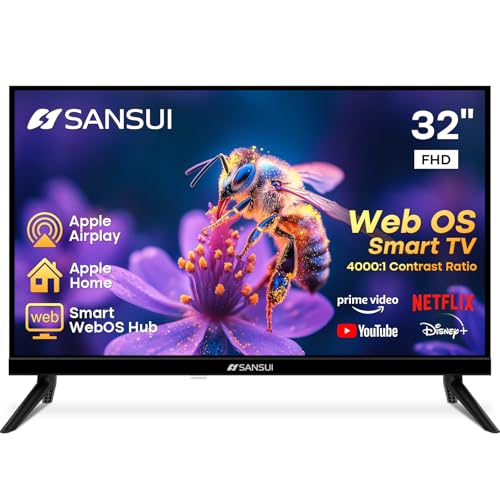
32 inch 1080P FHD VA Panel: FHD (1920*1080 resolution) for Home and Business | Contrast ratio: 4000:1 | Brightness: 180Nits | Dolby Video | 178°View angles
Setting Up PS Remote Play for Bluetooth Audio
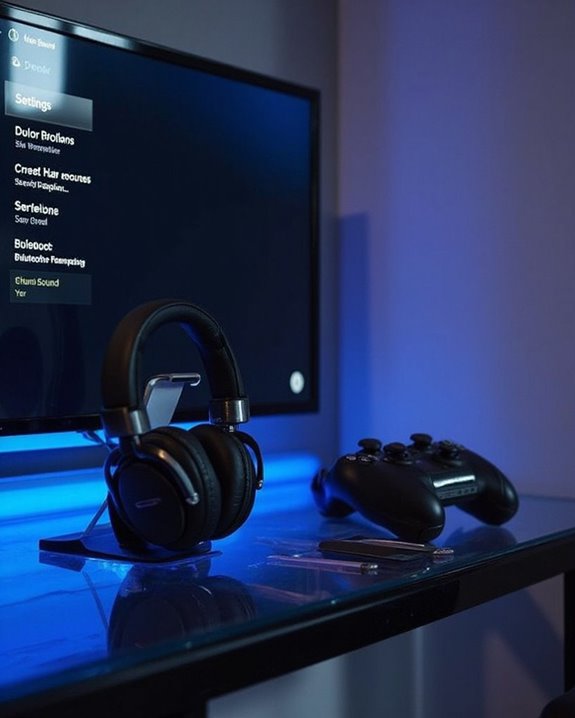
For gamers seeking an alternative Bluetooth audio solution, PS Remote Play offers a versatile workaround that bypasses the PS5’s native Bluetooth limitations. This method requires initial setup on both the console and a secondary device.
First, enable Remote Play in the PS5’s System settings, ensuring the console remains powered on or in Rest Mode with internet connectivity. Next, complete the App Download on a compatible device—Windows PC, Mac, iOS, or Android—from official sources.
Network Stability is essential for this approach, as audio quality depends on consistent connection between devices. After installation, sign in with the same PSN account used on the console.
Finally, pair Bluetooth headphones directly with the Remote Play device rather than the PS5. Access the app’s audio settings to select headphones as the preferred output device before starting gameplay. Many modern PS4 and PS5 headsets use dual connectivity options for seamless switching between devices, enhancing the wireless experience.
Recommended Products

【Universal 3-Mode Connectivity】Engineered for total compatibility, the TA2000 headset seamlessly connects to all your devices. ① Experience lag-free wireless audio on PC, PS5, PS4, and laptops via the 2.4GHz USB receiver. ② Directly connect to Mac, mobile phones, and modern devices using the included Type-C cable. ③ Enjoy wireless freedom with Bluetooth mode for Switch, Mac, and mobile. (Note: Bluetooth is not compatible with PS5/PS4). ④ For Xbox One, Xbox Series X|S, and other classic consoles, simply use the universal 3.5mm wired connection.
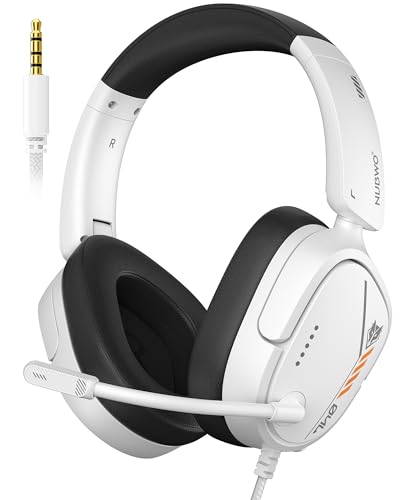
Hi-Fi Stereo Sound: This gaming headset delivers professionally tuned sound—crisp in-game audio to pinpoint enemies, rich detailed music, and immersive movie soundscapes—ideal for gamers to elevate every audio moment.
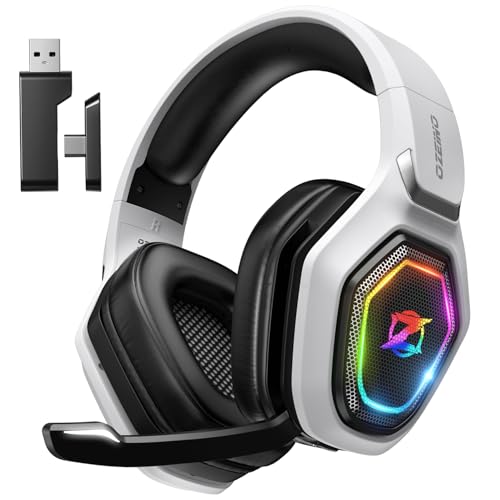
【Amazing Stable Connection-Quick Access to Games】Real-time gaming audio with our 2.4GHz USB & Type-C ultra-low latency wireless connection. With less than 30ms delay, you can enjoy smoother operation and stay ahead of the competition, so you can enjoy an immersive lag-free wireless gaming experience.
Using Your Smartphone as an Audio Bridge
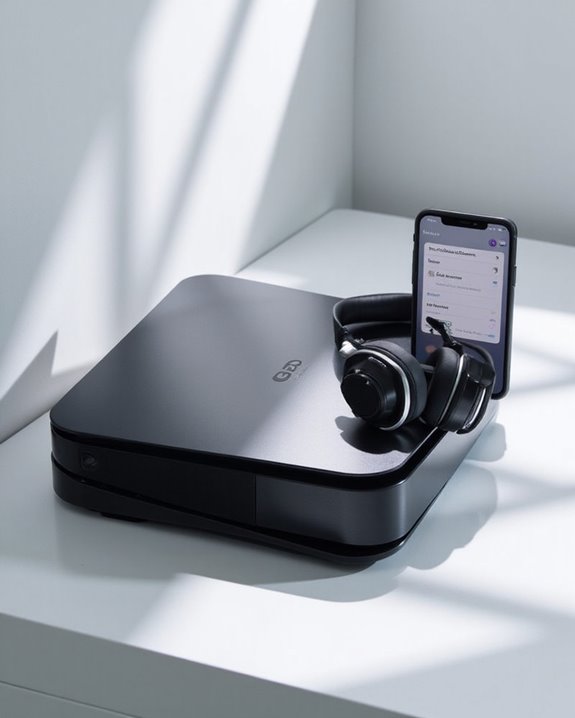
Smartphones offer a versatile alternative for connecting Bluetooth headphones to the PS5 through an intermediary bridging technique. This unofficial method requires audio routing apps that capture console audio and redirect it to paired Bluetooth headphones.
The setup process involves connecting the PS5’s audio output (via controller jack or HDMI extractor) to the smartphone’s input, then using an app to route this audio to Bluetooth headphones. Signal stability varies based on environmental interference and distance between devices.
Users should consider the battery impact on both smartphone and headphones during extended gaming sessions. This solution introduces noticeable audio latency (50-200ms), potentially affecting competitive gameplay and audio synchronization.
While convenient for casual gaming, this workaround sacrifices audio quality through multiple compression stages and may not satisfy audiophiles or competitive gamers.
USB Audio Output Workarounds
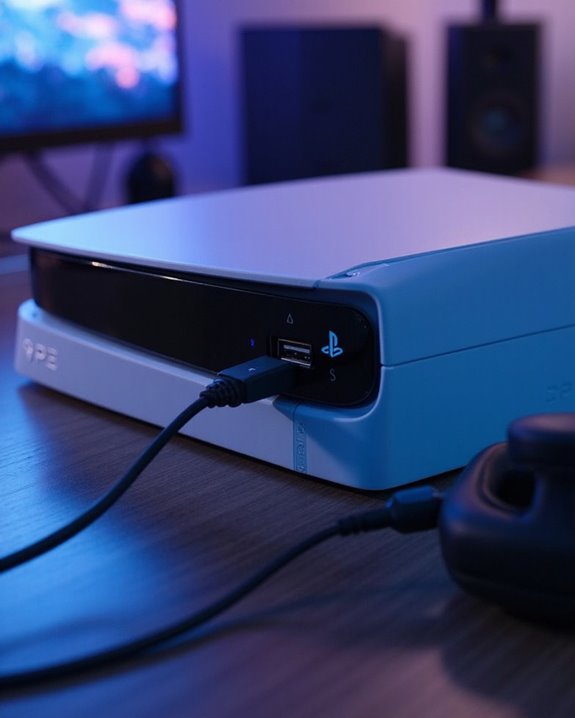
Despite the PS5’s impressive hardware capabilities, its lack of native Bluetooth audio support presents a significant obstacle for gamers seeking wireless audio freedom. This limitation stems from bandwidth constraints and potential latency issues that could affect gameplay experience.
One effective solution involves connecting USB sound cards or external DAC integration systems to the console. These devices can process audio signals and redirect them to Bluetooth transmitters. When implementing this approach, cable quality becomes vital—premium USB cables minimize signal degradation and guarantee consistent audio transmission.
To use this method:
- Connect your USB sound card/DAC to the PS5
- Select the device as your audio output in PS5 settings
- Pair your Bluetooth headphones with the transmitter
While this workaround introduces additional hardware, it provides a reliable alternative for wireless audio enjoyment without specialized adapters.
Recommended Products
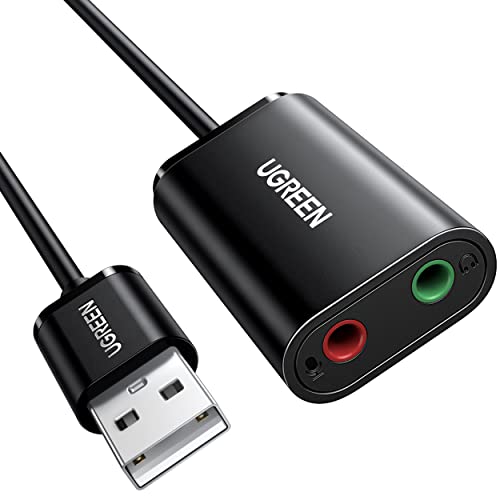
Upgrade the Sound Quality: UGREEN Aux to USB adapter is the perfect solution for upgrading the sound quality of your laptop or desktop computer. With its high-resolution DAC chip, this adapter offers stunning audio quality that will completely transform your listening experience

2 in 1 USB Audio Adapter: UGREEN USB to 3.5mm jack audio adapter supports both listening and talking. In-line control and microphone function allows you to chat while gaming. This USB Aux adapter enables you to connect headphones, headset, speakers with 3.5mm jack to your PC through the USB A port. [*Note: The 3.5mm adapter can support the connection of a single microphone for use. Please note that the 3.5mm male microphone's attribute requirement is TRRS]

【USB external sound card audio adapter】This USB to aux adapter supports listening and speaking,Easily adds a 3.5mm TRRS aux port integrated microphone-in and audio out interface to your devices
Connecting Through a Bluetooth-Enabled Sound System
Modern sound systems offer PS5 users a convenient alternative pathway for connecting Bluetooth headphones to their console. By routing audio through a Bluetooth-enabled soundbar or receiver, gamers can bypass the PS5’s native limitations without additional adapters.
Setup requires connecting the PS5 to the sound system via HDMI ARC, optical, or auxiliary cable, then pairing headphones with the sound system itself. This configuration supports Surround Integration features, allowing players to experience dimensional audio while maintaining wireless freedom.
For enthusiasts with Multiroom Setup configurations, this method proves particularly valuable as audio can be distributed throughout connected spaces. However, users should note potential latency issues and reduced audio quality depending on the Bluetooth codecs supported by their equipment.
The primary drawback remains limited microphone functionality, as most sound systems cannot route voice input back to the PS5.
Recommended Products

【Hi-Fi Sound for Gaming & Entertainment】The computer speaker system features premium dual drivers with dual diaphragms for crystal-clear rich Sound, perfect for PC games,movies,or music.
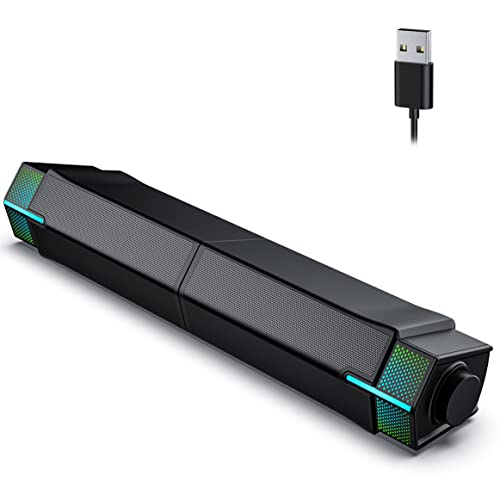
Unique & Custom Design: You can combine or separate Jeecoo M20 PC Speakers via the slideway at the base, to customize your own desk & space.

40W Peak Power with True HiFi Stereo Sound: Engineered with dual full-range drivers and dual passive bass radiators, this computer soundbar delivers 40W peak power for room-filling, distortion-free audio. Enjoy crisp highs, rich mids, and deep, punchy bass that transform your desktop into an immersive entertainment hub for gaming, movies, and music.
Third-Party Software Solutions
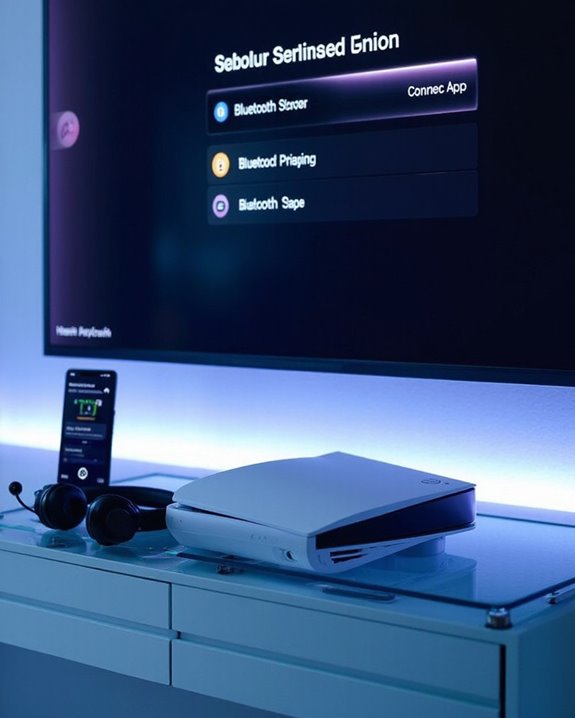
Unlike hardware adapters which provide reliable workarounds, third-party software solutions for connecting Bluetooth headphones to the PS5 remain largely undeveloped territory. Current Software Research indicates significant challenges in overcoming the console’s inherent bandwidth limitations and latency issues that make direct Bluetooth connections problematic for gaming.
The absence of established software alternatives stems from the technical difficulties in bypassing Sony’s closed ecosystem. While Emerging Innovations in Bluetooth technology continue to advance, developers face substantial hurdles in creating software that could effectively bridge compatibility gaps without compromising audio quality or introducing lag.
For the foreseeable future, gamers seeking wireless audio solutions should rely on hardware-based options rather than anticipating software workarounds, as the latter would require fundamental changes to how the PS5 manages audio connections.
Troubleshooting Common Connection Issues
When Bluetooth connectivity problems arise between headphones and the PS5, systematic troubleshooting becomes essential for resolving these frustrating obstacles. Users should first verify both devices have sufficient power, as Battery Troubleshooting often reveals that low charge levels cause unstable connections or pairing failures.
Environmental factors greatly impact wireless performance. Implementing Interference Solutions involves:
- Keeping headphones within ideal range of the console
- Removing physical barriers between devices
- Powering down nearby electronic equipment that may disrupt signals
If problems persist, reset both devices to factory settings and re-pair them completely. Check that the PS5’s audio output settings correctly recognize the intended Bluetooth route. For persistent issues, updating both the console’s system software and the headphones’ firmware often resolves compatibility conflicts that prevent successful connections.
Comparing Non-Adapter Methods: Pros and Cons
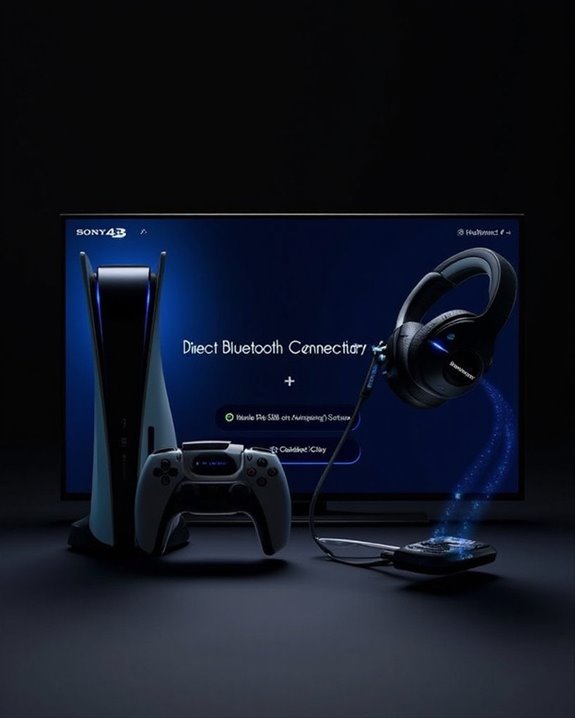
As connection issues get resolved, PS5 owners often explore alternative methods to connect their Bluetooth headphones without purchasing dedicated adapters. These approaches leverage existing Bluetooth-capable devices like Smart TVs or laptops as intermediaries.
The primary advantages include cost savings, reduced clutter, and potential for better Audio Fidelity compared to some adapter solutions. Users can leverage devices they already own without introducing additional hardware that might compromise sound quality.
However, significant drawbacks exist. Range Limitations become evident when using secondary devices, potentially causing signal degradation when moving away from the intermediary device. The setup process is more complex, requiring configuration across multiple devices. Additionally, microphone functionality is typically limited or unavailable, and audio lag may occur due to the indirect connection path.
Recommended Products

Zero-Latency Audio for Competitive Edge: Dominate your matches with the AOC wireless gaming headset. Featuring ultra-fast 2.4GHz lossless technology (≤20ms latency), this ps5 headset ensures your audio is always perfectly synced with the action. Tuned 50mm drivers deliver clear gaming sound for footsteps, reloads, dialogue, and in-game effects in FPS, action, and open-world games. The closed over-ear design helps keep you focused during Fortnite, Call of Duty, Roblox, Discord chat, online classes, and movie watching.
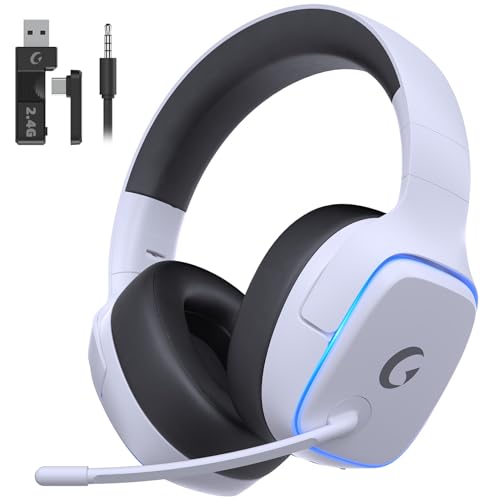
EXCLUSIVE PS5 DESIGN - This wireless gaming headset features a new generation upgraded design aligned with the gaming family, delivering high-end performance for hardcore gamers, eSports athletes and casual gamers.
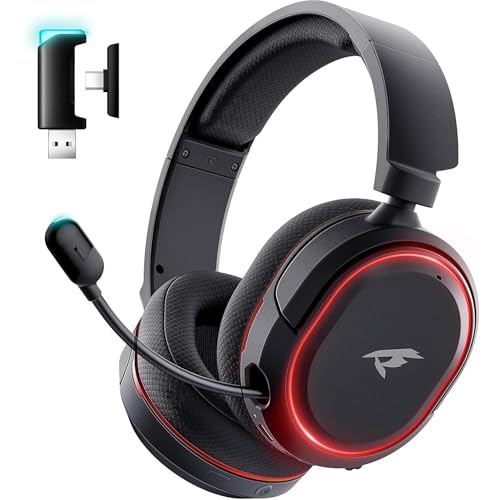
🎵【7.1 Surround Sound & Aesthetic Decorative Light】 UG-08S PC gaming headset can provide you with a cinema 3D stereo surround sound experience, designed specifically for gamers and audiophiles and multi-platform Compatibility. Long-press the 'M' key to activate 7.1 surround sound and dynamic driver reproduces deep bass and clear highs. Which allows you to hear every detail in the game with pin-drop clarity from up to 40 feet away. Such as teammates' voices, footsteps, direction, and more. Double-click the M key to activate the ambient light, then single-click the M key to switch between two modes: steady light and gradient. Valorise wireless pc headset will bring a cooler gaming atmosphere.
Frequently Asked Questions
Will Using Non-Adapter Methods Void My PS5 Warranty?
Non-adapter Bluetooth connection methods may void PlayStation 5 warranties according to Sony guidelines. The company’s warranty terms specifically address modifications to hardware configurations. Users should consider these warranty risks before attempting unofficial connection solutions.
Can I Use Apple Airpods With These Non-Adapter Methods?
Verily, one can utilize Apple AirPods with non-adapter methods. When pairing with TV’s Bluetooth or the PS Remote Play app, users enjoy AirPods comfort during gaming sessions. Remember to monitor AirPods charging between uses.
Is There Input Lag When Using TV Bluetooth Connections?
TV Bluetooth connections typically introduce some input lag. Lag testing confirms delays ranging from minimal to noticeable depending on TV model, processing settings, and other delay factors like signal interference and distance from the device.
Do These Methods Work for In-Game Chat Functions?
“All that glitters is not gold.” In-game chat functions generally suffer from chat latency and audio interference when using Bluetooth connections. The controller microphone remains the most viable solution for communication without specialized adapters.
Can I Connect Multiple Bluetooth Headphones Simultaneously?
Native PS5 does not support Multi Headphone Pairing. For Simultaneous Audio Sharing, users must employ third-party Bluetooth adapters like Avantree DG80 or Olixar dongles that specifically offer dual-link connection functionality.