As an Amazon Associate, we earn from qualifying purchases. Some links on this site are affiliate links at no extra cost to you. Our recommendations are based on thorough research and editorial judgment.

How to Stop Bluetooth Headphones From Lowering Computer Volume

Bluetooth headphones often lower computer volume due to compatibility issues and operating system limitations. To prevent this, users can disable absolute volume control by creating a “DisableAbsoluteVolume” DWORD value in the Registry Editor, adjust sound settings through Windows Volume Mixer, or update device firmware and drivers. Another effective solution involves selecting appropriate audio codecs like aptX HD or LDAC for best performance. Additional configuration steps guarantee consistent volume levels across applications and maximize audio quality through all connected devices.
Key Takeaways
- Disable absolute volume control in Windows Registry by creating a “DisableAbsoluteVolume” DWORD value and setting it to 1.
- Update headphone firmware and ensure computer drivers are current to resolve compatibility issues causing volume fluctuations.
- Check Sound Settings and Volume Mixer to configure individual output levels for your Bluetooth headphones.
- Set your Bluetooth headphones as the default audio device and adjust equalizer settings for consistent volume.
- Select appropriate audio codecs like aptX HD or LDAC that maintain volume stability while preserving sound quality.
Understanding Why Bluetooth Headphones Lower Computer Volume
You may be interested

Are Bluetooth Headphones Bad for Your Health?
June 3, 2025
Can You Connect Bluetooth Headphones to PS5?
May 26, 2025
Why do Bluetooth headphones suddenly reduce your computer’s volume just when you’re getting into your favorite song? This common issue stems from several technical limitations in wireless audio technology.
Bluetooth headphones often encounter Signal Interference when competing with other wireless devices operating on similar frequencies, causing automatic volume adjustments. Additionally, technical constraints like codec compatibility and bandwidth limitations force devices to balance audio quality against volume levels.
Battery Impact plays a significant role as well; when Bluetooth headphones reach lower power levels, they may reduce volume output to conserve energy. Operating systems further complicate matters by implementing communication modes that automatically lower volume during calls or conferences.
Device hardware limitations also contribute to this problem, as some Bluetooth headphones simply lack the amplification capacity to maintain high volumes consistently while operating wirelessly. Moreover, the use of Bluetooth 5.0 technology in newer models can improve connection stability, but older versions may still experience volume fluctuations due to weaker signal transmission.
Adjusting Audio Format for Optimal Bluetooth Performance
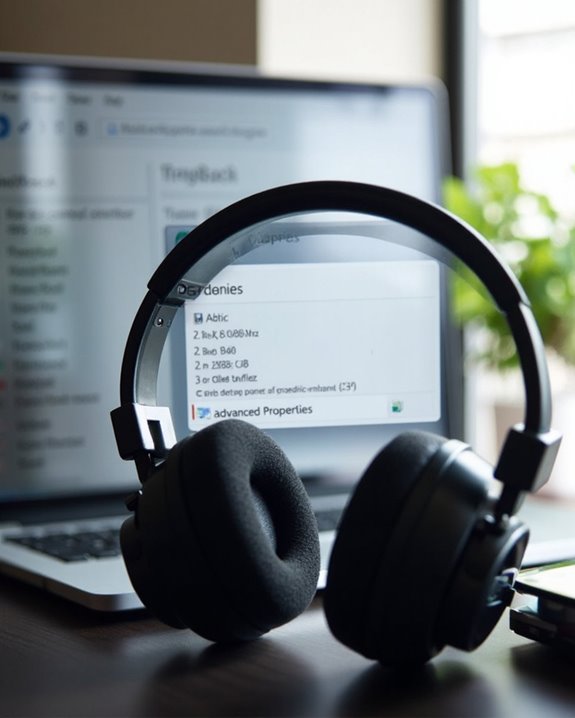
The audio format settings on your computer greatly impact the performance of Bluetooth headphones and can prevent unwanted volume reductions. By selecting appropriate Codec Options, users can greatly enhance sound quality while minimizing volume inconsistencies.
Higher quality codecs like aptX HD and LDAC deliver superior audio compared to the basic SBC codec, though compatibility with both headphones and computer must be verified. For Android devices, codec selection can be manually adjusted through Developer Options, while iOS offers fewer customization possibilities.
Bitrate Effects play a vital role in performance optimization. Higher bitrates generally produce better sound but may strain Bluetooth bandwidth, potentially causing stuttering. Users should balance quality against connection stability by choosing appropriate audio file formats—FLAC and ALAC preserve audio integrity, while compressed formats like MP3 require less bandwidth.
Using a DAC with advanced 32-bit/384kHz processing, such as the Sound BlasterX G6, can also improve Bluetooth audio quality and reduce volume issues.
Recommended Products

High sound quality LDAC decoding: The Bluetooth audio adapter features the LDAC audio codec, audio sampling rates up to 24bit/96KHz, delivering uncompromised high-definition sound quality; the audio receiver also obtained Hi-Res Audio Gold Label professional sound quality certification. Whether listening to classical or pop, experience audio at its best. (LDAC requires devices to support, some older devices may not be compatible.)

BTR11 supports the LDAC Bluetooth audio format, providing HiFi-level wireless Bluetooth sound quality, and also supports Bluetooth 5.3!

192 Khz DAC Converter: Our DAC Converter Can Convert Optical Toslink Or Coaxial Digital Audio Signals to RCA L/R 3.5mm Output. With a Sampling Rate of Up to 192 Khz, You Can Enjoy Superior Sound Quality
Disabling Absolute Volume in the Registry Editor
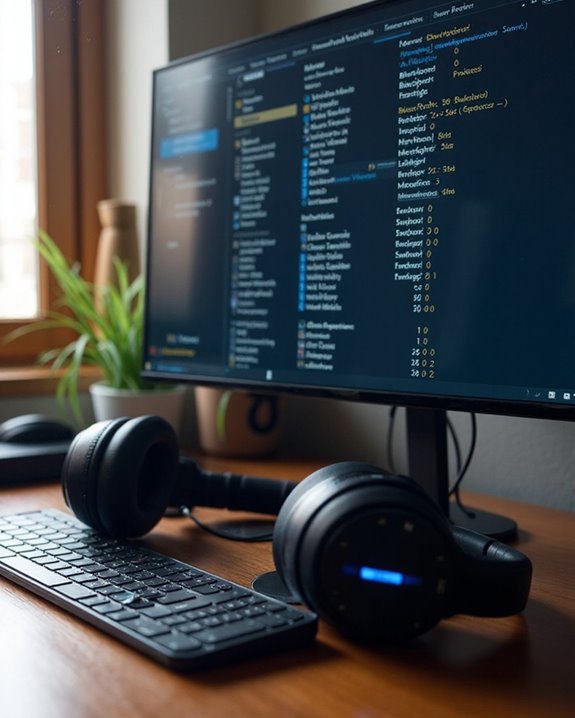
Beyond optimizing audio formats, addressing Windows’ Absolute Volume feature offers another powerful solution for Bluetooth volume issues. This setting synchronizes volume controls between Windows and Bluetooth devices, which can create problems with certain headphones.
To disable this feature, users must access the Registry Editor and navigate to:
`HKEY_LOCAL_MACHINE\SYSTEM\ControlSet001\Control\Bluetooth\Audio\AVRCP\CT`
At this location, create a new 32-bit DWORD value named “DisableAbsoluteVolume” and set it to 1. Creating a Registry backup before making these changes is strongly recommended to prevent system complications.
After implementation, a system restart is required for changes to take effect. Unfortunately, Windows updates frequently reset this setting, causing permission issues that may require repeated manual intervention. Regular monitoring after system updates helps maintain the desired configuration.
Recommended Products

【Dual Connection & Automatic Reconnection】This Bluetooth transmitter adapter has a "dual connection" function, which can connect two Bluetooth headsets/speakers at the same time. Enjoy a movie with your partner without disturbing others. After the first Bluetooth pairing is successful, 2 earphones/speakers can be reconnected to this wireless Bluetooth transmitter for TV automatically. Note: When using a fiber optic connection, please set the TV audio output format to PCM.

【Enter Wireless Age w/ Minimal Cost】Upgrade non-smart/non-Bluetooth TV to pair headphones for enhancing your hearing or get an undisturbed personal space. Connected TV to Bluetooth Home Stereo, no need to replace your old TV, our Bluetooth audio transmitter for TV-RANGER help you upgrade the old one and CUT OFF the budget for a new. NOTE: This is a Bluetooth transmitter only, not a receiver
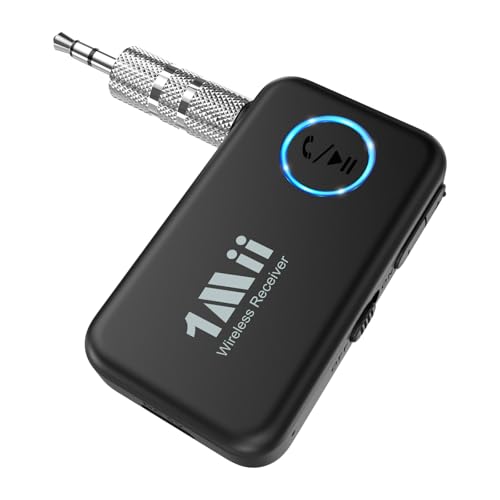
【Enjoy Wireless Music Streaming】This Bluetooth adapter for car easily adds Bluetooth capability to your car stereo, home audio system, speakers, or wired headphones via the 3.5mm AUX connection. Powered by the latest Bluetooth 5.3 technology for faster pairing, a more stable connection, and a wider wireless range
Managing Windows Sound Settings for Bluetooth Devices
Properly configured Windows sound settings serve as an essential foundation for resolving Bluetooth headphone volume issues without requiring registry modifications. Users can access these controls by right-clicking the sound icon in the taskbar and selecting either Sound settings or Volume mixer options.
For ideal audio performance, users should configure individual output levels for connected Bluetooth headphones. Profile Switching between different audio profiles can greatly impact volume control behavior, particularly when switching between media playback and communication modes.
The Volume mixer allows precise adjustments for both system sounds and application-specific volumes. Additionally, Equalizer Tuning through Windows sound enhancements can compensate for volume inconsistencies across different Bluetooth devices. Users should also verify that their headphones are set as the default audio device to prevent unexpected volume changes when switching between applications.
Choosing a headset with advanced noise cancellation technology can further enhance call clarity and overall audio experience.
Recommended Products
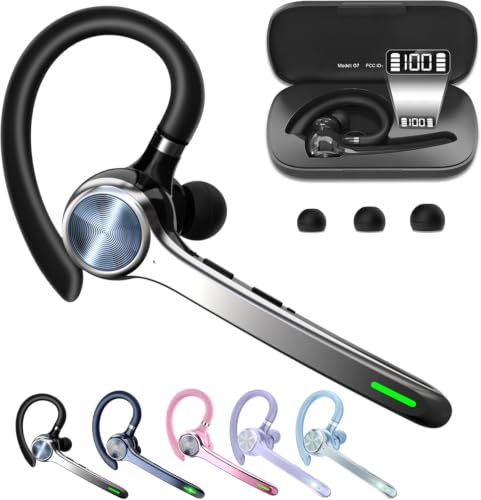
Smart Digital Display: Easy-to-read digital display shows the remaining power of the charging case for the refill in time.

IMMERSIVE GAMING: Immerse yourself in a new level of gaming with the Sony-INZONE H9, a wireless headset with mic that offers 360 Spatial Sound feature. This wireless headphones with microphone provides a personalized audio experience, allowing you to detect rivals with precision and enhancing your gaming experience.

LED DIGITAL DISPLAY & 120H LONG STANDBY TIME : The G7 Wireless Bluetooth Headset comes with a smart LED display that shows the charging status of the earphones and the power of the case. 120 hours of standby time and 72 hours of music playback/talking time with the charging case
Updating Firmware and Drivers for Your Headphones
Outdated firmware and drivers often cause the volume control issues many users experience with Bluetooth headphones. Checking for the latest Firmware Versions guarantees ideal functionality between devices and can resolve unexpected volume behaviors.
Most manufacturers provide dedicated apps that notify users about available updates. These applications guide users through the update process step-by-step, typically requiring the headphones to remain connected during installation.
Driver Compatibility is equally vital, as mismatched drivers can create conflicts between the operating system and audio devices. Users should:
- Visit the manufacturer’s website to download current drivers
- Check system settings to verify driver versions
- Verify drivers match both the headphone model and operating system version
After updating, restart both the headphones and computer to properly initialize the new software configurations.
Recommended Products

Advanced Noise Cancelling Mic: This trucker bluetooth headset features an advanced noise cancelling microphone that filters out engine and background noise—ideal for truck drivers, remote teams, and office calls. A reliable wireless headset for work that delivers crystal-clear communication.
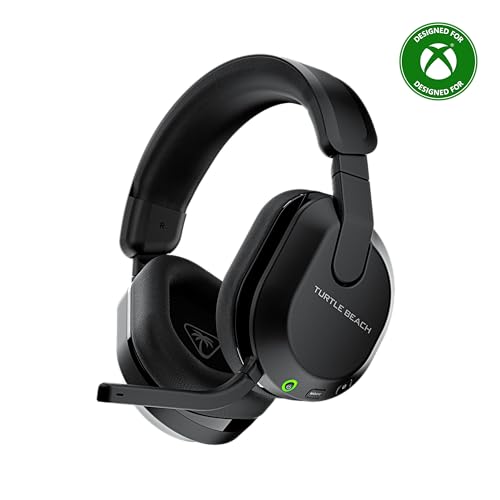
Memory Foam Cushions with Glasses-Friendly Technology
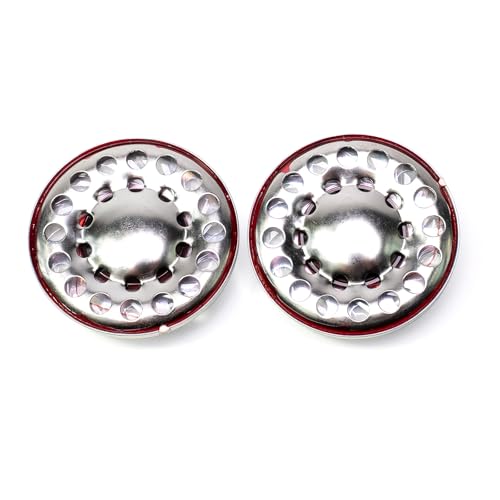
Upgrade your headphones with Voarmaks Headphone Speaker Driver, offering deep bass and crystal clarity for a premium listening experience.
Selecting the Right Audio Output Device
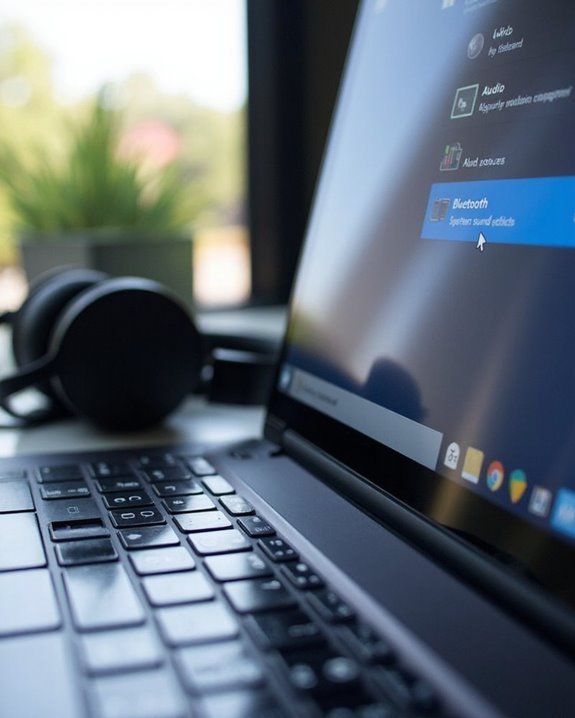
While updating firmware and drivers resolves many Bluetooth headphone issues, selecting the correct audio output device forms another critical element in preventing unwanted volume changes. Computer systems typically display multiple audio output options, including both physical and virtual devices.
To achieve best performance, users should access the Playback tab in sound settings and verify that all devices appear by selecting “Show Disabled Devices.” For Bluetooth headphones specifically, confirm that “audio sink” is enabled under device properties. This configuration guarantees proper Speaker Calibration when the device connects.
Different Audio Profiles may be available for the same headphones, particularly with advanced Bluetooth models. Selecting the appropriate profile and setting the headphones as the default playback device prevents automatic volume adjustments when switching between audio sources.
Recommended Products

Turn Your Wired Earphones, Headphones & Speakers into Wireless Devices!

【For PS5 Users Only】 Specifically designed for PS5 to connect Bluetooth headphones (e.g., AirPods, Bose, & more) for audio playback. For optimal voice chat experience, please use the PS5 controller microphone instead of headphone mics.

Upgraded Bluetooth 5.3 Adapter: This bluetooth adapter for pc uses the latest upgraded Bluetooth 5.3 BR+EDR technology, greatly improves the stability of the connection data transfer speed, reduces the possibility of signal interruption and power consumption.
Testing Your Bluetooth Headphones With Different Devices
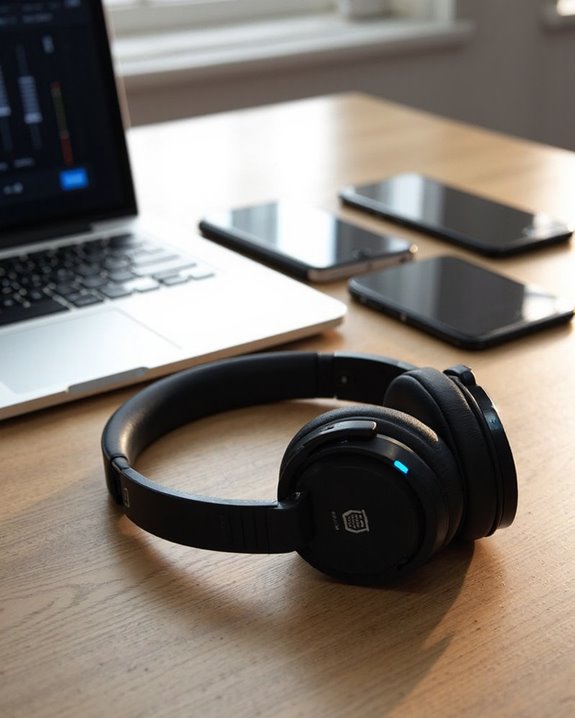
Testing Bluetooth headphones with multiple devices can reveal whether volume control issues are hardware-specific or related to particular operating systems. Users should methodically connect their headphones to smartphones, tablets, and computers running different operating systems to isolate the problem.
During this process, perform range testing by moving away from the source device while monitoring audio quality and volume behavior. Note any compatibility issues between specific device-headphone combinations, especially differences between Android and iOS handling of Bluetooth audio management.
Pay particular attention to volume behavior immediately after connection—does it default to maximum on some devices but not others? Check if the headphone’s volume buttons sync properly with each device’s volume slider. These observations can help determine whether the issue stems from headphone firmware, device settings, or operating system limitations.
Frequently Asked Questions
Can I Use Different Volume Levels for Different Bluetooth Devices Simultaneously?
Users can achieve Independent Volumes for multiple Bluetooth devices simultaneously on compatible systems. Some Android devices with One UI 2+ offer Simultaneous Settings through media panels, allowing different volume levels on paired devices when using Dual Audio features.
Why Do My Bluetooth Headphones Disconnect When Adjusting Volume?
Bluetooth headphone disconnections during volume adjustment commonly stem from outdated firmware causing signal instability. Environmental factors like interference from other devices or physical obstacles can also disrupt the connection when volume commands are being processed.
How Can I Reset Bluetooth Headphones That Won’t Respond to Volume Controls?
For unresponsive volume controls, users can employ various Reset Techniques: hold power button with volume buttons, perform factory reset, or try button combinations specified by the manufacturer. Battery Troubleshooting may also resolve these issues.
Will Using Bluetooth Adapters Affect Volume Control Functionality?
Bluetooth adapters can indeed affect volume control functionality. Adapter effects vary by model, with some introducing additional volume tweaks or controls. External adapters may add redundant volume management layers that impact overall audio signal quality.
Can Windows Split Audio Between Bluetooth Headphones and Computer Speakers?
Over 85% of audio professionals use some form of Output Routing. Native Windows doesn’t support Audio Splitting between Bluetooth headphones and speakers, but third-party software like Virtual Audio Cable can enable this dual-output functionality.