As an Amazon Associate, we earn from qualifying purchases. Some links on this site are affiliate links at no extra cost to you. Our recommendations are based on thorough research and editorial judgment.

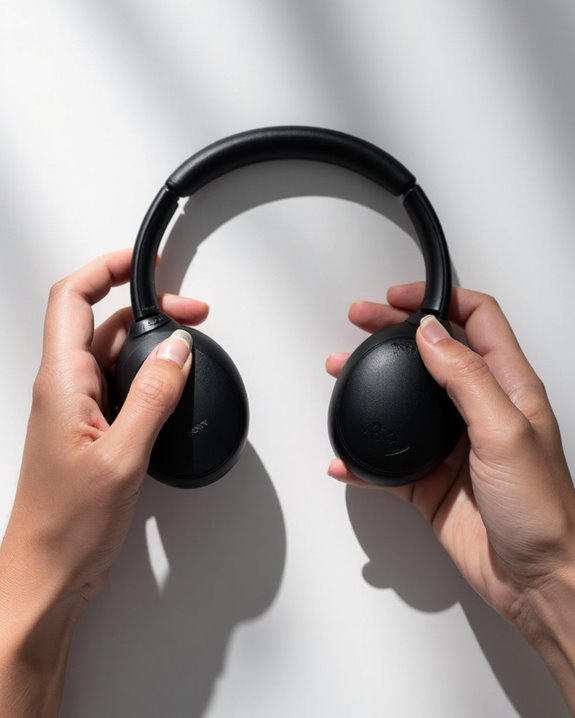
How to Reset Sony Headphones: Step-by-Step Guide

To reset Sony headphones, power them off first, then press and hold specific button combinations depending on the model. For WH-1000XM series, hold Power and NC/Ambient buttons for 7 seconds until blue lights flash. WH-CH520 requires holding power and volume down for 7-10 seconds. WH-CH710N/720N models need the Power and NC/AMB buttons pressed while connected to USB. This process clears connection issues without erasing personal settings. The complete guide below offers model-specific instructions and post-reset steps.
Key Takeaways
- Standard reset: Press and hold the power button for 7 seconds until the LED flashes, then power off and on again.
- Factory reset: Hold power and NC/Ambient buttons for 7 seconds to wipe all data and return to original settings.
- WH-1000XM series: Hold Power and NC/Ambient buttons simultaneously until the blue LED indicator flashes multiple times.
- WH-CH models: Connect USB-C cable and press volume buttons for soft reset or hold power and volume down for factory reset.
- After resetting, delete the headphones from your device’s Bluetooth list before re-pairing for complete connection refresh.
Why You Might Need to Reset Your Sony Headphones
You may be interested
Can You Track Beats Headphones If They Are Lost?
July 1, 2025
Do Headphone Dents Go Away?
August 4, 2025
When do Sony headphones require a reset? Users typically need to reset their Sony headphones when experiencing functionality issues or connectivity problems. Firmware bugs can cause unexpected behaviors like charging difficulties, sound quality deterioration, or sudden shutdowns during use. These technical glitches often manifest as pairing failures or frequent Bluetooth disconnections.
Performance optimization becomes necessary when headphones exhibit slow response times or when features like noise cancellation function inconsistently. User errors in configuration settings may also necessitate resets, particularly after incorrect firmware updates or when custom settings aren’t properly saved.
Regular maintenance resets help prevent future issues, prepare devices for resale, and clear outdated paired device lists. Persistent problems like overheating, excessive battery drain, or audio delays typically indicate a reset is the appropriate troubleshooting step. Additionally, understanding the device’s Bluetooth technology version can be critical for troubleshooting connection issues effectively.
Understanding the Difference Between Reset and Factory Reset
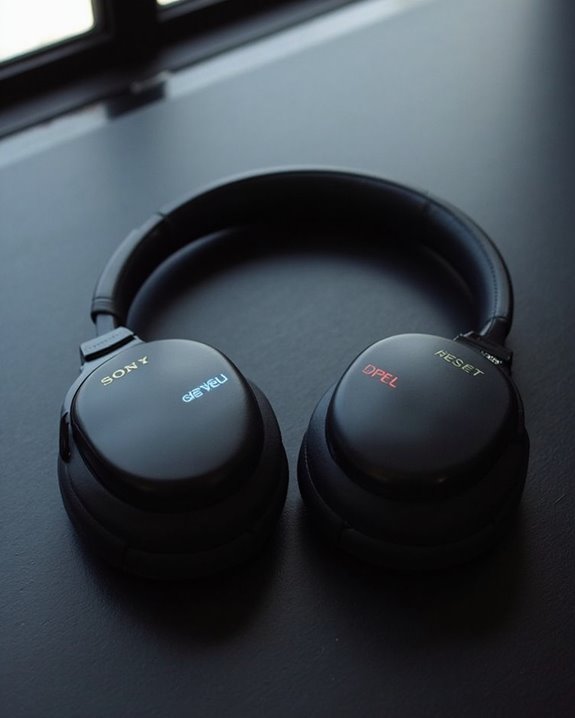
The key distinction between a standard reset and a factory reset on Sony headphones involves the scope and severity of changes made to the device. Reset Differences become apparent when examining what each process affects: a standard reset targets specific functions or settings without erasing personal data or Bluetooth pairings.
A factory reset, tracing back to Factory Origins in manufacturing, returns headphones to their original out-of-box condition by completely wiping all user data, customized settings, and device pairings. While a reset serves as a quick troubleshooting step for minor glitches or connectivity issues, factory reset functions as a thorough solution for persistent problems.
Users should consider reset for temporary issues and factory reset when selling the device or addressing significant software malfunctions that simpler solutions cannot resolve.
General Reset Procedure for Most Sony Headphone Models
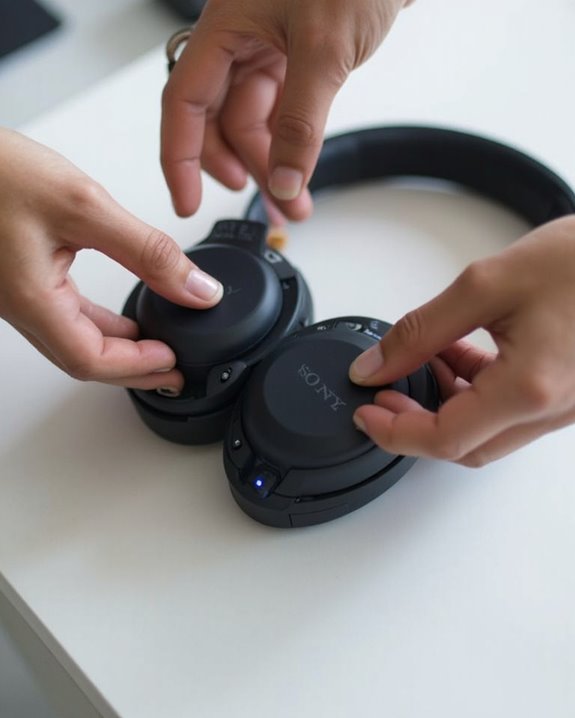
Resetting Sony headphones provides a straightforward solution for resolving common performance issues without requiring technical expertise. Most models follow a similar procedure, though specific button combinations may vary based on the headphone’s Reset History and design.
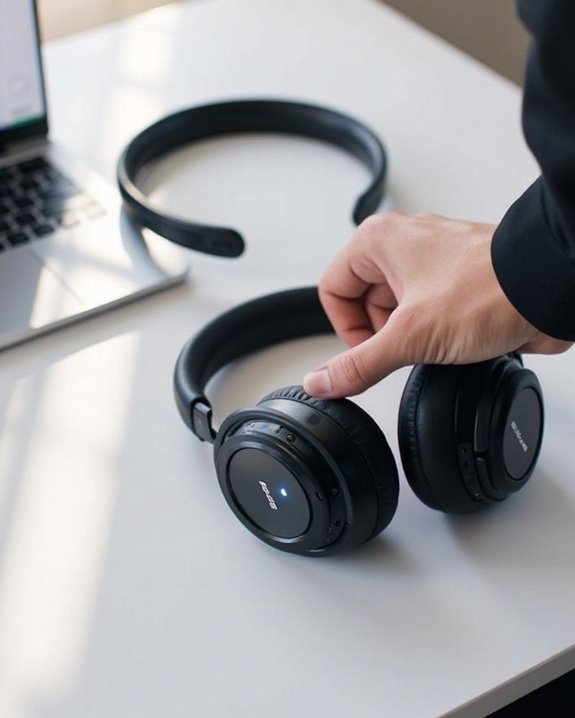
The standard reset typically involves powering off the headphones first, then pressing and holding a combination of buttons—often the power button plus another control button. Users may observe flashing lights, usually blue, indicating the reset process is complete.
For headphones experiencing Compatibility Issues with certain devices, this reset clears previous connection data. After completing the reset, users should remove the headphones from their device’s Bluetooth list before re-pairing them. This process restores default settings while preserving the headphone’s functionality.
Many headphones use Bluetooth 5.0 technology to ensure stable connections and seamless re-pairing after a reset.
Recommended Products
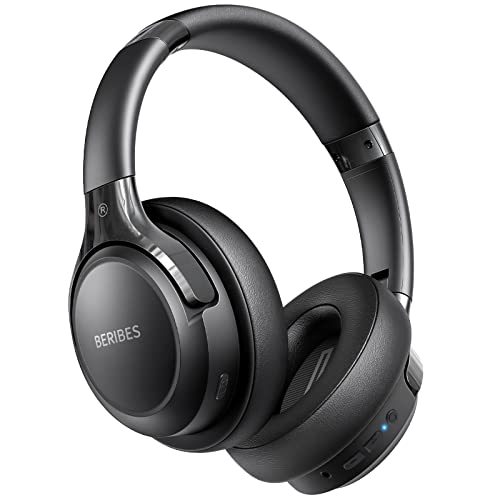
65 Hours Playtime: Low power consumption technology applied, BERIBES bluetooth headphones with built-in 500mAh battery can continually play more than 65 hours, standby more than 950 hours after one fully charge. By included 3.5mm audio cable, the wireless headphones over ear can be easily switched to wired mode when powers off. No power shortage problem anymore.

【40MM DRIVER & 3 MUSIC MODES】Picun B8 bluetooth headphones are designed for audiophiles, equipped with dual 40mm dynamic sound units and 3 EQ modes, providing you with stereo high-definition sound quality while balancing bass and mid to high pitch enhancement in more detail. Simply press the EQ button twice to cycle between Pop/Bass boost/Rock modes and enjoy your music time!

✅ Never Run Out of Music with 80-Hour Marathon Battery: Experience ultimate freedom. These over ear bluetooth headphones play for 80 hours on a single charge—enough for cross-country flights, a full workweek, or a month of gym sessions. The included AUX cable and quick charge ensure your audio never stops, making them perfect for travelers and busy commuters.
Resetting WH-1000XM3/XM4/XM5 Series Headphones
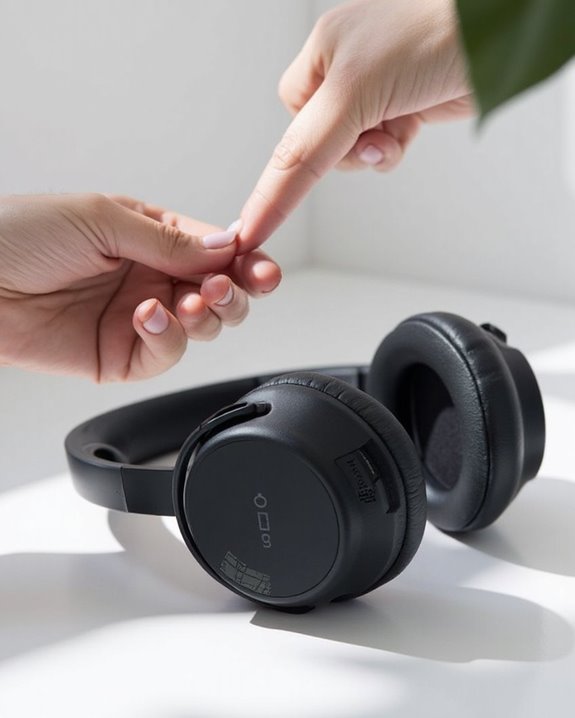
Sony’s premium WH-1000XM3/XM4/XM5 series headphones follow specific reset procedures that effectively restore default settings when performance issues arise. For all three models, the fundamental process remains consistent: power off the headphones, then simultaneously hold the Power and NC/Ambient buttons for at least 7 seconds until the blue indicator light flashes multiple times.
User feedback has influenced the Design Evolution across the series, though the reset mechanism remains largely unchanged. For the XM3 model, an alternative reset method while charging is available by pressing the same buttons during USB connection. After resetting, users must remove the headphones from their device’s paired list and reconnect.
This standardized approach across the flagship line guarantees technical consistency while addressing connectivity issues that occasionally develop through regular use. Additionally, these models incorporate Bluetooth 5.0+ technology to ensure stable wireless connections post-reset.
Recommended Products

PREMIUM NOISE CANCELLATION: Two processors control 8 microphones for unprecedented noise cancellation. With Auto NC Optimizer, noise canceling is automatically optimized based on your wearing conditions and environment.

PREMIUM NOISE CANCELLATION: Two processors control 8 microphones for unprecedented noise cancellation. With Auto NC Optimizer, noise canceling is automatically optimized based on your wearing conditions and environment.

PREMIUM NOISE CANCELLATION: Two processors control 8 microphones for unprecedented noise cancellation. With Auto NC Optimizer, noise canceling is automatically optimized based on your wearing conditions and environment.
How to Reset Sony WH-CH520 Headphones
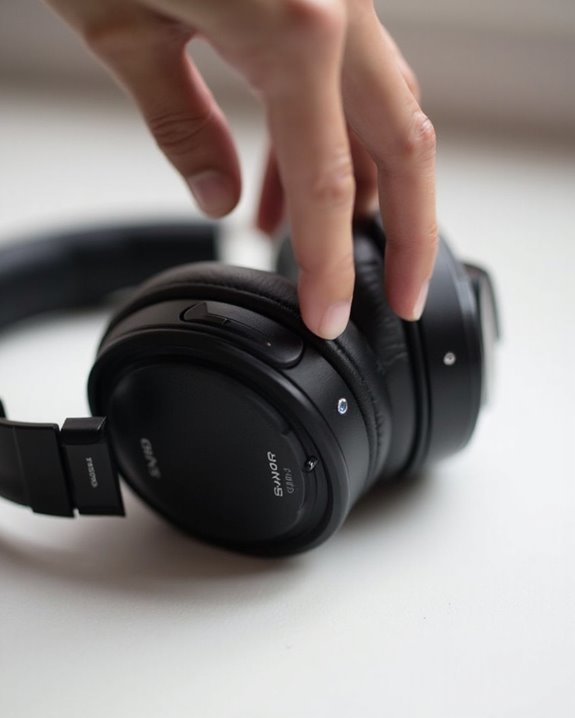
When encountering performance issues with WH-CH520 headphones, a proper reset can quickly resolve most common problems. Unlike historical resets in older models, the CH520 offers two distinct reset options.
To perform a factory reset:
- Make sure headphones are powered off and unplugged
- Press and hold both the power button and volume down (-) button simultaneously for 7-10 seconds
- Wait for the blue indicator light to flash four times
For a soft reset, connect the USB-C cable and simultaneously press both volume buttons. This preserves paired device information while resolving minor glitches.
After any reset, users should re-pair devices by removing the headphones from previous Bluetooth lists first. Sony occasionally introduces future updates to their reset procedures via firmware enhancements, so checking their support website remains advisable.
Recommended Products
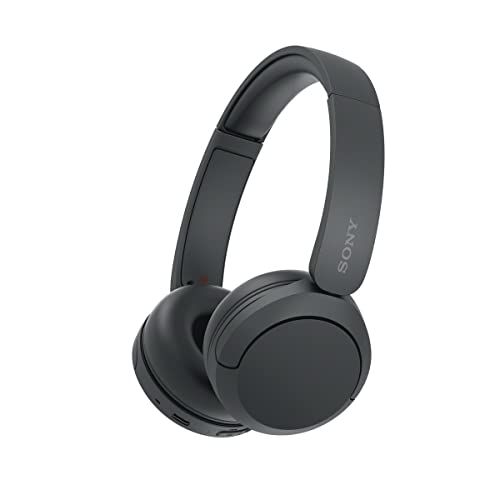
LONG BATTERY LIFE: With up to 50-hour battery life and quick charging, you’ll have enough power for multi-day road trips and long festival weekends. (USB Type-C Cable included)

LONG BATTERY LIFE: With up to 50-hour battery life and quick charging, you’ll have enough power for multi-day road trips and long festival weekends.(USB Type-C Cable included)

LONG BATTERY LIFE: With up to 50-hour battery life and quick charging, you’ll have enough power for multi-day road trips and long festival weekends. (USB Type-C Cable included)
Reset Procedure for Sony WH-CH710N and WH-CH720N Models
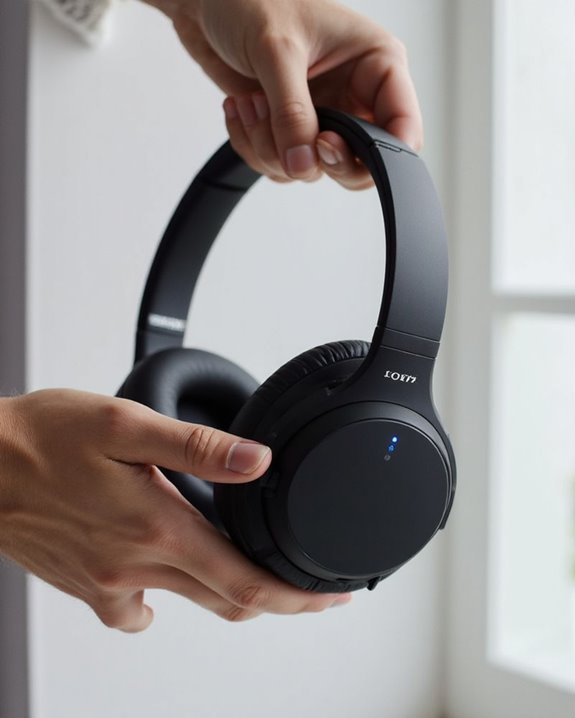
The CH710N and CH720N models feature two distinct reset options to resolve performance issues effectively. Each procedure addresses different severity levels of technical issues users may encounter.
For a standard reset, the cable requirements include connecting the USB charging cable before pressing the POWER and NC/AMB buttons simultaneously. This process clears temporary settings while preserving pairing information.
For factory initialization, no cable should be connected. Button functions involve holding the POWER and PLAY/CALL buttons for 7 seconds until the blue indicator flashes four times. This thorough reset removes all paired devices and customized settings.
After any reset procedure, it’s recommended to disconnect and reconnect the charging cable, then remove the headphones from device Bluetooth lists before re-pairing for best performance.
Recommended Products

【Dual Connection & Automatic Reconnection】This Bluetooth transmitter adapter has a "dual connection" function, which can connect two Bluetooth headsets/speakers at the same time. Enjoy a movie with your partner without disturbing others. After the first Bluetooth pairing is successful, 2 earphones/speakers can be reconnected to this wireless Bluetooth transmitter for TV automatically. Note: When using a fiber optic connection, please set the TV audio output format to PCM.

【Enter Wireless Age w/ Minimal Cost】Upgrade non-smart/non-Bluetooth TV to pair headphones for enhancing your hearing or get an undisturbed personal space. Connected TV to Bluetooth Home Stereo, no need to replace your old TV, our Bluetooth audio transmitter for TV-RANGER help you upgrade the old one and CUT OFF the budget for a new. NOTE: This is a Bluetooth transmitter only, not a receiver

Dual Wireless Connection & Multi-platform Compatibility: SG600 Wireless Gaming Headset supports low latency, lossless 2.4GHz USB dongle and the latest Bluetooth 5.3 stable connection, 2.4Ghz Wireless USB dongle compatible with PC, PS5/PS4, Laptops, Mac ; Bluetooth 5.3 mode compatible with iPad, Tablet and other mobile devices. Enjoy total freedom and uninterrupted connections(Note: Not Compatible for Xbox).
Troubleshooting Common Reset Issues
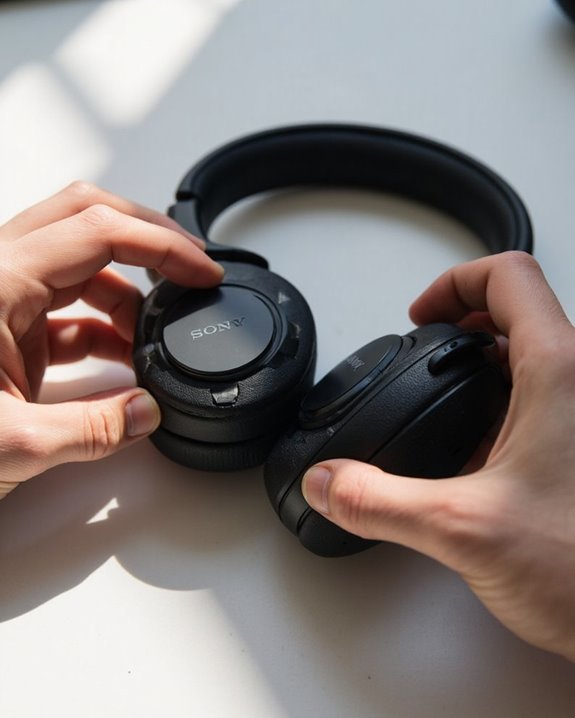
Despite following reset procedures correctly, users may encounter persistent issues that require additional troubleshooting steps. Battery troubleshooting is often necessary when headphones fail to power on after reset, as depleted batteries need full recharging before functionality returns. Checking battery contacts and cleaning charging ports can also resolve power-related problems.
Firmware glitches sometimes cause issues that standard resets cannot fix. In these cases, users should utilize official Sony software tools to update firmware. For Bluetooth connectivity failures, rebooting both headphones and source devices after reset often resolves pairing problems.
Sound quality issues persisting after reset—such as audio from only one side—typically indicate hardware problems requiring professional service. Users should differentiate between simple resets and initialization, as the latter completely restores factory defaults and erases all customized settings.
Recommended Products

CLEAN & REPAIR CHARGING PORT - Compatible with iPhone cleaning kit tool won't get stuck inside and is easy to plug and use. Use the port pick, U-shaped brushes, and port brushes to clean the dirt out of your Phone, Pad, and Type-c port, and keep your phone looking brand new. Charging port cleaners can effectively clean lint, hair, fluff, and dust from your personal device ports

【CLEAN & REPAIR CHARGING PORT】This multi-functional iPhone cleaning kit tool, won't get stuck inside, is sturdy and flexible, and easy to plug and use. Use the port hook, U-shaped brushes and port brushes clean the dirt out of your iPhone, iPad, and Type-c port, remove lint, hair, lint, dust, oil, and other contaminants from the charging port, and leave your phone looking brand new. Extend and protect the life of your beloved Apple products. (Compatible with Type-c charging port)

Phone Cleaning Kit: Designed as a top-tier iPhone cleaning kit and charging port cleaning kit, Also compatible with Android and Samsung cell phones. Equipped with specialized tools to clean USB-C/Type-C/Lightning charging ports, speakers, lenses, etc. Comes with a dedicated cleaner and brush for the screen
Post-Reset Setup and Re-pairing Process
After successfully resetting Sony headphones, users must complete a proper setup and re-pairing process to restore full functionality. First, make sure the headphones are turned off, then activate pairing mode by holding the designated buttons (typically power and custom buttons simultaneously) until indicator lights flash.
On the device, navigate to Bluetooth settings, enable Bluetooth, and select the Sony headphones from the available devices list. Once connected, test the audio output to verify successful pairing.
For ideal performance post-reset, check for Firmware Updates through Sony’s companion app. Regular Battery Maintenance is also essential—keep headphones charged between 20-80% for longevity. If connection issues persist, power cycle both devices or check for wireless interference from nearby electronics.
Preventive Maintenance to Avoid Regular Resets
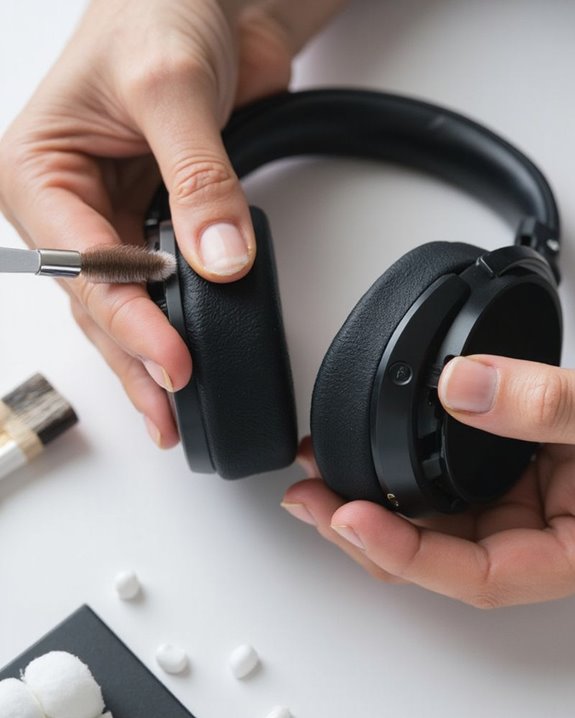
Implementing effective preventive maintenance can dramatically reduce the need for frequent resets of Sony headphones. Regular inspection for dust, dirt, and moisture buildup helps prevent connectivity issues that often necessitate resets. Proper storage in protective cases provides essential Dust Protection, preventing debris from compromising internal components.
Maintaining clean contact points and charging ports using cotton swabs guarantees reliable connections. Owners should establish weekly cleaning routines using soft cloths slightly dampened with diluted neutral detergent. Software Updates represent another critical maintenance aspect—regularly updating firmware prevents compatibility issues and improves functionality.
Environmental factors also play a significant role in headphone health. Storing devices away from extreme temperatures, high humidity, and direct sunlight helps preserve internal components and battery life. These preventive measures greatly extend periods between necessary resets.
Frequently Asked Questions
Will Resetting My Sony Headphones Delete My Custom EQ Settings?
Resetting Sony headphones won’t directly delete custom EQ settings, as these are stored in the Sony Headphones Connect app rather than the device itself. For EQ safety, users should reconnect to the app post-reset to restore settings impact.
Can I Reset My Sony Headphones Without the Original Charging Cable?
Like a telegraph without proper wires, Sony headphones often require the original cable for resetting. Some models permit Reset Compatibility with quality Cable Alternatives, but most need authentic cables for proper function and reset capabilities.
How Often Should I Reset My Sony Headphones for Optimal Performance?
Sony headphones don’t require regular resets as part of a maintenance routine. Reset frequency should be minimal, with resets performed only when troubleshooting specific issues like pairing problems or audio malfunctions, not on a scheduled basis.
Do Sony Earbuds Follow the Same Reset Procedures as Headphones?
Sony’s little listening companions follow their own unique paths. Earbud variations require distinct reset procedures compared to headphones. Reset differences exist across all Sony audio devices, with model-specific button combinations rather than universal methods.
Will Resetting Fix Issues With Voice Assistant Functionality?
Resetting can resolve many Voice Assistant Troubleshooting issues by clearing software glitches. However, it’s not guaranteed to fix all Voice Integration problems, especially those related to compatibility or hardware limitations.