As an Amazon Associate, we earn from qualifying purchases. Some links on this site are affiliate links at no extra cost to you. Our recommendations are based on thorough research and editorial judgment.

How to Connect Beats Wireless Headphones Easily

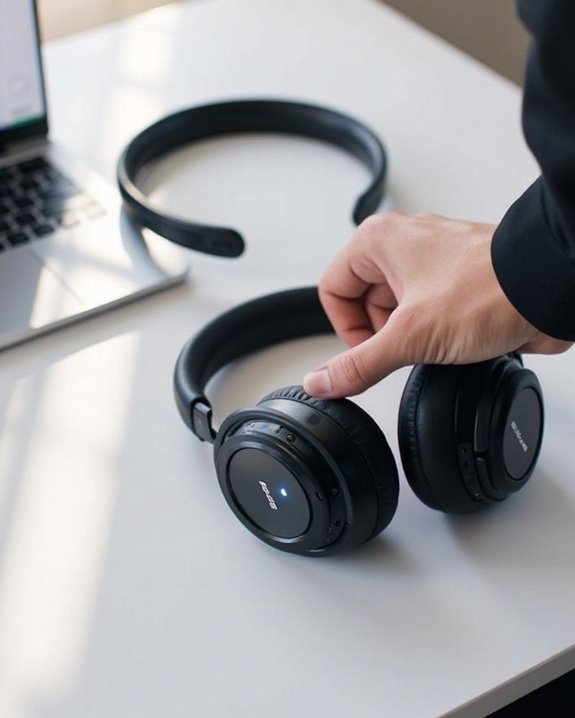
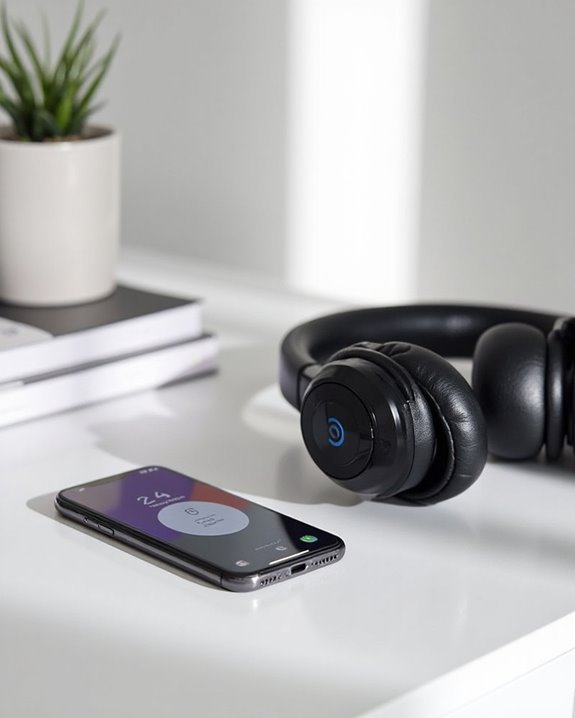
To connect Beats wireless headphones, first make sure both devices have adequate battery and Bluetooth enabled. Turn on your Beats by pressing the power button, then hold it for 5 seconds until the indicator light flashes. On your device, navigate to Bluetooth settings and select your Beats model from available devices. Once connected, you’ll hear a confirmation tone. For persistent issues, try resetting your headphones or updating device firmware. The detailed steps vary slightly between Beats models, with additional options available for Apple users.
Key Takeaways
- Ensure both devices are charged and within 30 feet of each other to avoid connection failures.
- Place Beats headphones in pairing mode by holding the power button until indicator lights flash.
- Select your Beats model from your device’s Bluetooth settings menu when it appears.
- Reset headphones and forget Bluetooth connections on your device if experiencing persistent pairing issues.
- Keep your headphones and device updated with the latest firmware for optimal connectivity performance.
Understanding Your Beats Headphone Model
You may be interested
Can You Track Beats Headphones If They Are Lost?
July 1, 2025
Do Headphone Dents Go Away?
August 4, 2025
The diverse range of Beats wireless headphones offers distinct features tailored to different listening preferences and lifestyles. Each model incorporates unique Design Features that reflect its intended use case and target audience.
Beats Studio Pro delivers premium Audio Quality with rich bass and advanced noise cancellation technology, while the stylish Solo 4 emphasizes portability and everyday use. For fitness enthusiasts, Powerbeats Pro 2 includes heart rate monitoring and water resistance (IPX4), whereas Beats Fit Pro combines sport-focused stability fins with spatial audio capabilities.
The compact Solo Buds provide a more affordable entry point to the Beats ecosystem without sacrificing essential functionality. Understanding these model distinctions helps users select headphones that align with their specific needs for sound performance, comfort, and specialized features. The Beats Studio Pro, for example, features active noise cancellation that can block distractions or maintain awareness, enhancing the listening experience.
Recommended Products
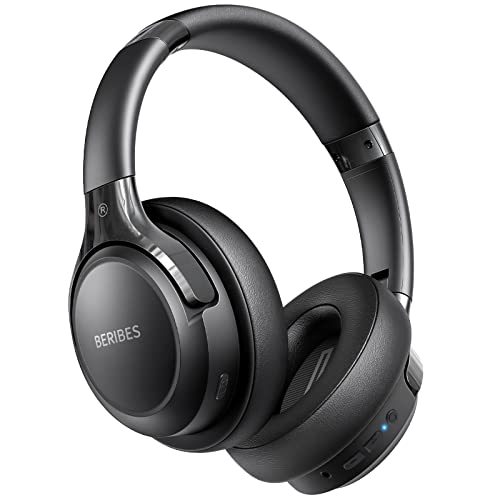
65 Hours Playtime: Low power consumption technology applied, BERIBES bluetooth headphones with built-in 500mAh battery can continually play more than 65 hours, standby more than 950 hours after one fully charge. By included 3.5mm audio cable, the wireless headphones over ear can be easily switched to wired mode when powers off. No power shortage problem anymore.

JBL Pure Bass Sound: The JBL Tune 720BT features the renowned JBL Pure Bass sound, the same technology that powers the most famous venues all around the world.

【40MM DRIVER & 3 MUSIC MODES】Picun B8 bluetooth headphones are designed for audiophiles, equipped with dual 40mm dynamic sound units and 3 EQ modes, providing you with stereo high-definition sound quality while balancing bass and mid to high pitch enhancement in more detail. Simply press the EQ button twice to cycle between Pop/Bass boost/Rock modes and enjoy your music time!
Preparing Your Device for Bluetooth Connection
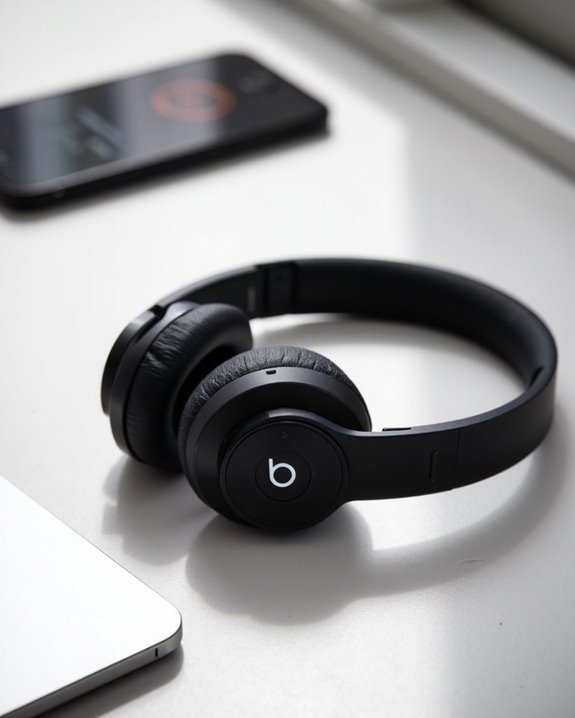
Before connecting Beats wireless headphones, users must properly configure their device’s Bluetooth settings to establish a stable wireless connection. Ensuring the device’s operating system is current with the latest Device Updates is essential for best compatibility and performance.
To minimize connection issues, users should keep their Beats headphones within close proximity to the pairing device and reduce potential Interference Tips by disabling unused Bluetooth connections. Common sources of interference include microwaves, wireless routers, and other Bluetooth devices operating in the vicinity.
If connection problems persist, power cycling both the headphones and device often resolves issues. For stubborn connectivity problems, resetting the device’s Bluetooth settings may be necessary. Class 1 Bluetooth technology in select Beats models provides extended range and fewer signal dropouts, enhancing the overall listening experience. Additionally, Bluetooth 5.4 offers a stable connection up to 33 feet, ensuring reliable wireless connectivity for your Beats headphones.
Recommended Products

Latest Bluetooth 6.0 Technology: With Bluetooth 6.0, connect the device faster and get a more stable signal transmission. Whether watching videos or playing games, the synchronization of audio and video is significantly improved, reducing the trouble caused by delay and improving the entertainment experience. (If pairing fails, please reset the adapter: With the device powered off, press and hold the multifunction button for 10 seconds.)

Upgraded Bluetooth 5.3 Adapter: This bluetooth adapter for pc uses the latest upgraded Bluetooth 5.3 BR+EDR technology, greatly improves the stability of the connection data transfer speed, reduces the possibility of signal interruption and power consumption.

SHARE IN-FLIGHT AUDIO — Connect two pairs of Bluetooth headphones or earbuds to one airplane entertainment screen, so you and a travel partner can listen together without wires.
Step-by-Step Pairing Process for Different Beats Models
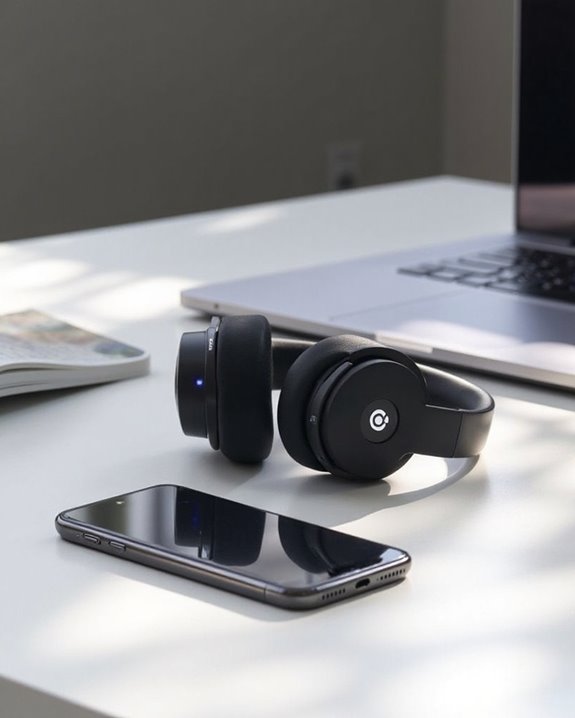
Connecting Beats wireless headphones requires following model-specific pairing procedures to establish a stable Bluetooth connection with your device. Each model has its unique Mode Activation method, typically involving pressing and holding a designated button until Light Indicators flash.
For Solo Pro, press and hold the “mode” button on the left earcup, while Studio3 and Solo3 require holding the power button for five seconds. Beats Flex users should hold the power button until the LED flashes.
Powerbeats Pro differs by requiring users to place earbuds in the charging case before holding the case button until the light blinks. Studio Pro follows a similar pattern with its power button.
After initiating pairing mode, open your device’s Bluetooth settings, select your Beats model, and wait for confirmation through steady lights or sound prompts. For an enhanced experience, consider devices featuring Bluetooth 5.0 connectivity to improve pairing stability and range.
Recommended Products

Secure & Flexible Earhook Design for Sports:Built with soft flexible earhooks and an ultra lightweight 7.8g structure, these sports earbuds stay comfortably secure during workouts, jogging, cycling, fitness training, and outdoor activities without slipping or causing ear fatigue.
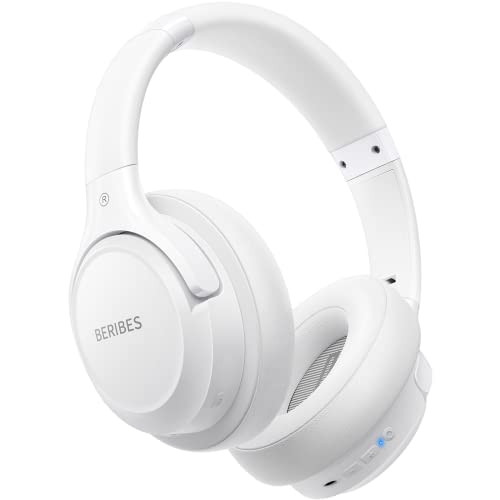
Optional 6 Music Modes: Adopted most advanced dual 40mm dynamic sound unit and 6 EQ modes, BERIBES updated headphones wireless bluetooth black were born for audiophiles. Simply switch the headphone between balanced sound, extra powerful bass and mid treble enhancement modes. No matter you prefer rock, Jazz, Rhythm & Blues or classic music, BERIBES has always been committed to providing our customers with good sound quality as the focal point of our engineering.

Hybrid Active Noise Cancelling Bluetooth Over Ear Headphones Wireless, Hi-Res Audio, Memory Foam Earcup, ANC Headphone Dark Blue Black
Troubleshooting Connection Problems
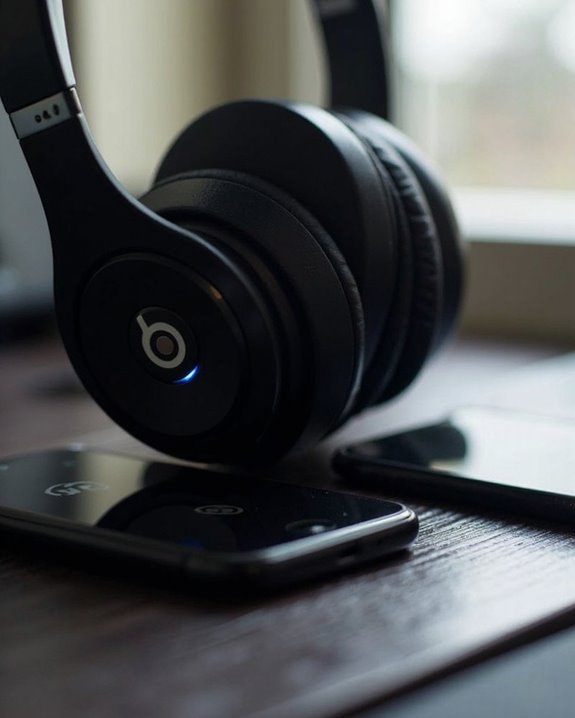
Despite following proper pairing procedures, users may encounter connection issues with their Beats wireless headphones that require systematic troubleshooting. Common issues often stem from Bluetooth interference from nearby electronic devices or other wireless signals.
When experiencing connectivity problems, users should first verify device proximity, ensuring headphones remain within the 30-foot operational range. Implementing Interference Solutions includes moving away from Wi-Fi routers, microwave ovens, and other Bluetooth devices that may disrupt signals.
For persistent issues, users should perform a device reset by following model-specific instructions, which clears previous pairing data. Additionally, checking for Firmware Updates on both the headphones and paired device is essential, as outdated software frequently causes compatibility problems.
If problems continue, forgetting the device in Bluetooth settings and re-establishing the connection often resolves stubborn pairing failures.
Recommended Products

Turn Your Wired Earphones, Headphones & Speakers into Wireless Devices!

Make Wired Headphones Wireless (Receiver Only): Receives Bluetooth audio from phones or tablets and plays it through wired headphones via a 3.5mm AUX connection. Receiver only — not a transmitter for TVs, PCs,or game consoles

BTR11 supports the LDAC Bluetooth audio format, providing HiFi-level wireless Bluetooth sound quality, and also supports Bluetooth 5.3!
Connecting to Multiple Devices Simultaneously
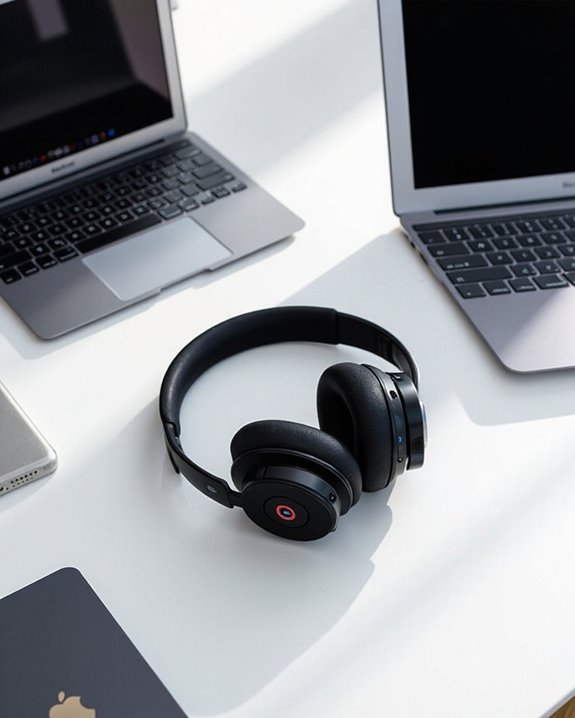
Many users wonder if their Beats wireless headphones can maintain active connections with multiple devices at once. Most Beats headphones can be paired with multiple devices but only connect to one device at a time, unlike competitor brands like Bose, Jabra, and Jaybird that offer true Bluetooth Multipoint technology.
While standard Beats models lack simultaneous device connectivity, they do offer Apple’s Audio Sharing feature, allowing two sets of compatible headphones to connect to a single iPhone or iPad. Users control volume independently while enjoying the same content.
For those requiring seamless switching between devices, Beats may introduce expanded multipoint capabilities in future updates. Currently, Competitor Comparison reveals Bose and Jabra lead in this feature, supporting active connections with two devices simultaneously without manual reconnection.
Recommended Products

20+ hours playtime keep the music going all day — commute, work, and beyond. USB-C charging means no hunting for old cables. One full charge handles your longest listening days.

Ultra-Comfort with Open-Ear Design: Experience matchless comfort even for all-day wear with these non-intrusive, open-ear Bluetooth earbuds.

[Open-ear Comfort] Unlike the traditional earphones, this Bluetooth headset with open-ear design don't go in your ears, which can cause less damage to hearing than other in/over-ear earbuds. G9 headset Bluetooth wireless ensures both all-day comfort for long-term wearing and situational awareness & connection with your colleagues. Not only suitable for office/home, but also fit for outdoor activities. Make you safe and never miss friends greeting on your run.
Frequently Asked Questions
Can Beats Headphones Connect to Non-Bluetooth Devices?
Beats headphones cannot connect directly to non-Bluetooth devices. However, some models offer wired connections using auxiliary cables. For wireless models, adapter compatibility enables connection to non-Bluetooth devices through Bluetooth transmitters or receivers.
How Long Does the Beats Pairing Mode Remain Active?
Like a beacon waiting for a ship, Beats pairing mode remains active until a connection is established or the headphones are powered off. The Pairing Duration varies, with Mode Timeout typically occurring after several minutes of inactivity.
Will Beats Headphones Lose Paired Devices After a Firmware Update?
Beats headphones typically retain paired device information through firmware updates. While occasional firmware glitches may occur, update compatibility is designed to preserve Bluetooth pairings rather than reset them during the update process.
Can I Use Beats Headphones While They’re Charging?
Yes, Beats Studio Pro headphones can be used while charging via USB-C cable with no audio impact. Charging safety is maintained during simultaneous playback, though Bluetooth functionality typically requires wired listening during charging sessions.
Do Beats Headphones Work With Voice Assistants Like Siri?
Beats headphones are compatible with voice assistants, particularly offering strong Siri integration on Apple devices. Many models support hands-free “Hey Siri” activation, while the Beats app enables voice features on Android devices as well.