As an Amazon Associate, we earn from qualifying purchases. Some links on this site are affiliate links at no extra cost to you. Our recommendations are based on thorough research and editorial judgment.

How to Connect Bose Headphones to Your PC

Connecting Bose headphones to a PC requires minimal setup. For Bluetooth pairing, place headphones in pairing mode by holding the power button until indicator lights blink, then enable Bluetooth on your PC and select the device from available connections. Alternatively, use the 3.5mm audio cable for a wired connection by plugging directly into your PC’s headphone jack. Keep both devices updated with latest firmware for best performance. Further instructions resolve common connection issues and maximize audio quality.
Key Takeaways
- Enable Bluetooth on your PC through Windows Settings or Action Center, then add a new Bluetooth device.
- Put Bose headphones in pairing mode by holding the power button until indicator lights blink.
- Select your Bose headphones from the available devices list in Windows to establish connection.
- Keep headphones within 3 feet of your PC during pairing and minimize interference from other devices.
- For wired connection, insert the cable into your headphone’s port and the 3.5mm end into your PC’s audio jack.
Checking Compatibility Between Your Bose Headphones and PC
You may be interested
Can You Track Beats Headphones If They Are Lost?
July 1, 2025
Do Headphone Dents Go Away?
August 4, 2025
Before attempting to connect Bose headphones to a PC, users should verify that their specific hardware and software configurations are compatible. Windows 10 offers the most reliable support for Bose products, while older Windows versions may provide limited functionality.
The PC must have Bluetooth capability (version 4.0 or higher recommended) for wireless connections or an appropriate 3.5mm audio jack for wired options. User reviews consistently highlight that keeping both PC and headphone firmware updated greatly improves connection stability.
When comparing with brand alternatives, Bose requires specific browser compatibility (Chrome, Edge, Firefox, or Safari) for firmware updates. Microsoft Surface devices occasionally experience known Bluetooth driver issues with Bose headphones. In such cases, unpairing and repairing the device often resolves connection problems.
For optimal wireless performance, ensure your PC supports Bluetooth 5.0 or higher, as this enhances connectivity range and stability.
Preparing Your Bose Headphones for Connection
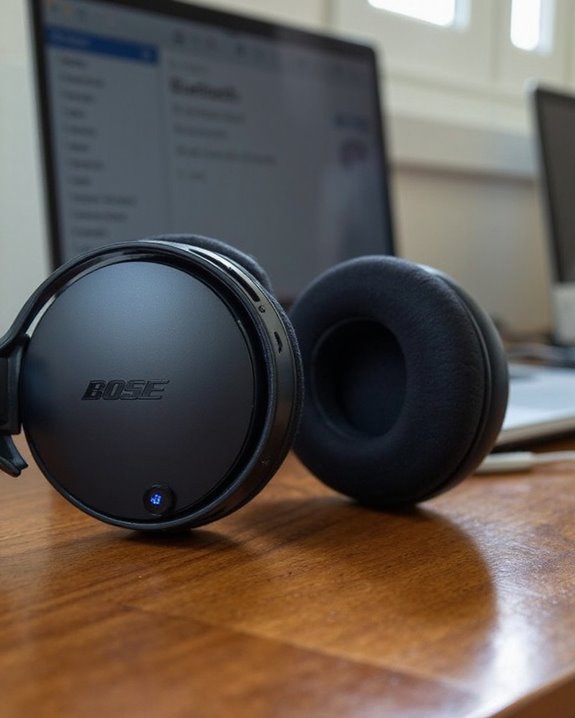
Proper preparation of Bose headphones creates the foundation for a successful connection to any PC. Before attempting to pair, users should perform a Battery Check to verify sufficient power—charging via USB if needed. For best results, power off headphones for at least 30 seconds prior to initiating the pairing process.
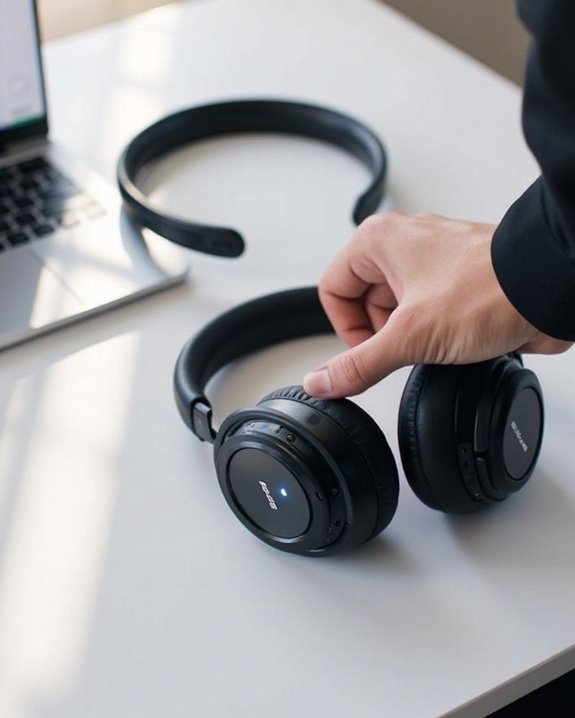
Mode Activation requires holding the power button (or designated pairing button) for approximately 3 seconds until indicator lights begin blinking. Some models may require a 10-second hold to reset previous connections. During this process, keep headphones within 3 feet of the PC and minimize interference from other Bluetooth devices.
For wired models, inspect cables for damage and verify proper insertion into both the headphone port and the PC’s 3.5mm jack. This prevents connection failures and audio quality issues.
Using headphones with Bluetooth 5.3 connectivity can enhance the stability and range of your wireless connection.
Recommended Products
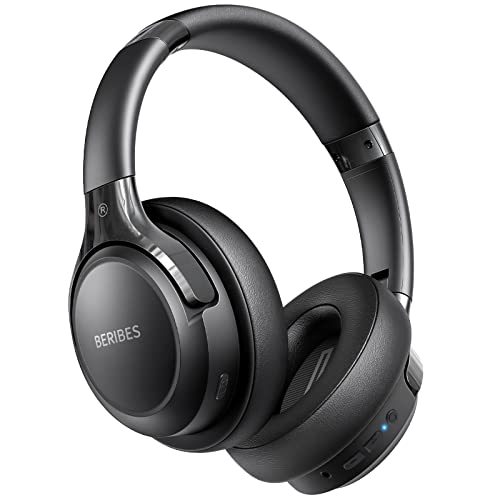
65 Hours Playtime: Low power consumption technology applied, BERIBES bluetooth headphones with built-in 500mAh battery can continually play more than 65 hours, standby more than 950 hours after one fully charge. By included 3.5mm audio cable, the wireless headphones over ear can be easily switched to wired mode when powers off. No power shortage problem anymore.

【40MM DRIVER & 3 MUSIC MODES】Picun B8 bluetooth headphones are designed for audiophiles, equipped with dual 40mm dynamic sound units and 3 EQ modes, providing you with stereo high-definition sound quality while balancing bass and mid to high pitch enhancement in more detail. Simply press the EQ button twice to cycle between Pop/Bass boost/Rock modes and enjoy your music time!

✅ Never Run Out of Music with 80-Hour Marathon Battery: Experience ultimate freedom. These over ear bluetooth headphones play for 80 hours on a single charge—enough for cross-country flights, a full workweek, or a month of gym sessions. The included AUX cable and quick charge ensure your audio never stops, making them perfect for travelers and busy commuters.
Setting Up Bluetooth Connection on Windows
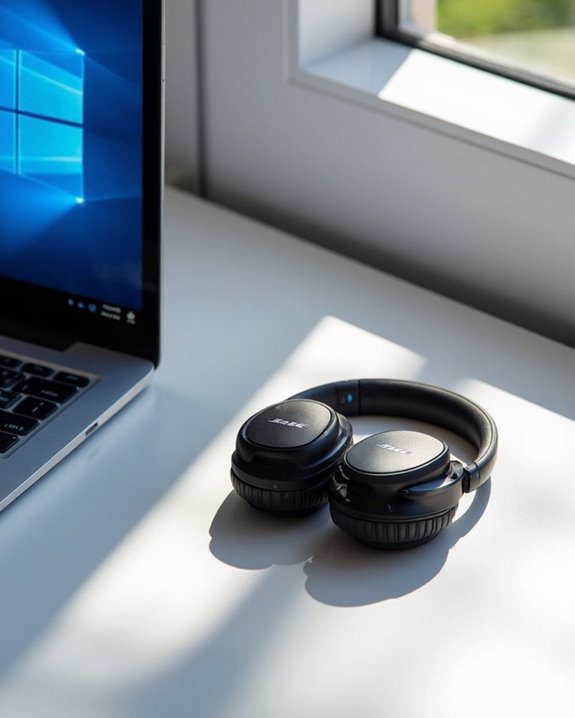
The process of connecting Bose headphones to a Windows PC involves activating the system’s Bluetooth functionality and establishing a secure wireless link between devices. Users can enable Bluetooth through the Windows Action Center or by going to Settings > Devices > Bluetooth & other devices.
Once Bluetooth is activated, users should access the Windows Widgets panel to quickly toggle Bluetooth settings as needed. The system utilizes standard Bluetooth Profiles to guarantee proper audio transmission between the PC and headphones.
To initiate pairing, select “Add Bluetooth or other device” and choose the Bluetooth option. When the Bose headphones appear in the device list, select them to establish the connection. Windows will automatically configure the appropriate audio profiles, enabling seamless sound transmission and headphone functionality. Many wireless headsets now support Bluetooth 5.0/5.3 connectivity, which ensures stable and high-quality connections.
Recommended Products

Bluetooth 5.4 + Broad Compatibility - Provides Bluetooth 5.4 plus EDR technology and is backward compatible with Bluetooth V5.3/5.0/4.2/4.0/3.0/2.1/2.0/1.1.

𝐁𝐥𝐮𝐞𝐭𝐨𝐨𝐭𝐡 𝟓.𝟑 𝐒𝐮𝐩𝐩𝐨r𝐭 – Applies the latest Bluetooth 5.3 plus EDR technology and is backward compatible with Bluetooth V4.2/4.0/3.0/2.1/2.0/1.1. UB500 Plus turns non-Bluetooth PC, desktop or laptop into Bluetooth-capable

Upgraded Bluetooth 5.3 Adapter: This bluetooth adapter for pc uses the latest upgraded Bluetooth 5.3 BR+EDR technology, greatly improves the stability of the connection data transfer speed, reduces the possibility of signal interruption and power consumption.
Connecting Bose Headphones to Mac Computers
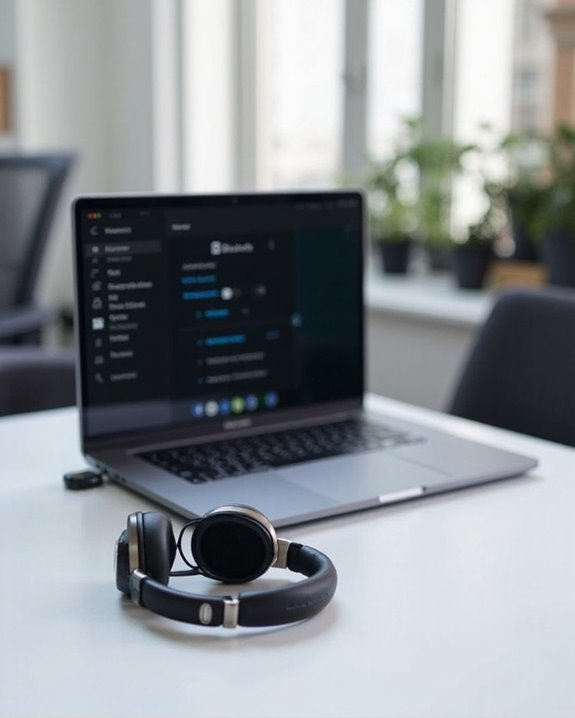
Establishing a wireless connection between Bose headphones and Mac computers follows a straightforward procedure that differs slightly from Windows systems. Users must first place their Bose headphones in pairing mode by holding the Power/Bluetooth button until they hear a voice prompt or see a blinking blue indicator.
On the Mac, navigate to System Settings and select Bluetooth to enable wireless connectivity. When the headphones appear in the device list, simply click “Connect” to establish the connection. Many Bose models support Multipoint Pairing, allowing simultaneous connection to multiple devices while prioritizing active audio sources.
For troubleshooting connection issues, make sure headphones are charged, keep devices within three feet during initial pairing, and check for system updates. Siri Integration works automatically once pairing is successful, enabling voice command functionality through the headphones.
Using Wired Connection for Optimal Audio Quality
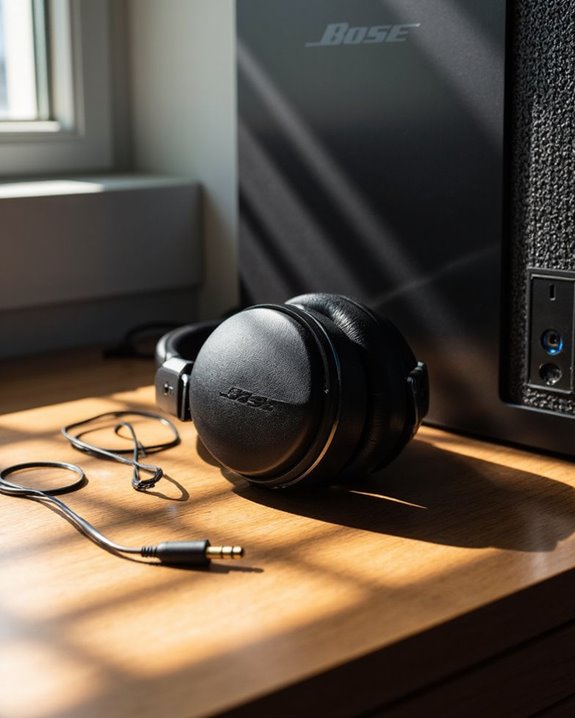
While Bluetooth connectivity offers convenience, connecting Bose headphones to a PC through a wired connection delivers superior audio quality for discerning listeners. The Wired Benefits include stable, uncompressed audio transmission without the latency or interference issues common with wireless connections.
To achieve maximum Audio Fidelity, users should:
- Insert the smaller connector (typically 2.5mm) into the left earcup
- Connect the 3.5mm end to the PC’s headphone jack
- Make sure Windows sound settings route audio to the headphone port
The wired connection automatically disables Bluetooth functionality, optimizing sound quality. This method provides consistent low-latency audio ideal for gaming, video editing, and conference calls. Additionally, wired connections function even when the headphone battery is depleted, guaranteeing uninterrupted listening experiences.
Recommended Products

【2.5mm Jack Compatible Headphones】This 5.09 ft/155cm 2.5mm audio cable is ONLY compatible with Bose 700(NC700) Quietcomfort QC25 QC35 QC35II QC45 JBL Tune 710BT 660NC 760NC and AKG Y40 N700NC and more other headsets with 2.5MM Jack Port listed in the description.

【Universal Compatibility】Bose QC35, QC25,700, QC45, QC35II,Over-ear headphones, JBL E45BT, E55BT, E65BTNC, 750NC, Duet BT, Duet NC, AKG Y45, Y40,Y55BT, Y55, Y50, Y45, Y40 headphones, Live 400BT, Live 500BT, Live 650BTNC and more other headphone with 2.5mm jack port

【3.5mm to 2.5mm Audio Cable】3.5mm to 2.5mm audio cord perfect compatible with Bose QuietComfort QC45 QC35II QC35 QC25 NC700 OE2 OE2i On-Ear2 Soundlink Soundtrue Headphones. Also compatible with J BL Tune 710BT, 660NC, 750NC, 760NC, E40BT, E45BT, E55BT, E65BTNC, Duet BT, Duet NC, Live 400BT, Live 460, Live 500BT, Live 650BTNC, AKG Y55BT, Y55, Y50, Y45, Y40 and more other selected headphones with 2.5mm jack port
Troubleshooting Common Connection Problems
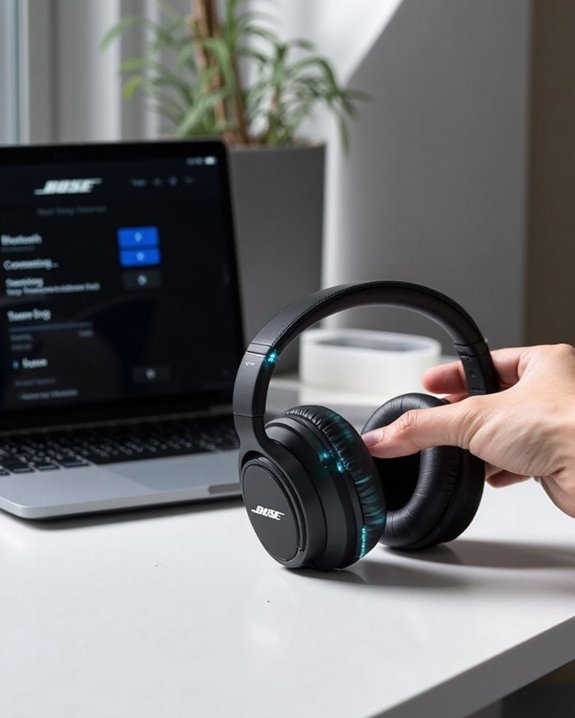
When Bose headphones refuse to connect properly with a PC, users often face frustrating technical roadblocks that prevent ideal audio experiences. The most immediate solutions involve rebooting both devices and clearing previously paired connections from memory.
Signal Interference from nearby electronic devices can disrupt Bluetooth connectivity, requiring users to maintain distance from routers, microwaves, and wireless peripherals. Range Limitations typically restrict Bluetooth connections to approximately 30 feet, with walls and obstacles further reducing effective distance.
For persistent issues, users should:
- Update PC Bluetooth drivers
- Restart the Bluetooth Support Service
- Check power management settings
- Verify proper device classification in Windows
If headphones pair but produce no sound, accessing the device properties and enabling all Bluetooth services often resolves audio routing problems.
Recommended Products

Long Range Bluetooth Adapter: Techkey USB Bluetooth 6.0 dongle utilizes Class 1 radio technology and features an extended antenna, providing a transmission range of up to 600ft/200m in open areas, ensuring that Bluetooth connections are no longer limited by distance. (Please note that physical obstructions and wireless interference may affect the actual transmission range.)

Bluetooth 5.3 dongle: Applies the latest Bluetooth 5.3+EDR technology, compatible with Bluetooth 5.2/4.2/4.2 LE/4.0/2.1+EDR, and supports Dual mode (BR/EDR+ Bluetooth Low Energy) to achieve low energy consumption and high speed. Quick response and better anti-interference.
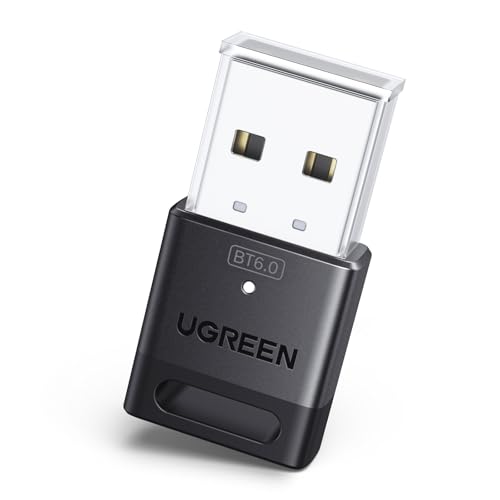
This Bluetooth adapter for PC utilizes the latest Bluetooth 6.0 EDR technology, delivering faster data transfer speeds, seamless high-quality audio/video streaming, and efficient large-file transfers.
Enhancing Your Experience With the Bose Connect App
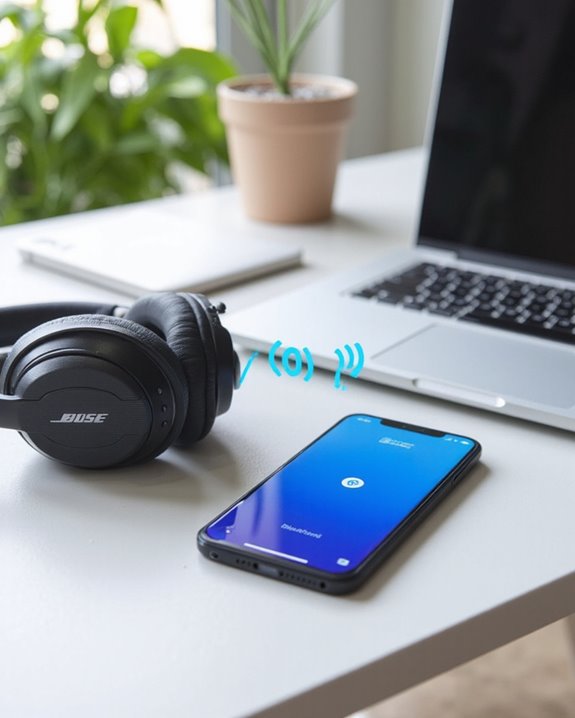
The Bose Connect App serves as a powerful companion tool for PC users seeking to maximize their Bose headphone experience beyond basic Bluetooth connectivity. Available through the Microsoft Store or Bose website, this free application enables advanced functionality for compatible devices running Windows 10 or later.
The app centralizes device management through an intuitive interface where users can access Audio Customization features like equalizer adjustments and personalized sound profiles. Battery monitoring, auto-off timer settings, and seamless switching between paired devices further enhance operational convenience.
Firmware Management represents another significant advantage, enabling users to install the latest updates that improve performance and add new features. Though primarily designed for mobile platforms, the PC version provides essential control capabilities that complement Windows’ native Bluetooth functionality while extending the useful lifespan of Bose audio products.
Recommended Products

[Hybrid ANC up to -45dB] TOZO NC3 Hybrid Active Noise Cancellation reduces ambient noise by up to -45dB and is designed to reduce steady low-frequency sounds such as subway rumble, airplane engine noise, and AC hum. Multiple ear tip sizes help you achieve a proper seal for consistent noise reduction.

Turn Your Wired Earphones, Headphones & Speakers into Wireless Devices!

[Hybrid ANC up to -45dB] TOZO NC3 Hybrid Active Noise Cancellation reduces ambient noise by up to -45dB and is designed to reduce steady low-frequency sounds such as subway rumble, airplane engine noise, and AC hum. Multiple ear tip sizes help you achieve a proper seal for consistent noise reduction.
Frequently Asked Questions
Can I Connect My Bose Headphones to Multiple Devices Simultaneously?
Yes, select Bose headphones support multi device pairing, allowing connection to two Bluetooth devices simultaneously. This feature enables simultaneous switching between devices by pausing audio on one device and playing on the other.
Will Connecting Bose Headphones Affect My Pc’s Gaming Performance?
Wondering about gaming with Bose? Connecting Bose headphones typically has minimal Performance Impact on PC gaming. While wireless options may introduce slight Gaming Latency, the effect is negligible for most users during gameplay.
How Do I Set Bose Headphones as My Default Audio Device?
To set Bose headphones as default, users should access Windows audio settings, locate the headphones under Playback devices, right-click them, and select “Set as Default Device.” Default troubleshooting may require restarting audio services if issues persist.
Can I Use My Bose Headphones’ Microphone for PC Calls?
Most standard Bose headphones have limited microphone compatibility with PCs. Only specific gaming models offer proper voice quality and echo reduction for calls. Users typically need special software or controllers to enable microphone functionality on Windows.
How Long Does the Bluetooth Connection Range Work From My PC?
Bose headphones typically maintain Bluetooth range of up to 33 feet (10 meters) from a PC under ideal conditions. However, signal distance can be reduced by obstacles, interference, and the Bluetooth version being used.