As an Amazon Associate, we earn from qualifying purchases. Some links on this site are affiliate links at no extra cost to you. Our recommendations are based on thorough research and editorial judgment.

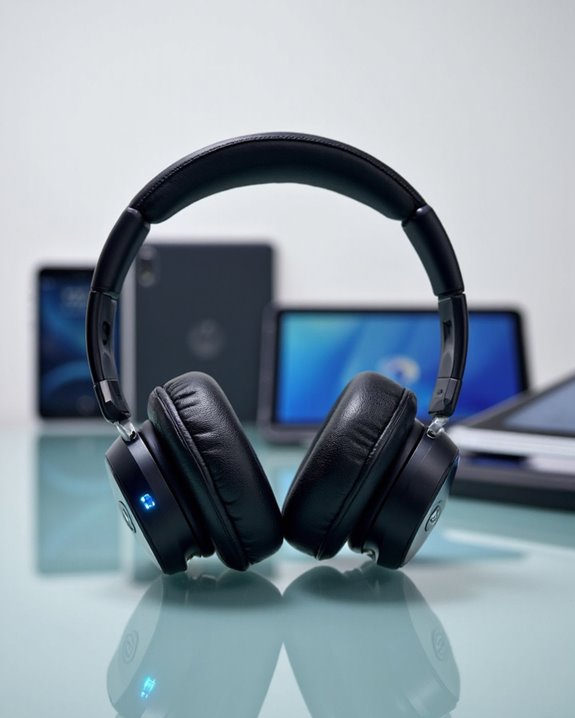
How to Pair Beats Headphones With Any Device

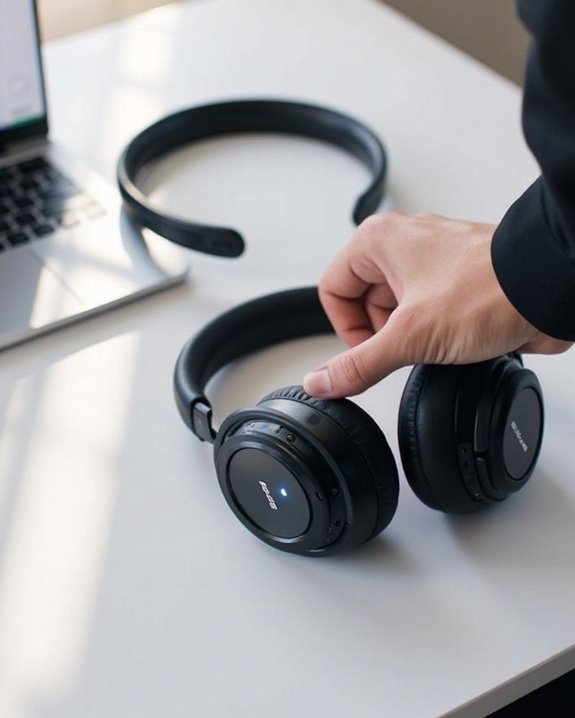
To pair Beats headphones, first make sure they’re charged and in pairing mode (typically by holding the power button until LED lights flash). For iOS devices, enable Bluetooth and hold headphones nearby for automatic detection. On Android, navigate to Bluetooth settings and select your Beats from available devices. For computers, access Bluetooth settings through System Preferences (Mac) or Settings (Windows) and select the headphones. Troubleshooting may require restarting devices or performing a factory reset on persistent connection issues.
Key Takeaways
- Ensure headphones are fully charged and in pairing mode by holding the power button until LED lights flash.
- For iOS devices, enable Bluetooth, hold headphones within 2 inches, and follow on-screen setup animation.
- Pair with Android by navigating to Settings > Connections > Bluetooth and selecting your Beats from available devices.
- Connect to computers by accessing Bluetooth settings in System Settings (Mac) or through taskbar (Windows).
- Troubleshoot connection issues by restarting Bluetooth, removing previous pairings, or performing a factory reset.
Preparing Your Beats Headphones for Pairing
You may be interested
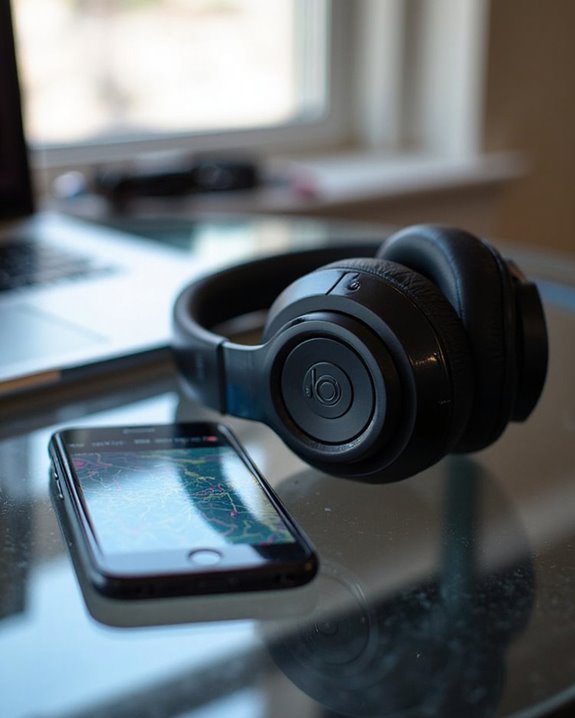
Can You Track Beats Headphones If They Are Lost?
July 1, 2025
Do Headphone Dents Go Away?
August 4, 2025
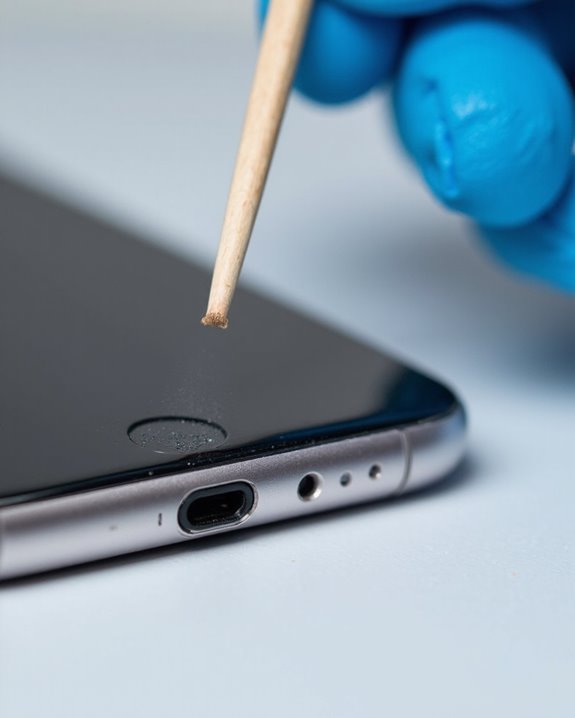
Before connecting Beats headphones to any device, proper preparation guarantees a smooth pairing process. The initial step involves ensuring the headphones are fully charged and powered on, which may automatically trigger pairing mode in first-time use scenarios. Proper Headphone Maintenance includes keeping the units clean and free from debris that might interfere with Bluetooth connectivity.
Position the headphones within close proximity to the target device, confirming that Bluetooth functionality is enabled on the receiving device. Different Beats models utilize specific buttons to activate pairing mode, so consulting the User Manual for model-specific instructions is advisable.
For best results, minimize potential interference from other electronic devices and physical barriers. If connectivity issues persist, power cycling both the headphones and receiving device often resolves common pairing obstacles. Additionally, utilizing headphones with advanced Bluetooth 5.2 connectivity can offer more stable wireless performance and an extended range during the pairing process.
Recommended Products
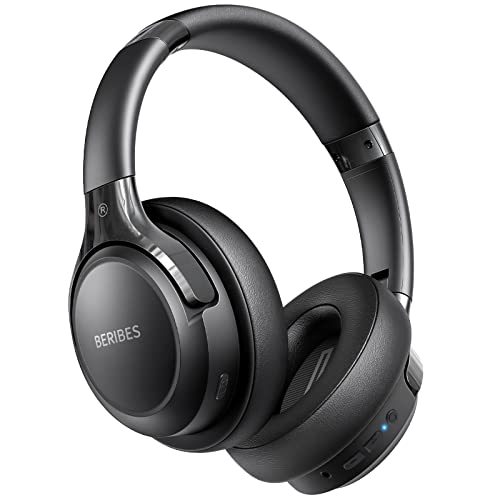
65 Hours Playtime: Low power consumption technology applied, BERIBES bluetooth headphones with built-in 500mAh battery can continually play more than 65 hours, standby more than 950 hours after one fully charge. By included 3.5mm audio cable, the wireless headphones over ear can be easily switched to wired mode when powers off. No power shortage problem anymore.

【40MM DRIVER & 3 MUSIC MODES】Picun B8 bluetooth headphones are designed for audiophiles, equipped with dual 40mm dynamic sound units and 3 EQ modes, providing you with stereo high-definition sound quality while balancing bass and mid to high pitch enhancement in more detail. Simply press the EQ button twice to cycle between Pop/Bass boost/Rock modes and enjoy your music time!

Secure & Flexible Earhook Design for Sports:Built with soft flexible earhooks and an ultra lightweight 7.8g structure, these sports earbuds stay comfortably secure during workouts, jogging, cycling, fitness training, and outdoor activities without slipping or causing ear fatigue.
Understanding How Beats Headphones Connect
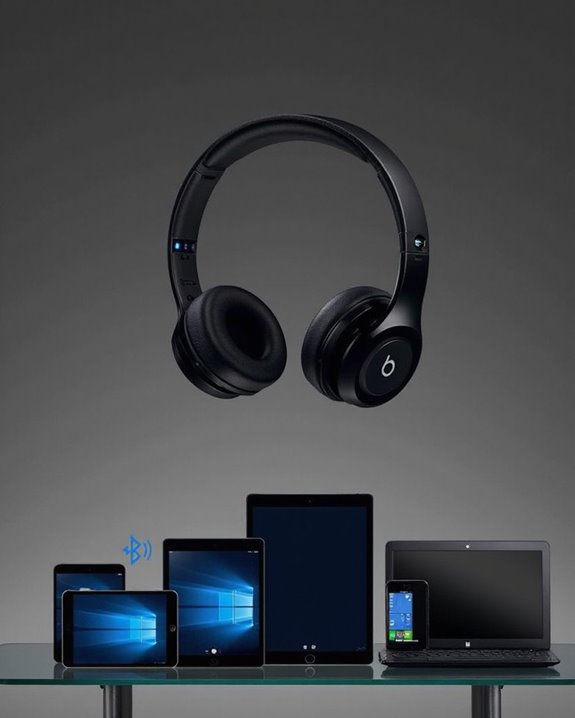
Bluetooth technology forms the foundation of how Beats headphones establish wireless connections with various devices. The protocol enables secure transmission of audio data without physical cables, maintaining wireless security through encrypted connections between paired devices. Most Beats models utilize Bluetooth 4.0 or higher, which guarantees minimal audio latency during music playback or video watching.
When activated, Beats headphones broadcast their availability to nearby devices with Bluetooth capabilities. This discovery process allows smartphones, tablets, computers, and other compatible technology to detect and establish connections with the headphones. Once paired, devices typically remember the connection for future use.
While Beats headphones can pair with multiple devices, they maintain an active connection with only one device at a time. This limitation requires users to manually switch connections when moving between different source devices. Additionally, newer models like the Beats Studio Pro support Bluetooth 5.3 for extended range and improved connection stability.
Recommended Products
Optional 6 Music Modes: Adopted most advanced dual 40mm dynamic sound unit and 6 EQ modes, BERIBES updated headphones wireless bluetooth black were born for audiophiles. Simply switch the headphone between balanced sound, extra powerful bass and mid treble enhancement modes. No matter you prefer rock, Jazz, Rhythm & Blues or classic music, BERIBES has always been committed to providing our customers with good sound quality as the focal point of our engineering.

Hybrid Active Noise Cancelling Bluetooth Over Ear Headphones Wireless, Hi-Res Audio, Memory Foam Earcup, ANC Headphone Dark Blue Black
[Stable Bluetooth 5.3 Connection] Adopting the latest Bluetooth 5.3 technology and superior acoustic component, ensures faster and more stable connection. Boean wireless headphones up to 30ft Bluetooth range in the open space and 10ft in the obstacles space.
Step-By-Step Guide for Ios Device Pairing
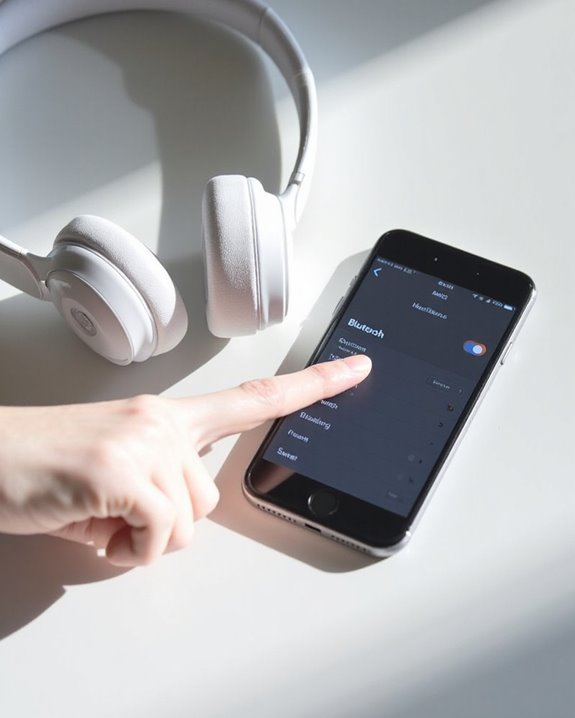
Pairing Beats headphones with iOS devices offers a streamlined experience compared to other platforms, thanks to Apple’s ownership of the Beats brand. The process typically relies on Proximity Detection technology that automatically identifies Beats headphones when placed within 2 inches of an active iOS device.
Users should first verify their iOS device has Bluetooth enabled and their Beats headphones are fully charged. When the headphones are brought near the device, a Setup Animation should appear on screen with pairing instructions. Following these prompts completes the connection process automatically.
If the animation doesn’t appear, manual pairing becomes necessary. Users must access Bluetooth settings, put their Beats into pairing mode (typically by holding the power button), and select the headphones from the available devices list. Unlike wired Lightning headphones, which offer MFi-certified options with built-in controls and reliable connectivity, Beats headphones rely on wireless Bluetooth technology for pairing.
Recommended Products

Excellent Sound & 6EQ Modes: Wireless Bluetooth headphones equipped with 40mm dynamic driver, which produces hi-fi stereo sound, crisp and clean, great balanced Bassup and reduces environmental noise.Switch freely between 6 sound effects with the EQ button: Bass, pop, rock, classic, jazz and vocal. Listening to a variety of music,just like you are in a concert with a wide sense of space

2026 Bluetooth 5.4 Technology : The wireless earbuds use the bluetooth 5.4 chipset. There is a faster and more stable signal transmission and has successfully achieved low latency without interruption. With a range of up to 15 m, whether you are at home, in the office, or on the road, you don't have to worry about disconnection of the bluetooth earbuds. Automatic pairing & compatible with multiple devices.

[Ultra-Lightweight Ear Buds Designed for Small Ears] Each earbud weighs only 3.7g and features a compact, ergonomic in-ear design made especially for small ears. Secure, low-profile, and comfortable for workouts, all-day wear or overnight sleeping.The ultra-slim profile sits flush in your ear with no hard edges poking or rubbing, so you can even sleep on your side without discomfort.
Connecting Beats Headphones to Android Devices
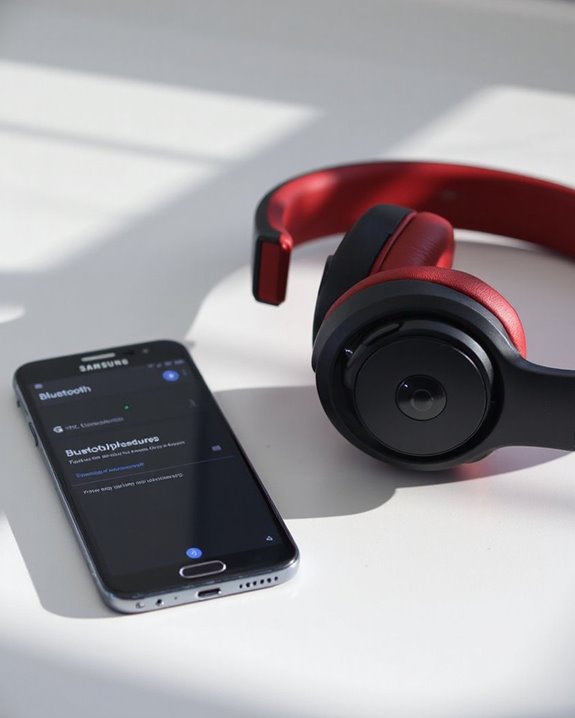
Connecting Beats headphones to Android devices differs somewhat from the iOS pairing process but remains straightforward with the right approach. Android integration requires users to navigate to Settings > Connections > Bluetooth on their device while making sure both Bluetooth functionality is enabled and the headphones are powered on.
To initiate pairing mode, press and hold the system button on Studio Pro models until lights flash, or hold the power button for about 5 seconds on Studio3 headphones. For Studio Buds, simply open the charging case with earbuds inside. Once the headphones appear in the Android device’s Bluetooth menu, select them to complete pairing.
This connection optimizes battery life by creating a stable Bluetooth link. If connection issues arise, make sure the headphones aren’t already paired with another device or perform a factory reset.
Recommended Products

2026 Bluetooth 5.4 Technology : The wireless earbuds use the bluetooth 5.4 chipset. There is a faster and more stable signal transmission and has successfully achieved low latency without interruption. With a range of up to 15 m, whether you are at home, in the office, or on the road, you don't have to worry about disconnection of the bluetooth earbuds. Automatic pairing & compatible with multiple devices.
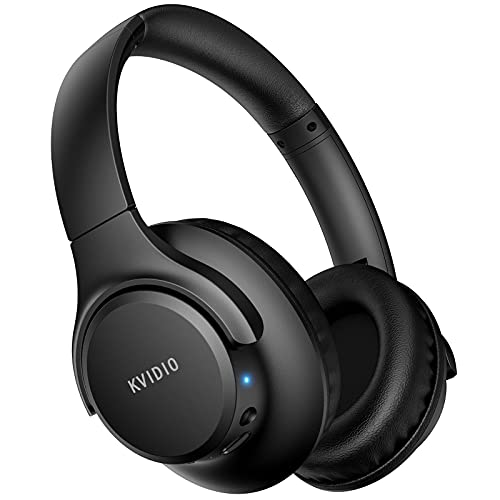
Stereo sound headphones: KVIDIO bluetooth headphones with dual 40mm drivers, offers an almost concert hall-like feel to your favorite music as close as you're watching it live. Provide low latency high-quality reproduction of sound for listeners, audiophiles, and home audio enthusiasts

LED Power Display and 60H Playback: Dual digital LED power display outside of the case is to show the power level for charging case and earbuds. When charging for the case, the LED light will start to flash from 1 to 100. When you put earbuds into the case, then earbuds will start to be charged. 470mAh battery capacity charging case can provide extra 4 times full charging for both earbuds, each earbud can last 6H on single charging. So, you can enjoy 60H music time in total via using in turn
Pairing With Mac and Windows Computers
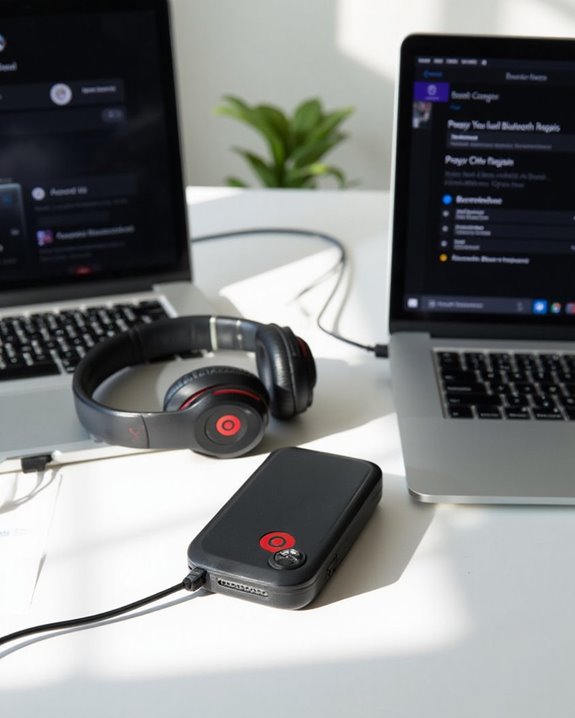
When users need to enjoy their favorite music or podcasts on larger devices, the process of setting up wireless audio becomes essential. Mac integration with Beats headphones follows a streamlined approach, requiring users to navigate to System Settings or Preferences, activate Bluetooth, and select their device from the list.
For Windows optimization, the process involves accessing Bluetooth settings through the taskbar search, toggling on the Bluetooth function, and adding the headphones as a new device. Users should verify their Beats are in proper pairing mode, indicated by flashing LED lights.
Common troubleshooting steps include:
- Restarting Bluetooth on the computer
- Power cycling both devices
- Removing previous connections
- Keeping devices within 30 feet of each other
Regular firmware updates and sufficient battery charge help maintain stable connections.
Solving Common Beats Headphone Connection Problems
Even with proper pairing procedures, Beats headphone users occasionally encounter connectivity issues that disrupt their listening experience. Common problems include Bluetooth interference, environmental obstacles blocking signals, and device compatibility conflicts.
When troubleshooting, start with a basic reset by holding the designated button combination for your specific Beats model. Environmental solutions include relocating away from electronic devices that might cause interference and removing physical barriers between headphones and the connected device.
For persistent issues, implement hardware diagnostics by checking for charging problems or faulty cables. Users should also:
- Remove the headphones from Bluetooth settings and re-pair
- Update device software and Bluetooth drivers
- Perform a factory reset if necessary
Both soft and hard resets often resolve connection difficulties, with model-specific instructions available from Beat’s support resources.
Recommended Products
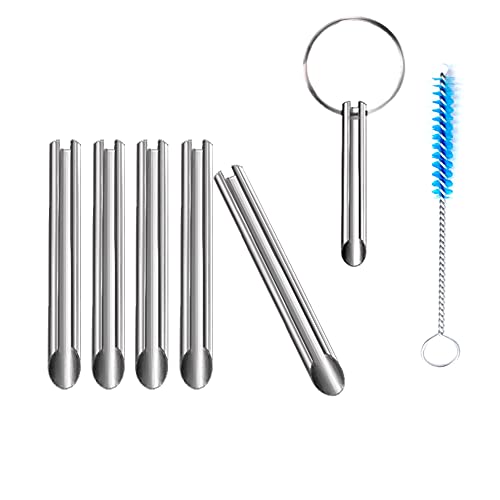
🛠️Applicable To :all models of mobile phones, pads and computers headphone jack, built to easily remove broken 3.5mm headphone plugs from jacks.

Hermitshell Hard Travel Storage Carrying Case.
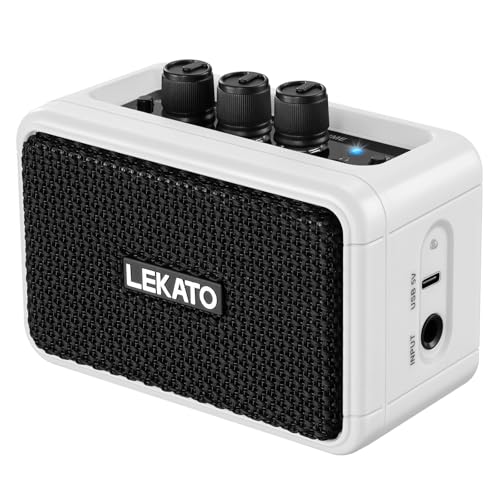
【Clean Overdrive Effects】: The electric guitar amps is equipped with Clean and Overdrive 2 sound modes, three control knobs: gain/tone/volume, whether you are in pursuit of pure and clear acoustic interpretation, or love the distortion of rock and roll passionate tone, a key can be easily converted to meet the needs of your changing music styles.
Frequently Asked Questions
Can I Pair Beats Headphones With Multiple Devices Simultaneously?
Most Beats headphones lack multi-device pairing capabilities. They can be paired with multiple devices but not maintain simultaneous connectivity. Users must manually switch between devices as the majority of Beats models don’t support multipoint functionality.
Will Pairing Beats Headphones Affect Battery Life?
Pairing itself has minimal impact on battery duration. The Bluetooth connection consumes some power, but it’s negligible compared to active features like ANC or high volume playback that greatly affect overall battery life.
How Do I Switch Between Previously Paired Devices?
Like a well-choreographed dance, switching between paired devices requires simple steps. Users can utilize Switch Compatibility by accessing Bluetooth settings on the target device and selecting Beats, or rely on Auto Reconnect after powering headphones on.
Can I Customize Sound Settings After Pairing?
Users can customize sound settings after pairing. Some Beats models offer Audio Presets through the Beats app or device settings. However, most models lack full Sound Equalization controls with adjustable sliders for frequencies.
Do Beats Headphones Pair Differently With Non-Apple Gaming Consoles?
Simple with Apple, complex with consoles. Beats headphones require Bluetooth adapters for most gaming consoles due to compatibility limitations. Different Bluetooth versions may affect connectivity, and users should consider potential latency issues during gaming sessions.