As an Amazon Associate, we earn from qualifying purchases. Some links on this site are affiliate links at no extra cost to you. Our recommendations are based on thorough research and editorial judgment.

How to Reset Bose Headphones: A Step-by-Step Guide

Resetting Bose headphones varies by model but follows similar principles. For Noise Cancelling 700, hold the Power/Bluetooth button for 10 seconds until confirmation. QuietComfort 35 II requires powering off, waiting 30 seconds, connecting to a charger briefly, then waiting another minute. QuietComfort 45 needs a 10-second Power/Bluetooth button press until LED confirmation. QuietComfort Ultra resets by simultaneously pressing the Power button while connecting the USB-C cable. The complete guide offers model-specific troubleshooting for persistent issues.
Key Takeaways
- Power off the headphones completely before attempting any reset procedure to ensure proper execution.
- For Bose 700 models, hold the Power/Bluetooth button for 10 seconds until you receive confirmation.
- QuietComfort 35 II owners should power off, wait 30 seconds, connect to charger, then unplug after 5 seconds.
- QuietComfort 45 users must press and hold Power/Bluetooth button for 10 seconds until LED blinks.
- After reset, enter pairing mode and reconnect your devices to restore all functionality.
Why You Might Need to Reset Your Bose Headphones
You may be interested
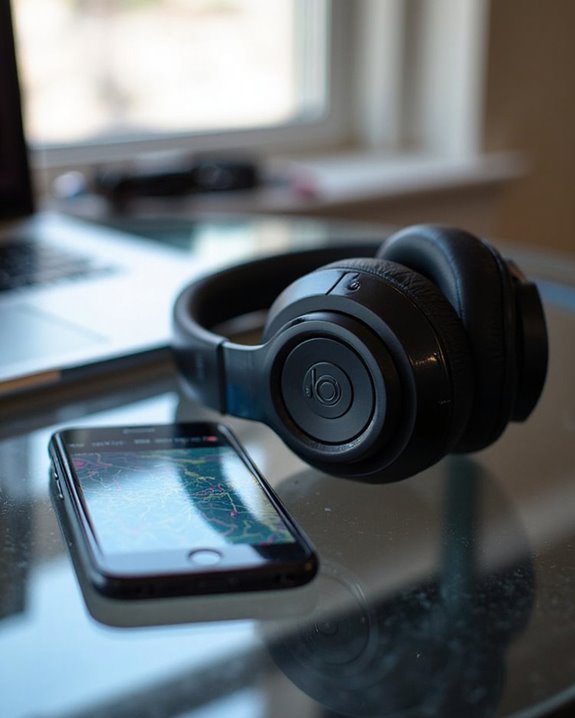
Can You Track Beats Headphones If They Are Lost?
July 1, 2025
Do Headphone Dents Go Away?
August 4, 2025
Experiencing issues with your Bose headphones? A reset often serves as the most effective troubleshooting method when connectivity problems arise. Users commonly encounter Bluetooth pairing difficulties, intermittent disconnections, and device recognition issues that can be resolved through this process.
Reset procedures can also address audio quality concerns such as distortion, lagging, unexpected background noise, and volume control malfunctions. Software glitches, unusual battery drain, and system crashes frequently respond positively to resetting as well.
Before attempting a reset, consider Alternative Solutions such as checking for firmware updates or ensuring proper charging. Implementing Preventive Measures—like regularly clearing paired device lists and keeping headphones away from interference sources—can minimize the need for frequent resets while maintaining best performance over time.
General Preparation Steps Before Resetting Bose Headphones
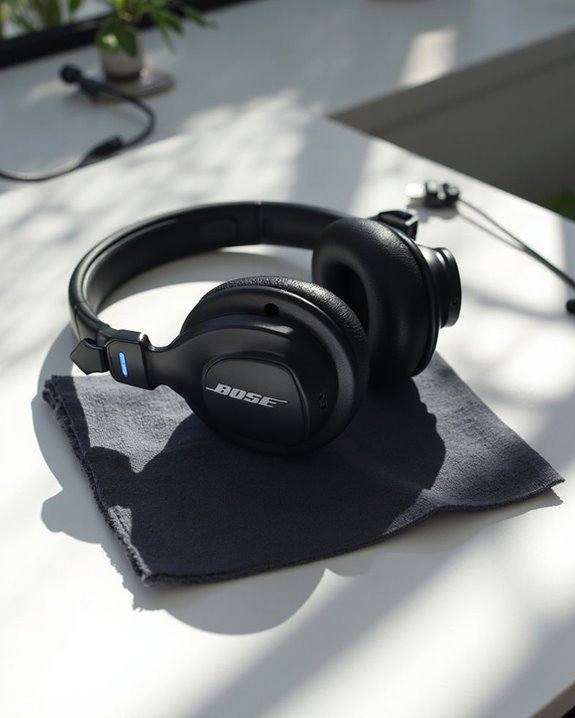
Before initiating a reset of your Bose headphones, proper preparation guarantees the process proceeds smoothly and effectively resolves technical issues. Begin by locating the model identifier on your device or packaging to make sure you follow the correct reset procedure.
Verify the Battery Status of your headphones; a sufficient charge is necessary for most reset operations. Power down the device completely before beginning the reset sequence.
Perform a Cable Inspection to make sure all peripherals are disconnected, including USB and audio cables, as these can interfere with the reset process. Additionally, remove all Bluetooth connections from paired devices.
Update the Bose app on your smartphone and clear previous device connections. Have necessary tools ready, including a USB-C cable for models requiring a wired connection during reset.
For optimal connectivity during and after the reset, ensure your device supports the latest Bluetooth version compatible with Bose headphones, such as Bluetooth 5.3 and 5.4 technology.
Recommended Products
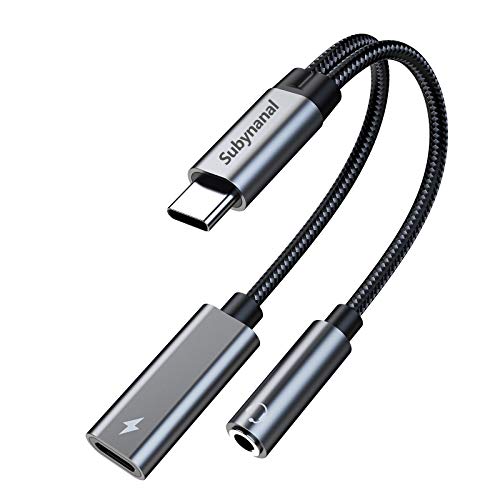
2 in 1 USB C to 3.5mm adapter:With the USB C to 3.5mm audio charger adapter,you can listen to your music while charging your phone,This multiple functionality usb type-c to 3.5mm adapter supports music playback and calling for most USB C devices,And supports volume control while fast-charging your device;NOTE: Does NOT support data transfer

【2-in-1 charging/audio】: Splits your USB-C port into a PD-compatible USB-C port and a 3.5mm audio jack, allowing you to listen to music, play games, calling or watch videos while fast -charging your device. NOTE: Does NOT support data transfer.

⭕[Exquisite Workmanship] Aluminum alloy shell by micro-arc oxidation process makes the shell surface harder and more wearable. Strict quality inspection standards, fine appearance details, refuse to be shoddy.
How to Reset Bose Noise Cancelling Headphones 700
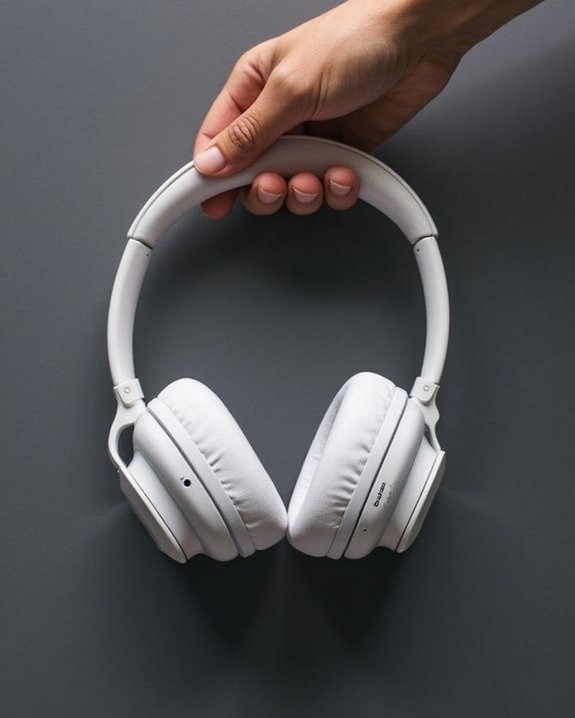
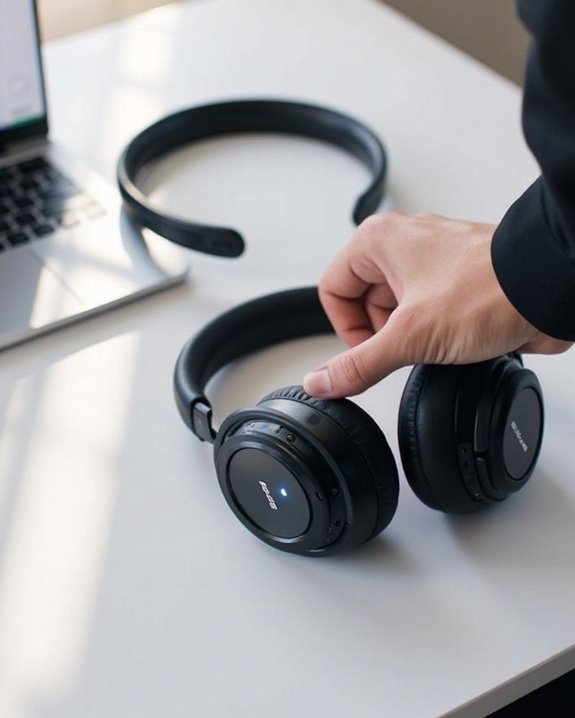
The Bose Noise Cancelling Headphones 700 require a specific reset procedure that differs slightly from other models in the Bose lineup. To perform a basic reset, make sure the headphones are powered on, then press and hold the Power/Bluetooth button for approximately 10 seconds until you hear a confirmation that the Bluetooth device list has been cleared.
For a complete factory reset, the process remains similar—hold the Power/Bluetooth button while the headphones are on until confirmation is received. This procedure has no negative Battery Impact and does not affect Warranty Effects, making it a safe troubleshooting method.
After resetting, reconnect your devices by entering pairing mode. If using the Bose USB Link, reset it separately by unplugging for 30 seconds before reconnecting to your computer.
Recommended Products
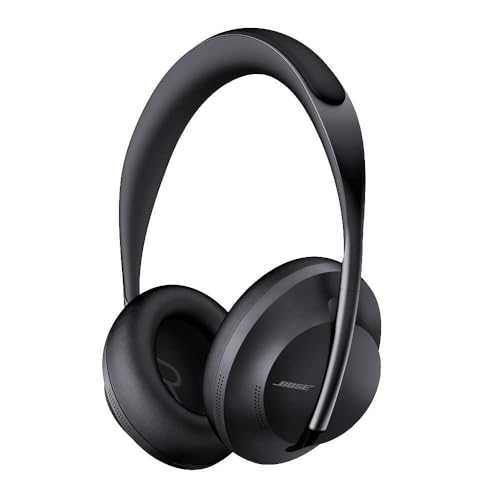
Powerful noise cancelling headphones: 11 levels of active noise cancelling let you enjoy music, podcasts, videos & calls without distractions

POWERFUL NOISE CANCELLING HEADPHONES: 11 levels of active noise cancelling let you enjoy music, podcasts, videos and calls without distractions

Easy Installation: Smooth installation with this complete replacement ear cushions kit compatible with Bose 700 Noise Cancelling headphones. No special tools are needed and the package includes a step-by-step guide for you to follow along.
Resetting Bose QuietComfort 35 II Headphones
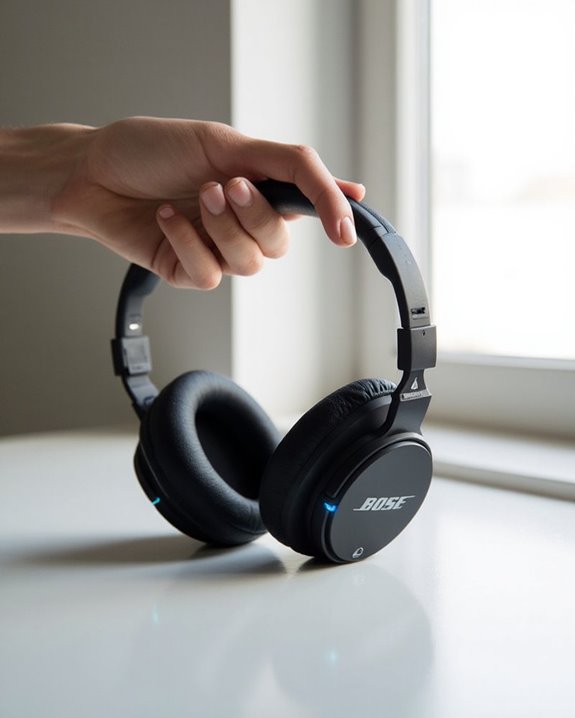
Bose QuietComfort 35 II headphones require a specific reset process to resolve common issues without compromising functionality. To perform a basic reset, users should power off the headphones, wait 30 seconds, then connect them to a wall charger. After a 5-second wait, unplug the device and allow a full minute before powering back on.
Reset variations exist based on the nature of the problem. For connectivity issues, this standard reset often resolves Bluetooth pairing difficulties. User experiences suggest that more persistent problems may require additional steps. While this process maintains pairing history, it effectively returns other settings to factory defaults.
For best results, the Bose Connect app can provide guided assistance after resetting. Many users report successful resolution of power button malfunctions and intermittent connectivity issues following this procedure.
Recommended Products

Widely used for audio game electronic products, compatible with Bose Beats Sony JBL Sennheiser Xbox Series S X and more.

【IN THE BOX】: 1 x Micro USB Charging Cable,1 x Adapter

【Universal Compatibility】: This usb c to usb c headphone and charger adapter is compatible for most of the type c devices without 3.5mm jack audio port including phones, tablets,laptops. Compatible with iPhone 17e,iPhone 17 Pro Max,17 Pro,17,Air,16e,16,16 Pro,16 Plus,16 Pro Max,15,15 Pro,15 Plus,15 Pro Max;Samsung Galaxy S26 Ultra S26+ S26,S25 S25+ S25 Ultra FE Edge A57 A37 A17 A16 5G A26 A36 A56 A35 A55 A54 A53 A33,Z Fold 7 6,Z Flip 7 6 S24 S23 S22 and other devices without 3.5mm audio port.
Step-by-Step Reset for Bose QuietComfort 45
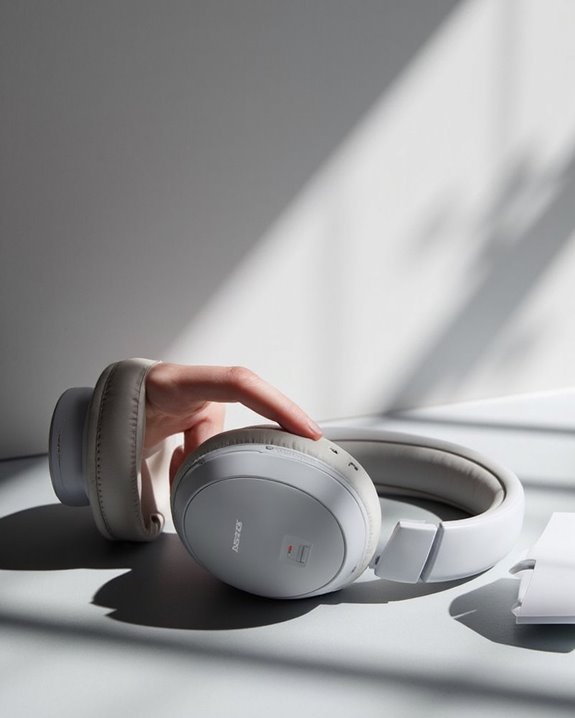
Successfully resetting Bose QuietComfort 45 headphones requires following a specific sequence of steps to guarantee proper functionality restoration. Users should begin by powering off the headphones completely and locating the Power/Bluetooth button.
To perform a Manual Reset, press and hold the Power/Bluetooth button for 10 seconds until the LED indicator blinks and Voice Prompts confirm the reset process has initiated. For more persistent issues, a hard reset can be executed by simultaneously pressing the Action and Bluetooth buttons.
After the reset completes, users should reconnect their devices by enabling Bluetooth and selecting “BOSE QC45” from available connections. If problems persist, checking for firmware updates through the Bose Music app is recommended before attempting another reset or contacting Bose support.
Recommended Products
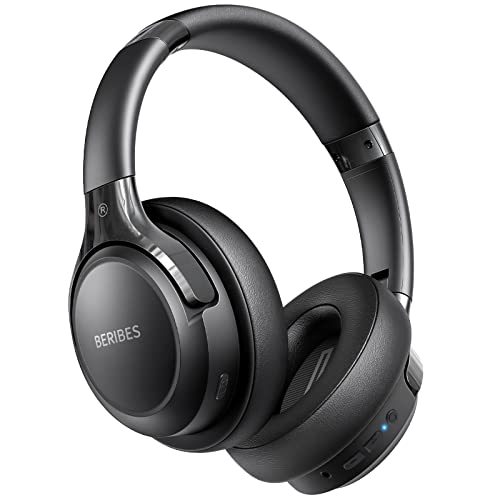
65 Hours Playtime: Low power consumption technology applied, BERIBES bluetooth headphones with built-in 500mAh battery can continually play more than 65 hours, standby more than 950 hours after one fully charge. By included 3.5mm audio cable, the wireless headphones over ear can be easily switched to wired mode when powers off. No power shortage problem anymore.

JBL Pure Bass Sound: The JBL Tune 720BT features the renowned JBL Pure Bass sound, the same technology that powers the most famous venues all around the world.

【40MM DRIVER & 3 MUSIC MODES】Picun B8 bluetooth headphones are designed for audiophiles, equipped with dual 40mm dynamic sound units and 3 EQ modes, providing you with stereo high-definition sound quality while balancing bass and mid to high pitch enhancement in more detail. Simply press the EQ button twice to cycle between Pop/Bass boost/Rock modes and enjoy your music time!
Resetting the Bose QuietComfort Ultra
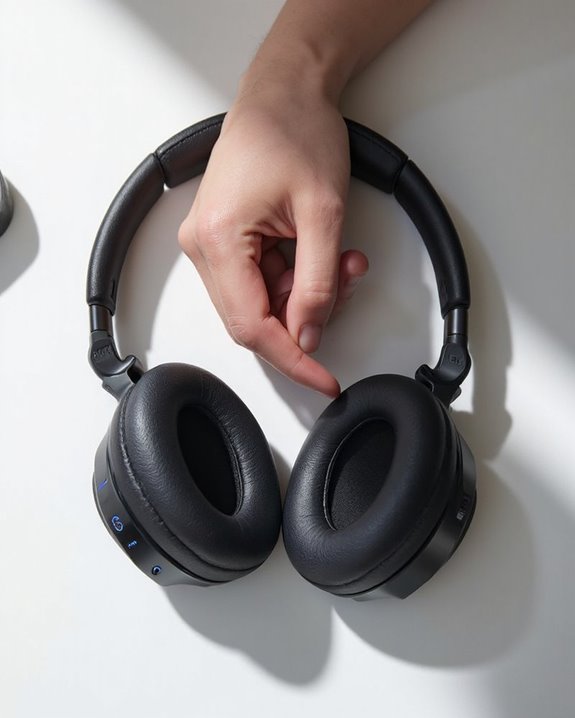
Performing a reset on QuietComfort Ultra headphones effectively resolves various operational issues while restoring factory settings for peak performance. The process combines hardware and software elements, countering common Reset Myths about data loss or firmware damage.
To reset these headphones, simultaneously press the Power/Bluetooth button while connecting a USB-C cable to the left earcup. This Reset Evolution represents Bose’s streamlined approach compared to earlier models’ more complex procedures.
Before resetting, users should:
- Disconnect all paired devices
- Remove the headphones from the Bose app
- Clear the headphone from device Bluetooth lists
After completing the reset, the headphones return to pairing mode. Users should reconnect to the Bose app, check for available updates, and verify all functionalities work properly.
Recommended Products

Excellent Sound & 6EQ Modes: Wireless Bluetooth headphones equipped with 40mm dynamic driver, which produces hi-fi stereo sound, crisp and clean, great balanced Bassup and reduces environmental noise.Switch freely between 6 sound effects with the EQ button: Bass, pop, rock, classic, jazz and vocal. Listening to a variety of music,just like you are in a concert with a wide sense of space
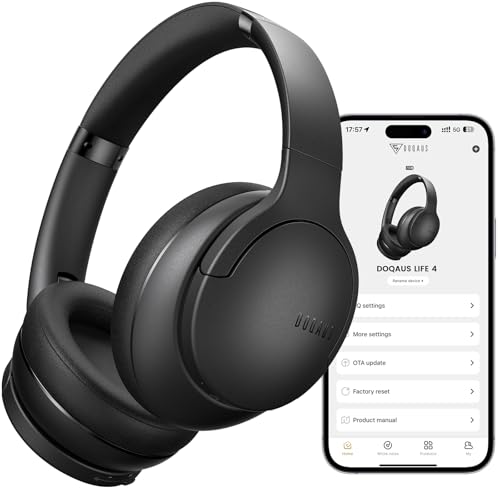
✅ End Charging Anxiety with 90-Hour Marathon Battery Life: Designed for the long-haul commuter or international traveler, these wireless headphones deliver up to 90 hours of playtime. A quick 10-minute charge fuels 5 hours of listening, and the included aux cable is your zero-power backup plan, ensuring your music, podcasts, or movies never stop.

Hybrid Active Noise Cancelling Bluetooth Over Ear Headphones Wireless, Hi-Res Audio, Memory Foam Earcup, ANC Headphone Dark Blue Black
Troubleshooting Common Issues After Reset
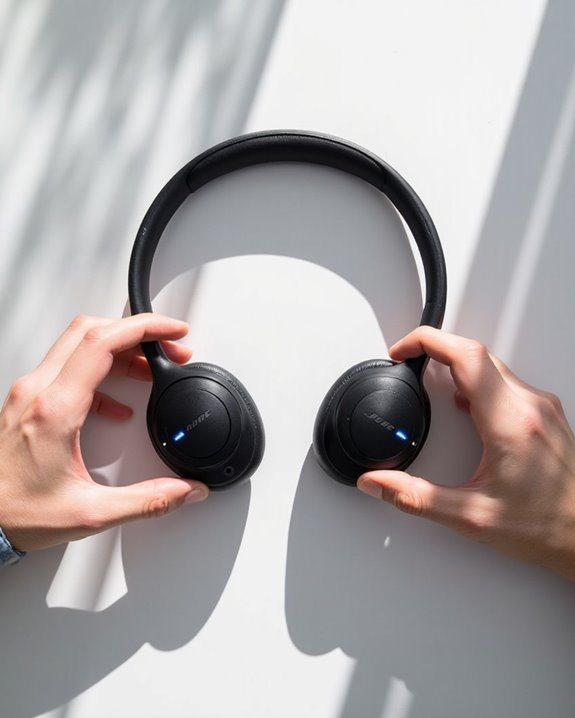
While resetting your QuietComfort Ultra can solve many problems, users may encounter several operational challenges afterward that require additional troubleshooting. Firmware glitches may persist if the reset didn’t fully clear corrupted software, resulting in audio imbalance or intermittent connectivity.
Hardware defects cannot be remedied through software resets alone. Issues like clicking sounds, unstable battery connections, or physical damage to components will continue despite reset attempts. Additionally, Bluetooth pairing requires re-establishing connections to all previously linked devices.
For persistent audio problems, check for debris in speaker grilles and verify proper headphone positioning. Battery drain issues post-reset may indicate deeper firmware problems or declining battery health. When troubleshooting fails to resolve issues, firmware updates might be necessary, or professional repair services should be considered for physical defects. Zihnic headphones, for example, offer AI-enhanced technology that can improve call clarity and noise reduction, which might be helpful to consider when comparing or troubleshooting audio devices.
Optimizing Your Bose Headphones Post-Reset
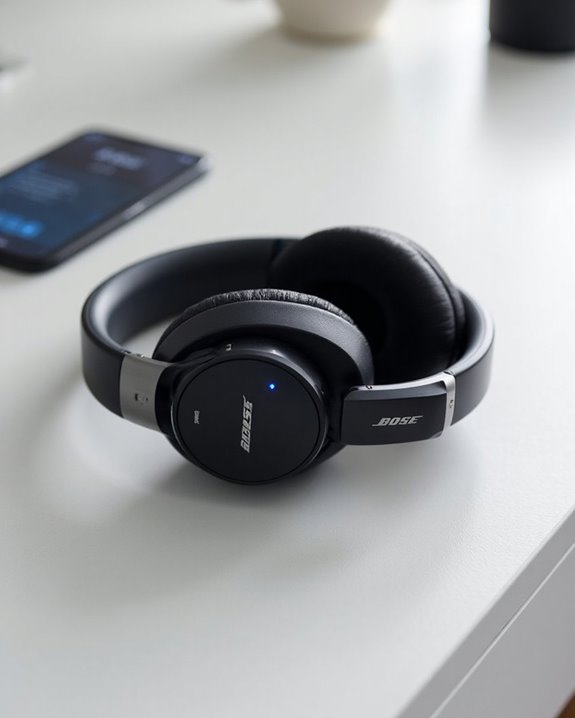
Restoring your Bose headphones to peak performance after a reset requires several key adjustments and customizations. Users should immediately check for available Firmware Updates through the Bose app or website, as these can greatly improve sound quality, connectivity, and compatibility with various devices.
Sound Customization represents another critical optimization step. Through the Bose app, users can adjust equalizer settings, noise cancellation levels, and create custom sound profiles tailored to specific genres or environments. These personalized settings guarantee ideal audio reproduction across different listening scenarios.
Re-pairing devices properly after reset guarantees stable connections. Users should position devices close together during pairing to minimize interference. For maximum durability, implement proper maintenance practices including regular cleaning and appropriate storage when not in use.
Additionally, understanding the benefits of hybrid active noise cancelling technology can enhance your listening experience by effectively reducing background noise.
Frequently Asked Questions
Does Resetting Erase My Personalized Sound Settings?
Yes, resetting erases personalized sound settings from the headphones themselves. However, Settings Recovery is possible since these preferences remain stored in the user’s Bose app Profile Backup and can be reapplied after reset.
How Often Should I Reset My Bose Headphones?
Reset intervals for Bose headphones should be determined by performance, not a regular schedule. Maintenance frequency depends on troubleshooting needs, with resets primarily recommended only when experiencing connection problems or audio quality issues.
Can I Reset My Headphones Without the Bose App?
Yes, users can reset Bose headphones without the app using alternative methods. Physical alternatives include pressing and holding the Power/Bluetooth button for approximately 10 seconds until the LED light blinks, indicating a successful reset.
Will Resetting Fix Intermittent Audio Dropouts?
Resetting may fix software-related audio dropouts but won’t solve hardware issues or external interference. For persistent Dropout Causes, exploring Audio Alternatives like firmware updates, minimizing wireless interference, or checking device connectivity is recommended.
Are Firmware Updates Lost When Resetting Bose Headphones?
Coincidentally, many users wonder about firmware protection. Bose headphone resets generally preserve firmware as it’s stored in permanent memory. No Firmware Backup is needed, and Update Reinstallation isn’t typically required after standard resets.