As an Amazon Associate, we earn from qualifying purchases. Some links on this site are affiliate links at no extra cost to you. Our recommendations are based on thorough research and editorial judgment.


How to Reset Dre Beats Headphones: A Step-by-Step Guide

Beats headphones can be reset by pressing specific button combinations for 10-15 seconds until indicator lights flash. For Studio 3 and Solo 3, hold the power and volume down buttons simultaneously; Powerbeats Pro users should place earbuds in the case and press the system button. Make sure headphones have at least 30% battery before attempting a reset. After completion, remove the headphones from your device’s Bluetooth list before re-pairing. The following steps provide model-specific instructions for troubleshooting persistent connectivity issues.
Key Takeaways
How to Reset Dre Beats Headphones: A Step-by-Step Guide
- For Beats Studio 3 and Solo 3, hold power and volume down buttons for 10 seconds until the Fuel Gauge flashes.
- Powerbeats Pro requires placing earbuds in the charging case and holding the system button for 15 seconds until LEDs flash.
- Ensure your headphones have at least 30% battery charge before attempting any reset procedure.
- After resetting, remove the headphones from your device’s Bluetooth list before attempting to re-pair them.
- Keep other electronic devices at least 10 feet away during the reset process to avoid interference.
Understanding the Reset Process for Beats Headphones
You may be interested
Can You Track Beats Headphones If They Are Lost?
July 1, 2025
Do Headphone Dents Go Away?
August 4, 2025
Resetting Beats headphones is a fundamental troubleshooting procedure that proves invaluable when facing connectivity issues or pairing problems with devices. This process addresses various Reset Reasons, including Bluetooth connectivity failures, audio distortion, and unresponsive controls.
The Effects Overview of a factory reset is thorough: all saved settings are erased, requiring complete reconfiguration afterward. LED indicators typically flash specific patterns—often alternating between red and white—to confirm successful reset completion. Most importantly, all previously paired devices are forgotten during this process.
Different Beats models utilize varying reset methods, generally involving holding specific button combinations for 10-15 seconds. After resetting, users must remove the headphones from their device’s Bluetooth list before attempting to re-pair, ensuring a clean reconnection experience. For optimal performance post-reset, it is recommended to use headphones with Bluetooth 5.3 technology for improved connectivity and range.
Recommended Products
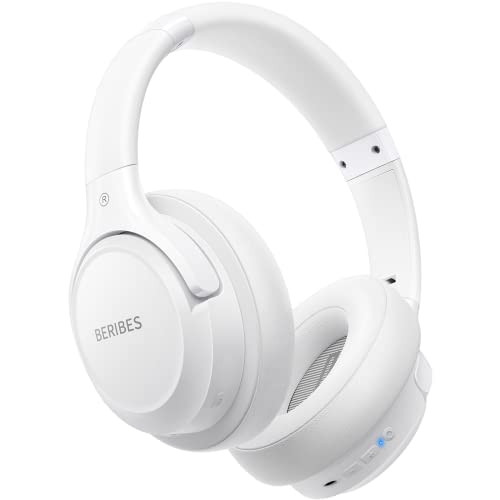
Optional 6 Music Modes: Adopted most advanced dual 40mm dynamic sound unit and 6 EQ modes, BERIBES updated headphones wireless bluetooth black were born for audiophiles. Simply switch the headphone between balanced sound, extra powerful bass and mid treble enhancement modes. No matter you prefer rock, Jazz, Rhythm & Blues or classic music, BERIBES has always been committed to providing our customers with good sound quality as the focal point of our engineering.

【ASTONISHING SOUND PRODUCTION 】: High Definition Stereo Headphones, specially developed software and noise reduction technology designed to prevent you from heating ambient noises and makes you focus on what you want to hear. Lose yourself in immersive music even in the lowest volume levels! The goal that provide Customers with outstanding sound quality is our constant pursuit.

Experience Effortless Communication, Anywhere: Our Bluetooth headset incorporates cutting-edge AI noise reduction technology, delivering premium sound quality that effectively blocks 95% of background noise. Enjoy a crystal-clear, lifelike calling experience akin to in-person conversations.
Step-by-Step Reset Instructions for Popular Beats Models
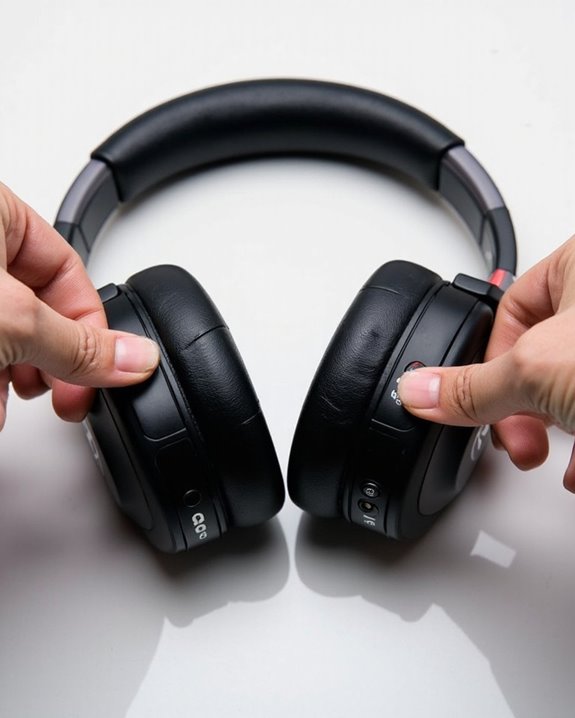
The process of restoring Beats headphones to factory settings varies slightly across different models, though most follow similar button-combination patterns. Reset variations typically involve holding down a combination of power and volume buttons for approximately 10 seconds until indicator lights flash.
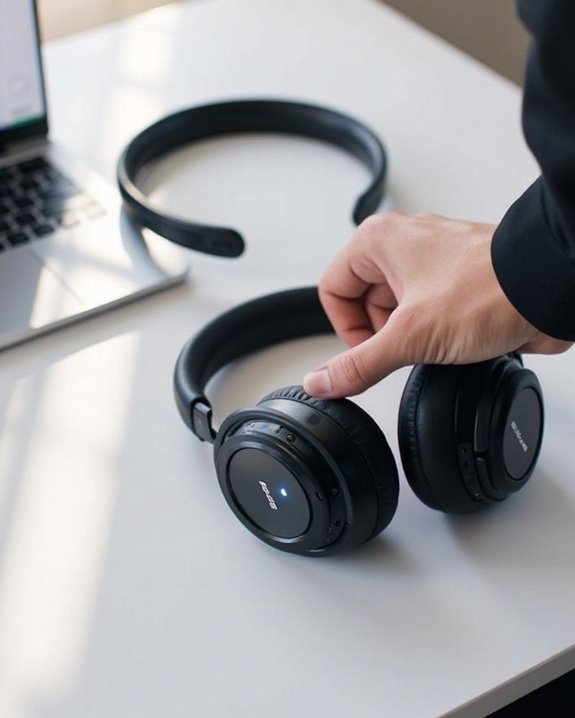
For Beats Studio 3 and Solo 3 Wireless, users must press the power and volume down buttons simultaneously for 10 seconds until the Fuel Gauge flashes. Model alternatives like Powerbeats Pro require placing earbuds in the charging case and holding the system button for 15 seconds until LED indicators flash red and white.
The newer Beats Solo 4 follows a similar protocol but displays different light patterns during reset. After completing any reset procedure, users should remove existing device pairings before reconnecting to guarantee proper functionality.
Recommended Products
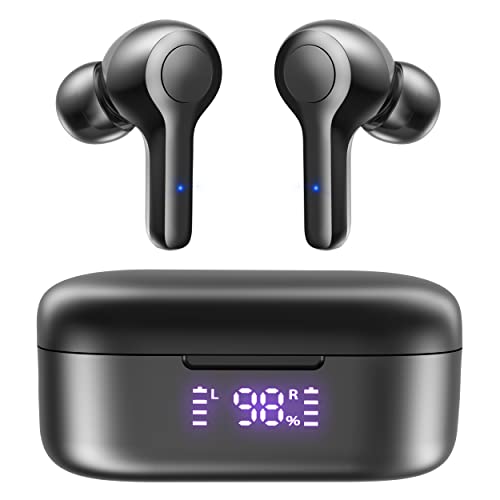
【Bluetooth 5.3 & One-Step Pairing】Featuring the most advanced Bluetooth 5.3 technology, MOZOTER Wireless Earbuds support HSP HFP A2DP AVRCP, which provides stable transmission speed and instant pairing without interruptions. These loud sound wireless earbuds will automatically turn on and enter pairing status when you open the charging case's lid, and you can pair the earbuds in Bluetooth settings of your phone.

Hear A Piece Of The Future - Hear the future within both ears with a world-class reverberating sound system tested and tuned by real acoustic experts to ensure a balanced sound for music of any genre. Bluetooth 5.0 for clearer sound, call, and connection quality. (Model-12540)

High-quality Stereo Sound: Our Bluetooth headphones with upgraded dynamic drivers and CSR chips, focus on bringing high fidelity sound and rich, powerful bass to your ears; Bluetooth 5.3 technology allows for quicker pairing and more stable connections, ensuring more stable calls and perfectly synchronized audio and video.
Common Resetting Errors and How to Avoid Them
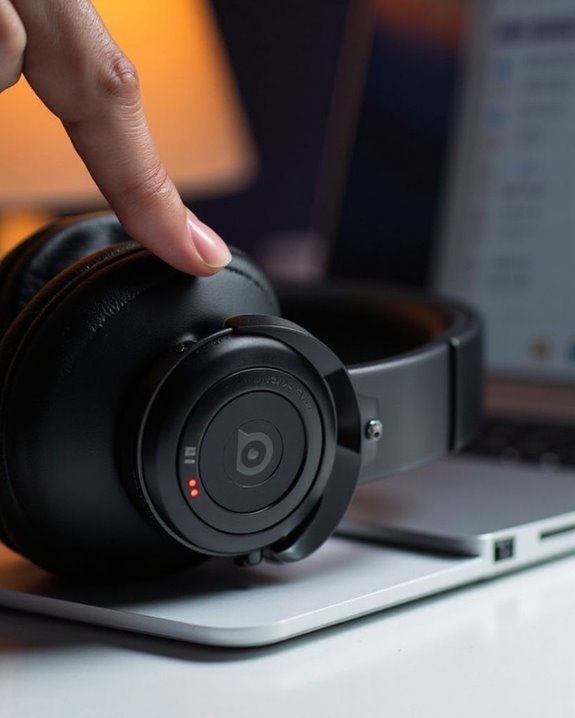
Many Beats headphones users encounter frustrating issues when attempting to reset their devices, often due to simple mistakes that can be easily prevented. Incorrect button combinations and insufficient hold times represent the most common errors during the process.
Battery Precautions are essential as attempting to reset with insufficient power will invariably fail. Users should make sure headphones maintain at least 30% charge before initiating any reset procedure.
Interference Avoidance is equally important, as nearby Bluetooth devices, Wi-Fi routers, or other electronic equipment can disrupt the reset signal. For ideal results, perform resets in locations with minimal electronic interference, at least 10 feet from other devices.
After completing a reset, users should restart any previously paired devices to make sure proper reconnection and test audio quality through various sources.
Recommended Products
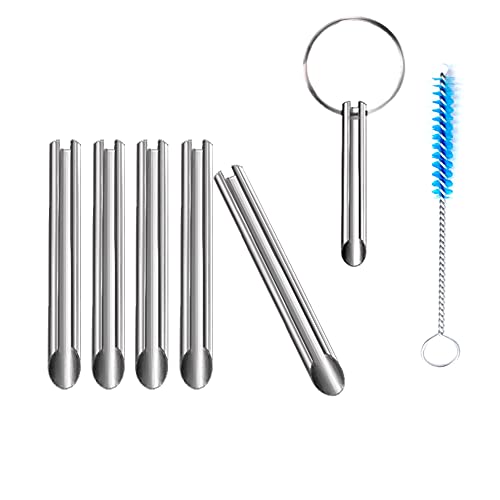
🛠️Applicable To :all models of mobile phones, pads and computers headphone jack, built to easily remove broken 3.5mm headphone plugs from jacks.
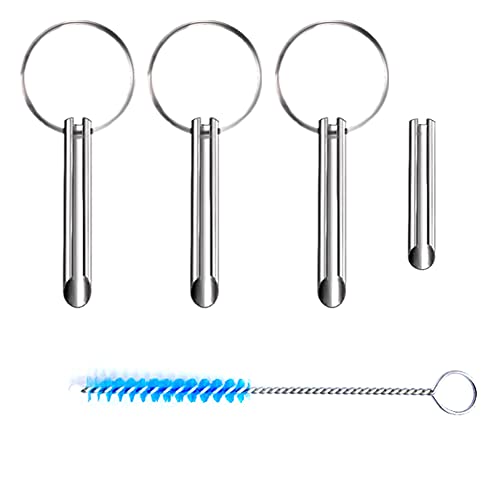
Applicable To:models of mobile phones, ipads and computers headphone jack, is built to easily remove broken 3.5mm headphone plugs from jacks.
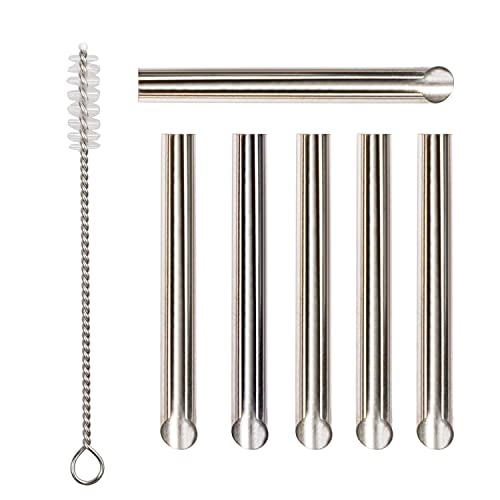
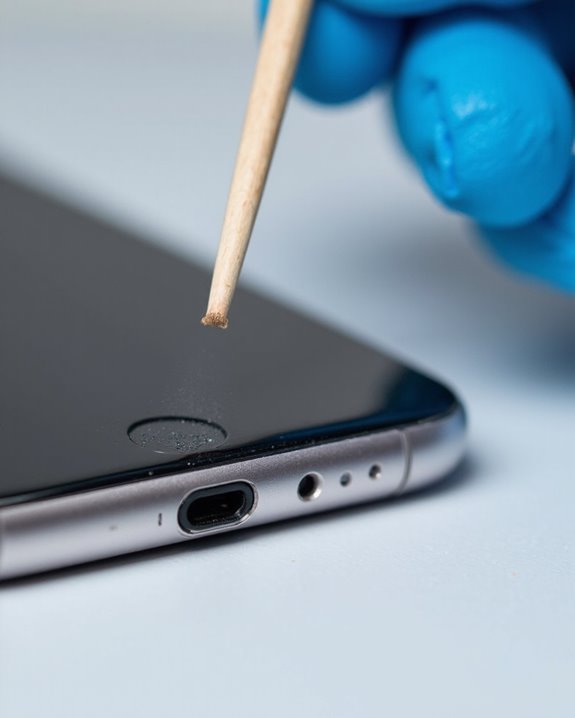
✔️PURPOSE: JUYEER headphone plug extraction tool is built specifically to easily remove broken 3.5mm headphone plugs from jacks. It can be used on 3.5mm jacks found on phones, laptops and any other devices. You can solve your problem within 20 seconds.
Reconnecting Your Beats After a Factory Reset
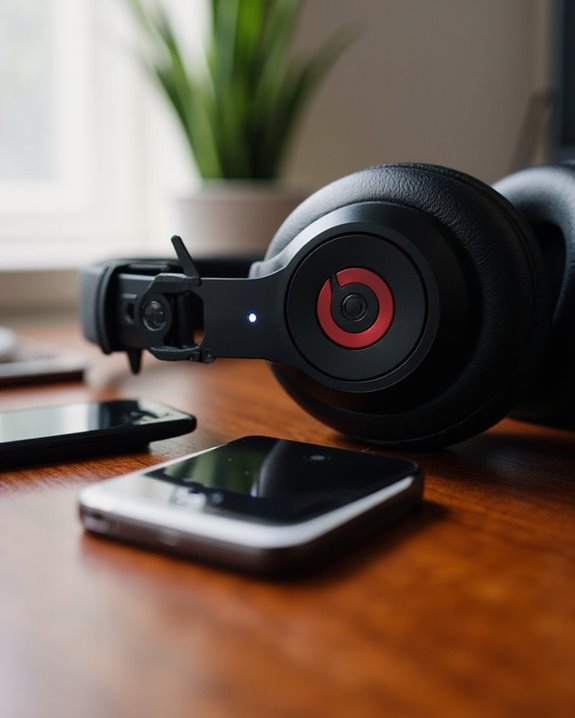
Once your troubleshooting efforts lead to a factory reset, understanding how to properly reconnect your Beats headphones becomes the next logical step. The procedure restores factory audio profiles while requiring new pairing configurations.
To reconnect successfully:
- Enable Bluetooth on your device and delete any previous Beats entries
- Power on your headphones and confirm they display blinking white lights (pairing mode)
- Select your Beats from the available Bluetooth devices list
- Verify connection is complete when indicator lights stabilize
For ideal wireless range, position your device within 30 feet of your headphones during the initial pairing process. If reconnection issues persist, make sure both devices are adequately charged and restart them before attempting the pairing sequence again. Using devices with Bluetooth 5.0 connectivity can improve pairing stability and range.
Recommended Products
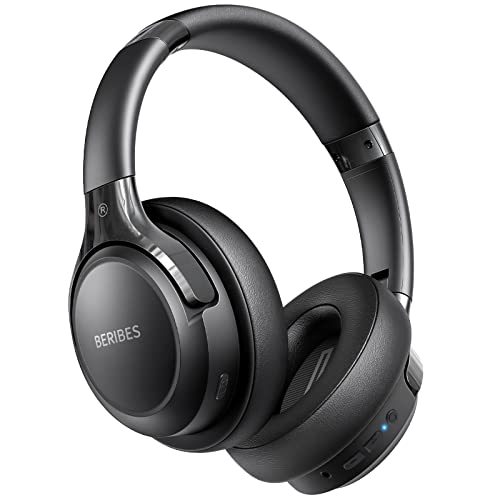
65 Hours Playtime: Low power consumption technology applied, BERIBES bluetooth headphones with built-in 500mAh battery can continually play more than 65 hours, standby more than 950 hours after one fully charge. By included 3.5mm audio cable, the wireless headphones over ear can be easily switched to wired mode when powers off. No power shortage problem anymore.

【ASTONISHING SOUND PRODUCTION 】: High Definition Stereo Headphones, specially developed software and noise reduction technology designed to prevent you from heating ambient noises and makes you focus on what you want to hear. Lose yourself in immersive music even in the lowest volume levels! The goal that provide Customers with outstanding sound quality is our constant pursuit.

【Lossless HIFI Sound Quality】 Good sound will be needed too--you'll love the built-in 40mm speaker unit, which provides rich bass and lifelike audio. Let you or your kids love what they're listening to, at a safe volume.
Troubleshooting Persistent Issues After Resetting
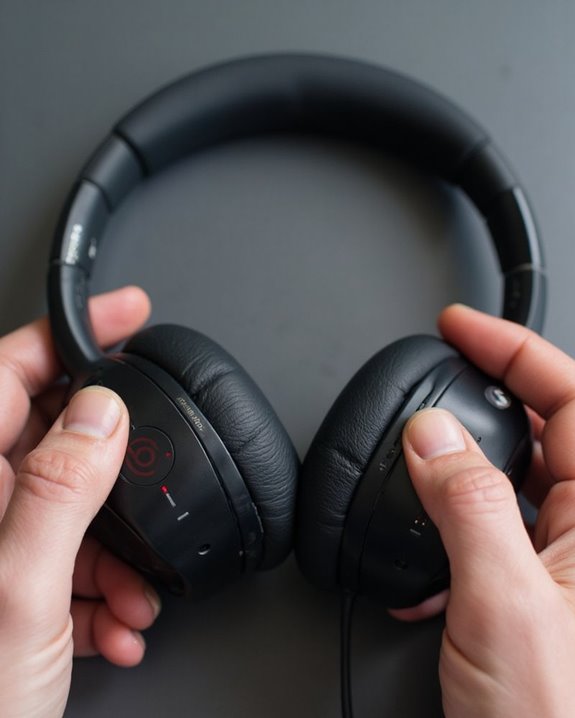
Despite completing a factory reset, some users may encounter lingering problems with their Beats headphones that require additional troubleshooting steps. Persistent issues often manifest as unexpected Battery Drain or frequent Connection Drops during normal use.
For battery-related problems, verify both the headphones and charging case have sufficient power, and always use original charging cables to prevent damage. Inspect charging ports for debris that might interfere with proper connections.
When experiencing connectivity issues, try removing potential interference sources by keeping other Bluetooth devices at a distance. “Forget” the headphones in your device’s Bluetooth settings before repairing them. Firmware updates can also resolve persistent problems—check for available updates through the Beats Updater application.
If issues continue after these steps, contacting Beats support may be necessary for specialized assistance. Additionally, understanding the Bluetooth 5.3 connectivity technology in Beats Studio Pro can help diagnose and improve connection stability.
Recommended Products

Compatible with AfterShokz Aeropex, AfterShokz OpenRun, AfterShokz OpenComm, AfterShokz OpenRun Pro, AfterShokz OpenRun mini. Compatible with Shokz charging cable.

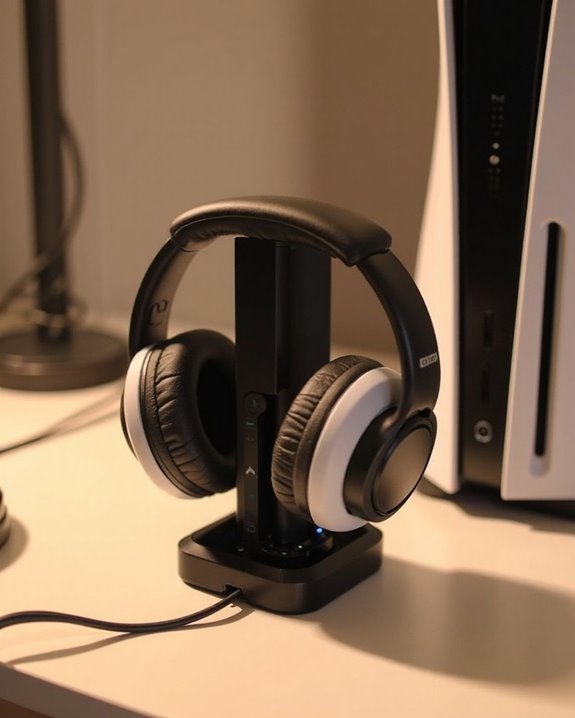
Dual Charging, Zero Downtime: It is designed for the PS5 ecosystem, which can charge your PS5 controller & gaming headset at the same time, fully charging devices in just 6 hours. Featuring charging contacts/interfaces fully compatible with official PS5 accessories, this charging dock eliminates cable clutter and reduces outlet congestion – all designed to maintain a clean, battle-ready setup. The dock does not support charging XBOX series controllers.
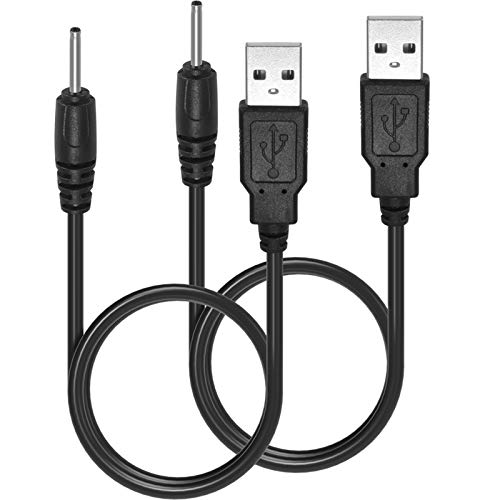
You Will Get - 2pcs USB to 2.0mm Charge Cord. The best choice when you lost your charger for the mini S530 headphone.
Frequently Asked Questions
Will Resetting My Beats Headphones Delete My EQ Settings?
Yes, factory resets erase all personalized data including EQ settings. Users concerned about EQ backup should document current configurations before resetting. Complete settings restoration will be necessary afterward, requiring manual reconfiguration of preferred audio profiles.
How Often Should I Reset My Beats for Optimal Performance?
Like a computer refresh, Beats headphones don’t require frequent resets. Reset Frequency should be based on performance issues rather than a schedule. Ideal Intervals are determined by connectivity problems, audio glitches, or pairing difficulties.
Can I Reset My Beats Without the Original Charging Case?
Many Beats models can be reset without the original charging case using Wireless Reset methods like button combinations. Case Alternatives aren’t required for Solo 3 and Studio 3, though Powerbeats Pro strictly require their case.
Do Beats Headphones Reset Automatically After Firmware Updates?
Beats headphones do not reset automatically after firmware updates. While Automatic Updates may occur, user settings remain intact. Any reset action requires manual intervention from the user and will provide Reset Confirmation indicators when performed.
Will Resetting Fix Sound Coming From Only One Ear?
Over 70% of audio imbalance issues are hardware-related. Resetting rarely resolves sound coming from only one ear during earphone troubleshooting. This typically indicates physical damage to wiring or speakers requiring professional repair or replacement.