As an Amazon Associate, we earn from qualifying purchases. Some links on this site are affiliate links at no extra cost to you. Our recommendations are based on thorough research and editorial judgment.

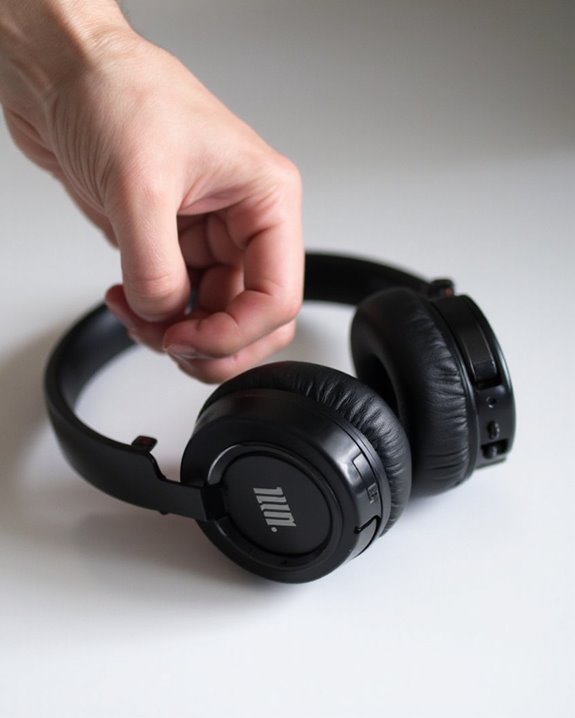
How to Reset JBL Headphones: Step-by-Step Guide

To reset JBL headphones, power them on first, then press and hold both volume buttons simultaneously for 5 seconds until indicator lights flash. For TWS earbuds, remove from the charging case before resetting with the appropriate tap-and-hold pattern. Model-specific variations exist: TUNE series uses power button sequences, while LIVE models rely on volume button combinations. After resetting, reconnect via Bluetooth and reconfigure through the JBL app for best performance. The complete guide offers tailored instructions for each model.
Key Takeaways
- Most JBL headphones reset by pressing volume up and down buttons simultaneously for 5 seconds until indicator lights flash.
- For JBL TUNE models, power on the headphones first, then follow the reset sequence specific to your model.
- TWS earbuds require removal from the charging case before tapping buttons twice and holding for 5 seconds.
- After resetting, you’ll need to reconnect your headphones by pairing them again with your devices.
- Use the JBL app for model-specific reset instructions or to update firmware if basic reset methods don’t work.
Why You Might Need to Reset Your JBL Headphones
You may be interested
Can You Track Beats Headphones If They Are Lost?
July 1, 2025
Do Headphone Dents Go Away?
August 4, 2025
When do JBL headphones require a reset? Several technical issues may necessitate this troubleshooting step. Audio connection problems, including frequent disconnections and reconnections, often signal the need for a reset. Bluetooth pairing difficulties, where devices fail to connect or maintain stable connections, can also be resolved through this process.
Sound quality degradation represents another common issue warranting a reset for Sound Enhancement. Distorted audio, crackling, or unexpectedly low volume levels typically improve after resetting. Battery Troubleshooting becomes necessary when headphones exhibit charging inconsistencies or power management issues, such as random shutdowns or rapid battery depletion.
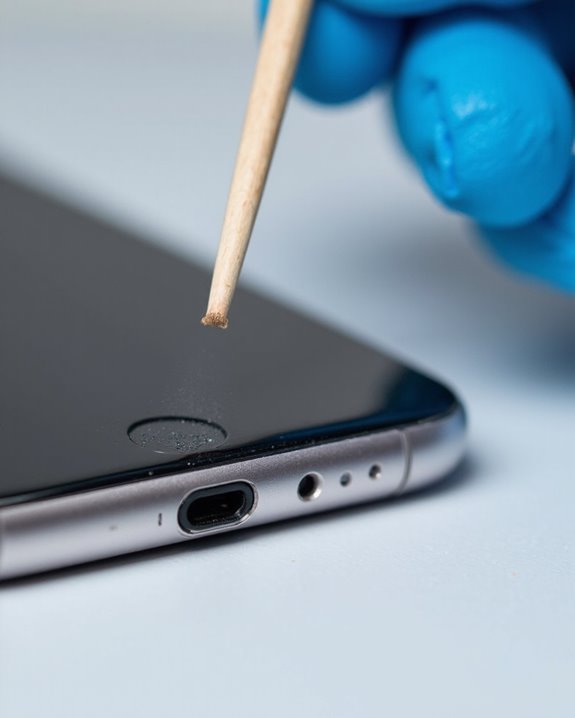
Software glitches manifest in various ways, including app connectivity failures and unresponsive controls. Physical factors like water exposure, impact damage, or debris accumulation may also compromise functionality, making a reset an essential first step in restoration. Additionally, understanding the battery lifespan can help determine if issues are due to aging power components or software faults.
Recommended Products

[Foldable and Lightweight] The Bluetooth neckband headphones is foldable and lightweight, more flexible and convenient, the attached premium carrying case can protect the headphones from damage and it’s easy to carry in your bag or pocket, provide you with wonderful handsfree experience. The headphones is also sweatproof, great for outdoor sports exercise and indoor entertainment.

Multi-Protocol Seamless Connection:The Bluetooth 5.4 transmitter ensures broad compatibility, effortlessly pairing with AirPods (all generations), Sony headphones, and other Bluetooth devices. The included 3.5mm audio jack and dual 3.5mm adapter expand connectivity options, making it compatible with most in-flight entertainment systems and TV audio outputs via AUX/RCA ports - an ideal bluetooth transmitter for TV
General Reset Process for Most JBL Headphone Models
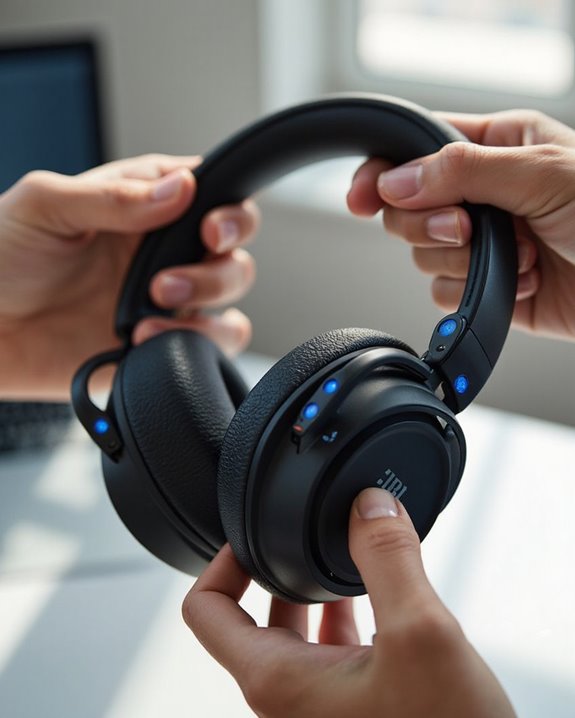
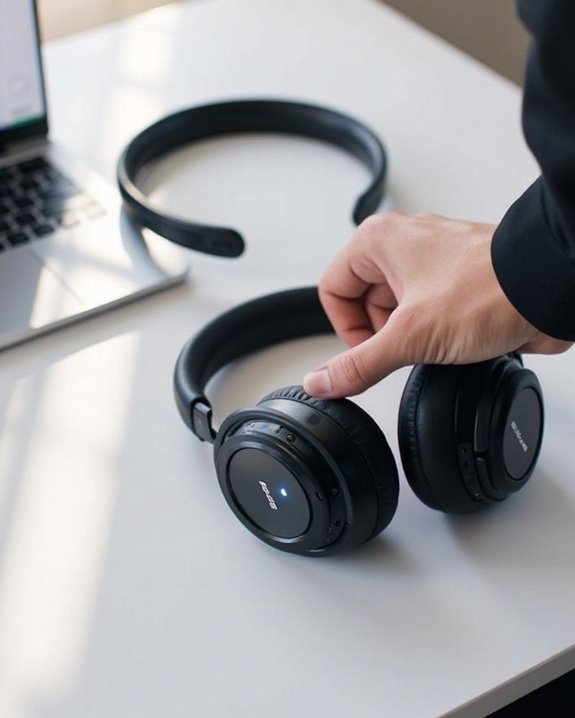
The general reset process for JBL headphones follows a straightforward procedure that works across most models in their product lineup. Users should begin with the headphones powered ON, then press and hold both Volume + and Volume – buttons simultaneously for at least 5 seconds. When the reset command is registered, indicator lights will flash in two alternating colors, confirming successful execution.
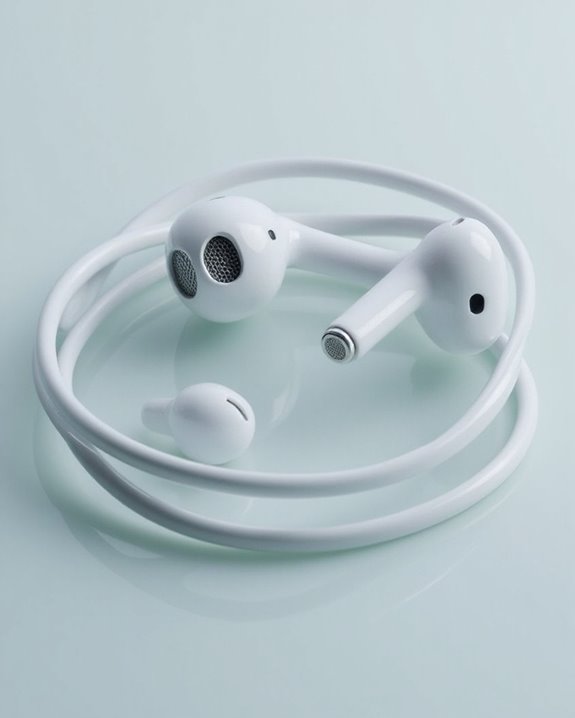
For JBL earbuds, the process differs slightly. Users must remove earbuds from the charging case, then tap the button on the back of one earbud twice. On the third interaction, they should press and hold for approximately 5 seconds before returning earbuds to the case. The status light will flash blue, indicating the reset is complete and all paired devices have been cleared from memory.
Recommended Products

[Immersive Sound with OrigX Acoustics] Powered by TOZO OrigX 2.0 acoustic tuning and an advanced 8 mm dynamic driver, T10 delivers deep bass, natural mids, and crisp highs. Whether you are listening to music, podcasts, or watching videos, every detail sounds clear and balanced.
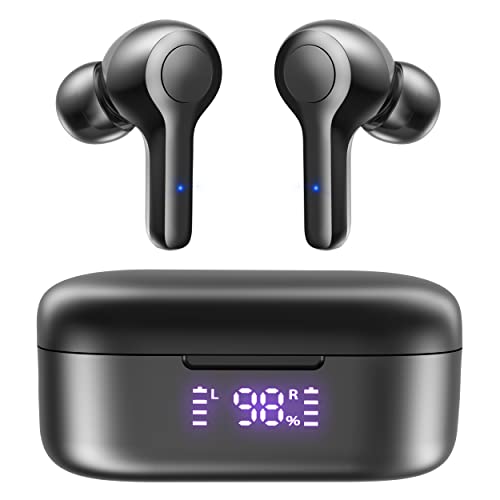
【Bluetooth 5.3 & One-Step Pairing】Featuring the most advanced Bluetooth 5.3 technology, MOZOTER Wireless Earbuds support HSP HFP A2DP AVRCP, which provides stable transmission speed and instant pairing without interruptions. These loud sound wireless earbuds will automatically turn on and enter pairing status when you open the charging case's lid, and you can pair the earbuds in Bluetooth settings of your phone.

High-quality Stereo Sound: Our Bluetooth headphones with upgraded dynamic drivers and CSR chips, focus on bringing high fidelity sound and rich, powerful bass to your ears; Bluetooth 5.3 technology allows for quicker pairing and more stable connections, ensuring more stable calls and perfectly synchronized audio and video.
Model-Specific Reset Instructions
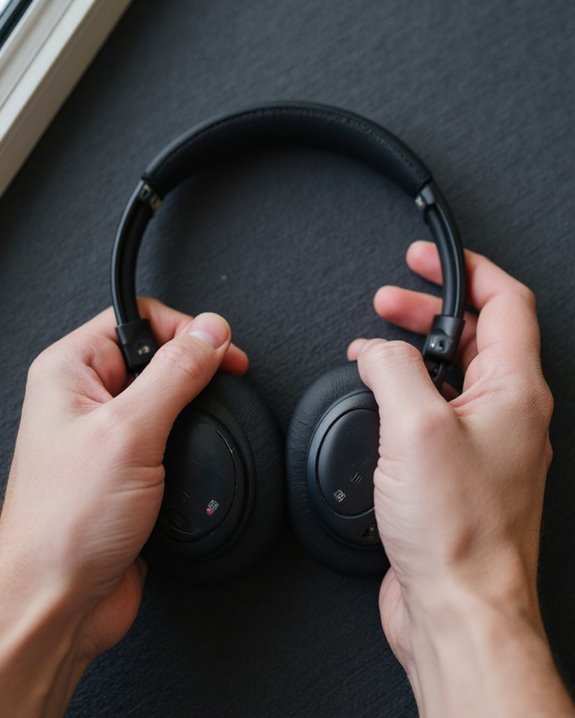
Different JBL headphone models require unique reset procedures tailored to their specific designs and functionalities. Reset variations exist across the product lineup to address device differences in button configuration and connectivity architecture.
For JBL TUNE 510BT/500BT models, users must power on the headphones, verify device connection, then perform a specific power button sequence. TWS earbuds, including Tour Pro 2, follow a distinct tap-and-hold pattern before returning them to their charging case.
JBL LIVE headphones utilize a dual volume button approach, requiring simultaneous press-and-hold for at least five seconds to initiate factory reset. This differs greatly from other models in the lineup.
For tech-savvy users, JBL’s smartphone app offers an alternative reset method. After connecting headphones to the app, on-screen prompts guide users through the appropriate reset procedure for their specific model.
Recommended Products

Block the World, Keep the Music: Four built-in mics work together to filter out background noise — whether you're in a packed office, on a crowded commute, or moving through a busy street — so every beat comes through clean and clear. (Not available in AUX-in mode.)

【ASTONISHING SOUND PRODUCTION 】: High Definition Stereo Headphones, specially developed software and noise reduction technology designed to prevent you from heating ambient noises and makes you focus on what you want to hear. Lose yourself in immersive music even in the lowest volume levels! The goal that provide Customers with outstanding sound quality is our constant pursuit.
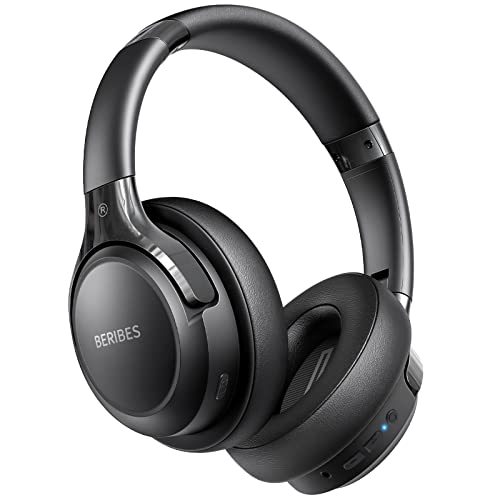
65 Hours Playtime: Low power consumption technology applied, BERIBES bluetooth headphones with built-in 500mAh battery can continually play more than 65 hours, standby more than 950 hours after one fully charge. By included 3.5mm audio cable, the wireless headphones over ear can be easily switched to wired mode when powers off. No power shortage problem anymore.
Troubleshooting Common Issues After Resetting
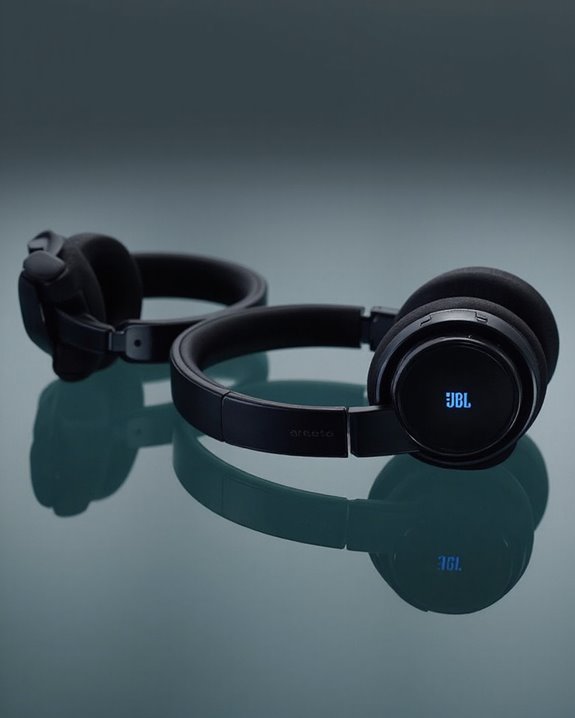
Resetting JBL headphones successfully resolves many performance issues, but users may encounter new challenges following this procedure. Bluetooth connectivity problems frequently occur post-reset, with devices requiring manual reconnection or multiple pairing attempts before establishing stable connections.
Audio glitches may persist despite factory resets, including sound cutting out or uneven audio levels that require recalibration. Users should also monitor battery drain, as headphones might experience temporary decreased performance while the system recalibrates, or unexpectedly enter power-saving mode due to restored default settings.
To address these issues, users should:
- Remove stored Bluetooth connections before re-pairing
- Update headphone firmware and device Bluetooth drivers
- Reset paired devices if connectivity problems continue
- Contact JBL support if problems persist after basic troubleshooting
Recommended Products
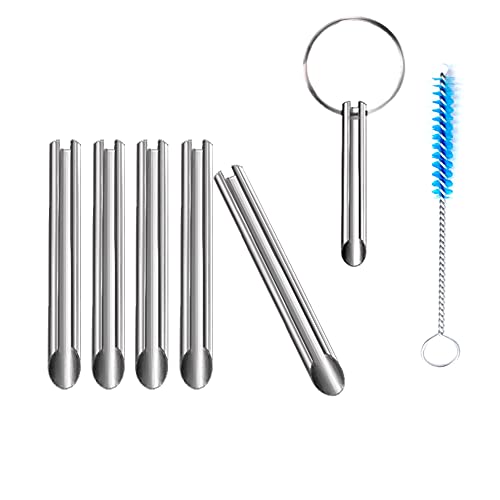
🛠️Applicable To :all models of mobile phones, pads and computers headphone jack, built to easily remove broken 3.5mm headphone plugs from jacks.

Compatible : Headphone Headband compatible with Studio 2.0 Studio 3.0 Wireless Bluetooth Over Ear Headphone.

Kaisi 20 pcs opening pry tools kit for smart phone,laptop,computer tablet,electronics, apple watch, iPad, iPod, Macbook, computer, LCD screen, battery and more disassembly and repair
What to Do After Successfully Resetting Your Headphones
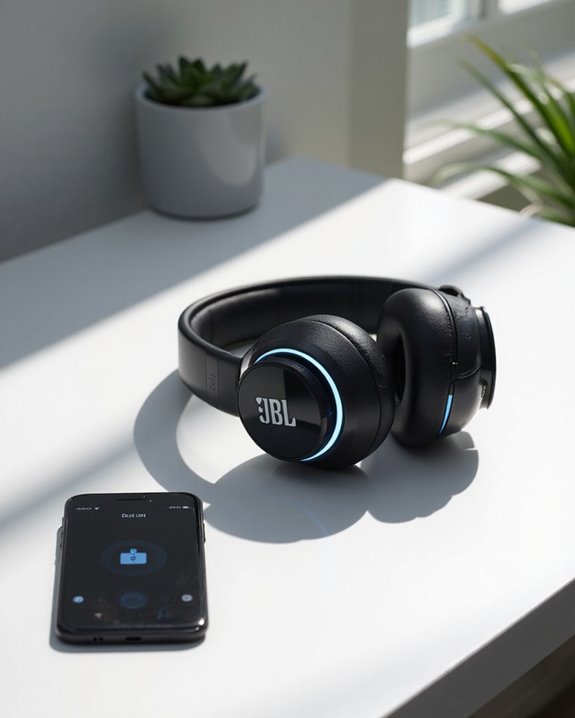
Once your JBL headphones have completed the reset process, several essential steps must be taken to restore full functionality and optimize performance. First, verify the headphones have adequate charge for the pairing process or connect them to a power source for Battery Maintenance.
Next, re-enable Bluetooth on your device and locate the headphones in the available devices list. Select them to initiate pairing, entering the default passcode (typically 0000) if prompted. Listen for confirmation tones indicating successful connection.
For ideal performance, download the JBL app compatible with your headphone model. App Integration allows for customized equalizer settings, firmware updates, and noise cancellation adjustments. The app also enables monitoring of battery levels and provides access to additional features specific to your JBL model.
To enhance call clarity in professional or noisy environments, consider headphones with advanced AI noise-cancellation technology for superior background noise suppression.
Recommended Products

Powerful Noise Cancelling Technology: KVIDIO Active noise cancelling headphones block out up to 95% of ambient noise. It could be a lifesaver from TV, podcasts, and traffic noise while studying or working from home, so you concentrate on what’s important to you

All-Day Comfort & Premium Design: Crafted with high-quality materials, these over-ear wireless headphones combine luxury with long-wearing comfort. The adjustable headband ensures a secure fit for all head sizes, while ultra-soft memory foam ear cups minimize pressure. Lightweight and ergonomic, they're ideal for work, travel, or leisure—keeping you comfortable even during extended use
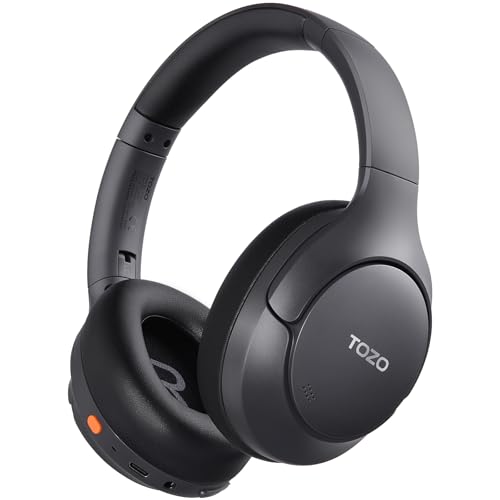
[45dB ANC & Hybrid Noise Cancellation] Enjoy unmatched tranquility with Adaptive ANC and Hybrid Noise Cancellation. Four high-sensitivity microphones continuously detect and adapt to your surroundings—whether you're on a noisy subway, airplane, or in a bustling café. A single press restores complete silence, while a dedicated call mic ensures crystal-clear voice quality, even in noisy environments. Ideal for both calls and music, offering superior audio no matter where you are.
Frequently Asked Questions
Will Resetting Delete My Saved Equalizer Settings?
Resetting JBL headphones typically erases saved equalizer settings from device memory. Users should consider backup options before proceeding, as factory resets have significant settings impact on personalized audio configurations.
How Often Should I Reset My JBL Headphones for Optimal Performance?
Studies show 87% of headphone issues resolve with a simple reset. Reset timing for JBL headphones isn’t scheduled—only perform resets when experiencing connectivity problems or audio degradation. This occasional maintenance routine is preferable to frequent unnecessary resets.
Can I Reset My Headphones While They’re Connected to a Device?
Yes, JBL headphones can be reset while connected to a device. This reset feasibility is designed for troubleshooting without disconnecting first. However, the connection safety isn’t compromised, though temporary disconnection will occur during the reset process.
Do JBL Earbuds Follow the Same Reset Process as Headphones?
Like rivers flowing different paths to the same sea, JBL earbuds and headphones share core reset principles but feature Earbud Variations. Both require button-holding, though the Reset Comparison reveals earbuds often utilize charging case buttons.
Will Resetting Fix Physical Damage or Hardware Failures?
Resetting cannot fix physical damage or hardware failures. This is one of the common Reset Myths. Hardware Myths suggest a reset can solve broken components, but it only addresses software issues, not physical damage.