As an Amazon Associate, we earn from qualifying purchases. Some links on this site are affiliate links at no extra cost to you. Our recommendations are based on thorough research and editorial judgment.

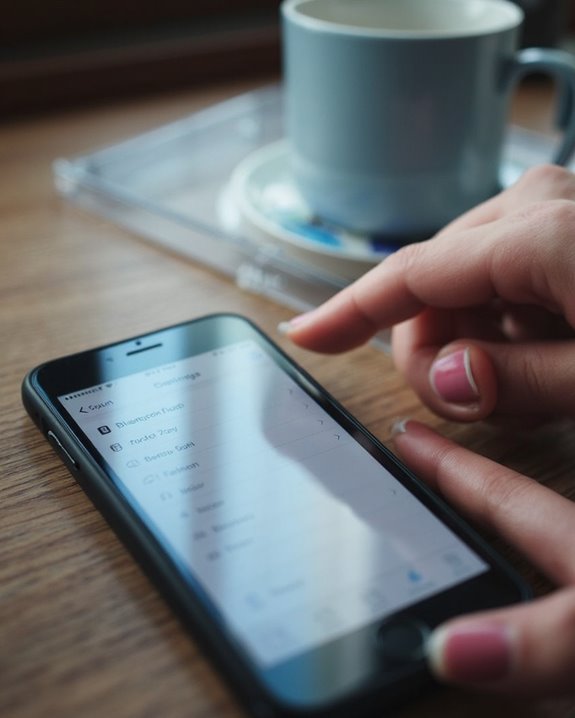
How to Turn off Headphone Safety on Iphone

To turn off headphone safety on iPhone, open Settings and navigate to Accessibility. Tap Audio/Visual, then locate the Headphone Notifications toggle and switch it to the off position. This disables warnings about high volume levels that could potentially damage hearing. The feature works across all recent iPhone models including iPhone 15 and 16. Additional volume management options exist through Settings > Sounds & Haptics for those seeking more granular control over their audio experience.
Key Takeaways
- Open the Settings app on your iPhone and navigate to the Accessibility menu.
- Select Audio/Visual from the available options in the Accessibility menu.
- Toggle off Headphone Notifications to disable the safety warnings feature.
- This setting works across iPhone models including iPhone 15 and 16.
- Alternative method: Go to Settings > Sounds & Haptics > Reduce Loud Sounds and turn it off.
Understanding Iphone’s Headphone Safety Features
You may be interested
Can You Track Beats Headphones If They Are Lost?
July 1, 2025
Do Headphone Dents Go Away?
August 4, 2025
The iPhone’s headphone safety features represent Apple’s proactive approach to protecting users’ hearing health in an increasingly audio-centric digital world. Introduced with iOS 14, these features monitor Audio Thresholds based on World Health Organization standards, which recommend limiting exposure to 85 decibels for no more than 8 hours daily.
The system tracks cumulative sound exposure over time and automatically issues notifications when users approach potentially harmful levels. When thresholds are exceeded, the iPhone can automatically reduce volume to prevent potential Health Impacts like noise-induced hearing loss. This functionality extends to both wired headphones and Bluetooth audio devices.
The technology follows strict IEC protocols for measuring sound exposure, notifying users when they’ve reached specific time-based exposure limits (such as 80 dB for 40 hours weekly).
Many devices designed for children also incorporate volume limiting features, typically capping sound levels between 74 and 94 decibels to protect young listeners’ hearing.
Recommended Products
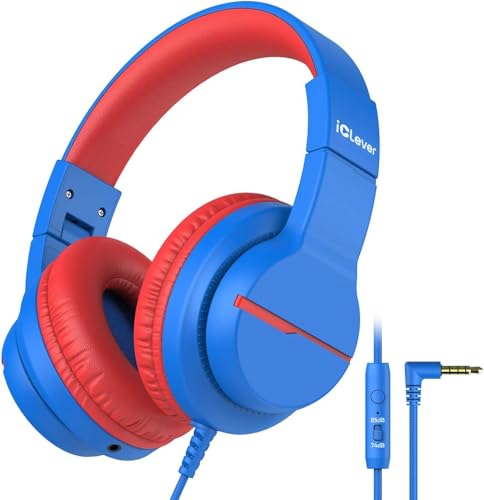
【Safe Volume Control】: Specially designed for children, the kids headphones can be limited to a sound level of 85dBA to prevent damages to kid's ears in daily life.

【Safe & Clear Listening】85dB/94dB volume-limiting of these kids headphones for school travel is adjustable for different environments (85dB for study mode, 94dB for travel mode), ensures safe listening levels, protecting children's sensitive ears during daily use and preventing long-term hearing damage

Kid-friendly Material & Hearing Protection. EarFun K1 kids headphones are specially designed for children, made of recycled and sustainable material, meet the CPC and CPSIA standards, and pass the CPC-certified. Also, the wired kids headsets are limited to a sound level of 85dB/94dB for preventing kids' hearing damage. Choose EarFun K1 kids headphones, provide a healthy hearing environment for your child no matter in studying or entertainment!
Step-by-Step Guide to Disable Headphone Safety Warnings
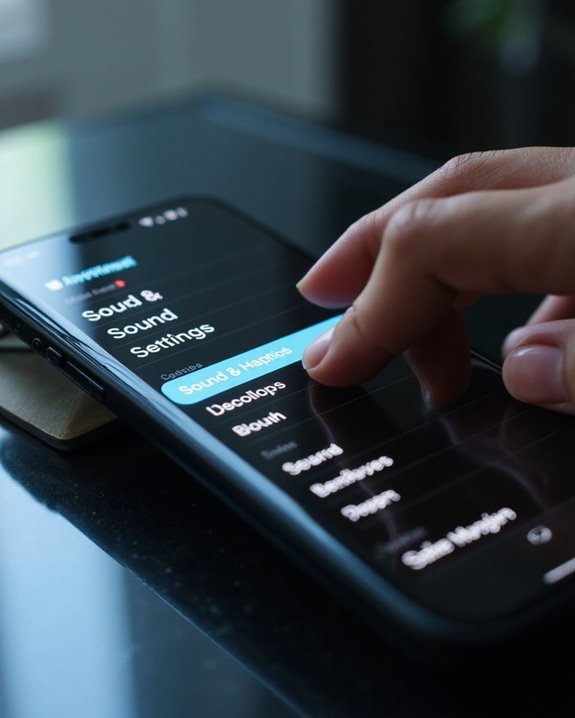
Disabling headphone safety warnings on an iPhone requires traversing through several specific menu options in the device’s settings interface. Users can follow these clear steps:
- Open the Settings app on the iPhone
- Scroll down and tap “Accessibility”
- Select “Audio/Visual” from the menu options
- Toggle off “Headphone Notifications”
This process works across various Device Variations including iPhone 15, iPhone 16, and other recent models running current iOS versions. According to User Feedback, many find this feature intrusive during regular listening sessions, particularly when volume adjustments are frequent.
Note that regional restrictions may apply; in some jurisdictions, these warnings are legally mandated and cannot be disabled. Users should consider manually monitoring volume levels to maintain hearing health after disabling these protective notifications. Using MFi-certified headphones can help ensure reliable volume control and audio safety features.
Recommended Products
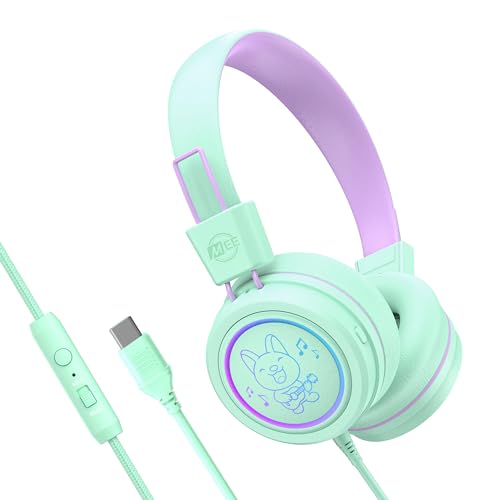
VOLUME-LIMITING TECHNOLOGY: KidJamz headphones utilize a built-in volume limiter to maintain the sound pressure level (SPL) below the recommended 85dB limit, keeping young ears safe and helping build lifelong good listening habits; a built-in switch allows the volume limiter to be disabled temporarily so KidJamz can still be enjoyed in noisy environments, such as while traveling

VOLUME-LIMITING TECHNOLOGY: KidJamz headphones utilize a built-in volume limiter to maintain the sound pressure level (SPL) below the recommended 85dB limit, keeping young ears safe and helping build lifelong good listening habits; a built-in switch allows the volume limiter to be disabled temporarily so KidJamz can still be enjoyed in noisy environments, such as while traveling

SAFE VOLUME LIMITER – Features an 85dB limit to protect children’s ears, ensuring a safe and enjoyable listening experience for kids aged 3 and up.
Alternative Methods to Control Volume Limits
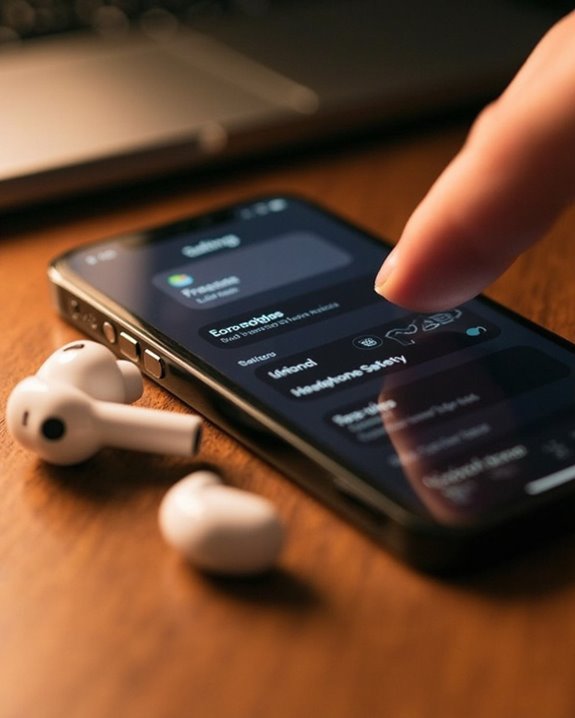
While disabling headphone safety warnings offers one approach, iOS provides several robust alternatives for managing audio levels on iPhones. With iOS 18.2, users can establish specific volume limits for media playback through Settings > Sounds & Haptics > Volume Limit, with adjustments available from 75 dB to 100 dB.
For more customized control, various Volume Apps offer Audio Profiles that can be tailored to different listening environments. These third-party solutions extend beyond Apple’s built-in options while complementing the system’s native controls.
Parents concerned about children’s hearing health can implement permanent restrictions by using Screen Time’s Content & Privacy settings to lock volume limits with a passcode. This prevents unauthorized changes while maintaining protection across all media playback scenarios, ensuring children’s hearing remains safeguarded during extended listening sessions.
Additionally, many modern headphones, including popular pink models, incorporate volume limiting features specifically designed to protect hearing while delivering quality sound.
Recommended Products

Kids-friendly and Comfy Material. EarFun kids headphones are made of kids-friendly materials that comply with RoHS2.0 and FCC standards and pass the CPC-certified. Also, the soft memory foam headband and earpads ensure a safe and cozy wearing experience.

Enhanced Protection & Safety: The kids open ear headphones feature a non-in-ear design, keeping kids aware of their surroundings, ensuring ear hygiene and comfort and protecting their eardrums. Made of soft TPE material, they’re gentle on dedicate skin. With the 74&85 dBA volume limit, these headphones ensure safe listening, preventing hearing damage.

【Kid-Safe 85/94dB Volume Control】Our built-in volume limiting technology (85/94dB) ensures AT2 kids headphones stay at a pediatrician-recommended volume. Adjustable for different environments (85dB for study mode, 94dB for travel mode). Choose the Awature AT2 kids headphones to provide your child with a healthy hearing environment, whether they are studying or playing!
Why Users Choose to Turn Off Headphone Safety
Many iPhone users opt to disable headphone safety features when these protective measures begin to interfere with their desired audio experience. Listening freedom is a primary motivation, especially for audiophiles who require higher volume levels to appreciate sound fidelity and nuance.
User autonomy drives this decision as well, with individuals preferring to manage their own hearing risk rather than following preset limitations. This is particularly evident among gamers and multimedia enthusiasts who seek immersive experiences without interruptions from safety notifications.
Regional restrictions further complicate matters, as users in certain countries face regulatory constraints that limit control over headphone safety settings. The inconvenience of repeated notifications and automatic volume adjustments during daily activities ultimately leads many to prioritize seamless audio control over built-in protections.
Re-Enabling Headphone Safety When Needed
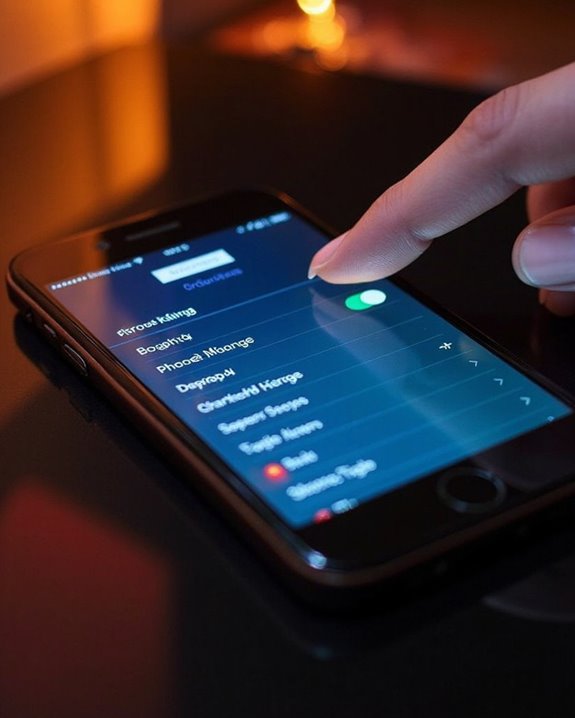
Although users may choose to disable iPhone’s Headphone Safety features temporarily, circumstances often arise when re-enabling these protections becomes necessary. Safety Reactivation is straightforward through the Settings app under Sounds & Haptics, where users can turn on “Reduce Loud Sounds” to activate automatic volume limitation.
For ideal Health Monitoring, users should set appropriate volume thresholds—85 decibels for sessions under eight hours daily, or 80 decibels for extended listening. The system can be configured to provide notifications about excessive volume exposure, creating awareness of potentially harmful audio levels.
Re-enabling these features represents a proactive approach to hearing protection, especially important for frequent headphone users. The iPhone’s integrated volume management system helps prevent long-term hearing damage while maintaining audio enjoyment within safe parameters.
Frequently Asked Questions
Will Disabling Headphone Safety Void My Iphone Warranty?
Disabling headphone safety features on iPhones generally does not void warranties. There are no documented warranty risks or legal ramifications associated with adjusting these software settings, as they fall within the user’s control over device preferences.
Does Turning off Headphone Safety Affect Bluetooth Device Connections?
In a million years, turning off Headphone Safety won’t cause Bluetooth Interference. The feature solely manages volume limits, not signal transmission protocols. Signal Stability remains completely unaffected as these systems operate independently on the iPhone.
Can I Set Custom Volume Thresholds Instead of Disabling Completely?
Users can’t create fully custom thresholds beyond the predefined settings. The volume personalization options are limited to selecting existing safety levels (typically 85dB or 80dB) rather than completely customized volume parameters.
Do Headphone Safety Settings Sync Across My Apple Devices?
Like two peas in a pod, headphone safety settings don’t automatically sync across Apple devices. Each device maintains independent settings regardless of iCloud integration. Users need to configure these preferences individually for best sync reliability.
Will Airpods Pro Noise Cancellation Work With Safety Features Disabled?
AirPods Pro noise cancellation continues to function with safety features disabled. Users can still enjoy NoiseCancellationBenefits while being mindful of volume levels. AudioEnhancementTips include maintaining moderate listening levels for hearing protection.