As an Amazon Associate, we earn from qualifying purchases. Some links on this site are affiliate links at no extra cost to you. Our recommendations are based on thorough research and editorial judgment.


How to Turn On Beats Headphones: A Quick Start Guide

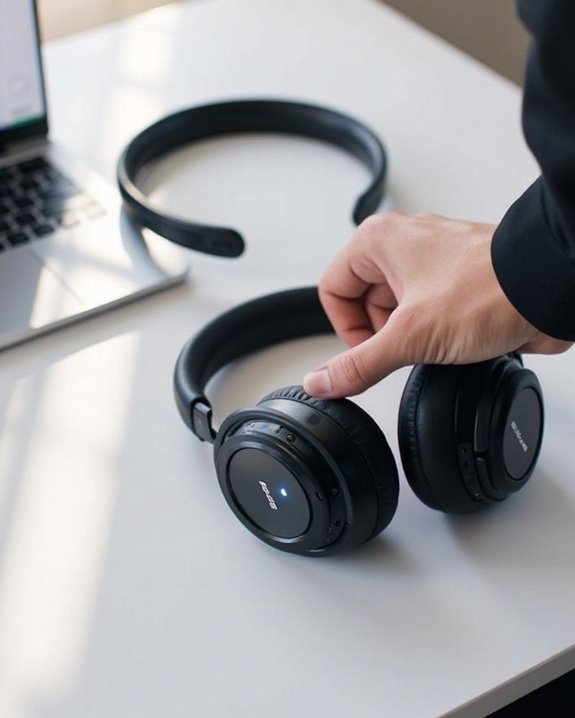
Turning on Beats headphones varies by model. Most require pressing and holding the power button until the LED indicator lights up. Beats Studio Pro activates with a one-second press of the system button, while Studio 3 needs a slightly longer hold. Some models power on automatically when an audio cable is connected. LED indicators display battery status, with flashing red typically signaling low power. Proper powering techniques enhance the headphones’ performance and extend battery life.
Key Takeaways
- Press and hold the power button until the LED light illuminates for most standard Beats models.
- Beats Studio Pro requires a one-second press of the system button to power on.
- Some models automatically power on when connected to a device via audio cable.
- Look for LED indicators: white light shows powered on status, while red indicates low battery.
- If headphones won’t turn on, try charging them first or reset by holding power and volume down buttons.
Powering On Different Beats Headphone Models
You may be interested
Can You Track Beats Headphones If They Are Lost?
July 1, 2025
Do Headphone Dents Go Away?
August 4, 2025
Turning on Beats headphones varies slightly across different models, though most follow a similar pattern. Standard Beats models typically require pressing and holding the power button until the LED indicator illuminates, signaling the headphones are active. When conducting Model Comparisons, users will notice that Beats Studio Pro activates with a one-second press of the system button, while Studio 3 requires a slightly longer hold.
Power Variations exist between wired and wireless operation. Some models automatically power on when an audio cable is connected, while wireless versions must be manually activated before Bluetooth pairing. The Beats Studio line offers additional functionality, allowing users to activate Active Noise Cancellation (ANC) without music playback by pressing the power button when no audio cable is attached.
Additionally, the Beats Studio Pro features Bluetooth 5.3 connectivity, providing a reliable and extended wireless range for seamless audio experience.
Recommended Products
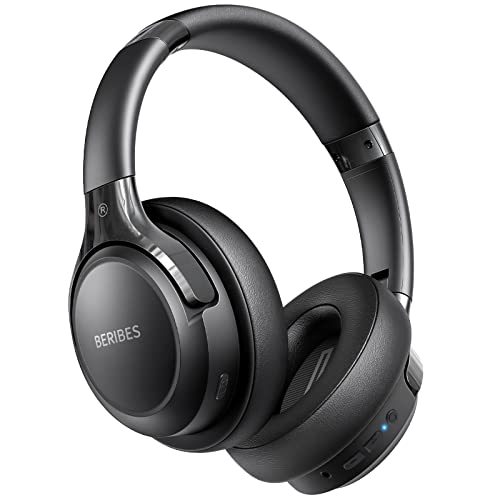
65 Hours Playtime: Low power consumption technology applied, BERIBES bluetooth headphones with built-in 500mAh battery can continually play more than 65 hours, standby more than 950 hours after one fully charge. By included 3.5mm audio cable, the wireless headphones over ear can be easily switched to wired mode when powers off. No power shortage problem anymore.

JBL Pure Bass Sound: The JBL Tune 720BT features the renowned JBL Pure Bass sound, the same technology that powers the most famous venues all around the world.

【40MM DRIVER & 3 MUSIC MODES】Picun B8 bluetooth headphones are designed for audiophiles, equipped with dual 40mm dynamic sound units and 3 EQ modes, providing you with stereo high-definition sound quality while balancing bass and mid to high pitch enhancement in more detail. Simply press the EQ button twice to cycle between Pop/Bass boost/Rock modes and enjoy your music time!
Understanding the LED Indicator Lights
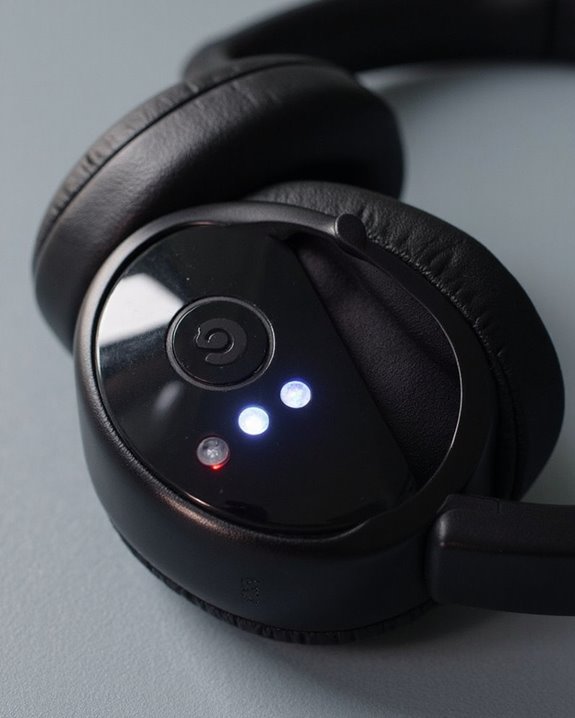
The LED indicator lights on Beats headphones serve as an informative communication system between the device and its user. These lights display different patterns to communicate battery status, pairing mode, or potential issues requiring attention.
Different models utilize specific light patterns: Beats Solo3 Wireless, Powerbeats Pro, and Beats Fit Pro display flashing red lights to indicate low battery. The Beats Studio Buds show a red light when the case battery falls below 40% and may flash red during firmware signals or updates.
Regular LED cleaning is essential for maintaining visibility of these important indicators. Users should familiarize themselves with their specific model’s light patterns, as they serve as a diagnostic tool for troubleshooting common issues like battery depletion, pairing problems, or when the device needs resetting.
Pairing Your Beats Headphones With Devices
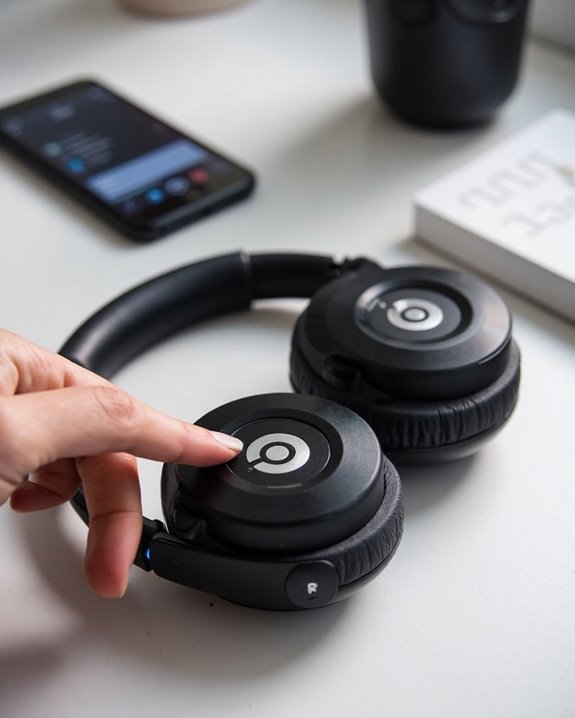
Successfully connecting Beats headphones to various devices requires understanding the specific pairing procedures for each model. Each Beats product features unique activation methods—for example, Beats Fit Pro requires holding the system button while the case remains open, whereas Solo 4 users must press and hold the power button on the right earcup.
The Fast Pairing process follows a consistent sequence: enable Bluetooth on your device, access settings, activate pairing mode on your headphones, then select them from available devices. A chime or LED indicator confirms a Secure Connection has been established.
For troubleshooting connectivity issues, verify both devices have sufficient battery, remain within appropriate range, and regularly update firmware. When switching between multiple paired devices, disconnect from the current device before establishing a new connection.
Unlike Apple-centric limitations, many wireless earbuds offer multipoint connectivity for seamless device switching, which can enhance your experience when using Beats or alternative headphones.
Recommended Products

Excellent Sound & 6EQ Modes: Wireless Bluetooth headphones equipped with 40mm dynamic driver, which produces hi-fi stereo sound, crisp and clean, great balanced Bassup and reduces environmental noise.Switch freely between 6 sound effects with the EQ button: Bass, pop, rock, classic, jazz and vocal. Listening to a variety of music,just like you are in a concert with a wide sense of space

JBL PURE BASS SOUND: These wirelss headpones feature the renowned JBL Pure Bass sound, which can be found in the most famous venues all around the world.

[Ultra-Lightweight Ear Buds Designed for Small Ears] Each earbud weighs only 3.7g and features a compact, ergonomic in-ear design made especially for small ears. Secure, low-profile, and comfortable for workouts, all-day wear or overnight sleeping.The ultra-slim profile sits flush in your ear with no hard edges poking or rubbing, so you can even sleep on your side without discomfort.
Battery Management Tips for Longer Sessions
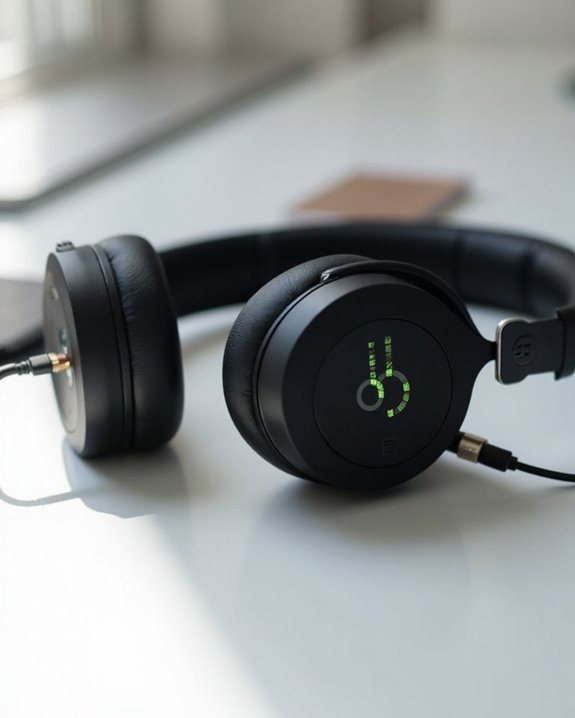
Maximizing battery life requires implementing strategic charging and usage habits for all Beats headphone models. Users should avoid both overcharging beyond 100% and deep discharging below 20%, as these practices can greatly degrade battery capacity over time. When not in active use, proper storage practices include keeping headphones in a cool, dry place away from direct sunlight and extreme temperatures.
Effective charging habits include using original cables and adapters, removing devices promptly after reaching full charge, and utilizing Fast Fuel mode sparingly for emergency situations only. For extended periods of non-use, maintain battery health by charging headphones every three months. Additionally, enabling power-saving features such as auto-switch off and downloading music instead of streaming can substantially extend playback time during longer listening sessions. The Beats Studio Pro headphones, for example, offer up to 50-hour battery life, making them a great choice for extended use.
Recommended Products
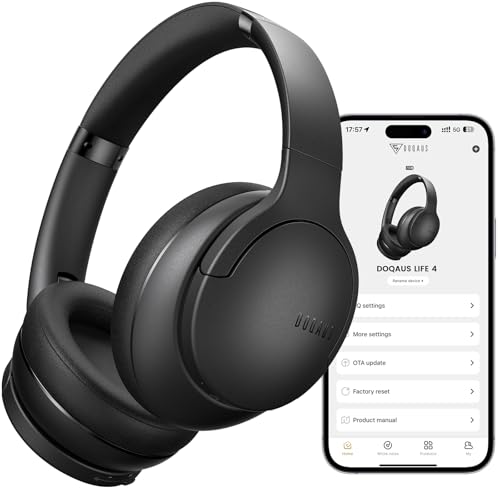
✅ End Charging Anxiety with 90-Hour Marathon Battery Life: Designed for the long-haul commuter or international traveler, these wireless headphones deliver up to 90 hours of playtime. A quick 10-minute charge fuels 5 hours of listening, and the included aux cable is your zero-power backup plan, ensuring your music, podcasts, or movies never stop.

Hybrid Active Noise Cancelling Bluetooth Over Ear Headphones Wireless, Hi-Res Audio, Memory Foam Earcup, ANC Headphone Dark Blue Black

Dual Mode and Never Power Off - Enjoy up to 72 hours of playtime in wireless mode, or switch to wired mode using the included two audio jack cables (3.5mm to 6.35mm and 3.5mm to 3.5mm). With wired mode, your headphones will never run out of power.
Troubleshooting Power-Up Problems
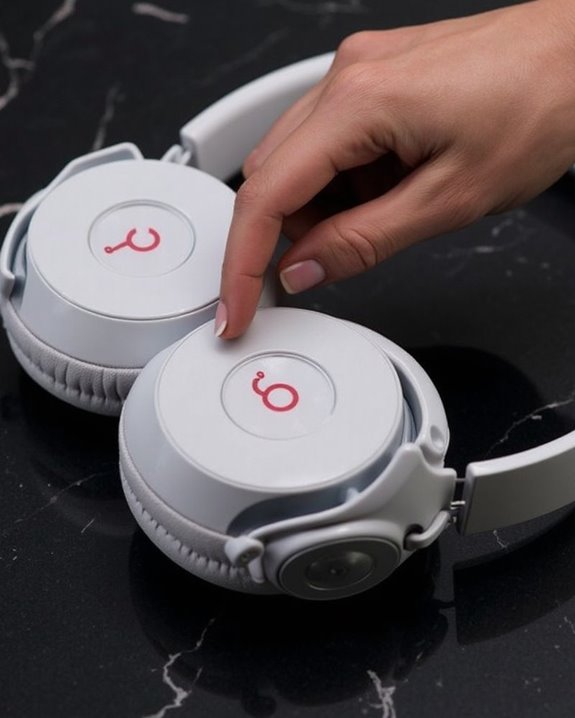
When Beats headphones refuse to power on, users can implement several diagnostic steps before seeking professional assistance. First, verify the battery has sufficient charge by connecting to a power source and checking the LED indicator—a red flash signals low battery.
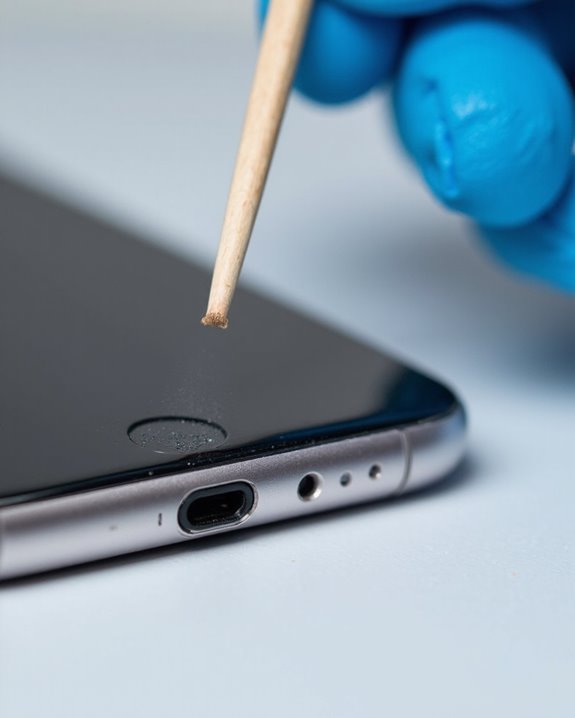
Button cleaning can resolve many power issues, as dirt and debris frequently obstruct proper function. Using a toothpick or fine pin, carefully remove any accumulated particles around the power button.
Users should also inspect for hardware issues, including damaged charging ports or physical trauma to the headphones. Testing with an AUX cable can help determine if the problem stems from Bluetooth connectivity rather than power.
If basic troubleshooting fails, performing a reset by holding the power and volume down buttons for 10 seconds often resolves software glitches preventing normal operation.
Recommended Products
![Speakers Charging Cable Charger Cord [Micro 5-ft] for Bose Jbl Beats Sony Anker Wireless Bluetooth Speakers Headphone Headset Earphone, and More](https://m.media-amazon.com/images/I/31+pH9xp0SL._SL500_.jpg)
Experience rapid charging with our USB cable, delivering power up to 50% faster than standard cables. Perfect for USB-Micro wireless bluetooth Speakers, Headphones, Game controller, Game console and other devices, it saves you time and keeps you connected
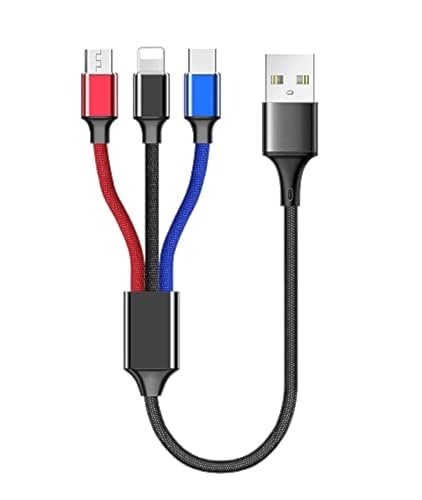
USB charge cable cord wire for old and new versions editions of Sony, Beats Flex / Studio Buds, Jaybird, PowerBeats, Beats and other earbuds and headphones.

Professional charging cable for Beats by Dr Dre series. Note: only compatible with the "micro" headset and speaker charging jack.
Advanced Features to Activate After Power-Up
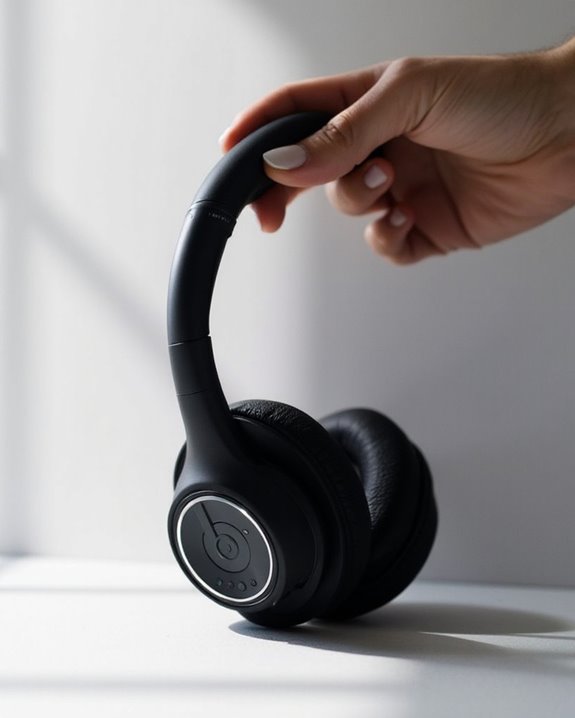
Beats headphones offer five key advanced features that elevate the listening experience beyond basic audio playback. Once powered on, users can activate One Touch Pairing by holding the headphones near their Apple device and following the on-screen instructions. This automatically enables iCloud Pairing across all linked devices.
For immersive listening, Spatial Audio can be personalized using the TrueDepth camera on newer iPhones, creating a custom sound profile that tracks head movements. Siri Integration allows hands-free control—simply say “Hey Siri” when connected to access voice commands.
Users can toggle between noise control modes by double-pressing the system button, switching from noise-canceling to transparency as needed. These features guarantee maximum functionality and convenience after the initial power-up sequence is complete.
Recommended Products

Powerful Noise Cancelling Technology: KVIDIO Active noise cancelling headphones block out up to 95% of ambient noise. It could be a lifesaver from TV, podcasts, and traffic noise while studying or working from home, so you concentrate on what’s important to you

ADVANCED ACTIVE NOISE CANCELLATION: RUNOLIM noise canceling headphones for adults have been proven to effectively reduce external ambient noise by 95% in over 10,000 experimental results, allowing you to enjoy true pure music and focus on your own business, no matter on a noisy street or coffee shop.

NOISE CANCELLING HEADPHONES: Effortlessly combines noise cancellation technology with passive features so you can shut off the outside world, quiet distractions, and take music beyond the beat
Frequently Asked Questions
Can Beats Headphones Connect to Multiple Devices Simultaneously?
Like Icarus flying too close to the sun, Beats headphones exceed in many areas but fall short of multipoint pairing capabilities. Most models can’t connect to multiple devices simultaneously, which improves connection stability with a single device.
Are Beats Headphones Waterproof or Sweat-Resistant?
Most Beats wireless earphones feature IPX4 water resistance, protecting against splashes but not submersion. Waterproof testing confirms they’re sweat-resistant for workouts, not waterproof. Sweatproof maintenance requires wiping after use and drying before charging.
How Do I Reset My Beats Headphones to Factory Settings?
To perform a Factory Restore on Beats headphones, users follow specific Reset Steps: typically holding power and volume down buttons for 10 seconds until LED indicators flash. Different models have slightly varying procedures for factory settings restoration.
Can I Use Beats Headphones While They’re Charging?
Over 60% of headphone users multitask while listening. Yes, Beats Studio Pro allows simultaneous charging and audio streaming via USB-C. Other models may not offer this capability, affecting battery performance and overall charging impact.
Do Beats Headphones Work With Voice Assistants Like Siri?
Most Beats headphones offer Siri compatibility and voice features. Newer models like Studio Buds support both Siri and Google Assistant, activated either through the “Hey Siri” command or by pressing designated buttons on the headphones.