As an Amazon Associate, we earn from qualifying purchases. Some links on this site are affiliate links at no extra cost to you. Our recommendations are based on thorough research and editorial judgment.

How to Use Headphones With a Roku TV

Roku TVs offer four main headphone connection methods. Users can plug standard headphones into compatible Roku Voice Remote Pro models with 3.5mm jacks for instant private listening. Many newer Roku TV models support direct Bluetooth headphone pairing through Settings > Remotes & Devices. For TVs lacking Bluetooth, external transmitters can connect to audio outputs. Alternatively, the Roku mobile app enables private listening through connected headphones. Each method has specific requirements and troubleshooting approaches for best performance.
Key Takeaways
- Connect wired headphones to the 3.5mm jack on compatible Roku Voice Remote Pro models for private listening.
- Pair Bluetooth headphones through Settings > Remotes & Devices > Wireless Headphones on supported Roku TV models.
- Use a Bluetooth transmitter connected to your TV’s audio output for older Roku TVs without built-in Bluetooth.
- Enable private listening through the Roku mobile app by tapping the headphone icon on the remote screen.
- Troubleshoot connection issues by restarting devices, minimizing interference, and staying within recommended Bluetooth range.
Using the Headphone Jack on Your Roku Remote
You may be interested
10 Best Active Noise Cancelling
July 5, 2024
10 Best Bone Conduction Headphones
May 4, 2024
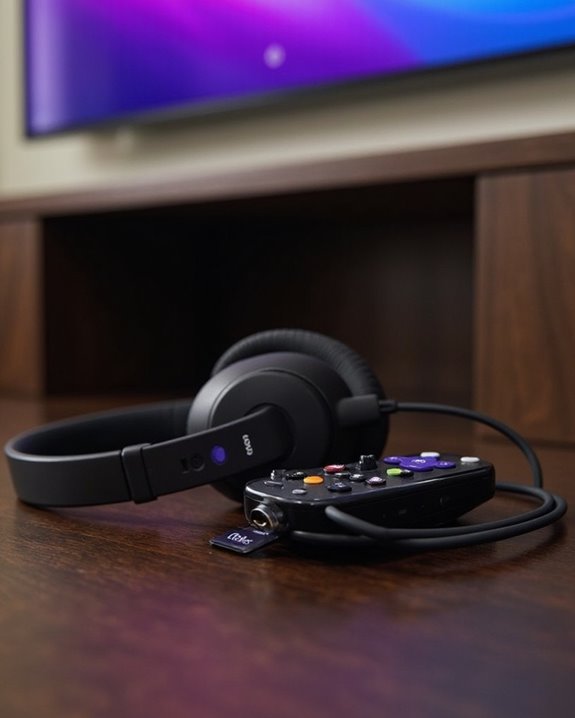
The headphone jack on select Roku remotes offers a convenient solution for private listening without disturbing others nearby. This feature is available on specific models, including the original Roku Voice Remote Pro and the RCMC1, but particularly absent from the Voice Remote Pro 2nd Edition.
To use this feature, simply plug standard headphones directly into the remote’s 3.5mm jack. The TV speakers will automatically mute, directing audio exclusively to the headphones. This capability is particularly valuable for late-night viewing or in shared living spaces.
For Remote Maintenance, users with rechargeable models should make sure regular charging to prevent interruptions during private listening sessions. When considering Jack Alternatives, the Roku mobile app provides comparable functionality, allowing users to connect headphones to their smartphone instead of the remote. Many modern wireless TV headphones also offer 40ms ultra-low latency, ensuring audio and video stay perfectly synchronized during playback.
Recommended Products

Stay powered for months: Keep your remote running for three months on a single charge. With 50% more battery life and USB-C charging, Roku Voice Remote Pro (2nd Edition) is the ultimate TV companion.

Easy voice search & control: Quickly search across thousands of top channels, play entertainment, control your streaming, and more with your voice

Compatible devices - Roku TV models ONLY
Connecting Wireless Headphones via Bluetooth
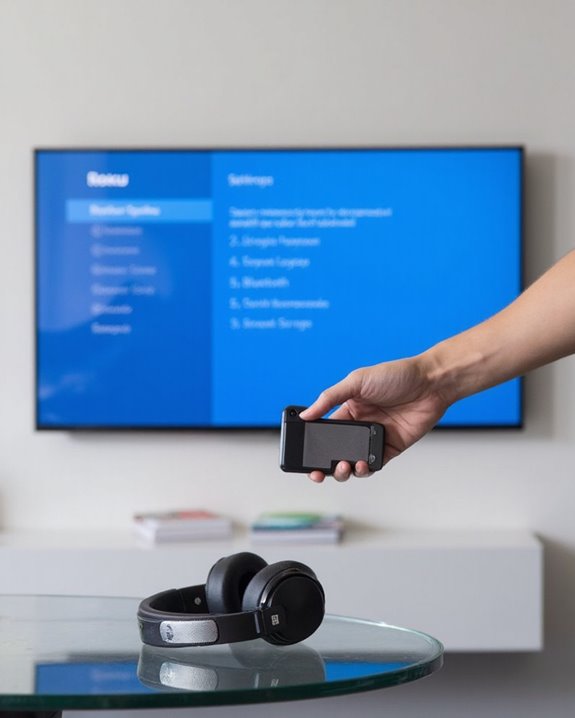
Connecting wireless headphones to a Roku TV offers viewers greater flexibility for private listening without physical tethering. This feature is available on select models, including Roku Plus Series, Roku Pro Series, and TCL Roku TVs.
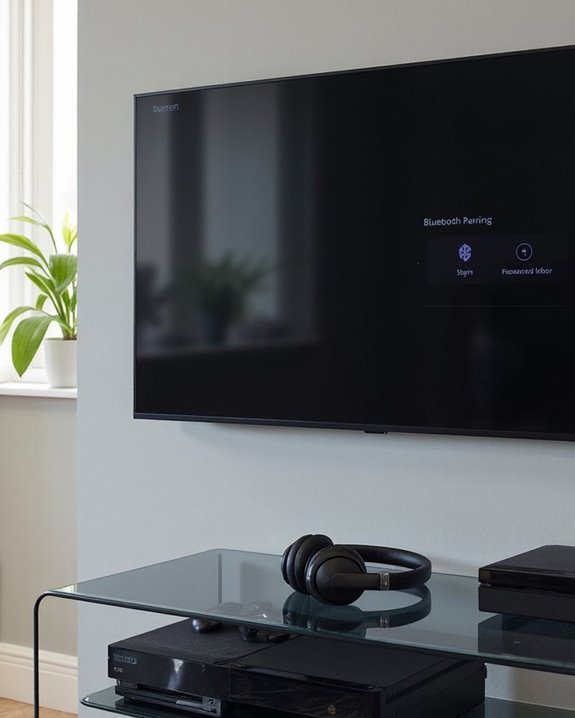
To establish a connection, users must navigate to Settings > Remotes & Devices > Wireless Headphones from the Roku home screen. Select “Add new wireless headphones” and verify the headphones are in discovery mode. The pairing process creates a secure wireless connection that typically only needs to be completed once.
Signal Range and interference from other devices may affect connectivity. For ideal Audio Quality, users should position within recommended range of their TV. Volume adjustments can be made using either the Roku remote or the headphones themselves, with a headphone icon appearing on-screen during adjustments. Many wireless headphones use Bluetooth 5.0 connectivity, providing stable and wide device compatibility for seamless pairing.
Recommended Products
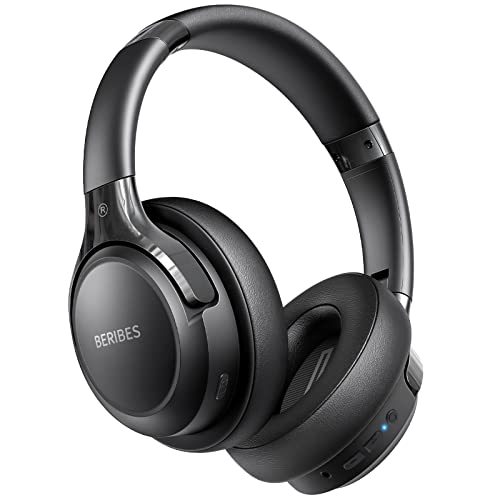
65 Hours Playtime: Low power consumption technology applied, BERIBES bluetooth headphones with built-in 500mAh battery can continually play more than 65 hours, standby more than 950 hours after one fully charge. By included 3.5mm audio cable, the wireless headphones over ear can be easily switched to wired mode when powers off. No power shortage problem anymore.

Private Listening Without Disturbing Others: Enjoy a comfortable home TV experience with these wireless headphones for TV. Whether it’s a late-night movie or an evening show, you can clearly hear dialogue at your own volume without disturbing others at home. Ideal for shared living spaces, the tv headphones allows independent volume control so you enjoy every detail while keeping the room quiet for family members
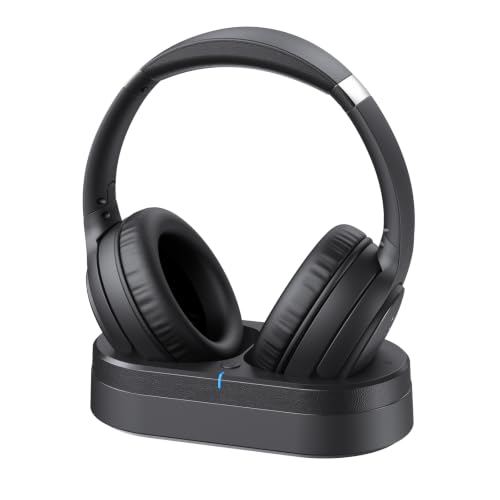
Crystal Clear TV Dialogue for Easy Listening: Hear every conversation, every line and every moment more clearly with wireless TV headphones made for relaxing everyday viewing. Ideal for seniors and anyone who struggles with unclear TV audio, these TV headphones wireless for seniors deliver enhanced dialogue clarity for movies, news, sports and late-night shows without turning up the TV volume for everyone else
Setting Up a Bluetooth Transmitter for Non-Bluetooth TVs
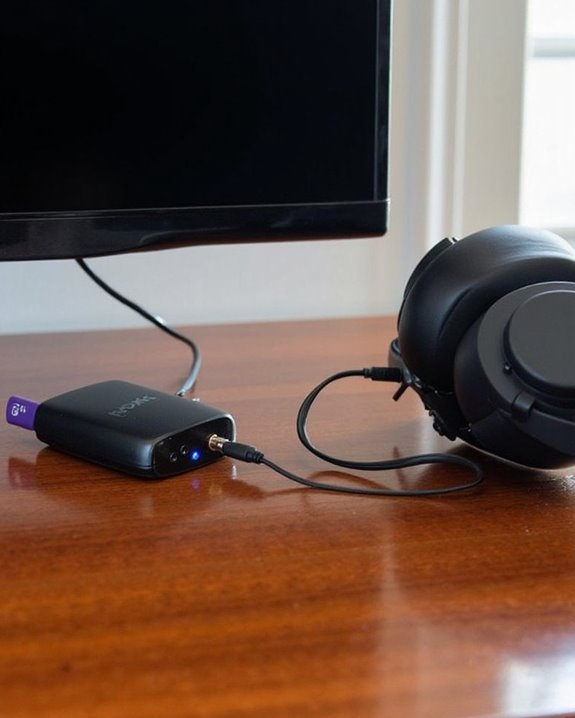
While newer Roku TV models include built-in Bluetooth functionality, older Roku TVs and many standard televisions lack this capability, necessitating the use of a Bluetooth transmitter for wireless headphone connectivity. Proper Transmitter Selection involves verifying compatibility with both the TV’s audio outputs and the intended headphones.
Installation requires connecting the transmitter to the TV using appropriate Cable Types—typically optical, coaxial, or RCA connections. Once physically connected, users must activate Bluetooth on the transmitter and place both devices in pairing mode to establish communication.
Troubleshooting common issues includes checking for interference from other devices, ensuring components remain within effective range, and verifying power supply connections. For ideal performance, select transmitters offering low latency support and audio quality enhancements like aptX, which minimize audio delay when watching video content.
Recommended Products

The Latest Bluetooth 5.3: The latest Bluetooth 5.3 technology enables your aux Bluetooth adapter backward compatible with Bluetooth 5.2/5.1/5.0/4.2/4.0/3.0/2.0 and it can deliver more stable wireless to your devices.

Advanced Bluetooth 6.0 Dual-Mode Audio Freedom:In TX mode, use this bluetooth transmitter to connect to any AUX/RCA audio source—from TV as a bluetooth transmitter for TV, to airplane seatback as a bluetooth transmitter for airplane—pairing with headphones for clear, lag-free audio. In RX mode, receives wireless audio from a smartphone, tablet, or computer and plays it through audio systems that lack Bluetooth functionality.Hands-free calling via an integrated microphone.
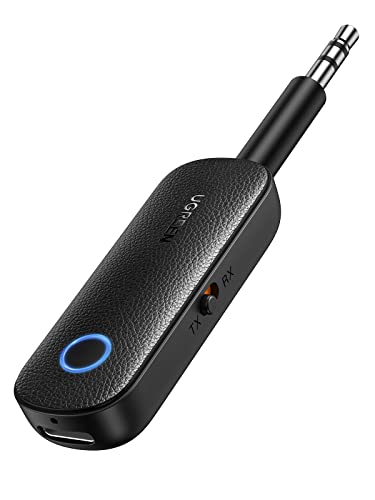
2 in 1 Bluetooth Transmitter Receiver: This UGREEN 3.5mm wireless adapter supports both TX and RX modes. Whether at home, in the car, or on a plane, it can easily meet your wireless Bluetooth needs. Simply connect it to a non-Bluetooth device, such as a plane or car stereo, and enjoy Bluetooth wireless sound. Not only is it a great gadget for enabling wireless Bluetooth, but it's also an airplane travel essential, eliminating the hassle of wired connections!
Private Listening Through the Roku Mobile App
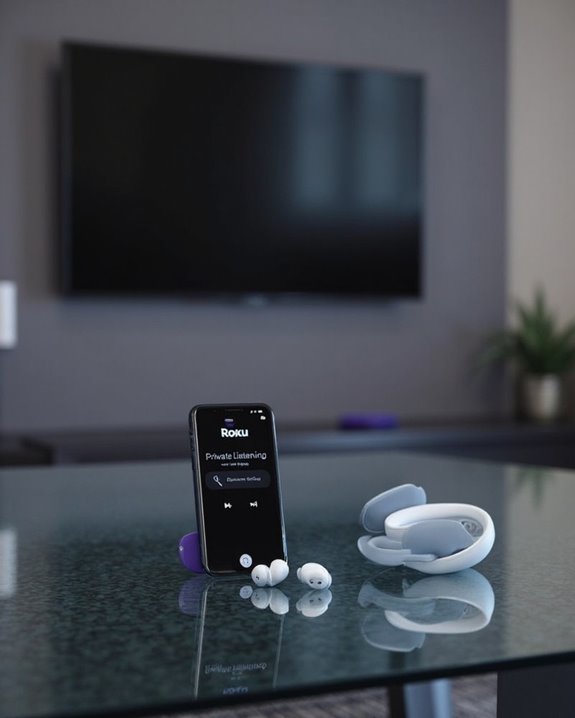
Roku’s Private Listening feature transforms any smartphone into a personal audio hub for Roku TV content without requiring specialized hardware. Users simply launch the Roku mobile app, tap the Remote icon, and press the headphone button to activate this function. The App Integration enables seamless volume control and audio customization directly through the smartphone interface.
The feature supports both wired and Bluetooth headphones connected to the mobile device, offering flexibility regardless of the TV’s native audio capabilities. Audio Sync technology guarantees that sound and video remain perfectly matched during playback, eliminating frustrating lag issues.
This functionality proves particularly valuable for late-night viewing, shared living spaces, or when users need focused listening without disturbing others. For best performance, users should verify proper headphone connection and manage volume levels cautiously before placing headphones on ears.
Recommended Products

Over-ear Digital Wireless Headphones with Bass Boost Surround Sound Modes

【Triple Connectivity Modes for Flexible Gaming Setup】Connect through 2.4GHz wireless, Bluetooth 5.4, or 3.5mm wired mode. The 2.4GHz connection provides low-latency audio for PC, PS5, PS4, and laptops, while Bluetooth supports mobile devices and Mac. The wired connection allows compatibility with Xbox Series X|S, Xbox One, and other devices with a 3.5mm audio port.

【Ultra-Low Latency & Flawless Sync】Equipped with advanced Bluetooth 5.4 technology, these wireless TV headphones deliver under 40ms latency, ensuring perfect lip-sync and real-time audio. The stable connection extends up to 30m/100ft, so you enjoy seamless sound even when you step away from the screen.
Troubleshooting Common Headphone Connection Issues
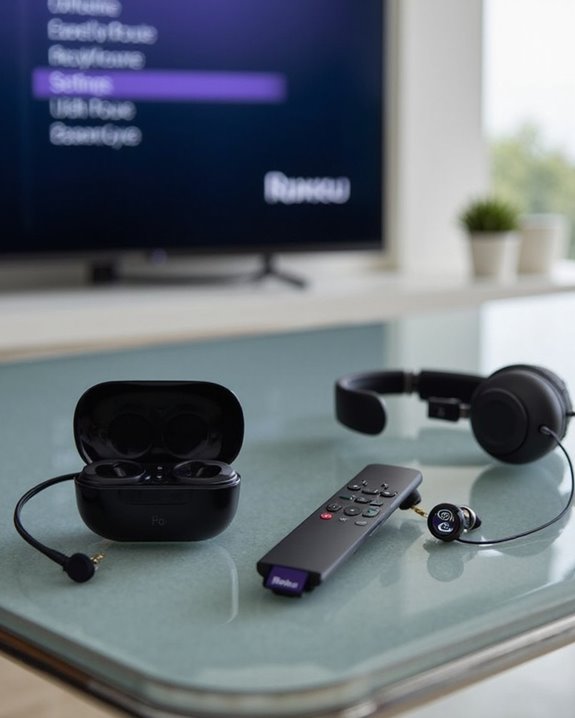
Despite their convenience, headphone connections with Roku TVs can occasionally present frustrating technical challenges for users. When experiencing Compatibility Issues, users should verify that their headphones work with their specific Roku TV model and make sure both devices are properly set for pairing.
For persistent connection problems, restarting both devices often resolves temporary glitches. If pairing repeatedly fails, removing the device from the TV’s memory and attempting a fresh connection may help.
Interference Tips include keeping other Bluetooth devices at a distance during the pairing process and staying within the ideal connection range. Different Roku TV models offer varying levels of Bluetooth support—with Plus Series TVs providing more robust connectivity than budget models like Onn TVs.
Recommended Products
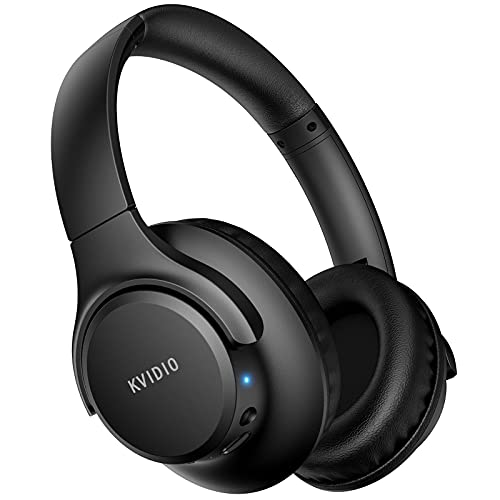
Stereo sound headphones: KVIDIO bluetooth headphones with dual 40mm drivers, offers an almost concert hall-like feel to your favorite music as close as you're watching it live. Provide low latency high-quality reproduction of sound for listeners, audiophiles, and home audio enthusiasts

【Effortless Setup & Versatile Connection】These wireless TV headphones support easy installation and multiple connection ways including optical, 3.5mm AUX and RCA cables, all well-packed for universal TV compatibility. Simply wire up the transmitter and TV, turn on the devices to enjoy premium sound quality. Bluetooth pairing is also accessible for TVs without corresponding ports. Great wireless TV headphones for seniors, it allows you to watch shows casually at home and catch every dialogue and storyline clearly.

Breathtaking picture: Sharp 4K brings out rich detail on our 55" flat screen TV, while the QLED screen and HDR10 create bright, accurate colors. Roku Smart Picture cleans up incoming TV signals, optimizes them, and chooses the right picture mode.
Frequently Asked Questions
Can I Connect Multiple Headphones Simultaneously to My Roku TV?
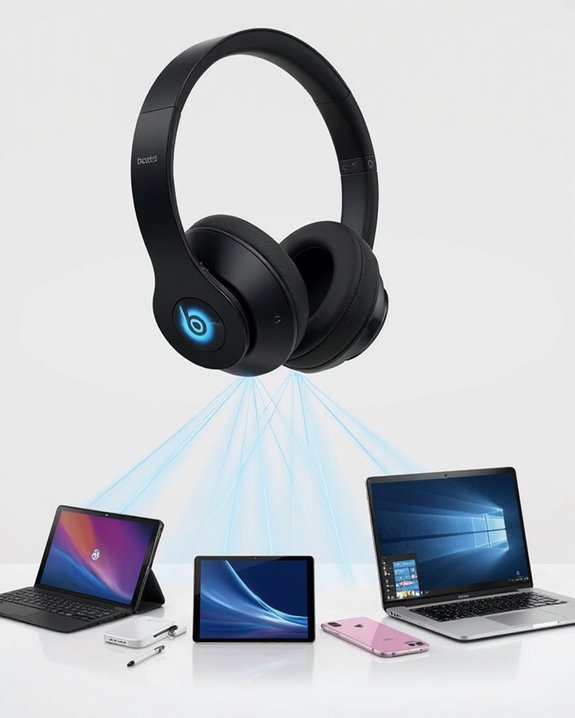
Standard Roku TVs lack Multi Headphone Compatibility for Simultaneous Audio Streaming. Users can overcome this limitation by employing external Bluetooth transmitters like Avantree, which allow multiple headphones to connect to the TV simultaneously.
Will Using Headphones With Roku Drain My Remote’s Battery Faster?
While not a critical issue, headphones do drain remote batteries faster by activating the built-in amplifier. Users can maximize remote battery life by limiting headphone usage and following basic energy tips like reducing volume levels.
Does Private Listening Affect Video Quality or Cause Lag?
Private listening on Roku typically affects audio quality rather than causing video lag effects. Quality concerns are primarily limited to audio performance. The video stream remains unaffected unless network traffic is exceptionally high.
Can I Adjust Headphone Volume Separately From TV Volume?
Yes, volume separation is possible. Users can adjust headphone volume independently using the Roku mobile app’s volume slider during private listening mode, while TV volume remains unaffected. This headphone tuning feature provides personalized audio control.
Will My TV Speakers Automatically Mute When Headphones Are Connected?
While many devices offer audio flexibility, Roku takes a different approach. Yes, TV speakers automatically activate “Auto Mute” mode when headphones connect, giving “Headphone Priority” to personal listening without simultaneous output options.