As an Amazon Associate, we earn from qualifying purchases. Some links on this site are affiliate links at no extra cost to you. Our recommendations are based on thorough research and editorial judgment.

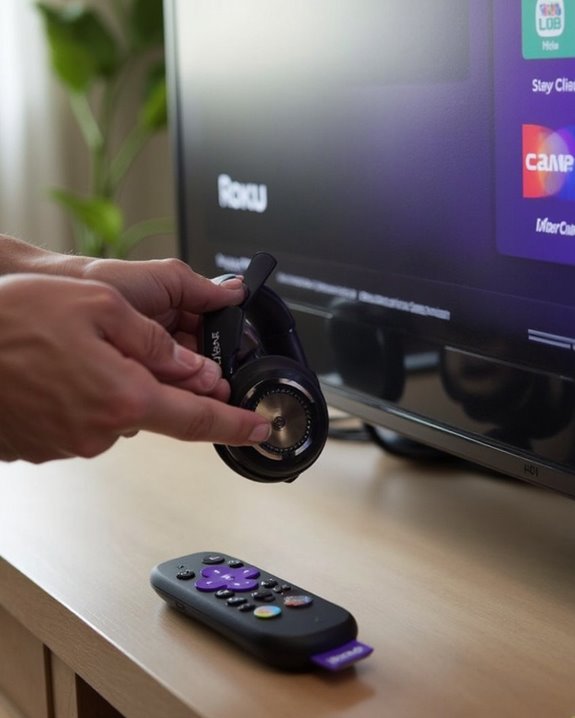
How to Connect Headphones to Your Roku TV

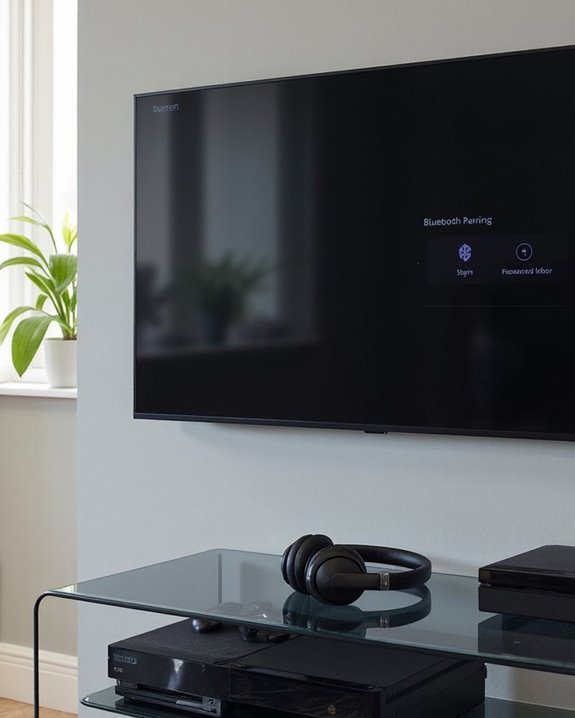
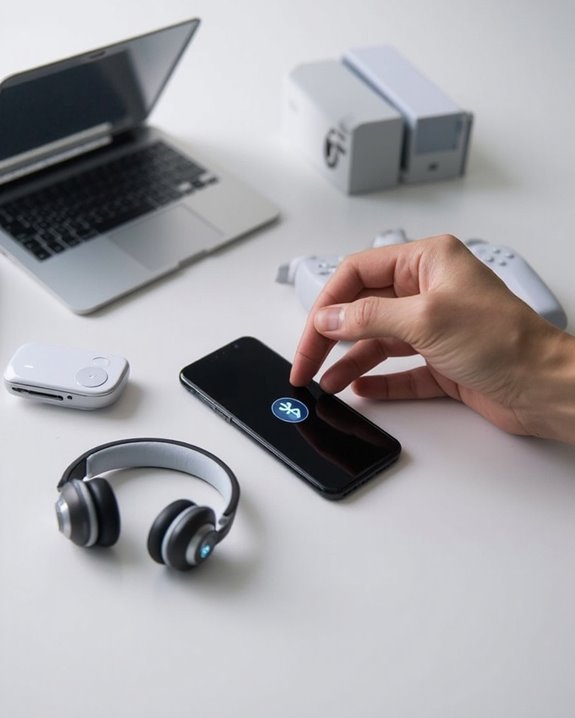
To connect headphones to a Roku TV, first check your model’s compatibility—only certain Roku TVs support direct Bluetooth connections. For compatible models, put headphones in pairing mode, navigate to Settings > Remotes & Devices > Bluetooth > Wireless Headphones, and select your device from the list. For non-Bluetooth Roku TVs, use the Roku mobile app’s Private Listening feature as an alternative. The following methods provide solutions for every Roku TV configuration.
Key Takeaways
- Most Roku TVs don’t have built-in Bluetooth, but specific models (4800, 4801, 4802) and Roku Streambar support direct connections.
- Put your headphones in pairing mode, then select “Wireless headphones” or “Add new wireless headphones” from your Roku menu.
- Wait for your TV to scan for nearby devices, then select your headphones from the list to complete pairing.
- Use the Roku mobile app’s Private Listening feature as a workaround for Roku models without Bluetooth capability.
- After connecting, test with content to verify audio quality and adjust settings like Movie Mode or Dialogue Mode for optimal performance.
Understanding Roku’s Bluetooth Capabilities
You may be interested
10 Best Active Noise Cancelling
July 5, 2024
10 Best Bone Conduction Headphones
May 4, 2024
When attempting to connect headphones to a Roku TV, users often encounter the first major hurdle: most Roku TVs do not feature built-in Bluetooth audio output capabilities. This limitation stems from Roku’s device architecture decisions rather than Bluetooth history or technological constraints.
Only specific Roku streaming devices (models 4800, 4801, and 4802) and audio accessories like the Roku Streambar and Ultra LT offer native Bluetooth headphone support. These devices implement standard Bluetooth security protocols to guarantee private, encrypted connections between the streaming device and headphones.
For most Roku TV owners, the primary workaround involves using the Roku mobile app’s “Private Listening” feature, which routes audio through the phone to connected Bluetooth headphones. This solution effectively bypasses the TV’s hardware limitations while maintaining audio privacy. Many premium wireless TV headphones now feature Bluetooth 5.2 technology that provides ultra-low latency and stable connections, enhancing the listening experience when paired with compatible devices.
Preparing Your Headphones for Pairing
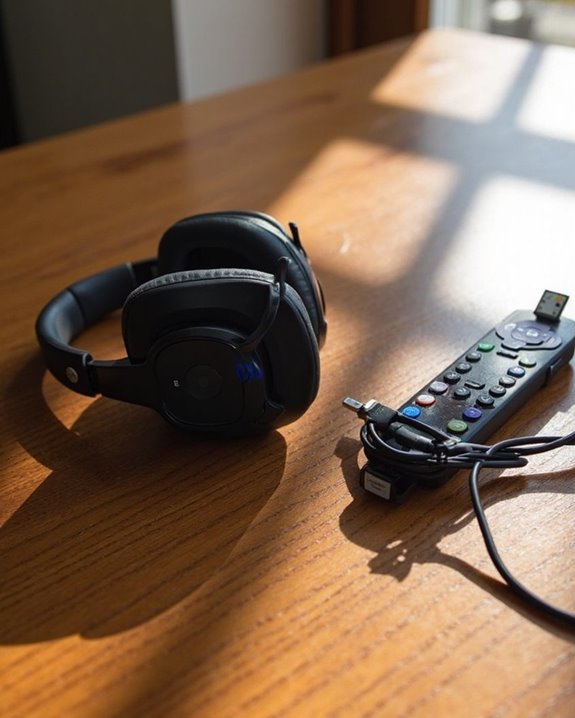
Before attempting to connect headphones to a Roku device, proper preparation guarantees a smooth and frustration-free setup process. Users should first verify their headphones have sufficient power through proper Battery Maintenance—charging wireless models completely or installing fresh batteries as needed.
Next, verify compatibility with the Roku system by checking impedance levels and frequency response ranges. For wired headphones, confirm the cable length is adequate for comfortable viewing distances.
Implement Noise Adjustment settings by testing any active noise cancellation features before connecting to Roku. This preparation enhances the viewing experience by minimizing environmental distractions.
For ideal audio quality, set headphones to a moderate volume initially, as this prevents potential hearing damage and eliminates the need for frequent adjustments once connected to the Roku device.
Additionally, consider using headphones that support Bluetooth 5.3 connectivity for a stable and low-latency wireless experience when pairing with Roku devices.
Recommended Products

Adaptive Noise Cancelling with Smart Ambient: Adaptive Noise Cancelling means zero distractions whether you’re studying or getting lost in the music. If you want to hear the world around you, activate Ambient Aware and TalkThru in the JBL Headphones app.

【Upgraded Wireless Connected to The Official xbx Controller】The Captain 200 for xbx headset wireless offers Dual-Lock Dongle for xbx Wireless connectivity for official xbx controllers (compatible with xbx Series X/S and xbx One). It is also compatible with PC, PS5/4, Mac, and Nintendo Switch (mic not supported on Switch). Enjoy low-latency gameplay (≤20ms) and clear sound with wide compatibility for popular games.

JBL Pure Bass Sound: The JBL Tune 720BT features the renowned JBL Pure Bass sound, the same technology that powers the most famous venues all around the world.
Step-by-Step Connection Process
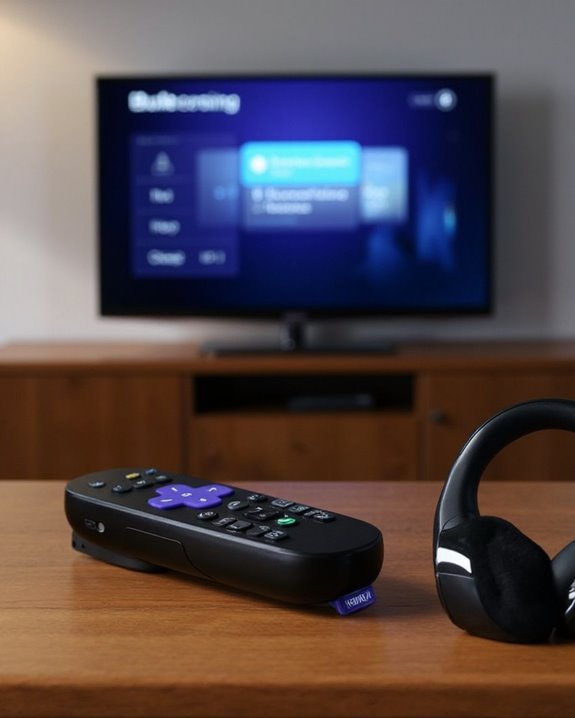
In the Step Breakdown, users must then choose “Wireless headphones” or “Add new wireless headphones” from the menu. Once selected, the TV initiates a scan for nearby Bluetooth devices. When the headphones appear in the search results, selecting them initiates the pairing process.
After successful connection, the headphones will be listed as a paired device, and a headphone icon may appear on screen. Users should test the connection by playing content and verifying clear audio transmission without distortion. For the best experience, ensure your earbuds support Bluetooth 5.3 connectivity for lag-free transmission and stable range.
Recommended Products

[Ultra-Lightweight Ear Buds Designed for Small Ears] Each earbud weighs only 3.7g and features a compact, ergonomic in-ear design made especially for small ears. Secure, low-profile, and comfortable for workouts, all-day wear or overnight sleeping.The ultra-slim profile sits flush in your ear with no hard edges poking or rubbing, so you can even sleep on your side without discomfort.

40Hrs Extra-Long Battery Life Wireless Earbuds - Enough time to listen to 500+ songs: T08 wireless earbuds can provide up to 8 hours of music on a single charge, or up to 40 hours when used with the LED display charging case (at 50%-60% volume). With powerful fast charging, a 15-minute charge provides up to 90-minute uninterrupted music playback. Say goodbye to low-power anxiety and enjoy none-stop music any time!

Smart LED Display & 50H Sport Headphones: The A10 Bluetooth 5.3 earbuds feature an LED screen that shows real-time power levels for both the case and each earbud (0-100%). With 8 hours of playtime per charge and an IPX7 waterproof case, they deliver a total of 50 hours of use—ideal for gym sessions. They support fast charging via Type-C, taking just 1.5 hours to fully charge. Boasting an ultra-light 0.008lbs design, they stay secure during marathons.
Troubleshooting Connection Problems
Despite following the proper setup steps, users may encounter various Bluetooth connectivity issues with their Roku TV headphones. These problems often manifest as Detection Failures when the TV cannot locate nearby Bluetooth devices, or Timeout Problems during the pairing process.
When experiencing connectivity issues, first verify device compatibility, as only certain Roku models (primarily Plus and Pro series) support direct Bluetooth connections. For persistent Detection Failures, reset both devices and make sure headphones are in pairing mode. If connection attempts repeatedly time out, try distancing from other Bluetooth devices that may cause interference.
For incompatible TV models, the Roku mobile app offers an alternative solution, though users should be aware this method may introduce audio sync delays that require adjustment within app settings.
Recommended Products
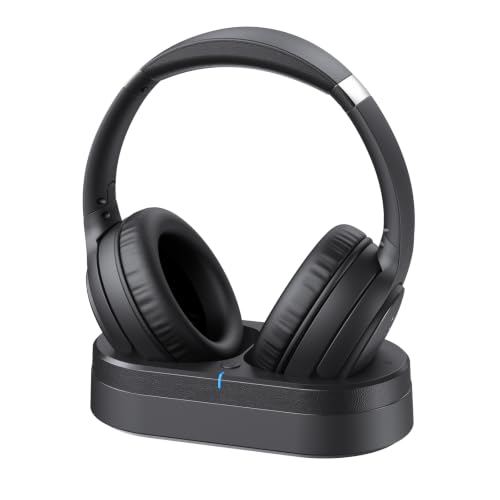
Crystal Clear TV Dialogue for Easy Listening: Hear every conversation, every line and every moment more clearly with wireless TV headphones made for relaxing everyday viewing. Ideal for seniors and anyone who struggles with unclear TV audio, these TV headphones wireless for seniors deliver enhanced dialogue clarity for movies, news, sports and late-night shows without turning up the TV volume for everyone else

【ASTONISHING SOUND PRODUCTION 】: High Definition Stereo Headphones, specially developed software and noise reduction technology designed to prevent you from heating ambient noises and makes you focus on what you want to hear. Lose yourself in immersive music even in the lowest volume levels! The goal that provide Customers with outstanding sound quality is our constant pursuit.

Private Listening Without Disturbing Others: Enjoy a comfortable home TV experience with these wireless headphones for TV. Whether it’s a late-night movie or an evening show, you can clearly hear dialogue at your own volume without disturbing others at home. Ideal for shared living spaces, the tv headphones allows independent volume control so you enjoy every detail while keeping the room quiet for family members
Optimizing Audio Performance
Connecting headphones to a Roku TV opens up numerous possibilities for personalizing audio quality, but how can users maximize their listening experience? Selecting the appropriate audio mode can dramatically enhance headphone performance based on content type.
For cinematic content, Movie Mode delivers a more immersive experience with optimized volume levels and enhanced surround sound simulation through headphones. When enjoying music, switching to Music Mode provides balanced bass and treble with clearer instrumental separation.
Users can further refine their audio experience by adjusting Volume Leveling settings. For late-night viewing, Night Mode reduces sudden volume spikes while maintaining dialogue clarity. The Dialogue Mode specifically enhances speech frequencies, making conversations easier to understand without increasing overall volume.
These audio customizations guarantee headphone users can enjoy ideal sound quality tailored to their specific content preferences.
Recommended Products

Upgraded Version: A new generation USB-C portable headphone DAC and amplifier, supporting up to DSD256 and PCM 32bit/384kHz decoding for a high-resolution sound reproduction. It delivers a powerful drive of up to 170mW@32Ω each channel, effortlessly powering high or low-impedance headphones with 3.5mm single-ended or 4.4mm balanced connections, immersing you in the exquisite world of music

💖💖Perfect Compatibility: HiBloks Audio Enhancer Ear Tips is professionally designed for Ray-Ban Meta Wayfarer/Skyler/Headliner Gen 2/1, Meta Adventurer/Fury, Meta Blayzer/Scriber Optics Gen 2 and Meta Display. It effectively gathers sound, improves sound clarity, and brings you better tone quality
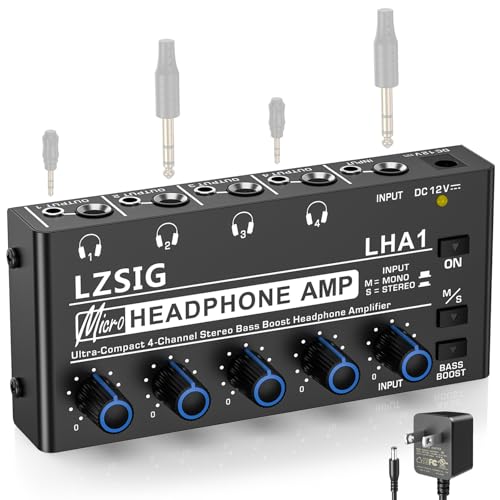
HEADPHONE AMP: Get superior audio with our 4-channel stereo headphone amplifiers, featuring ultra-low noise output amplifiers that provide high power stereo with output level control for each channel. This headphones for an amp No converter adapters are required as they work with both 1/8 inch(3.5MM) or 1/4 inch(6.35MM) headphones. Perfect for 50mm driver 32~100Ω headphones, the amplifier can power up to four pairs of headphones with four independent volumes
Private Listening Feature Benefits

The Roku TV’s Private Listening feature stands as one of the platform’s most valuable capabilities, especially for users seeking audio discretion. This functionality delivers significant Nighttime Benefits by enabling users to enjoy content during late hours without disturbing sleeping household members.
The feature excels in maintaining Shared Harmony in multi-person environments like hotel rooms, dormitories, or shared apartments where sound management is essential. Users can immerse themselves in content while others read, work, or sleep undisturbed nearby.
Private Listening also provides flexibility across various scenarios—whether watching intense dramas in bed while a partner sleeps, following cooking shows in a noisy kitchen, or enjoying movies during travel. The ability to connect various headphone types, including Bluetooth models, enhances this versatility while maintaining audio quality.
Alternative Headphone Connection Methods
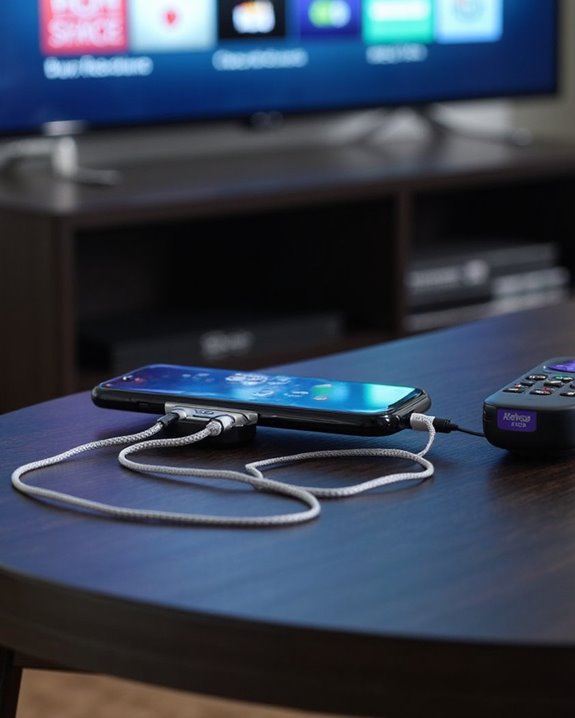
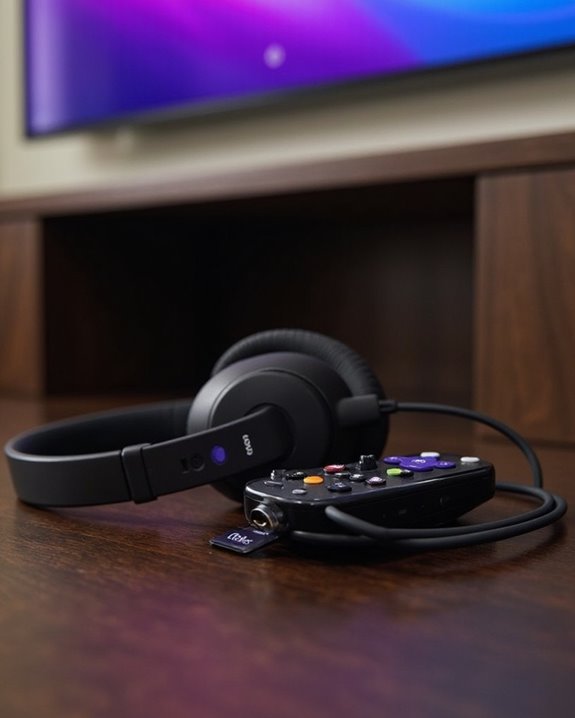
When standard Bluetooth pairing isn’t available, users can explore multiple pathways to establish headphone connectivity with their Roku TV. The most straightforward Wired Alternative involves plugging headphones directly into the 3.5mm jack on compatible Roku remotes, instantly enabling private listening without additional setup.
For older Roku models lacking built-in Bluetooth, external transmitter adapters provide wireless functionality by connecting to the TV’s audio outputs. These devices can pair with multiple headphones simultaneously while minimizing audio lag.
Extractor Solutions offer another option when direct connections aren’t feasible. HDMI audio extractors split the audio signal from video content, creating dedicated outputs for headphones. Similarly, audio extension cables can bridge the distance between viewers and their Roku devices while maintaining wired audio quality.
Recommended Products

【Dual Connection & Automatic Reconnection】This Bluetooth transmitter adapter has a "dual connection" function, which can connect two Bluetooth headsets/speakers at the same time. Enjoy a movie with your partner without disturbing others. After the first Bluetooth pairing is successful, 2 earphones/speakers can be reconnected to this wireless Bluetooth transmitter for TV automatically. Note: When using a fiber optic connection, please set the TV audio output format to PCM.

The Latest Bluetooth 5.3: The latest Bluetooth 5.3 technology enables your aux Bluetooth adapter backward compatible with Bluetooth 5.2/5.1/5.0/4.2/4.0/3.0/2.0 and it can deliver more stable wireless to your devices.

【WORKS WITH OPTICAL & AUX TVs】This Bluetooth transmitter works with TVs that have Optical (TOSLINK) or 3.5mm AUX audio output, sending TV audio wirelessly to Bluetooth headphones or speakers for private TV listening.
Frequently Asked Questions
Can I Connect Multiple Bluetooth Headphones Simultaneously?
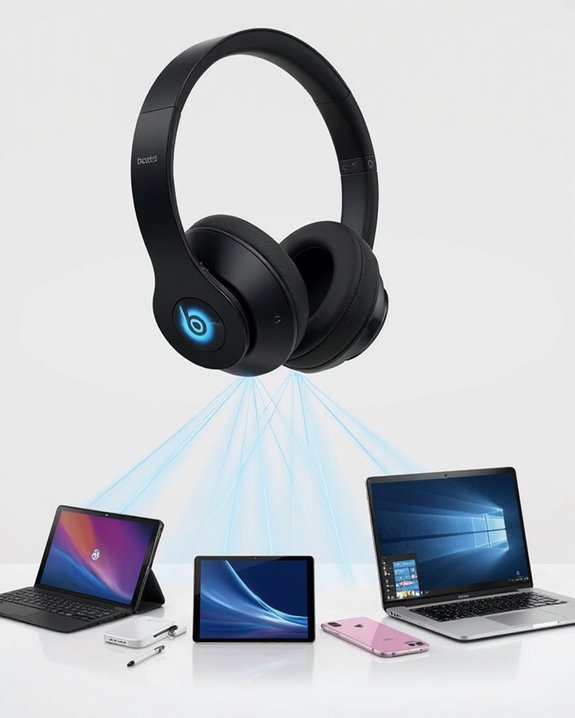
Standard Roku TVs have pairing limits, allowing only one Bluetooth headphone connection at a time. External Bluetooth transmitters can connect multiple headphones simultaneously, though users should be aware of potential interference issues between devices.
Will My Headphones Automatically Reconnect to Roku After Use?
Like clockwork, most Roku devices with built-in Bluetooth will automatically reconnect to previously paired headphones when turned on. Reconnection speed varies, but the automatic pairing feature eliminates the need for manual setup each time.
Does Using Headphones Affect My Roku’s Battery Life?
Yes, connecting headphones to a Roku remote increases battery drain. The earphone amplifier continues to use power even when not actively listening, resulting in higher overall power usage and shorter battery life.
Can I Use My Gaming Headset’s Microphone With Roku?
The silent microphone hangs unused on a gaming headset connected to Roku. Standard Roku TVs don’t support microphone input functionality. Headset compatibility is limited to audio output only, and microphone latency isn’t relevant with this incompatible setup.
How Do I Switch Audio Back to TV Speakers Quickly?
To quickly switch audio back to TV speakers, users can perform a quick toggle by pressing the Home button, going to Settings > Audio, and selecting “TV Speakers” as the Audio Switch output option.