As an Amazon Associate, we earn from qualifying purchases. Some links on this site are affiliate links at no extra cost to you. Our recommendations are based on thorough research and editorial judgment.

How to Connect JBL Headphones to Your Laptop

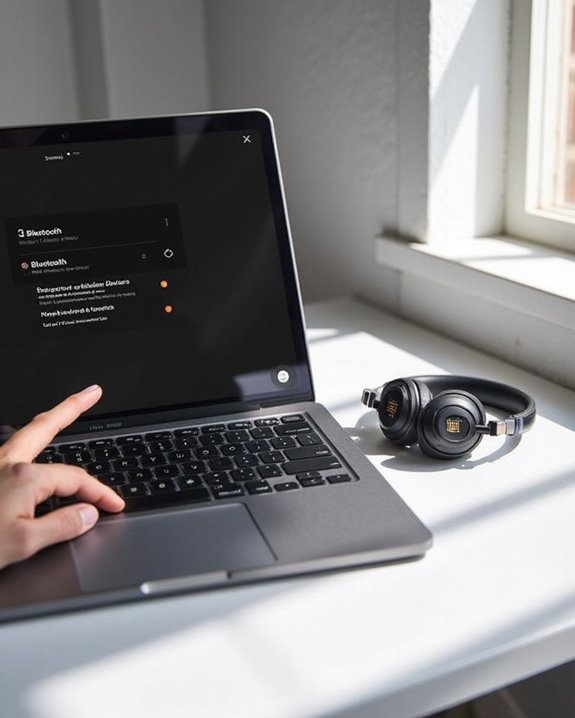
To connect JBL headphones to a laptop, first verify they’re fully charged and put them in pairing mode by holding the power button until the LED flashes blue. Then enable Bluetooth on your laptop through Settings (Windows) or System Preferences (Mac). Select your JBL headphones from the available devices list and confirm the pairing when prompted. For persistent issues, update Bluetooth drivers or reset both devices. Additional settings optimization can dramatically enhance your audio experience.
Key Takeaways
- Put JBL headphones in pairing mode by holding the power button until you see flashing LED lights.
- Enable Bluetooth on your laptop through Settings (Windows) or System Preferences (Mac).
- Select your JBL headphones from the available devices list when they appear.
- Ensure both devices are adequately charged and within close proximity during pairing.
- Restart both devices and reset headphones if connection issues persist.
Preparing Your JBL Headphones for Pairing
You may be interested
10 Best Bluetooth Earpiece
June 23, 2024
Before connecting your JBL headphones to a laptop, proper preparation guarantees a smooth and successful pairing process. First, check the Battery Status of your headphones to make sure they’re fully charged, as low power can impede connection attempts.
Locate the pairing button, typically found on one of the ear cups. For most JBL models, pressing and holding this button until the LED indicator flashes will activate pairing mode. Some newer models automatically enter this mode when powered on for the first time.
Verify Model Compatibility with your laptop’s Bluetooth version to prevent connectivity issues. Different JBL headphone types—wired, wireless, or those with noise cancellation features—require specific preparation steps. For instance, the JBL Tune 760 NC operates differently than the JBL Reflect Mini 2.
For optimal connection stability and range, ensure your laptop supports Bluetooth 5.0 or higher technology.
Recommended Products
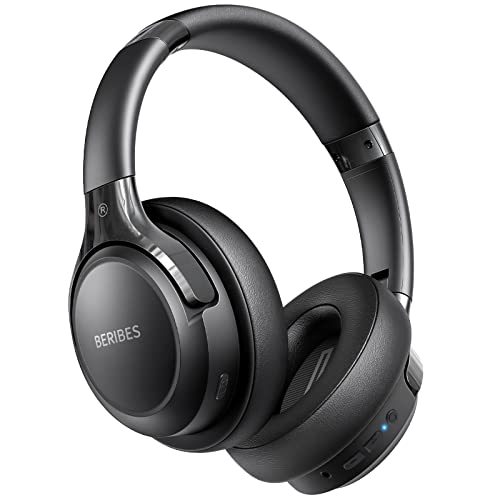
65 Hours Playtime: Low power consumption technology applied, BERIBES bluetooth headphones with built-in 500mAh battery can continually play more than 65 hours, standby more than 950 hours after one fully charge. By included 3.5mm audio cable, the wireless headphones over ear can be easily switched to wired mode when powers off. No power shortage problem anymore.

【40MM DRIVER & 3 MUSIC MODES】Picun B8 bluetooth headphones are designed for audiophiles, equipped with dual 40mm dynamic sound units and 3 EQ modes, providing you with stereo high-definition sound quality while balancing bass and mid to high pitch enhancement in more detail. Simply press the EQ button twice to cycle between Pop/Bass boost/Rock modes and enjoy your music time!

Secure & Flexible Earhook Design for Sports:Built with soft flexible earhooks and an ultra lightweight 7.8g structure, these sports earbuds stay comfortably secure during workouts, jogging, cycling, fitness training, and outdoor activities without slipping or causing ear fatigue.
Enabling Bluetooth on Your Windows or Mac Laptop
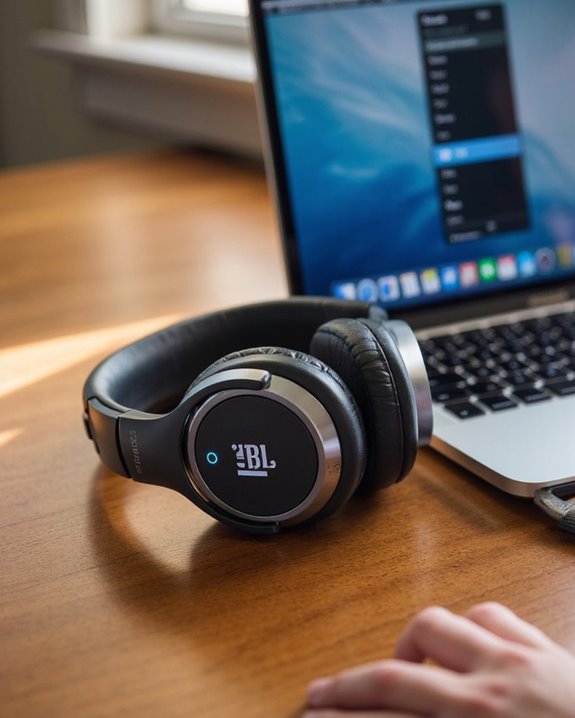
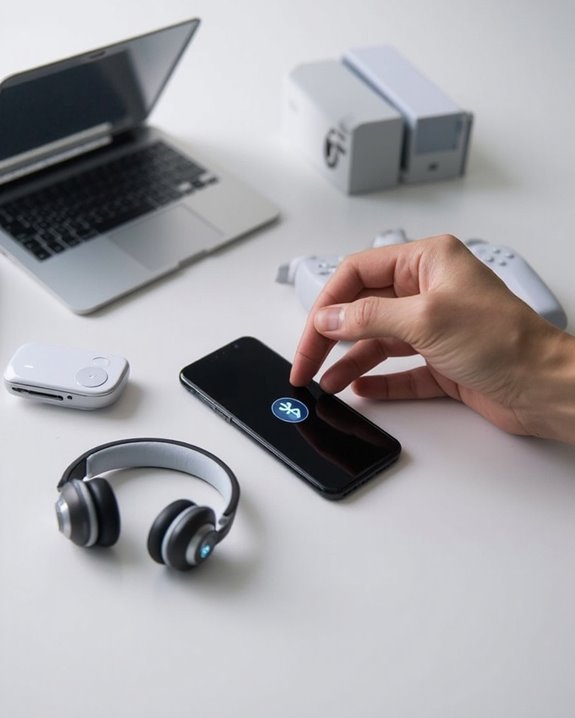
Activating Bluetooth functionality on a laptop serves as the essential first step in establishing a wireless connection with JBL headphones. The process involves distinct Toggle Methods that vary based on OS Differences between Windows and Mac systems.
For Windows users, accessing Bluetooth requires clicking the Start menu, selecting Settings, then Devices, and toggling the Bluetooth switch to “On.” Alternatively, users can utilize Control Panel to manage Bluetooth connections.
Mac users follow a different protocol, accessing Bluetooth through System Settings (or System Preferences) from the Apple menu. The menu bar also offers a convenient Bluetooth icon for quick access and connection management.
Both operating systems feature built-in troubleshooting options if connectivity issues arise, including driver updates and device removal capabilities to achieve effective pairing with JBL headphones.
To optimize your audio experience, it is helpful to understand that the JBL Tune 510BT provides dual-device switching capabilities, allowing seamless transitions between connected devices.
Recommended Products
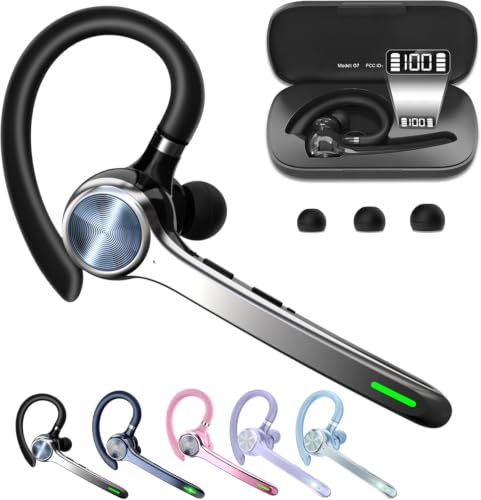
Smart Digital Display: Easy-to-read digital display shows the remaining power of the charging case for the refill in time.

🔄 【Dual-Mode Compatibility】One gaming headset with mic, endless gaming possibilities. Press mic 2s to toggle modes. 2.4GHz mode for PS5, PS4, PC, Phone, Laptop, Switch & Mac, and Bluetooth mode for PC, Mac, Switch, Mobile, Laptops & Tablets. ❗ Note: Use 2.4GHz USB + Type-C together for PS5/PS4/PC/Laptop/Mac; cannot be used alone. ❌Both modes are NOT compatible with Xbox. ❌The Mic is NOT compatible with Switch via Bluetooth mode. ❌Bluetooth mode is NOT compatible with PS5/PS4.

LED DIGITAL DISPLAY & 120H LONG STANDBY TIME : The G7 Wireless Bluetooth Headset comes with a smart LED display that shows the charging status of the earphones and the power of the case. 120 hours of standby time and 72 hours of music playback/talking time with the charging case
Completing the Pairing Process Between Devices
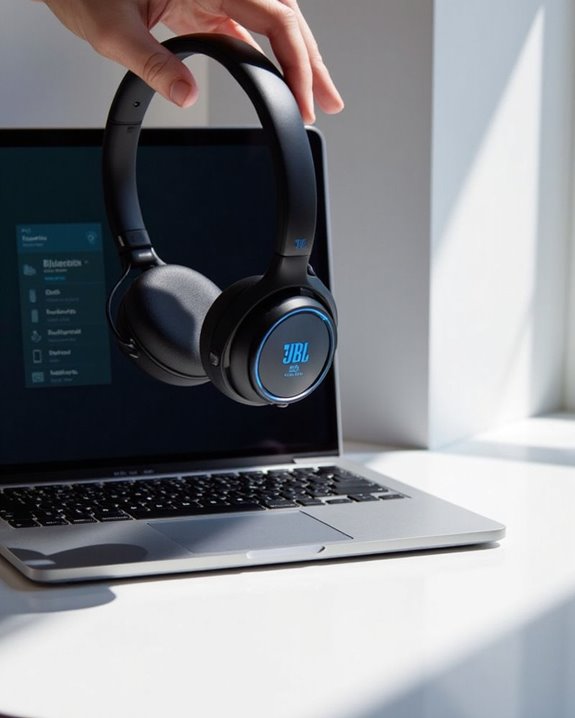
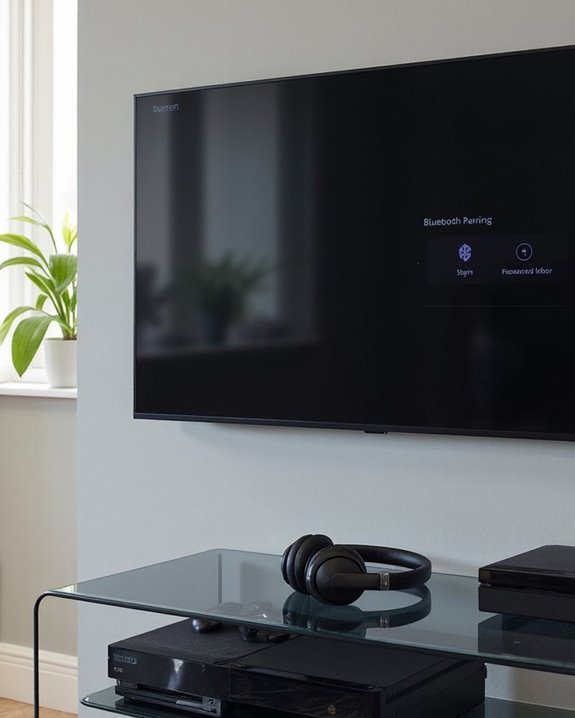
Once Bluetooth is enabled on both devices, the actual pairing process requires specific steps to establish a stable connection between JBL headphones and a laptop. Users should verify their headphones are in pairing mode, indicated by a blinking blue light, before selecting them from the available devices list on their laptop.
When the connection is initiated, a confirmation prompt may appear to finalize the pairing. This step often includes Pairing Security protocols that protect the connection from unauthorized access. After confirmation, the devices should automatically recognize each other when powered on in the future.
For best performance, checking for Firmware Updates on both the laptop’s Bluetooth drivers and JBL headphones is recommended. These updates can resolve connectivity issues and improve overall functionality, ensuring a seamless audio experience. Utilizing Bluetooth 5.0 or higher can help maintain a stable connection up to 33 feet for uninterrupted use.
Recommended Products

【13mm Drivers+Hybrid ANC】–Ear buds features a 13mm dynamic driver with a triple-layer diaphragm, producing tighter bass and cleaner treble across music, calls, and video. Hybrid ANC blocks steady background noise, and four ENC microphones keep your voice focused—so conversations will stay clear even in busy, shared spaces

Excellent Sound & 6EQ Modes: Wireless Bluetooth headphones equipped with 40mm dynamic driver, which produces hi-fi stereo sound, crisp and clean, great balanced Bassup and reduces environmental noise.Switch freely between 6 sound effects with the EQ button: Bass, pop, rock, classic, jazz and vocal. Listening to a variety of music,just like you are in a concert with a wide sense of space
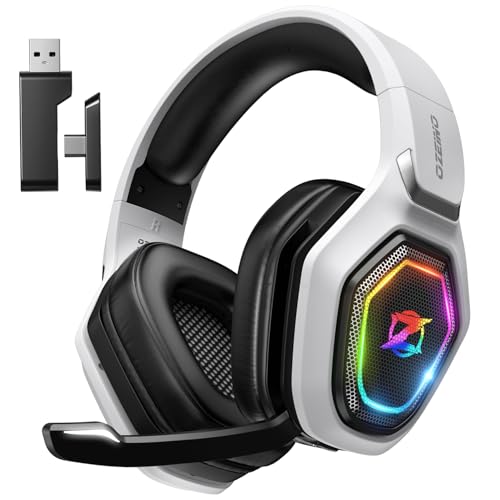
【Amazing Stable Connection-Quick Access to Games】Real-time gaming audio with our 2.4GHz USB & Type-C ultra-low latency wireless connection. With less than 30ms delay, you can enjoy smoother operation and stay ahead of the competition, so you can enjoy an immersive lag-free wireless gaming experience.
Troubleshooting Common Connection Problems
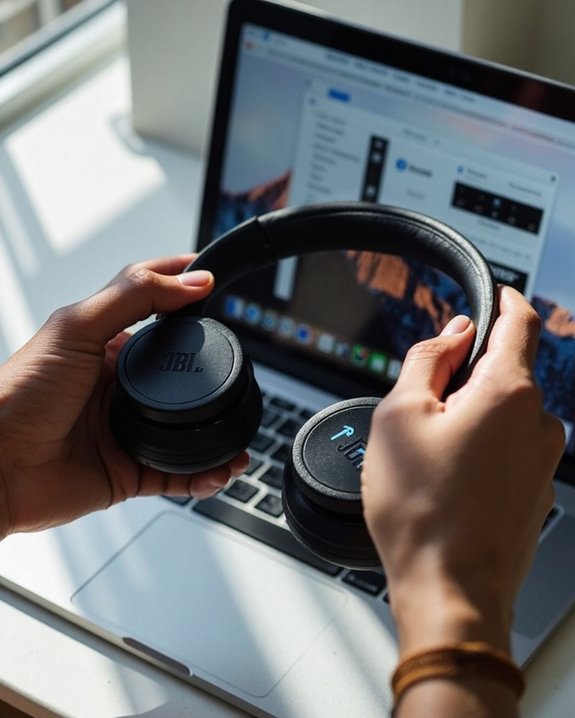
Despite following the correct pairing procedures, users may encounter frustrating connection issues between their JBL headphones and laptops. These problems typically stem from either Hardware Troubleshooting necessities or Software Conflicts that prevent successful connections.
For hardware-related issues, users should check their headphones’ battery level, inspect for physical damage, and verify connections are clean. Using a Bluetooth adapter can help overcome weak signals in older laptops.
Software Conflicts often require updating Bluetooth drivers, disabling Fast Startup, or running Windows’ built-in Bluetooth troubleshooter. Users experiencing persistent interference should relocate away from other electronic devices or physical barriers.
When standard solutions fail, resetting both devices can resolve deeper issues—restart the laptop and perform a factory reset on the headphones according to JBL’s specifications.
Recommended Products

Bluetooth 5.4 + Broad Compatibility - Provides Bluetooth 5.4 plus EDR technology and is backward compatible with Bluetooth V5.3/5.0/4.2/4.0/3.0/2.1/2.0/1.1.

Upgraded Bluetooth 5.3 Adapter: This bluetooth adapter for pc uses the latest upgraded Bluetooth 5.3 BR+EDR technology, greatly improves the stability of the connection data transfer speed, reduces the possibility of signal interruption and power consumption.

𝐁𝐥𝐮𝐞𝐭𝐨𝐨𝐭𝐡 𝟓.𝟑 𝐒𝐮𝐩𝐩𝐨r𝐭 – Applies the latest Bluetooth 5.3 plus EDR technology and is backward compatible with Bluetooth V4.2/4.0/3.0/2.1/2.0/1.1. UB500 Plus turns non-Bluetooth PC, desktop or laptop into Bluetooth-capable
Optimizing Audio Settings for the Best Sound Experience
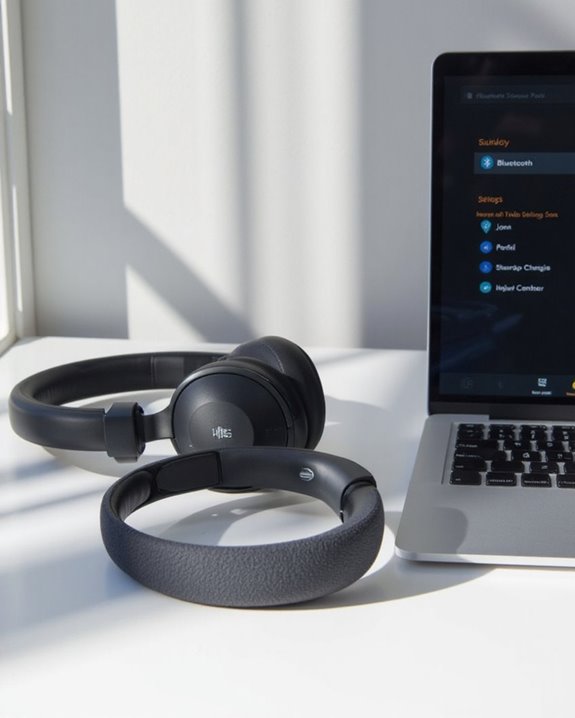
Properly configured audio settings transform the listening experience on JBL headphones from merely adequate to truly exceptional. Users should explore system sound settings to enable enhanced audio features and Spatial Audio options, which create immersive, three-dimensional soundscapes.
Equalizer Adjustments represent one of the most effective optimization methods. Fine-tuning bass, midrange, and treble frequencies can dramatically improve audio quality for different content types. Many laptops include built-in equalizers, while JBL’s proprietary software offers more precise control.
For wireless models, optimizing Bluetooth settings reduces latency and improves connection stability. Updating audio drivers guarantees compatibility and activates the latest features. Additionally, selecting the appropriate sound mode (music, movie, gaming) tailors the output specifically for the content being consumed.
Recommended Products

Enjoy Wireless Audio on PS5 or PC: The UGREEN PS5 Bluetooth adapter is plug and play-no drivers required. Easily connect wireless headphones to PS5 or gaming consoles to enjoy high-quality game audio. This Bluetooth 6.0 adapter also allows PCs and iMac computers to add Bluetooth audio easily, providing a great listening experience. (Note: Supports Bluetooth audio devices only. Not compatible with mice, keyboards or other data devices.)
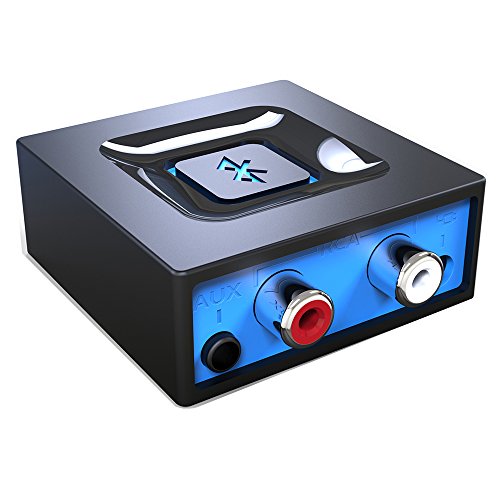
Listen music wireless: Connect with computer speakers, home stereo systems or other speaker systems via the 3.5 mm or RCA cable, then pair with the Bluetooth audio devices such as smartphones or tablet for streaming music.
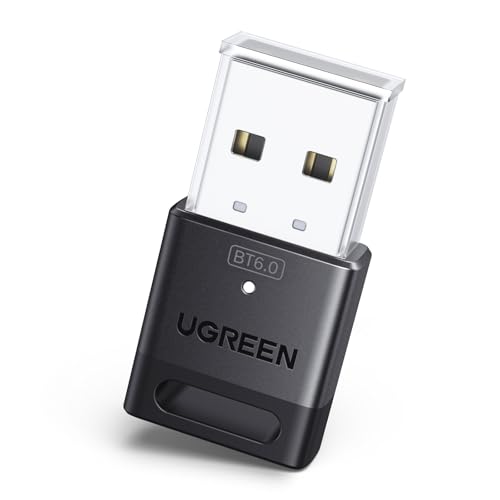
This Bluetooth adapter for PC utilizes the latest Bluetooth 6.0 EDR technology, delivering faster data transfer speeds, seamless high-quality audio/video streaming, and efficient large-file transfers.
Frequently Asked Questions
Can I Connect My JBL Headphones to Multiple Devices Simultaneously?
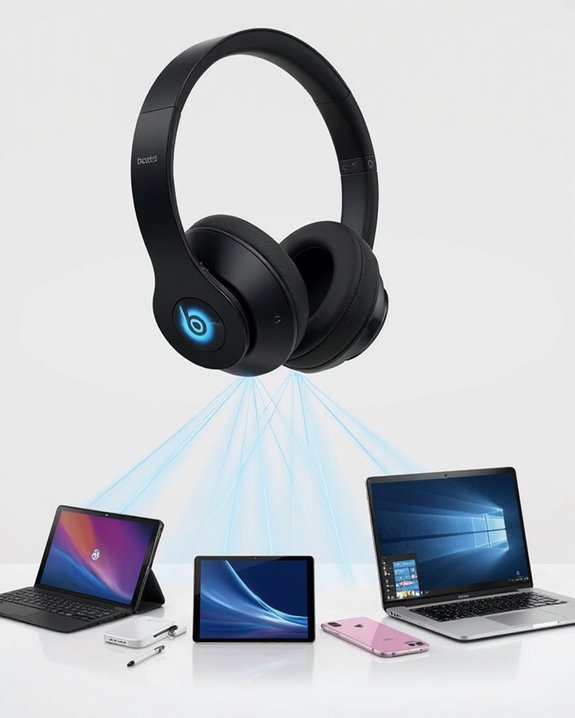
Yes, many JBL headphones support multi device setup through multipoint connection technology. This feature enables simultaneous linking with two devices, allowing users to switch between audio sources without manual reconnection.
How Long Does the Bluetooth Pairing Last Between Devices?
Like faithful companions, Bluetooth pairings endure through time. The Connection Longevity between JBL headphones and devices persists indefinitely until manually cleared or reset. Pairing Duration credentials remain stored, enabling automatic reconnection whenever devices are within range.
Will My JBL Headphones Automatically Reconnect After Being Turned Off?
JBL headphones typically reconnect automatically when powered on if the auto reconnect feature is enabled. This Reconnect Reliability varies by model and settings. Auto Reconnect Benefits include seamless switches between listening sessions without manual pairing.
Can I Use JBL Headphones While They’re Charging?
Plugged in yet still wireless. JBL headphones can be used while charging, though certain features like noise cancellation may be disabled. This practice guarantees charging safety while minimizing battery drain during extended listening sessions.
Why Does My Audio Lag When Watching Videos With JBL Headphones?
Audio lag during video playback with JBL headphones often stems from signal interference. Bluetooth devices can experience delays due to competing wireless signals, outdated drivers, or physical barriers between the headphones and laptop.