As an Amazon Associate, we earn from qualifying purchases. Some links on this site are affiliate links at no extra cost to you. Our recommendations are based on thorough research and editorial judgment.

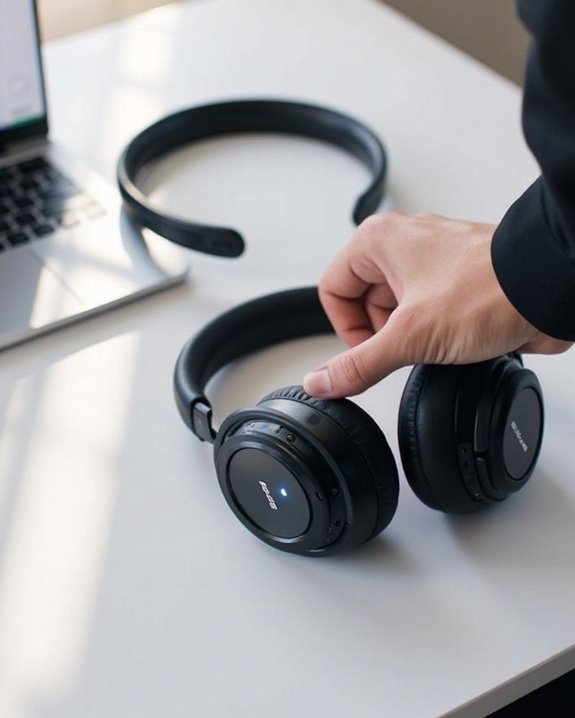
How to Unpair Bose Headphones From Any Device

To unpair Bose headphones, users must access Bluetooth settings on their device and select “Forget” or “Remove” next to the headphone name. For iOS, tap “Forget This Device” in Bluetooth settings; for Android, tap the gear icon beside the headphones and select “Unpair.” On computers, remove the device from Bluetooth settings. Alternatively, reset the headphones by holding the power/Bluetooth button for 10-15 seconds until the LED indicator flashes. Further instructions vary by specific Bose model.
Key Takeaways
- For Android devices, access Bluetooth settings, find your Bose headphones, tap the gear icon, and select “Forget” or “Unpair.”
- On iOS devices, go to Settings > Bluetooth, tap the “i” icon next to your Bose headphones, then select “Forget This Device.”
- Windows users can unpair by opening Settings > Bluetooth & devices, selecting the headphones, and clicking “Remove device.”
- Mac users should navigate to System Preferences > Bluetooth, hover over the headphones, click the “x” icon, and confirm removal.
- Reset Bose headphones by holding the power/Bluetooth button for 10-15 seconds until lights flash, clearing all paired device memory.
Understanding When to Unpair Your Bose Headphones
You may be interested
Can You Track Beats Headphones If They Are Lost?
July 1, 2025
Do Headphone Dents Go Away?
August 4, 2025
Connectivity issues often signal the need to unpair Bose headphones from connected devices. When headphones disconnect intermittently or produce distorted audio, unpairing and re-pairing can restore stable functionality. This process also aids in Battery Conservation by preventing the headphones from attempting to maintain multiple device connections simultaneously.
Physical obstacles between devices can weaken Bluetooth signals, necessitating closer proximity or removal of barriers. Interference Avoidance becomes essential when multiple Bluetooth devices operate in the same area, causing connection instability. Unpairing helps reset the connection pathway.
Additionally, users should consider unpairing when:
- Switching between multiple devices frequently
- Experiencing persistent audio drops
- After firmware updates
- When headphones cannot connect while charging
Clearing device memory through unpairing resolves most compatibility issues without requiring technical support. For optimal performance, it is also important to be aware of the Bluetooth version used by your devices, as newer versions like Bluetooth 5.3 and 5.4 provide more stable connections and longer ranges.
Quick Guide to Identifying Your Bose Headphone Model
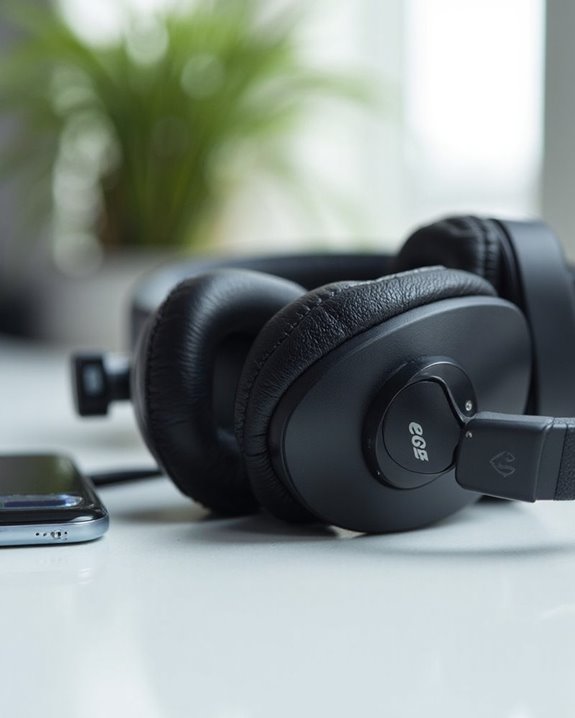
Accurate identification of your Bose headphone model serves as the foundation for proper unpairing procedures. Bose offers multiple identification methods to help users precisely determine their specific model before attempting to disconnect from devices.
The most reliable identification approach involves locating the serial number, which appears as a 17-digit code typically found inside the earcup for over-ear models or on the earbud body for in-ear variants. For thorough model comparison, users should check:
- Product packaging for model information
- The Bose Connect or Bose Music app under Settings > Product Info
- Battery compartment (especially in rechargeable models)
- 4-digit product codes on the earcup or headband
QuietComfort, SoundLink, and SoundSport models each have unique serial number placements that assist in accurate identification.
Recommended Products

Colorful - contains 8 colors, including red, orange, blue, purple, green, yellow, white, light blue; various color helps you to distinguish different cable

🎧 1. QUANTITY & SIZE: 360 headphone name tags stickers per pack, each measuring 2 x 3 inches. Headphone theme name labels this size provides generous writing space for student names, seat numbers, or device IDs. 9 colors allow color-coding by class or group.

End "Which Cord Is This?" Frustration Forever: Tired of tangled cables and afraid of pulling the wrong plug? Try these Cable Labels – designed to distinguish different data cords or cord labels for electronics, helping you instantly identify the exact wire you need
Unpairing Bose Headphones From Android Devices
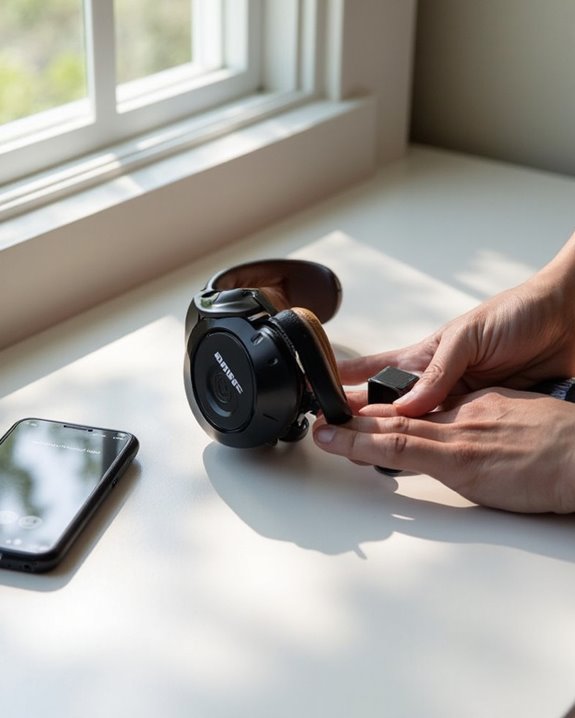
When standard methods fail, performing a hard reset can resolve persistent connectivity issues. For Bose QuietComfort Ultra headphones, simultaneously hold the Bluetooth and multifunction buttons for 15 seconds until a white light blinks, indicating all paired devices have been cleared from memory.
Recommended Products
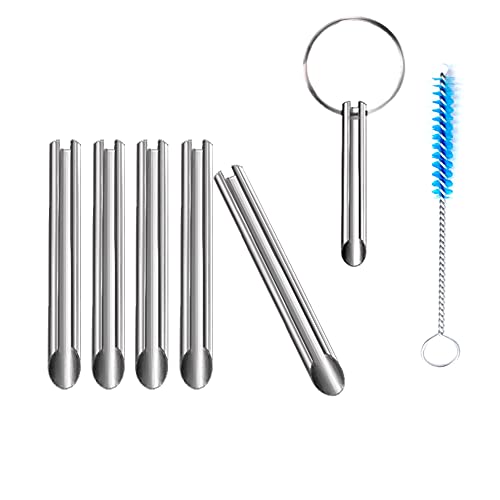
🛠️Applicable To :all models of mobile phones, pads and computers headphone jack, built to easily remove broken 3.5mm headphone plugs from jacks.
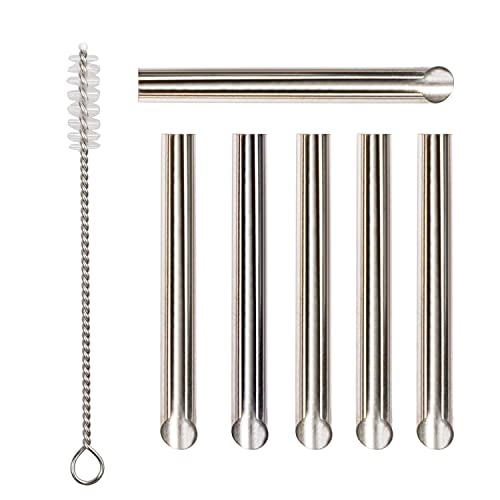
✔️PURPOSE: JUYEER headphone plug extraction tool is built specifically to easily remove broken 3.5mm headphone plugs from jacks. It can be used on 3.5mm jacks found on phones, laptops and any other devices. You can solve your problem within 20 seconds.

【Applicable To】all models of mobile phones, pads and computers headphone jack, built to easily remove broken 3.5mm headphone plugs from jacks.
Removing Bose Headphones From Ios Devices
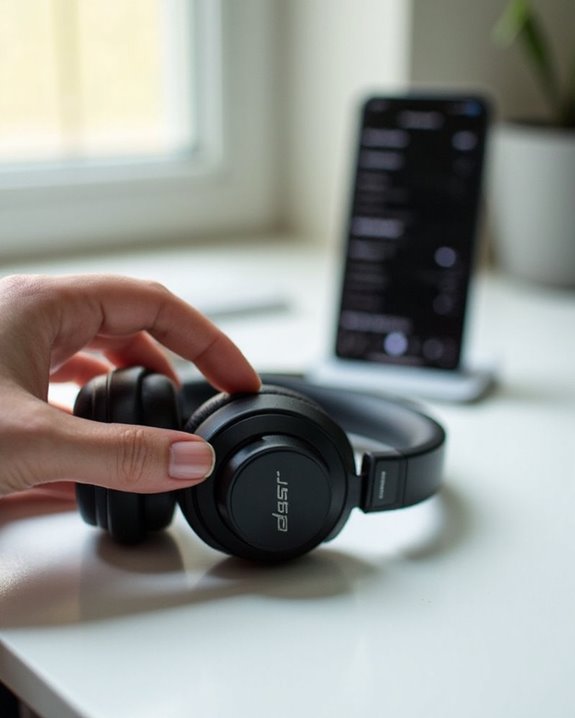
Removing Bose headphones from iOS devices follows a straightforward process that guarantees complete disconnection. Users need to access their iPhone’s Bluetooth settings, locate the Bose headphones in the connected devices list, and select “Forget This Device” to complete the unpairing.
For enhanced Security Implications, users should confirm the deletion when prompted, ensuring the headphones’ connection credentials are completely removed from the device. After unpairing, restarting the iPhone is recommended for best results.
iOS Alternatives for managing Bose headphones include using the Bose Music app, which offers additional functionality for device management and troubleshooting. The app provides specialized tools for clearing the headphones’ device list—a useful feature when experiencing persistent connectivity issues that standard unpairing methods don’t resolve.
Disconnecting Bose Headphones From Windows and Mac Computers
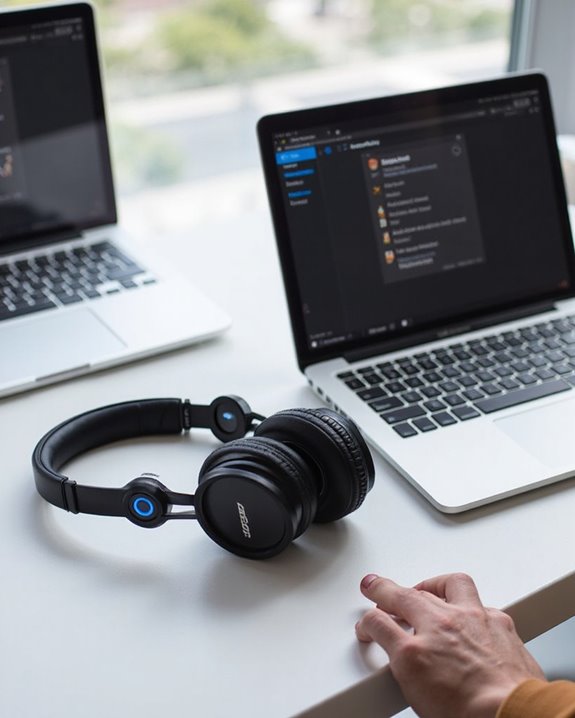
The process of disconnecting Bose headphones from computers differs slightly between Windows and Mac operating systems, though both follow logical patterns.
On Windows, users navigate to Settings > Bluetooth & devices to remove the headphones. Power Management settings can be adjusted in Device Manager to prevent the computer from automatically turning off the Bluetooth adapter, which often resolves connection issues.
For Mac users, System Preferences > Bluetooth provides access to disconnect options. Clicking the “X” next to the device name removes the headphones from paired devices list.
Both platforms may experience Interference Solutions challenges from environmental obstructions or competing Bluetooth signals. When troubleshooting disconnection problems, users should:
- Check for physical barriers
- Disable other Bluetooth devices
- Verify Bluetooth settings are properly configured
- Update firmware regularly
Recommended Products

Bluetooth 5.4 + Broad Compatibility - Provides Bluetooth 5.4 plus EDR technology and is backward compatible with Bluetooth V5.3/5.0/4.2/4.0/3.0/2.1/2.0/1.1.

Upgraded Bluetooth 5.3 Adapter: This bluetooth adapter for pc uses the latest upgraded Bluetooth 5.3 BR+EDR technology, greatly improves the stability of the connection data transfer speed, reduces the possibility of signal interruption and power consumption.

𝐁𝐥𝐮𝐞𝐭𝐨𝐨𝐭𝐡 𝟓.𝟑 𝐒𝐮𝐩𝐩𝐨r𝐭 – Applies the latest Bluetooth 5.3 plus EDR technology and is backward compatible with Bluetooth V4.2/4.0/3.0/2.1/2.0/1.1. UB500 Plus turns non-Bluetooth PC, desktop or laptop into Bluetooth-capable
Using the Bose Music App to Manage Device Connections
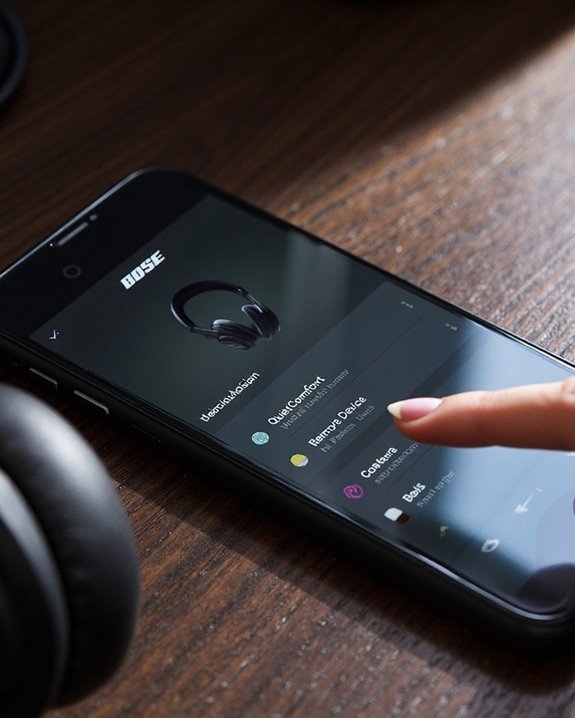
Bose’s dedicated mobile application serves as a central hub for managing all Bluetooth connections to compatible headphones. The app displays all currently connected devices along with their connection status, allowing users to quickly identify what is paired with their headphones.
One of the most useful App Features is the ability to disconnect devices by simply swiping up on the device icon. The interface presents all information in an easy-to-navigate format with clear device icons and connection indicators.
Users can customize their Auto Connect preferences through the app, prioritizing certain devices while excluding others from automatic connection. This selective connection management helps prevent unwanted pairing when multiple devices are in range. The app also provides troubleshooting tools for resolving recognition issues and improving connection stability.
Recommended Products

Block the World, Keep the Music: Four built-in mics work together to filter out background noise — whether you're in a packed office, on a crowded commute, or moving through a busy street — so every beat comes through clean and clear. (Not available in AUX-in mode.)

Hear your Voice Level with Variable Mic Monitoring

SUPERIOR SOUND QUALITY WITH SLEEP HEADPHONES: Experience the latest V5.4 technology with MUSICOZY Bluetooth sleep headphones; designed for deep bass and crystal-clear treble, these sleeping headphones effortlessly pair with any smartphone or tablet within 33 feet, making them ideal for side sleeping and relaxation
Clearing All Paired Devices From Your Bose Headphones’ Memory
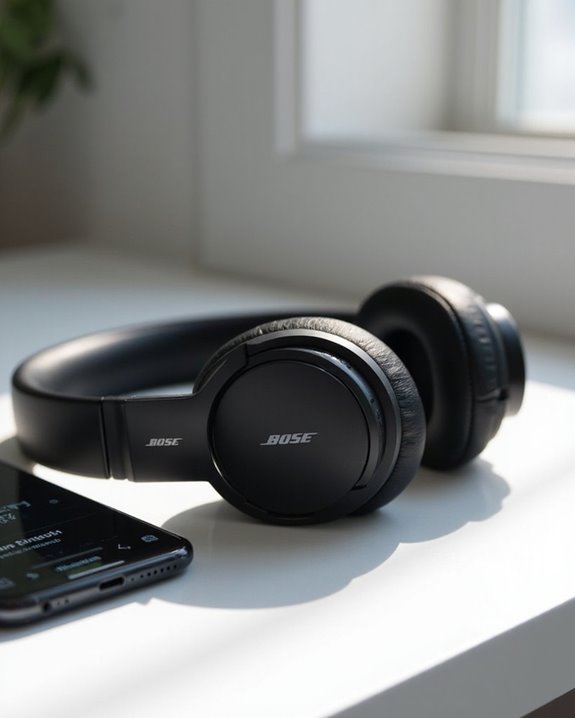
Sometimes users need to completely reset their headphones’ connection history rather than managing individual device connections. This process, often called Memory Hygiene, helps maintain peak performance and reduces potential connectivity issues.
The clearing process varies by model:
- QuietComfort 45: Slide Power/Bluetooth switch to Bluetooth icon, hold 15 seconds until you hear “Bluetooth device list cleared”
- QuietComfort 35/35 II: Power on, slide switch to Bluetooth, hold for 10 seconds
- SoundSport Free: Press and hold Bluetooth button for 10 seconds
- Earbuds II: With earbuds in open case, hold case button for 15 seconds until light blinks white twice then blue
This reset addresses Security Implications by preventing unauthorized access to previously paired devices and prepares headphones for new connections after troubleshooting or before transferring ownership.
Troubleshooting Connection Issues After Unpairing
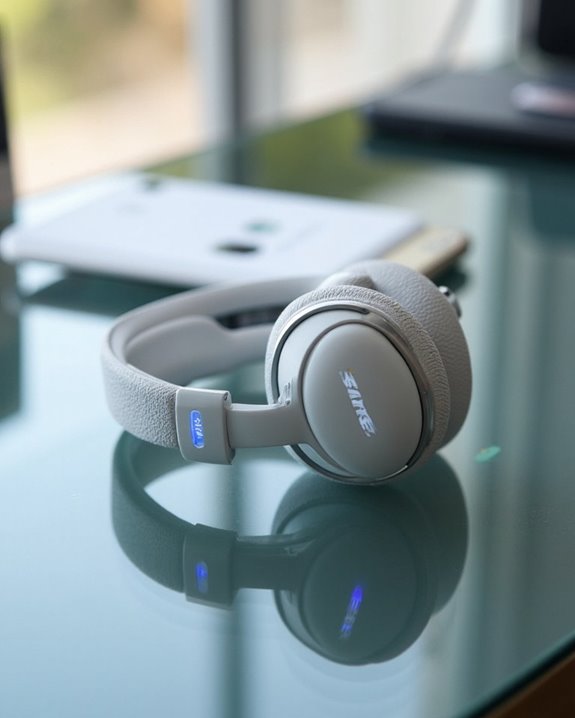
When unpairing Bose headphones leaves users with connectivity problems, systematic troubleshooting becomes essential for restoring peak performance. Connection issues often stem from outdated Firmware Updates or incomplete unpairing procedures.
Users should first verify proper Battery Maintenance, as low power can prevent stable reconnections. A device restart on both the headphones and source device often resolves temporary glitches in the Bluetooth system.
For persistent issues, users should:
- Remove all Bose entries from the device’s Bluetooth settings
- Reset the headphones to factory defaults
- Check for interference from nearby electronic devices
- Update the Bose Music App to its latest version
Environmental factors like physical obstructions or electromagnetic interference can also impact reconnection quality after unpairing. Ensuring your headphones support the latest Bluetooth 5.0 connectivity can improve pairing stability and range.
Recommended Products
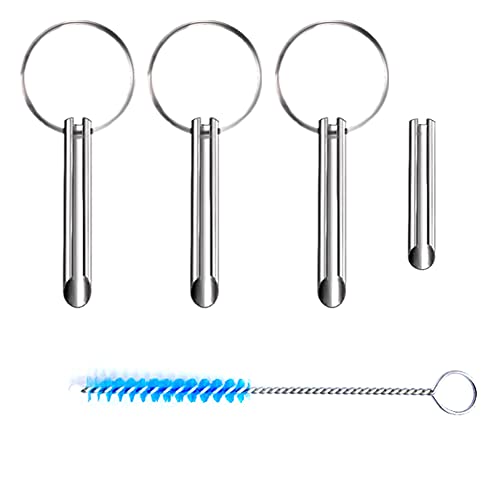
Applicable To:models of mobile phones, ipads and computers headphone jack, is built to easily remove broken 3.5mm headphone plugs from jacks.

[Foldable and Lightweight] The Bluetooth neckband headphones is foldable and lightweight, more flexible and convenient, the attached premium carrying case can protect the headphones from damage and it’s easy to carry in your bag or pocket, provide you with wonderful handsfree experience. The headphones is also sweatproof, great for outdoor sports exercise and indoor entertainment.

Multi-Protocol Seamless Connection:The Bluetooth 5.4 transmitter ensures broad compatibility, effortlessly pairing with AirPods (all generations), Sony headphones, and other Bluetooth devices. The included 3.5mm audio jack and dual 3.5mm adapter expand connectivity options, making it compatible with most in-flight entertainment systems and TV audio outputs via AUX/RCA ports - an ideal bluetooth transmitter for TV
Frequently Asked Questions
Will Unpairing Delete My Customized Sound Settings?
Unpairing Bose headphones typically does not delete customized sound settings. These configurations are often stored in the Bose app rather than the headphones themselves. Settings backup occurs through the app, minimizing customization impact during device changes.
Can I Unpair My Headphones While They’re Turned Off?
A user once damaged pairing hardware by forcing unpairing while off. Bose headphones cannot be unpaired when powered off, as the Bluetooth system requires active battery power. This limitation avoids safety concerns with firmware manipulation.
How Many Devices Can Bose Headphones Remember Simultaneously?
Most Bose headphones have memory slots for up to 8 paired devices simultaneously. QuietComfort Earbuds can remember 7 devices, with one slot reserved for the left earbud. These pairing limits allow convenient switching between devices.
Do Bose Headphones Automatically Reconnect After Unpairing?
After unpairing, Bose headphones do not automatically reconnect to that specific device. The Reconnection Process requires manual repairing. However, if within Bluetooth Range, they will attempt to connect to other previously paired devices instead.
Will Factory Reset Affect My Headphones’ Firmware Version?
Factory resets do not modify firmware versions on Bose headphones. The process simply restores original settings while preserving installed firmware. Reset benefits include resolving connection issues, but firmware updates require separate procedures through the Bose app.