As an Amazon Associate, we earn from qualifying purchases. Some links on this site are affiliate links at no extra cost to you. Our recommendations are based on thorough research and editorial judgment.

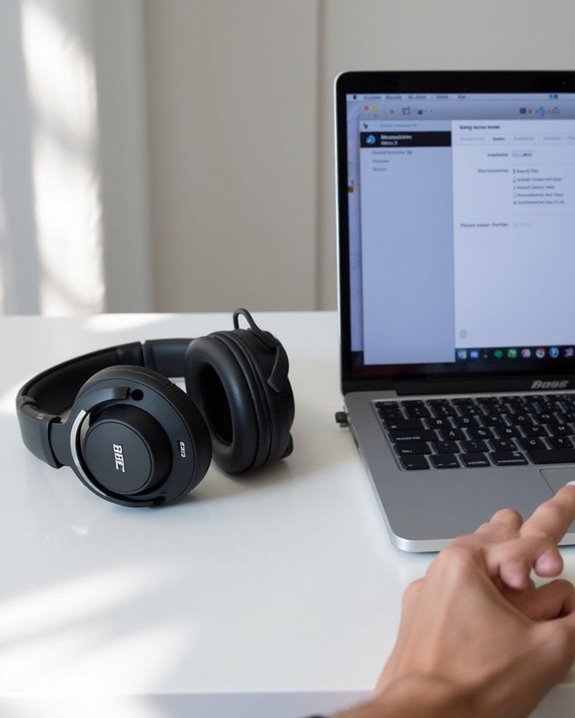
How to Connect Bose Headphones to Your Mac

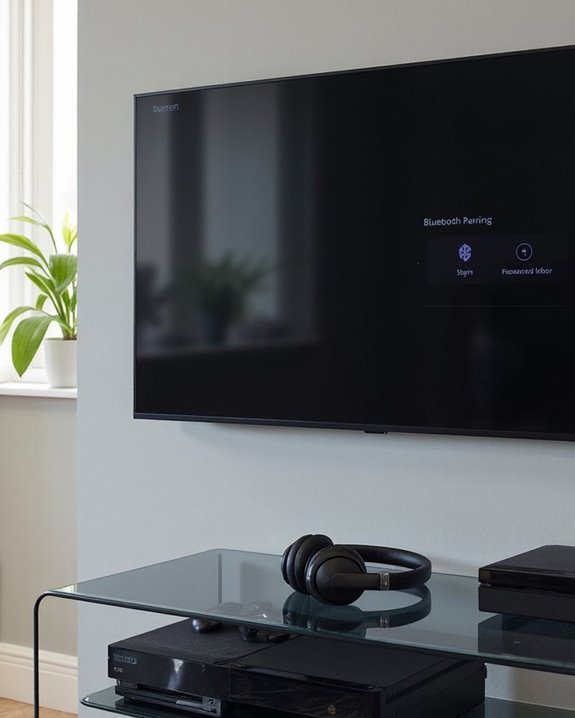
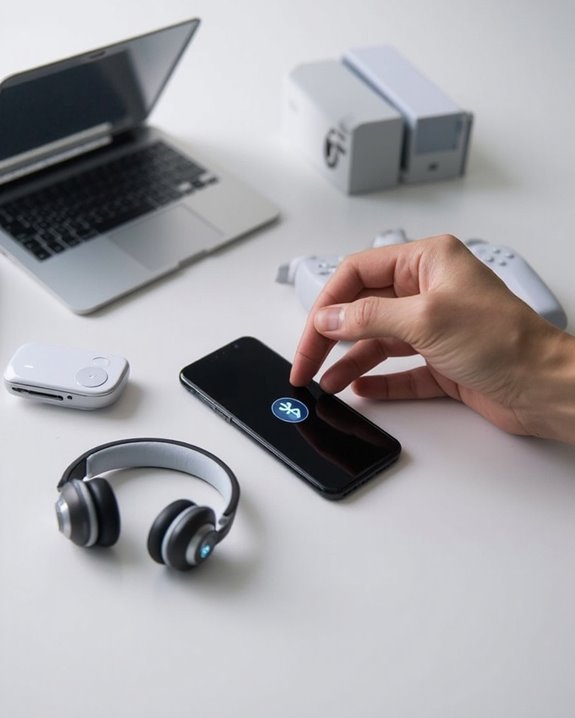
To connect Bose headphones to a Mac, first put the headphones in pairing mode by holding the power/Bluetooth button until you see a blinking blue light. Next, access Bluetooth settings on your Mac through System Settings (newer macOS) or System Preferences (older versions). Enable Bluetooth, select your Bose headphones from the device list, and click “Connect.” A voice prompt from the headphones confirms successful pairing. The following guide offers solutions for common connectivity obstacles.
Key Takeaways
- Put your Bose headphones in pairing mode by holding the power button until you see a blinking blue light.
- On your Mac, navigate to Apple menu > System Settings > Bluetooth (or System Preferences for older macOS).
- Click “Connect” when your Bose headphones appear in the Bluetooth device list on your Mac.
- Listen for the “Connected to [device name]” voice prompt from your headphones confirming successful pairing.
- Keep headphones within 10 meters of your Mac and away from potential interference sources like Wi-Fi routers.
Understanding Your Bose Headphone Model
You may be interested
10 Best Bluetooth Earpiece
June 23, 2024
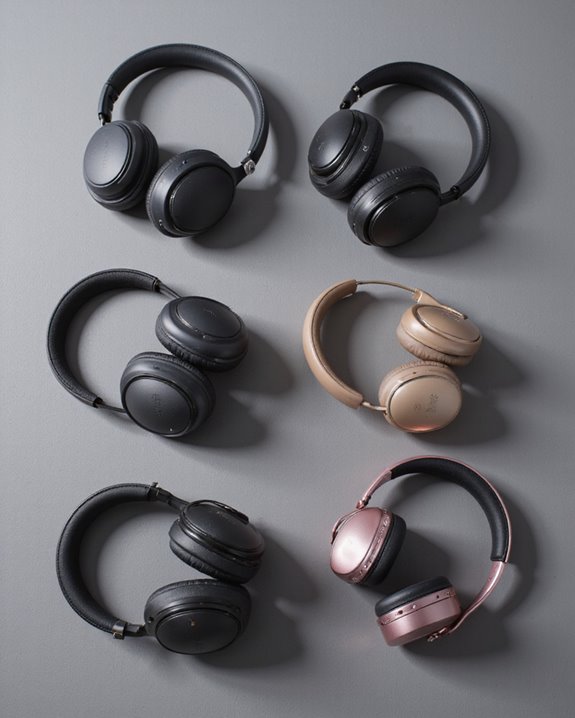
Identifying your specific Bose headphone model represents the essential first step in establishing a seamless connection with your Mac. Bose’s product lineup spans several distinct categories, including the popular QuietComfort series, SoundTrue collection, Noise Cancelling Headphones 700, and Sport Earbuds.
Recommended Products

All-Day Comfort & Premium Design: Crafted with high-quality materials, these over-ear wireless headphones combine luxury with long-wearing comfort. The adjustable headband ensures a secure fit for all head sizes, while ultra-soft memory foam ear cups minimize pressure. Lightweight and ergonomic, they're ideal for work, travel, or leisure—keeping you comfortable even during extended use
✅ End Charging Anxiety with 90-Hour Marathon Battery Life: Designed for the long-haul commuter or international traveler, these wireless headphones deliver up to 90 hours of playtime. A quick 10-minute charge fuels 5 hours of listening, and the included aux cable is your zero-power backup plan, ensuring your music, podcasts, or movies never stop.

【40MM DRIVER & 3 MUSIC MODES】Picun B8 bluetooth headphones are designed for audiophiles, equipped with dual 40mm dynamic sound units and 3 EQ modes, providing you with stereo high-definition sound quality while balancing bass and mid to high pitch enhancement in more detail. Simply press the EQ button twice to cycle between Pop/Bass boost/Rock modes and enjoy your music time!
Model History and Series Comparisons
Bose headphones fall into three primary form factors: over-ear, on-ear, and in-ear designs. Each series offers distinct connectivity capabilities with Mac devices. The QuietComfort series, for instance, provides advanced noise cancellation while maintaining broad compatibility with modern MacBooks. Older models like certain SoundTrue in-ear variants support MacBooks but may exhibit limited compatibility with legacy devices. Wired models connect directly via audio jack, while Bluetooth-enabled headphones require specific pairing procedures depending on their design and manufacturing date. Many modern wireless headphones now utilize Bluetooth 5.0 connectivity for improved range and stability when pairing with Macs.
Preparing Your Bose Headphones for Pairing
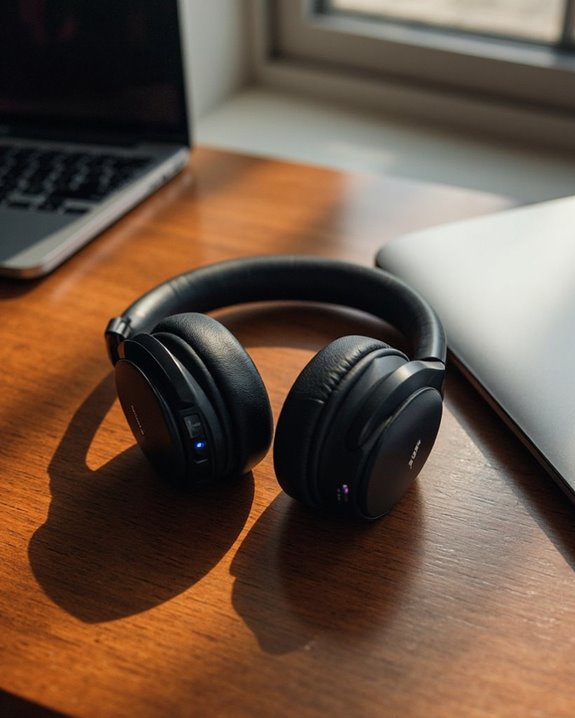
With your specific Bose headphone model now properly identified, the next step involves readying your headphones for a successful connection to your Mac. Most Bose headphones require activation of pairing mode before establishing a Bluetooth connection.
Ensure your headphones have sufficient battery through proper Charging Tips: connect them to a power source if the battery is low, as insufficient power may prevent successful pairing. For models with charging cases, proper Case Handling is essential—open the case to activate certain earbud models automatically.
To initiate pairing mode, press and hold the Power/Bluetooth button until you see a blinking blue light or hear a “Ready to connect” voice prompt. Position the headphones within close proximity to your Mac, minimizing potential signal interference from other devices. Many wireless headphones now feature advanced Bluetooth connectivity to ensure a stable and clear connection.
Recommended Products
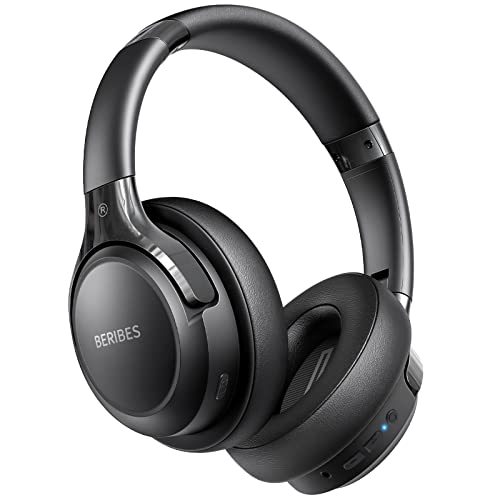
65 Hours Playtime: Low power consumption technology applied, BERIBES bluetooth headphones with built-in 500mAh battery can continually play more than 65 hours, standby more than 950 hours after one fully charge. By included 3.5mm audio cable, the wireless headphones over ear can be easily switched to wired mode when powers off. No power shortage problem anymore.

Secure & Flexible Earhook Design for Sports:Built with soft flexible earhooks and an ultra lightweight 7.8g structure, these sports earbuds stay comfortably secure during workouts, jogging, cycling, fitness training, and outdoor activities without slipping or causing ear fatigue.
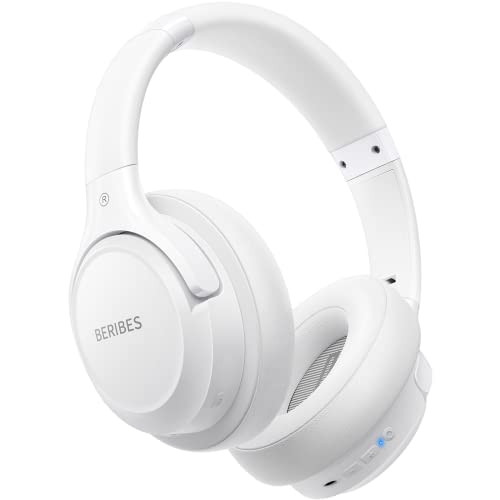
Optional 6 Music Modes: Adopted most advanced dual 40mm dynamic sound unit and 6 EQ modes, BERIBES updated headphones wireless bluetooth black were born for audiophiles. Simply switch the headphone between balanced sound, extra powerful bass and mid treble enhancement modes. No matter you prefer rock, Jazz, Rhythm & Blues or classic music, BERIBES has always been committed to providing our customers with good sound quality as the focal point of our engineering.
Accessing Bluetooth Settings on Your Mac
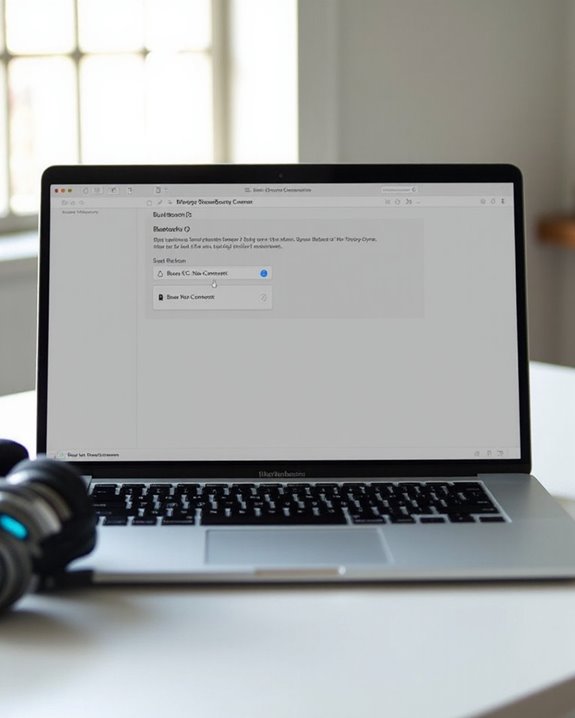
The next critical step in connecting your Bose headphones involves locating and accessing the Bluetooth settings on your Mac. On newer macOS versions (Ventura and later), navigate to Apple menu > System Settings > Bluetooth. For older systems, find it under Apple menu > System Preferences > Bluetooth pane.
For quicker access, users can enable the Bluetooth icon in the Menu Bar by checking “Show Bluetooth in menu bar” within Bluetooth preferences. This provides convenient one-click access to manage connections without opening full system settings.
Advanced users can access Debug Options by holding Shift + Option while clicking the Bluetooth Menu Bar icon. This reveals troubleshooting tools, including the ability to reset the Bluetooth module—particularly useful when experiencing persistent connection issues with Bose headphones.
Using devices with Bluetooth 5.2 connectivity ensures a stable wireless performance and seamless streaming experience when pairing your headphones.
Connecting Bose Headphones via Bluetooth
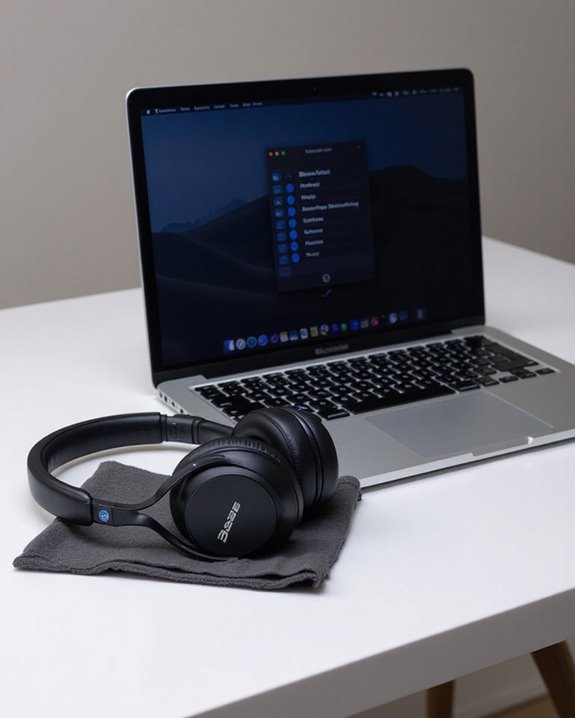
Once your Bose headphones and Mac are ready for pairing, establishing the Bluetooth connection requires a specific sequence of actions. First, activate pairing mode on your Bose headphones by holding the power button until you hear “Ready to pair” and see a blinking blue light.
Next, select the Bose headphones from your Mac’s Bluetooth device list and click “Connect.” A voice prompt from the headphones confirms successful connection. While Mac doesn’t support the Bose Connect or Bose Music App Integration, basic audio functionality works seamlessly through system settings.
For users requiring Multipoint Setup, many Bose models can maintain simultaneous connections to your Mac and phone. This allows audio switching between devices without re-pairing, though specific capabilities depend on your headphone model and firmware version. Make sure your headphones remain charged for stable connectivity.
Troubleshooting Common Connection Issues
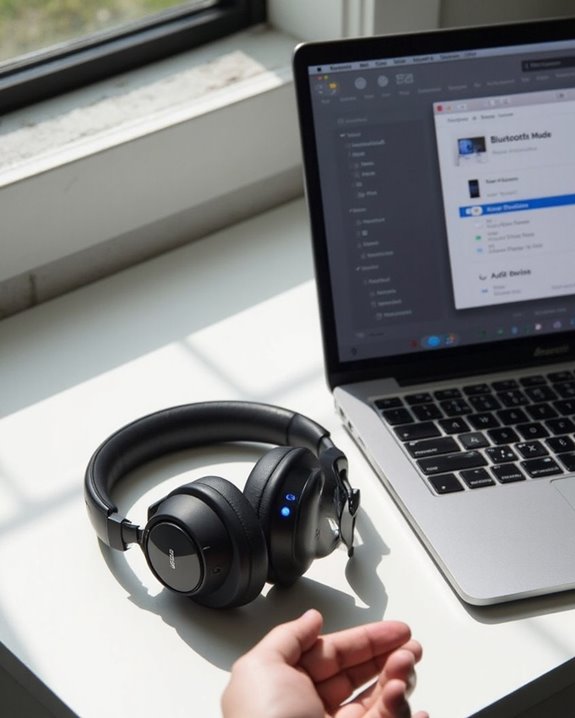
Despite successful initial pairing, Bluetooth connections between Bose headphones and Mac computers can occasionally develop issues. When problems arise, users should first verify Battery Troubleshooting steps—ensuring headphones are adequately charged, as low power levels directly impact Bluetooth signal strength and stability.
Interference Solutions include maintaining ideal distance (within 10 meters) between devices and minimizing proximity to other 2.4GHz devices like Wi-Fi routers and microwaves. Physical obstacles such as walls and metal surfaces should be eliminated whenever possible.
Persistent issues typically require more systematic approaches. Users can reset both devices’ Bluetooth systems by clearing cached connections on Mac and removing stored devices from Bose headphones’ memory. For unresolved problems, checking for firmware and OS updates is recommended, as manufacturers regularly address connectivity bugs through software patches.
Recommended Products
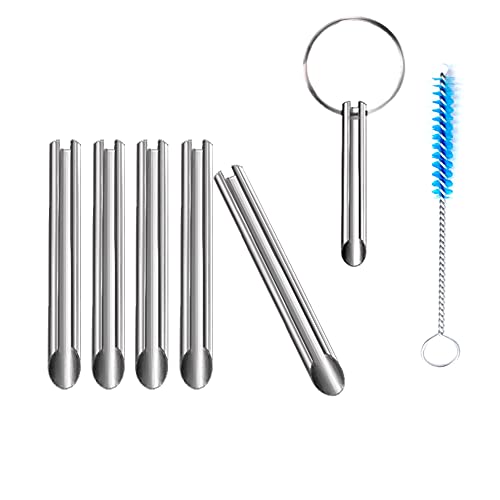
🛠️Applicable To :all models of mobile phones, pads and computers headphone jack, built to easily remove broken 3.5mm headphone plugs from jacks.
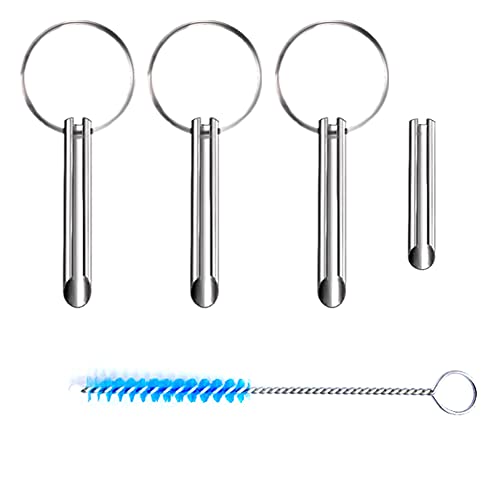
Applicable To:models of mobile phones, ipads and computers headphone jack, is built to easily remove broken 3.5mm headphone plugs from jacks.
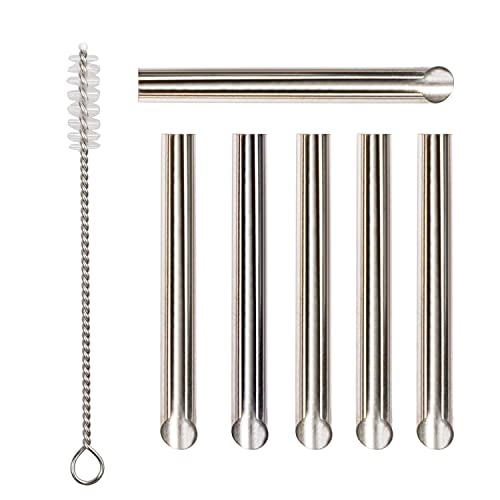
✔️PURPOSE: JUYEER headphone plug extraction tool is built specifically to easily remove broken 3.5mm headphone plugs from jacks. It can be used on 3.5mm jacks found on phones, laptops and any other devices. You can solve your problem within 20 seconds.
Using a Wired Connection Alternative
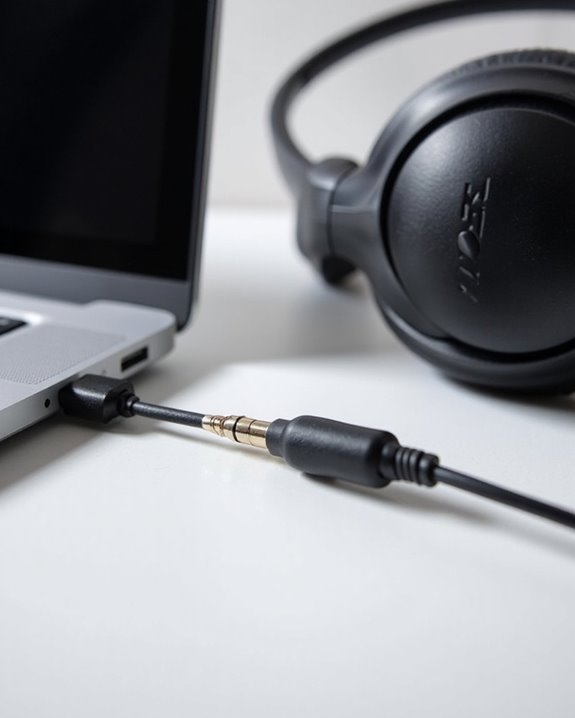
While Bluetooth connectivity offers convenience, wired connections provide Mac users with a reliable alternative for their Bose headphones. The Wired Advantages include superior sound quality, zero latency, and elimination of battery concerns for extended listening sessions.
To establish a wired connection, simply locate your Mac’s 3.5mm audio jack and insert the headphone cable. Newer Mac models without traditional audio ports require Adapter Compatibility solutions, such as USB-C to 3.5mm dongles or Lightning adapters.
Wired connections excel in environments where signal stability is essential, such as professional audio production or gaming. They deliver consistent performance without interference issues that sometimes plague wireless connections. For users prioritizing audio fidelity and dependability over wireless freedom, the wired option remains the gold standard for connecting Bose headphones to Mac devices.
Recommended Products

【Multi-function Dongle】This compact usb c to aux adapter can connect your usb c devices without audio jack to headphones, headset, speakers and other audio devices. Call, volume control, pause via function keys on the headphones are possible. [Note: Microphone functionality and volume adjustment function of Apple EarPods Headphones with 3.5mm Plug are not supported!]

【High-Fidelity Sound Quality】With 48,000 samples per second, listen to every note with this small USB Type-C to 3.5mm Audio Headphone Adapter. Featuring a Smart DAC Chip, this precision captures deep bass, crisp highs, and a balanced midrange, enriching your music experience. [NOTE: The volume adjustment function of Apple EarPods headphones is not supported !!!]

Universal Compatibility: This headphone adapter is compatible with most Type C phones, including iPhone 17/17 Pro/17 Pro Max, iPhone 16/16 Pro/16 Pro Max, iPhone 15/15 Pro/15 Pro Max, Galaxy S21 Ultra/S21 Plus/S21 5G 2021, Google Pixel 5, 4, 4 XL, 3, 3 XL, 2, 2 XL, S20 FE 5F 2020, S20 5G, S20 Plus, S20 Ultra, Note 20, Note 20 Ultra, Note 10, Note 10+, Galaxy Tab S5e, Tab S6, Huawei P40 Pro, P30 Pro, P20 Pro, Mate 20 Pro, Mate 30 Pro, Mate 40 Pro, HTC, and more.
Optimizing Sound Quality on Your Mac
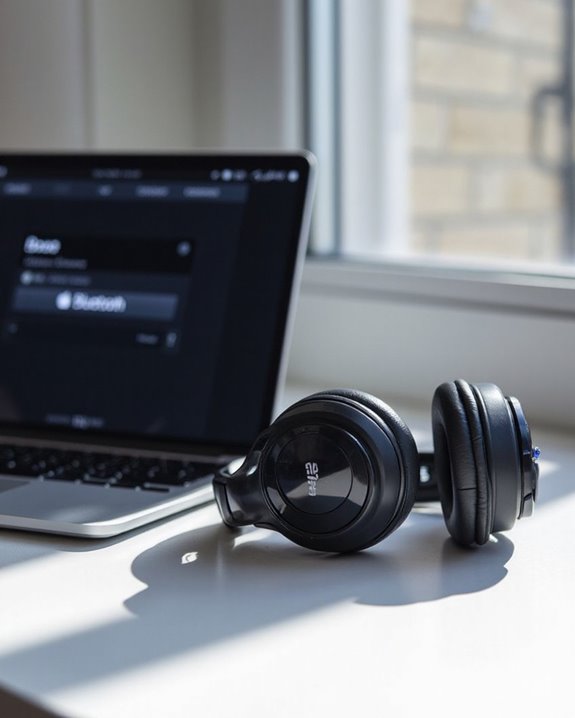
After establishing a connection between your Bose headphones and Mac, the focus shifts to maximizing audio performance for an exceptional listening experience. Proper codec selection greatly impacts output quality, with AAC offering superior results compared to SBC.
For ideal Sound Equalization, users should access EQ settings through the Bose app, adjusting bass, mid, and treble levels between -10 and +10. Setting the equalizer to flat initially provides a baseline for customization based on music genres.
Bitrate Optimization requires selecting the appropriate streaming mode, as Bluetooth switches between audio-only and audio+microphone configurations. To maintain high-fidelity output:
- Close microphone-using applications
- Reduce interference from nearby devices
- Make sure headphone firmware is updated
- Adjust AAC bitrate settings for best balance between quality and stability
Recommended Products

Hybrid Active Noise Cancelling: 2 internal and 2 external mics work in tandem to detect external noise and effectively reduce up to 90% of it, no matter in trains or offices.

Block the World, Keep the Music: Four built-in mics work together to filter out background noise — whether you're in a packed office, on a crowded commute, or moving through a busy street — so every beat comes through clean and clear. (Not available in AUX-in mode.)

IMMERSE YOURSELF IN THE GAME — Game loud and clear with the XBOX Wireless Headset, featuring enhanced auto-mute and voice isolation for crystal-clear chat, intuitive design, plus direct pairing to your console, PC, or phone.
Frequently Asked Questions
Can I Connect My Bose Headphones to Multiple Apple Devices Simultaneously?
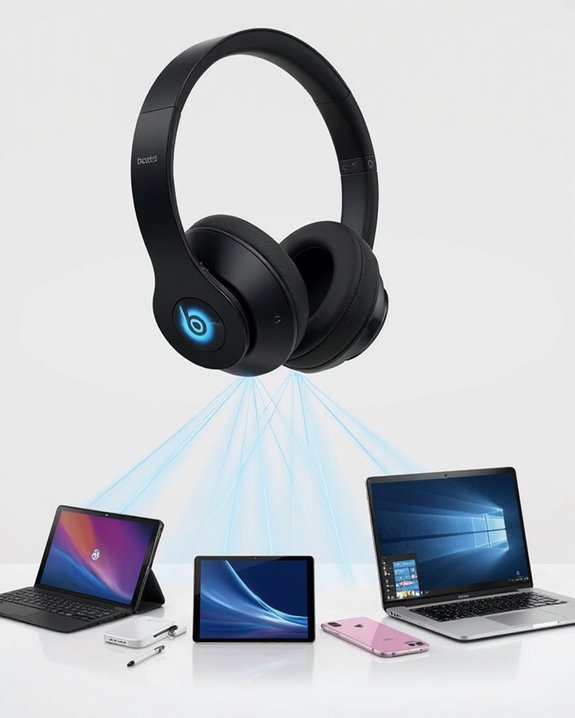
Floating between digital domains, compatible Bose headphones enable Multi Device Pairing with Apple products. Users can employ Simultaneous Syncing to connect to two devices at once, switching audio streams without disconnecting.
Will Firmware Updates Improve Mac Connectivity for My Bose Headphones?
Firmware updates often improve Mac connectivity for Bose headphones by enhancing Bluetooth stability and fixing known issues. Regular updates are recommended as part of connectivity troubleshooting when experiencing pairing or sound quality problems.
How Do I Switch Audio Between My Bose Headphones and Mac Speakers?
The audio stream can be redirected through elegant navigation. Users may perform Audio Switching between devices via System Settings > Sound > Output, where they can select either Bose headphones or Mac speakers using the Speaker Toggle functionality.
Can I Use Bose Headphones With Mac Video Conferencing Applications?
Bose headphones are compatible with Mac video conferencing applications. Users should monitor for potential audio latency issues during calls. Most models offer good mic compatibility, allowing clear voice transmission during virtual meetings on Mac platforms.
How Long Does the Bluetooth Connection Range Work Between Mac and Bose?
The Bluetooth connection between a Mac and Bose typically works up to 33 feet. Range testing confirms this distance, though signal interference from walls, electronic devices, or low battery power can greatly reduce effective range.