As an Amazon Associate, we earn from qualifying purchases. Some links on this site are affiliate links at no extra cost to you. Our recommendations are based on thorough research and editorial judgment.


How to Connect Bluetooth Headphones to Your PS5

The PS5 doesn’t support Bluetooth headphones natively, requiring a compatible USB adapter for wireless audio connectivity. Users must insert the adapter into a PS5 USB port, activate pairing mode on both the adapter and headphones, then confirm connection through the console’s audio settings. This setup bypasses Sony’s built-in limitations while maintaining audio quality for gaming sessions. Following the proper configuration steps guarantees ideal performance with minimal latency during gameplay.
Key Takeaways
- PS5 doesn’t natively support Bluetooth headphones, requiring a compatible Bluetooth adapter for your console’s USB port.
- Place both your headphones and adapter in pairing mode simultaneously to establish connection.
- Access PS5 sound settings to ensure audio output is directed to your connected headphones.
- Test functionality after connection and adjust 3D audio settings for optimal gaming experience.
- If connection fails, restart all devices, check for interference, or update firmware on both headphones and console.
Understanding PS5’s Bluetooth Limitations
You may be interested

Are Bluetooth Headphones Bad for Your Health?
June 3, 2025
Can You Connect Bluetooth Headphones to PS5?
May 26, 2025
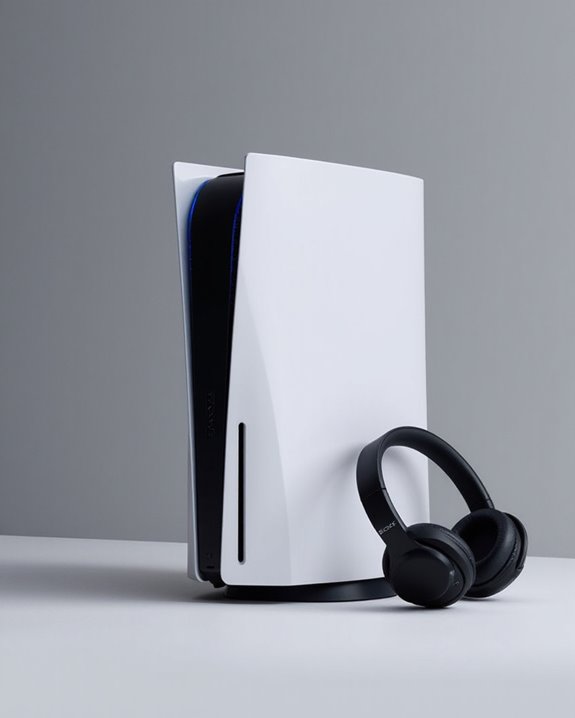
While the PlayStation 5 comes equipped with Bluetooth 5.1 technology, this wireless capability doesn’t function as many users might expect. Sony has designed the PS5’s Bluetooth functionality primarily for controller connectivity rather than audio devices, creating a significant limitation for headphone users.
Throughout Bluetooth history, gaming consoles have prioritized controller connections over audio peripherals due to latency concerns. The PS5 maintains this approach, as Bluetooth audio could introduce delays that negatively impact gaming experiences and compete for bandwidth with controller signals.
Despite featuring advanced Bluetooth 5.1 technology, the console lacks native support for connecting standard Bluetooth headphones. Sony has given no indication of future upgrades that might enable direct Bluetooth audio connections, instead directing users toward specialized gaming headsets or adapter solutions. Many of the best PS5 headsets utilize 2.4GHz wireless technology to deliver low-latency, high-quality audio optimized for gaming.
Essential Equipment You’ll Need
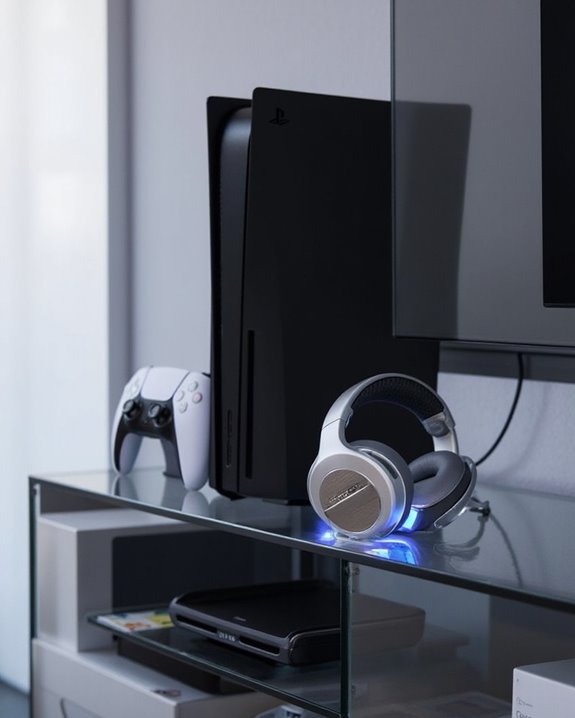
Connecting Bluetooth headphones to a PS5 requires gathering several key components before the pairing process can begin. The primary requirement is a Bluetooth adapter (USB-C or USB-A) compatible with the PS5’s ports, as the console lacks native Bluetooth audio support.
Users will need Bluetooth headphones (preferably with version 5.0 or newer) and a functioning PS5 console with updated software. A cost analysis reveals that while PlayStation-branded headsets offer seamless integration, third-party Bluetooth headphones with adapters typically provide a more economical solution.
Equipment maintenance is straightforward but essential—keep adapters firmly connected to USB ports and make sure headphones remain charged for uninterrupted gaming sessions. Some setups may require additional accessories like USB converters depending on the adapter type and available console ports.
For an enhanced audio experience, consider headsets that offer dual wireless connectivity, allowing seamless switching between devices without interrupting gameplay.
Recommended Products

User-Friendly: Connect your wireless headphones to your PS5 or other gaming consoles with the UGREEN adapter and enjoy high-quality audio with no wires, drivers, or software required. Also Add Bluetooth audio capability (AUDIO devices ONLY, no data) with ease to your Desktop, Computer, iMac

【For PS5 Users Only】 Specifically designed for PS5 to connect Bluetooth headphones (e.g., AirPods, Bose, & more) for audio playback. For optimal voice chat experience, please use the PS5 controller microphone instead of headphone mics.

Enjoy Wireless Audio on PS5 or PC: The UGREEN PS5 Bluetooth adapter is plug and play-no drivers required. Easily connect wireless headphones to PS5 or gaming consoles to enjoy high-quality game audio. This Bluetooth 6.0 adapter also allows PCs and iMac computers to add Bluetooth audio easily, providing a great listening experience. (Note: Supports Bluetooth audio devices only. Not compatible with mice, keyboards or other data devices.)
Step-by-Step Connection Guide
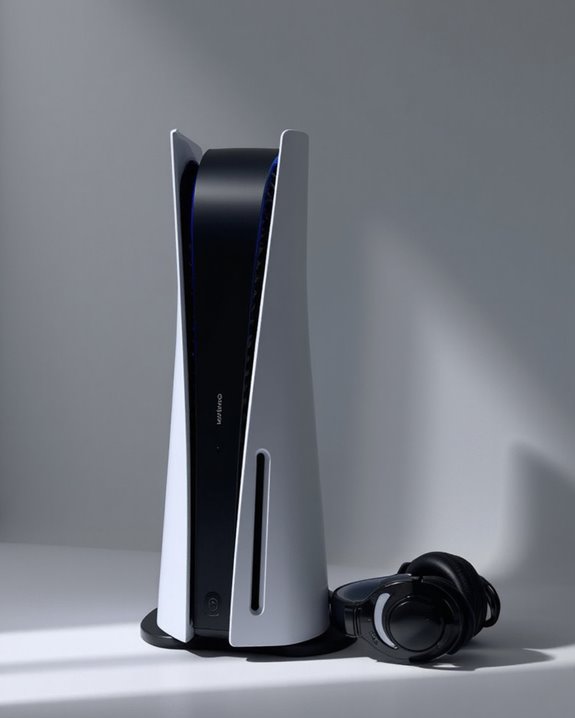
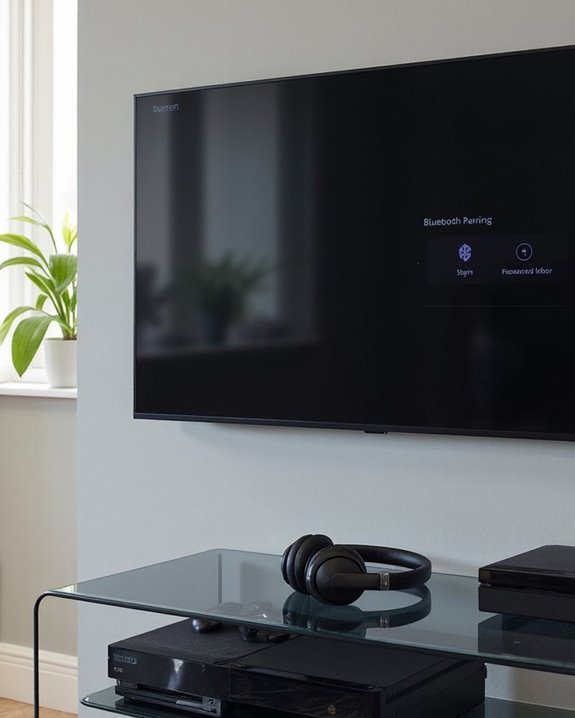
Establishing a wireless connection between Bluetooth headphones and the PS5 requires five fundamental steps that users should follow precisely. First, insert the Bluetooth adapter into any available USB port on the PS5 console and power on the system.
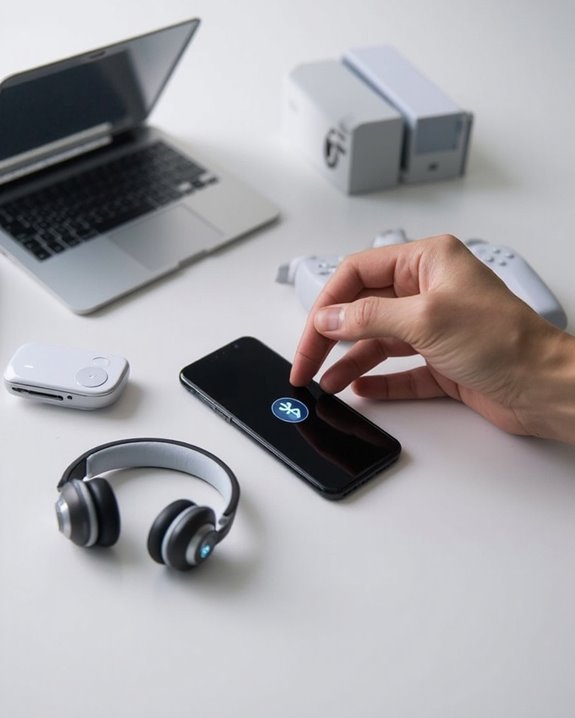
Next, activate pairing mode on both the adapter (by holding the pairing button for 7 seconds) and the headphones simultaneously. Position devices within close proximity for best detection. Guide customization may be necessary depending on specific adapter models.
Once the adapter’s indicator light turns solid blue, confirm the connection through the PS5 interface. Adjust audio output settings as needed for proper sound routing. Step modifications might be required for different headphone brands or adapter types.
Finally, test both audio output and microphone functionality to verify the setup performs correctly for gaming sessions. For an enhanced gaming experience, consider headphones with ultra-low latency to ensure precise audio synchronization.
Recommended Products

Plug and Play: This PS5 bluetooth adapter is designed to work with a wide range of devices and makes it simple for previously unsupported devices to have Bluetooth capability now, adding Bluetooth audio capability (AUDIO devices ONLY, no data) with ease to your PS4, PS5, Switch, Desktop or iMac. No need to install any driver/software. Simply plug the CM668 into your device's USB port, then set your headphones or speakers to pairing mode, and an automatic connection will be made.

Bluetooth 5.4 + Broad Compatibility - Provides Bluetooth 5.4 plus EDR technology and is backward compatible with Bluetooth V5.3/5.0/4.2/4.0/3.0/2.1/2.0/1.1.
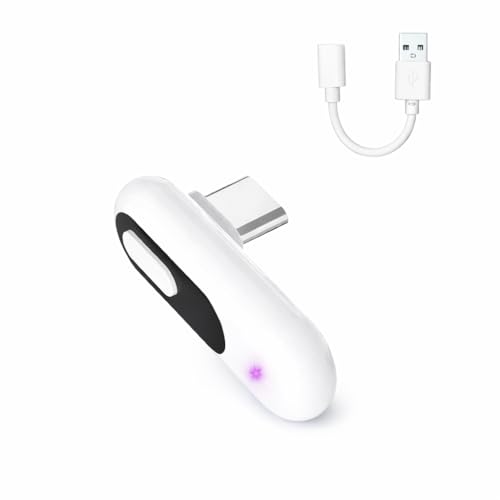
【Wireless Audio for Gaming】Connect your AirPods or Bluetooth headphones to PS5, PS4, PC, or Mac with the YOCOWOCO USB-C Bluetooth Audio Dongle. Enjoy clean, wireless audio without bulky wired headsets for a more comfortable gaming experience.
Troubleshooting Common Connection Problems
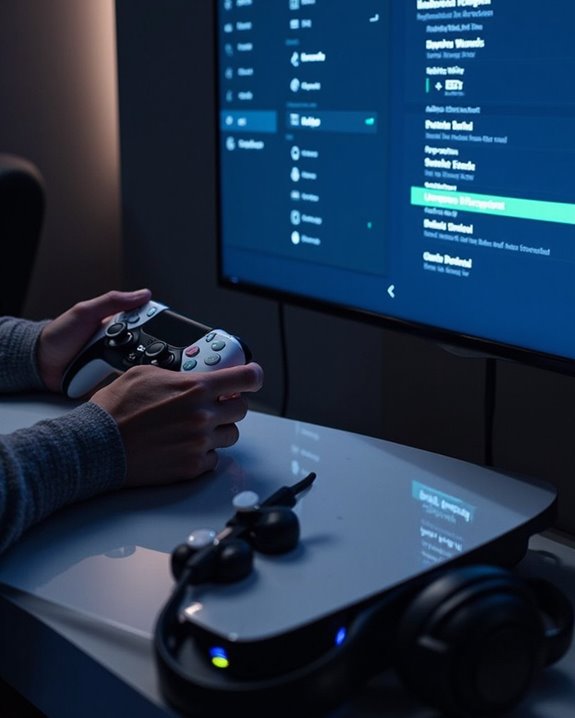
Even after following all connection steps correctly, PS5 users may encounter frustrating Bluetooth headphone issues that prevent ideal gaming audio experiences. Effective Error Diagnosis starts with identifying whether the problem stems from the headphones, adapter, or console itself.
The most reliable Fix Techniques include restarting both devices to reset their connection protocols and ensuring headphones are in proper pairing mode. Users should also check for wireless interference by moving other electronic devices away from the console and adapter.
For persistent issues, verify the adapter is firmly connected to a functional USB port. Audio dropouts or latency problems often indicate weak signals—minimize obstructions between devices and reduce the physical distance between them. If problems continue, check for available firmware updates for both the adapter and headphones to resolve compatibility issues.
Recommended Products
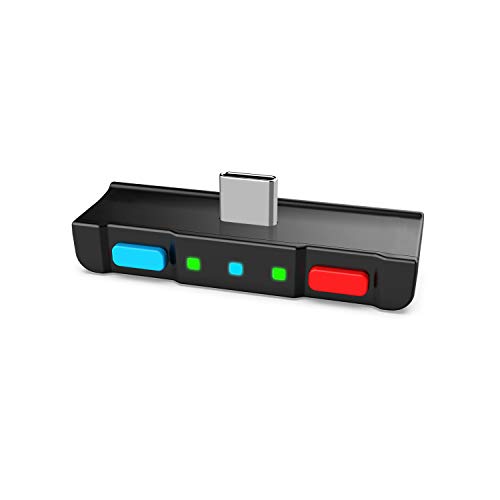
[Perfect Match] A Bluetooth transmitter tailor-made exclusively for the Nintendo Switch Family of portable game consoles. Compatible with both regular Switch and Switch Lite, with two Buttons in color Neon Red & Neon Blue respectively. Note: This product cannot be used when protective casing is installed on the Switch or Switch Lite.

[PERFECT FOR GAMING] Connect your Bluetooth headphones (excluding the PULSE 3D and other 2.4G headsets) to your PS5 or other gaming consoles with the DG80-Gaming adapter and enjoy high-fidelity audio with no wires, drivers, or software required. NOTE: For use with PC and other devices, consider the C81-PC for best results.

Bluetooth Controller Compatibility: Xbox Series X Controller, Xbox Series S Controller, Xbox One Bluetooth Controller, Xbox Elite Wireless Controller Series 2, PS5/PS4/PS3 Controller, Switch Pro, Switch Joy-Con, Wiimote, WiiU Pro and more.
Optimizing Audio Settings for the Best Experience
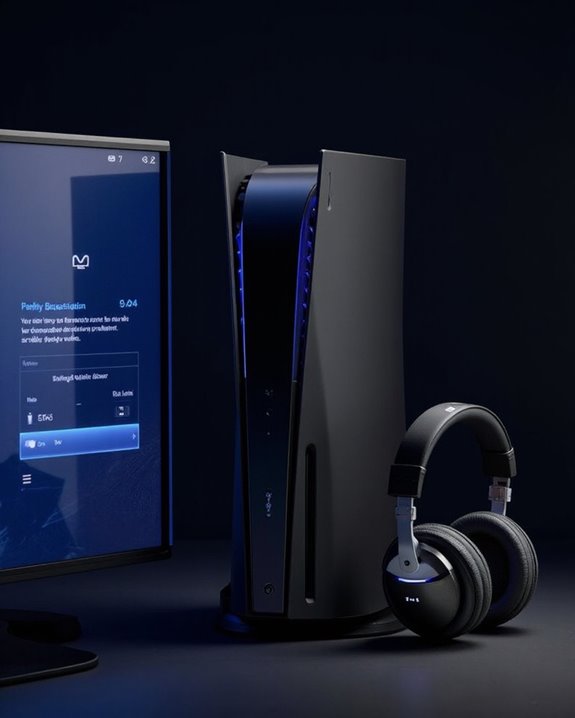
Harnessing the full potential of Bluetooth headphones with PS5 requires strategic adjustment of the console’s audio settings. Players should first enable the Tempest 3D Audio technology, which dramatically enhances spatial awareness during gameplay.
For ideal sound quality, users should experiment with different Audio Profiles in the PS5 sound settings menu. These profiles can be customized based on game genre, with FPS games benefiting from profiles that emphasize directional audio cues.
EQ Customization offers another layer of personalization. Headsets like the Pulse 3D allow users to adjust bass, treble, and mid-range frequencies for ideal sound reproduction. Additionally, adjusting audio format settings to Linear PCM provides the most compatible experience for most Bluetooth headphones, unless they specifically support Dolby or DTS formats.
Recommended Products
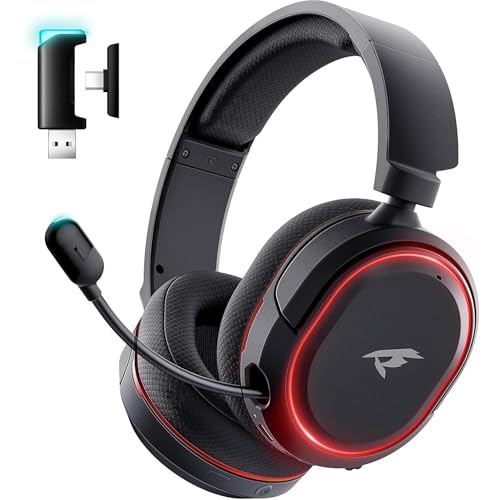
🎵【7.1 Surround Sound & Aesthetic Decorative Light】 UG-08S PC gaming headset can provide you with a cinema 3D stereo surround sound experience, designed specifically for gamers and audiophiles and multi-platform Compatibility. Long-press the 'M' key to activate 7.1 surround sound and dynamic driver reproduces deep bass and clear highs. Which allows you to hear every detail in the game with pin-drop clarity from up to 40 feet away. Such as teammates' voices, footsteps, direction, and more. Double-click the M key to activate the ambient light, then single-click the M key to switch between two modes: steady light and gradient. Valorise wireless pc headset will bring a cooler gaming atmosphere.

Zero-Latency Audio for Competitive Edge: Dominate your matches with the AOC wireless gaming headset. Featuring ultra-fast 2.4GHz lossless technology (≤20ms latency), this ps5 headset ensures your audio is always perfectly synced with the action. Tuned 50mm drivers deliver clear gaming sound for footsteps, reloads, dialogue, and in-game effects in FPS, action, and open-world games. The closed over-ear design helps keep you focused during Fortnite, Call of Duty, Roblox, Discord chat, online classes, and movie watching.

【Universal 3-Mode Connectivity】Engineered for total compatibility, the TA2000 headset seamlessly connects to all your devices. ① Experience lag-free wireless audio on PC, PS5, PS4, and laptops via the 2.4GHz USB receiver. ② Directly connect to Mac, mobile phones, and modern devices using the included Type-C cable. ③ Enjoy wireless freedom with Bluetooth mode for Switch, Mac, and mobile. (Note: Bluetooth is not compatible with PS5/PS4). ④ For Xbox One, Xbox Series X|S, and other classic consoles, simply use the universal 3.5mm wired connection.
Frequently Asked Questions
Does Using Bluetooth Headphones Cause Input Lag While Gaming?
Bluetooth headphones can introduce input lag during gaming due to wireless audio interference. Lag solutions include minimizing nearby Bluetooth devices, selecting low-latency headphones, updating firmware, and maintaining stable network conditions for best performance.
Can I Connect Multiple Bluetooth Headphones Simultaneously?
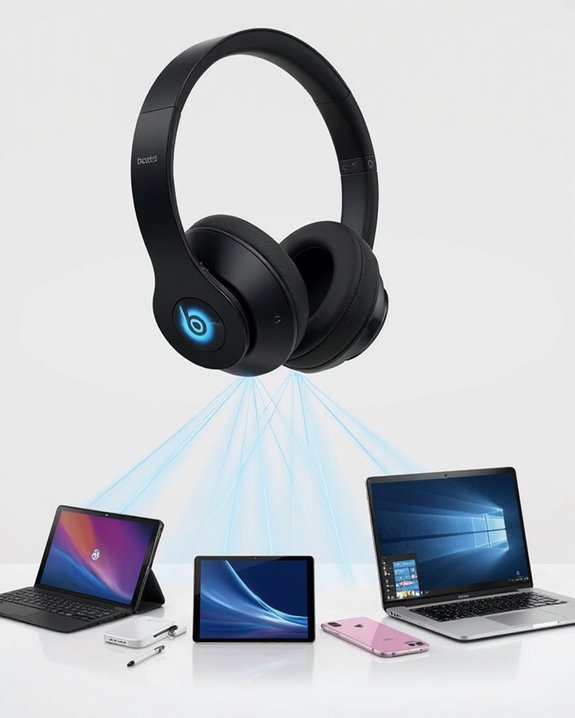
Connecting multiple Bluetooth headphones to a PS5 requires special adapters. Standard pairing methods don’t support simultaneous connections, but USB Bluetooth dongles with multi-link capability can overcome this limitation while minimizing potential audio conflicts during gameplay.
Will Bluetooth Adapters Work With Playstation VR Headsets?
While the promise of wireless freedom beckons, Bluetooth adapters generally don’t integrate with PlayStation VR headsets. Official PlayStation guidance indicates VR Integration requires wired audio connections, as Wireless Adapters aren’t supported for PSVR audio functionality.
Do Bluetooth Headphones Drain the PS5 Controller Battery Faster?
Yes, Bluetooth headphones greatly increase battery drain on PS5 controllers. This Battery Effect reduces Controller Efficiency, potentially halving battery life compared to normal usage due to additional power required for audio transmission.
Are Playstation-Branded Bluetooth Headphones Better Than Third-Party Options?
PlayStation-branded headphones often deliver superior sound quality for PS5 games and consistent build quality, but third-party options may offer better value, additional features, and cross-platform compatibility depending on specific user needs.