As an Amazon Associate, we earn from qualifying purchases. Some links on this site are affiliate links at no extra cost to you. Our recommendations are based on thorough research and editorial judgment.

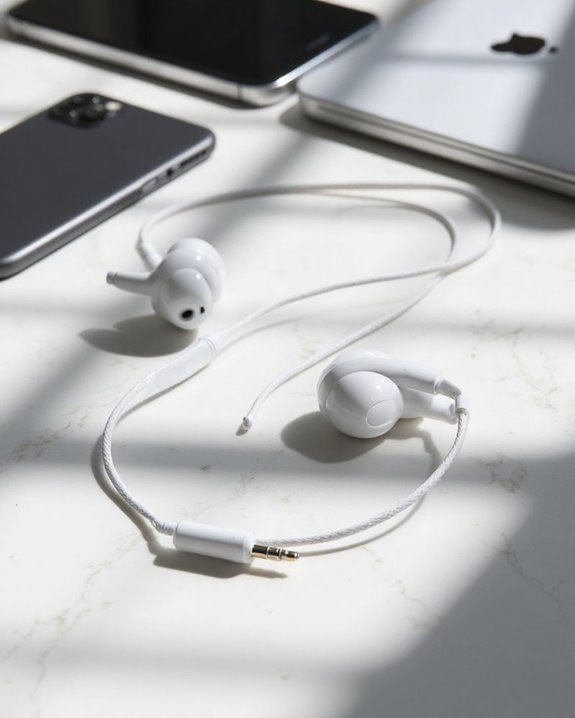
How to Connect Apple Headphones to Any Device

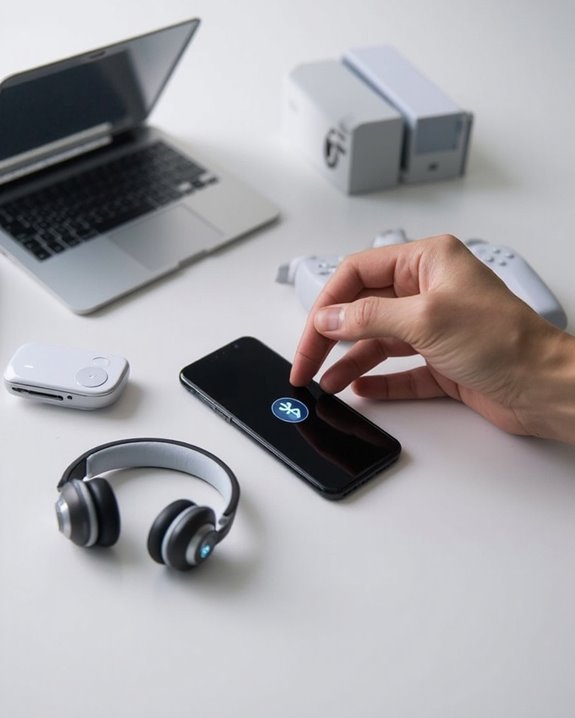
To connect Apple headphones to any device, place them in pairing mode by holding the setup button until the light flashes white. For Apple devices, simply open the case nearby and follow the on-screen prompts. For non-Apple devices, access Bluetooth settings and select the headphones from the available devices list. While basic functions work universally, advanced features like spatial audio and automatic switching remain exclusive to the Apple ecosystem. Further instructions reveal platform-specific optimization techniques.
Key Takeaways
- Place AirPods in their charging case with lid open and hold setup button until status light flashes white.
- For Apple devices, open AirPods case nearby and follow on-screen prompts for automatic setup.
- On Android, navigate to Bluetooth settings, tap “Pair new device,” and select your AirPods.
- For Windows, go to Settings > Devices > Bluetooth & other devices, then add your AirPods.
- Basic playback controls and noise cancellation work universally, but advanced features remain Apple-exclusive.
Understanding Different Apple Headphone Models
You may be interested
Can You Connect Bluetooth Headphones to PS5?
May 26, 2025
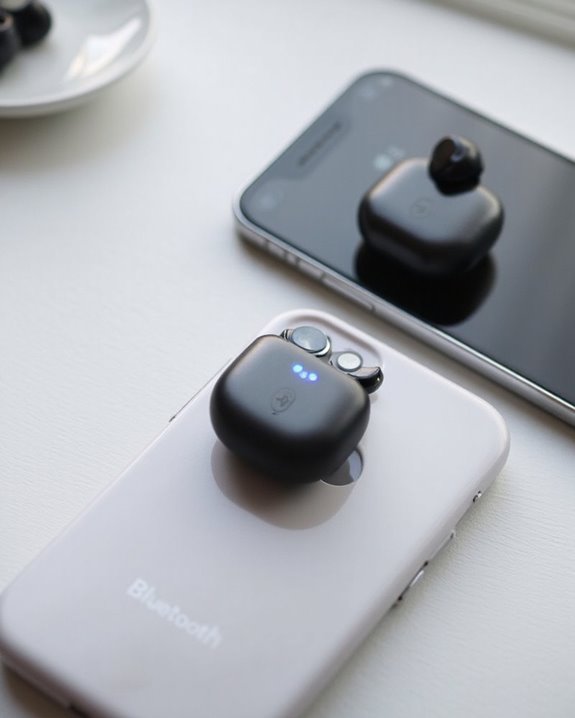
The Apple headphone lineup features several distinct models, each designed with specific technologies and use cases in mind. Current offerings include AirPods Pro 2, AirPods 4 with ANC, and AirPods Max, with variations in form factor and capabilities.
All three models feature Active Noise Cancellation, though implementation differs. AirPods Max delivers pro-level performance with eight dedicated microphones, while AirPods Pro 2 offers advanced cancellation in a compact in-ear design. The AirPods 4 uniquely combines an open-back design with ANC technology.
Battery Life varies considerably across the lineup. AirPods Max leads with up to 20 hours of continuous use with ANC enabled. AirPods Pro 2 provides 5 hours of listening time plus four additional charges from its case, while AirPods 4 offers 4.5 hours per charge with ANC active.
Additionally, Apple headphones utilize the latest Bluetooth 5.3 connectivity to ensure seamless and lag-free wireless performance across devices.
Pairing Airpods With Iphones and Ipads
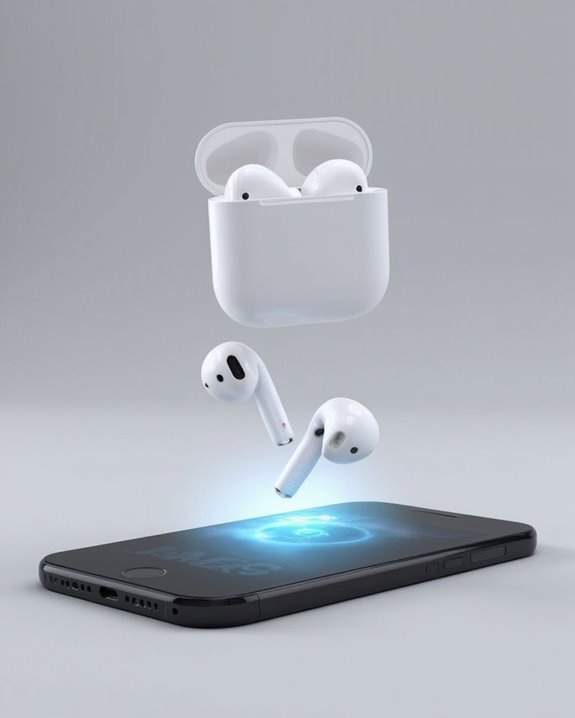
Connecting your AirPods to Apple devices requires just a few simple steps that leverage the seamless ecosystem integration Apple has engineered. Before beginning, make sure your devices run the latest iOS or iPadOS version and have Bluetooth activated.
For iPhones, simply open the AirPods case near the device, wait for the setup animation, and tap “Connect.” Battery essentials include making sure your AirPods have sufficient charge before pairing.
With iPads, the process follows similar mechanics—hold the open case near your tablet, wait for the animation, and confirm the connection. AirPods Max requires removal from the Smart Case before initiating pairing.
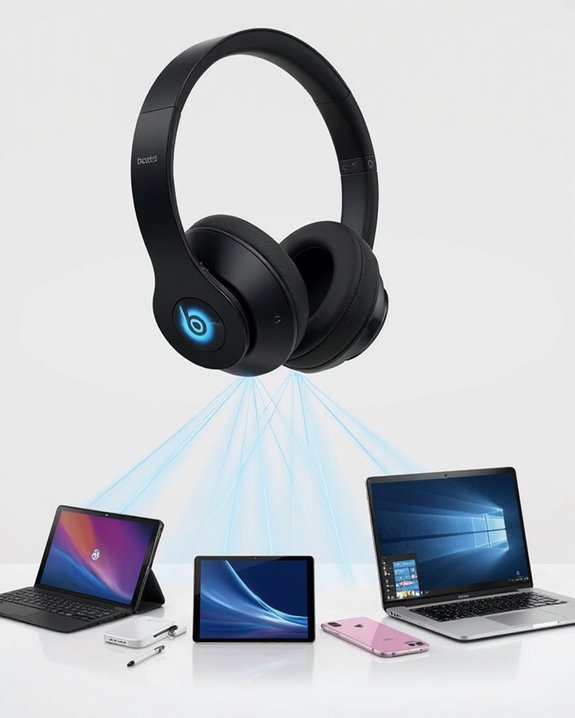
The seamless integration means that once paired with one Apple device, your AirPods automatically connect to other devices sharing the same Apple ID, eliminating redundant setup procedures. However, Android users may prefer wireless earbuds with multipoint connectivity for seamless device switching beyond the Apple ecosystem.
Recommended Products

【CLEAN & REPAIR CHARGING PORT】This multi-functional iPhone cleaning kit tool, won't get stuck inside, is sturdy and flexible, and easy to plug and use. Use the port hook, U-shaped brushes and port brushes clean the dirt out of your iPhone, iPad, and Type-c port, remove lint, hair, lint, dust, oil, and other contaminants from the charging port, and leave your phone looking brand new. Extend and protect the life of your beloved Apple products. (Compatible with Type-c charging port)

【3 in 2 Multi Charging Cable】Includes a 4ft 3 in 2 charging cable that features USB C/USB A input ports and three output ports: Type-C, L and for apple watch charger.The multi charger cable is compatible with both USB C and USB A chargers, making it a versatile option for various devices(designed for iWatch Series 2-10,SE/Ultra models,compatible with iPhone 16-11 and newer models,and alos for iPads,Samsung Galaxy S25-21,Airpods,car charging etc.)
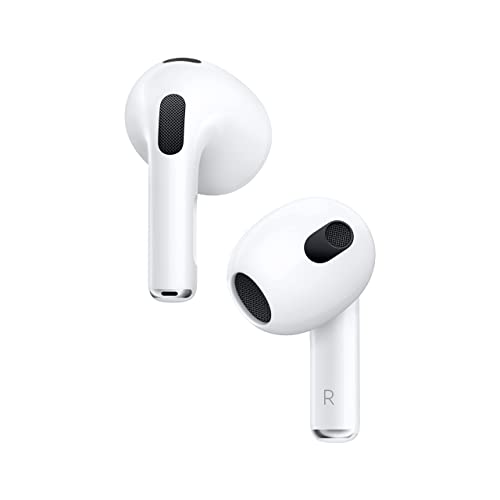
Enjoy up to 6 hours of listening time, with Personalized Spatial Audio and dynamic head tracking that places sound all around you.
Connecting AirPods to Mac Computers
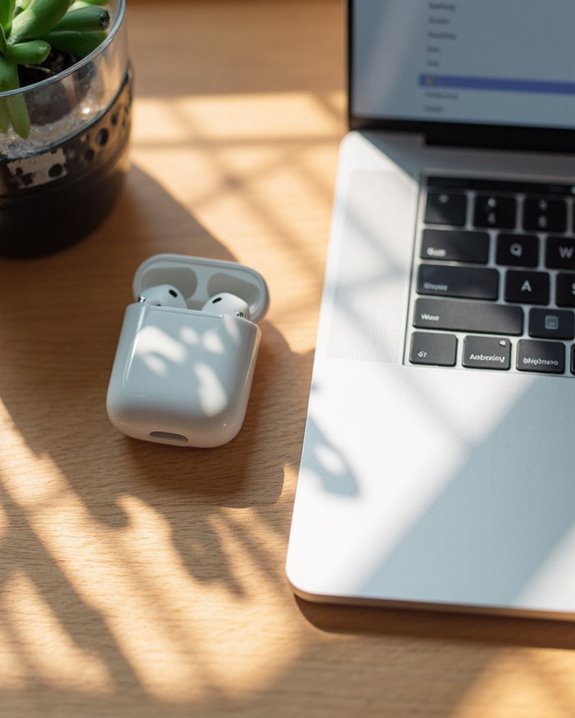
Pairing AirPods with a Mac computer offers the same wireless convenience enjoyed with other Apple devices, though the process involves a few Mac-specific steps. Users must confirm Bluetooth Optimization by verifying their Mac runs the appropriate macOS version for their AirPods model and enabling Bluetooth functionality.
To connect, place AirPods in their case with the lid open, then press the setup button until the status light flashes white. Navigate to System Settings > Bluetooth and select the AirPods from the Nearby Devices list. Proper Audio Routing may require selecting AirPods as the output device in the menu bar.
For seamless connectivity, confirm the Mac shares the same Apple ID as previously paired iOS devices. Troubleshooting connection issues typically involves verifying software updates, checking Bluetooth range, and occasionally rebooting both devices.
Recommended Products

User-Friendly: Connect your wireless headphones to your PS5 or other gaming consoles with the UGREEN adapter and enjoy high-quality audio with no wires, drivers, or software required. Also Add Bluetooth audio capability (AUDIO devices ONLY, no data) with ease to your Desktop, Computer, iMac

Bluetooth 5.4 + Broad Compatibility - Provides Bluetooth 5.4 plus EDR technology and is backward compatible with Bluetooth V5.3/5.0/4.2/4.0/3.0/2.1/2.0/1.1.

Controller compatibility: Xbox Series X Controller, Xbox Series S Controller, Xbox One Bluetooth Controller, PS5/PS4/PS3 Controller, Switch Pro, Wii Mote, Wii U Pro.
Using Apple Headphones With Android Devices
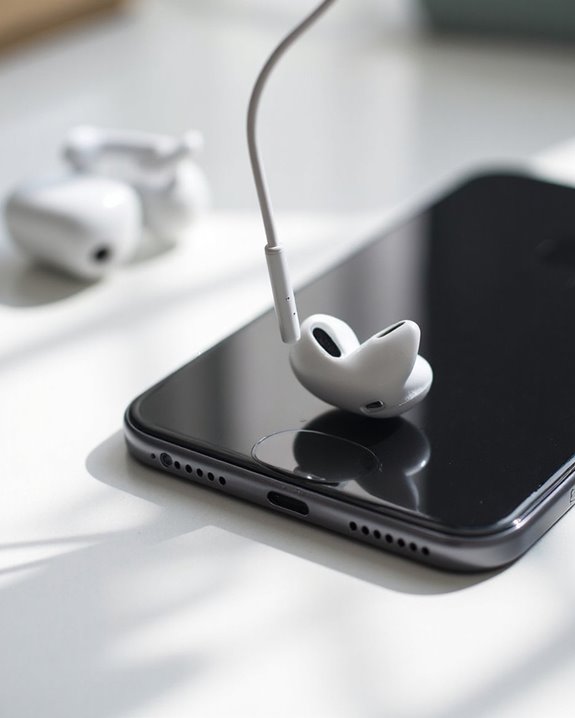
While primarily designed for the Apple ecosystem, AirPods and other Apple headphones can indeed function with Android devices through standard Bluetooth technology. The pairing process requires putting the AirPods into pairing mode and selecting them from the Android device’s Bluetooth menu.
Android users can enjoy basic functions like listening to music and taking calls, though Media Integration is more limited compared to iOS devices. Essential audio features work normally, but advanced capabilities such as Spatial Audio remain exclusive to Apple products.
Battery Monitoring on Android lacks the detailed statistics available on iOS, typically showing only basic percentage information. Users can access battery levels through third-party apps for more detailed tracking. Despite these limitations, AirPods provide a convenient wireless audio solution that works adequately across platforms.
Recommended Products

2026 Bluetooth 5.4 Technology : The wireless earbuds use the bluetooth 5.4 chipset. There is a faster and more stable signal transmission and has successfully achieved low latency without interruption. With a range of up to 15 m, whether you are at home, in the office, or on the road, you don't have to worry about disconnection of the bluetooth earbuds. Automatic pairing & compatible with multiple devices.

[Ultra-Lightweight Ear Buds Designed for Small Ears] Each earbud weighs only 3.7g and features a compact, ergonomic in-ear design made especially for small ears. Secure, low-profile, and comfortable for workouts, all-day wear or overnight sleeping.The ultra-slim profile sits flush in your ear with no hard edges poking or rubbing, so you can even sleep on your side without discomfort.

2026 Bluetooth 5.4 Technology : The wireless earbuds use the bluetooth 5.4 chipset. There is a faster and more stable signal transmission and has successfully achieved low latency without interruption. With a range of up to 15 m, whether you are at home, in the office, or on the road, you don't have to worry about disconnection of the bluetooth earbuds. Automatic pairing & compatible with multiple devices.
Connecting to Windows PCs and Laptops
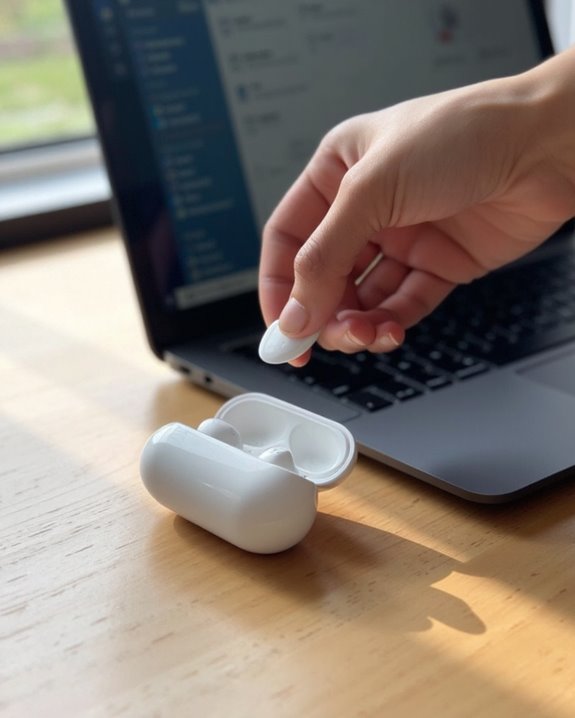
The process of establishing a connection between Apple headphones and Windows computers requires several specific steps that differ slightly depending on the Windows version. For Windows 10, users must access the Settings app, navigate to “Devices,” select “Bluetooth & other devices,” and click “Add Bluetooth or other device.” Windows 11 users follow a similar path through “Bluetooth & devices” in Settings.
Proper Battery Management is essential for maintaining connectivity during extended use. Users should make sure headphones are fully charged before attempting connection. Regular Windows Updates are vital for best compatibility, as they often include Bluetooth driver improvements that resolve connection issues.
For troubleshooting, users may need to reset connections by removing the device from paired devices and reconnecting, or updating audio drivers to make sure proper functionality. However, it is important to note that Lightning headphones primarily support iOS devices, so compatibility with Windows PCs may require additional adapters or may be limited.
Recommended Products
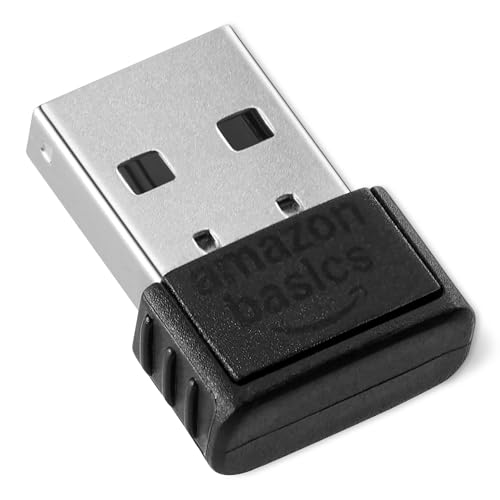
INSTANT BLUETOOTH ACCESS: Bluetooth dongle adapter receiver for PCs converts non-Bluetooth devices into Bluetooth-capable with simple USB connection

Upgraded Bluetooth 5.3 Adapter: This bluetooth adapter for pc uses the latest upgraded Bluetooth 5.3 BR+EDR technology, greatly improves the stability of the connection data transfer speed, reduces the possibility of signal interruption and power consumption.

Bluetooth 5.3 dongle: Applies the latest Bluetooth 5.3+EDR technology, compatible with Bluetooth 5.2/4.2/4.2 LE/4.0/2.1+EDR, and supports Dual mode (BR/EDR+ Bluetooth Low Energy) to achieve low energy consumption and high speed. Quick response and better anti-interference.
Pairing With Gaming Consoles and Smart TVS
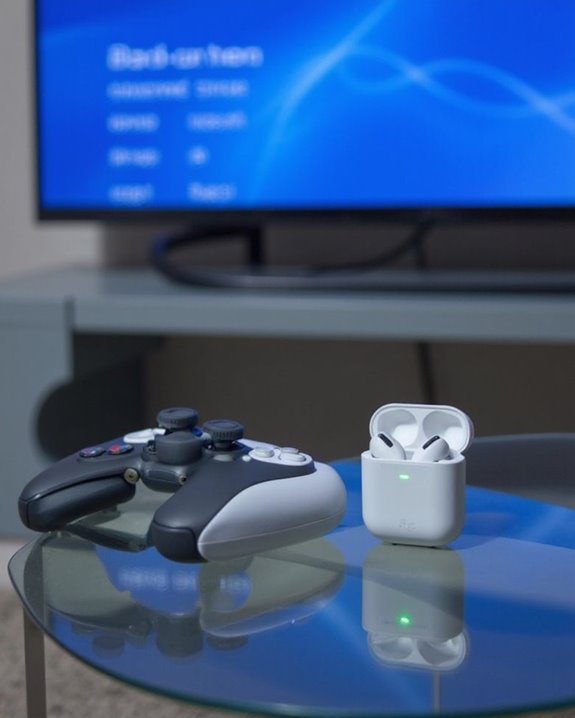
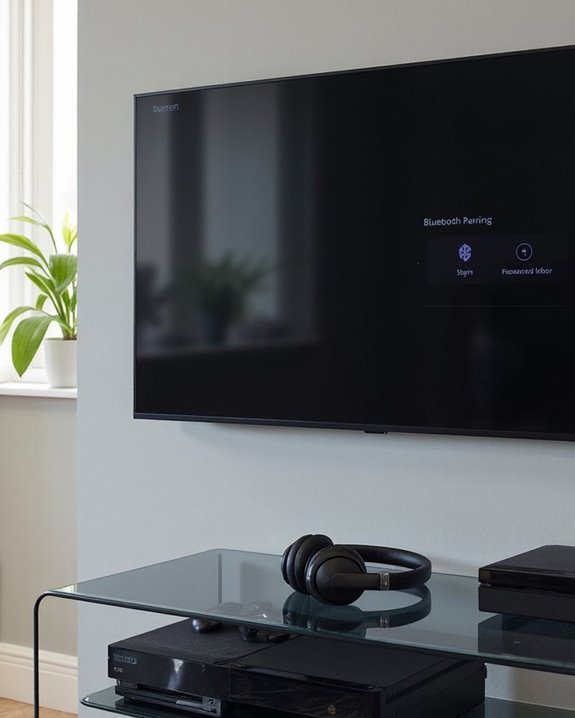
Modern gaming consoles and smart TVs offer varying degrees of compatibility with Apple headphones, requiring different connection methods depending on the device. Xbox consoles lack native Bluetooth support, necessitating console workarounds through the Xbox mobile app for remote play audio transmission to AirPods. PlayStation systems similarly require external Bluetooth adapters to establish connections with Apple headphones.
Nintendo Switch presents a more straightforward solution, with newer models supporting direct Bluetooth pairing with AirPods. However, older versions may need adapters for functionality.
Smart TV connectivity varies greatly by manufacturer. Many recent models include built-in Bluetooth capabilities for direct pairing, while older TVs require TV adapters to bridge the connection gap. Users should note potential audio delay issues that commonly affect Bluetooth transmissions on televisions, particularly during video content playback.
Recommended Products

【Enter Wireless Age w/ Minimal Cost】Upgrade non-smart/non-Bluetooth TV to pair headphones for enhancing your hearing or get an undisturbed personal space. Connected TV to Bluetooth Home Stereo, no need to replace your old TV, our Bluetooth audio transmitter for TV-RANGER help you upgrade the old one and CUT OFF the budget for a new. NOTE: This is a Bluetooth transmitter only, not a receiver

【Dual Connection & Automatic Reconnection】This Bluetooth transmitter adapter has a "dual connection" function, which can connect two Bluetooth headsets/speakers at the same time. Enjoy a movie with your partner without disturbing others. After the first Bluetooth pairing is successful, 2 earphones/speakers can be reconnected to this wireless Bluetooth transmitter for TV automatically. Note: When using a fiber optic connection, please set the TV audio output format to PCM.

The Latest Bluetooth 5.3: The latest Bluetooth 5.3 technology enables your aux Bluetooth adapter backward compatible with Bluetooth 5.2/5.1/5.0/4.2/4.0/3.0/2.0 and it can deliver more stable wireless to your devices.
Troubleshooting Common Connection Problems
Despite their seamless design, Apple headphones can encounter connectivity issues that frustrate even the most tech-savvy users. Common obstacles include physical debris, software glitches, and interference from nearby devices.
When experiencing connection problems, first check battery levels and verify proper charging. Battery troubleshooting involves verifying that contact points are clean and free from debris that might prevent proper charging or connectivity.
For interference prevention, maintain clear lines of sight between your headphones and device, and minimize competing Bluetooth signals in crowded environments. Reset your headphones using model-specific methods: AirPods require pressing the setup button for 15 seconds, while AirPods Max need simultaneous pressing of Noise Control and Digital Crown buttons for 5 seconds.
If problems persist, unpair the headphones completely before attempting reconnection with freshly restarted devices.
Maximizing Features Across Different Platforms
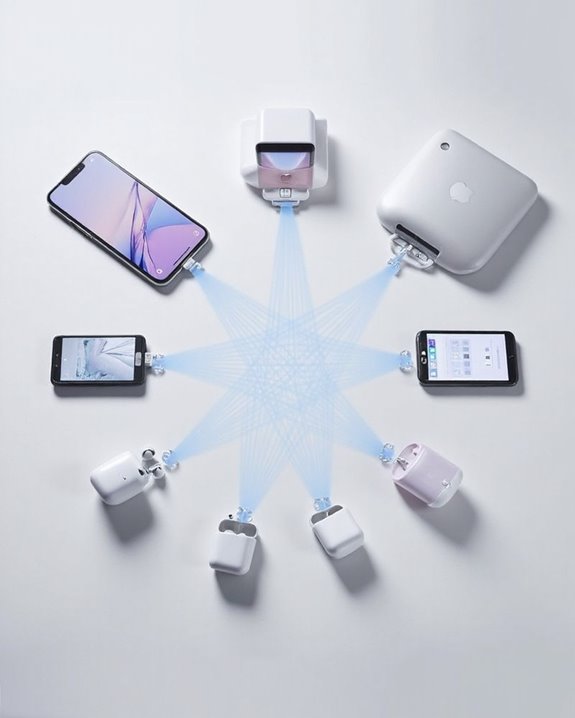
While Apple headphones deliver their full feature set within the Apple ecosystem, users can still enjoy many capabilities across various platforms with the right approach. Regular Firmware Syncing through an Apple device guarantees best performance even when primarily using non-Apple products. This maintains compatibility and access to the latest improvements.
For Feature Adaptation across platforms, users should:
- Customize controls on Apple devices before using with other systems
- Prioritize AAC codec support on non-Apple devices for best audio quality
- Utilize AirPods Pro or Max for noise cancellation that works universally
- Learn manual pairing procedures for efficient device switching
Though advanced functions like spatial audio and automatic switching remain Apple-exclusive, basic playback controls and noise cancellation work universally, making AirPods versatile for multi-platform users despite some feature limitations.
Frequently Asked Questions
Can I Connect Multiple Devices to Airpods Simultaneously?
Like a lone performer on a single stage, AirPods cannot host multiple connections simultaneously. While they support automatic switching between Apple devices, simultaneous usage from different audio sources is not possible with current technology.
Do Airpods Work With Older Bluetooth Devices?
AirPods require Bluetooth 4.0 or higher for connectivity. Older devices with earlier Bluetooth versions will experience compatibility issues. Users can employ Bluetooth adapters supporting newer standards to enable AirPods functionality on legacy devices.
Will Airpods Connect Automatically to My Device After Initial Pairing?
After initial pairing, AirPods typically Auto Reconnect to devices when the charging case is opened nearby. This Seamless Pairing feature works across Apple devices and most Bluetooth-enabled devices that were previously connected.
Can I Use Only One Airpod While the Other Charges?
Yes, one AirPod can be used while the other charges in the case. This Solo Usage approach allows for extended listening time. Charging Tips: alternate between earbuds to maintain continuous use during long sessions.
How Do I Prevent My Airpods From Connecting to the Wrong Device?
Just as stars align in perfect synchronicity, users can prevent AirPods from connecting to wrong devices by disabling automatic switching in Bluetooth settings, establishing connection priority, and keeping firmware updates current for best performance.