As an Amazon Associate, we earn from qualifying purchases. Some links on this site are affiliate links at no extra cost to you. Our recommendations are based on thorough research and editorial judgment.

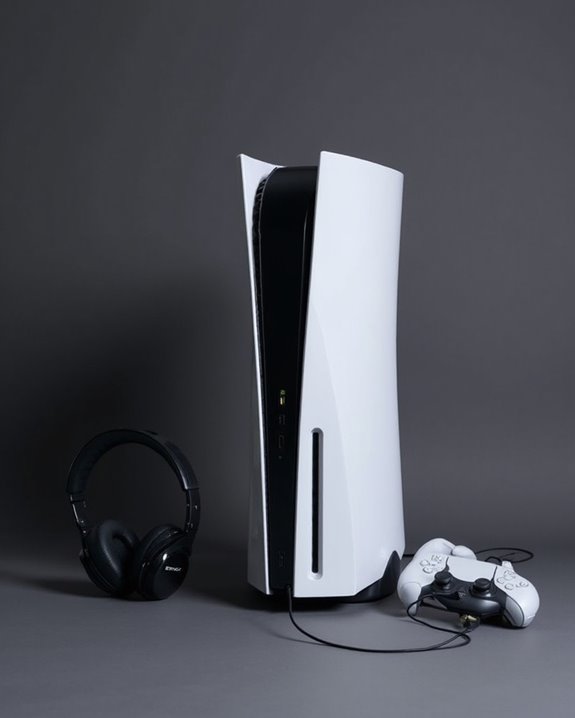
How to Connect Headphones to PS5: A Step-by-Step Guide

Connecting headphones to PS5 offers multiple options based on preference. Wired headphones plug directly into the controller’s 3.5mm jack, providing immediate audio output. Wireless options include Sony’s Pulse 3D headset, which connects via USB adapter, or Bluetooth headphones using compatible adapters. For ideal sound, users can adjust 3D Audio settings through PS5’s Sound menu to select appropriate profiles. Proper configuration guarantees immersive game audio while troubleshooting typically involves checking connections and updating firmware when issues arise.
Key Takeaways
- For wired headphones, connect directly to the controller’s 3.5mm jack or to the console via USB-C cable.
- Wireless Sony Pulse 3D headsets require inserting the included USB adapter into the PS5 and powering on the headset to pair.
- For Bluetooth headphones, insert a compatible Bluetooth adapter (5.0+) into a PS5 USB port and activate pairing mode on both devices.
- Navigate to Settings > Sound on your PS5 to select the headphones as your output device after connection.
- Troubleshoot connection issues by restarting your headset, checking physical connections, and ensuring firmware is updated on both controller and headset.
Understanding PS5 Audio Output Options
You may be interested
Can You Connect Bluetooth Headphones to PS5?
May 26, 2025
The PlayStation 5 offers extensive audio output options designed to deliver immersive gaming experiences through various connection methods. Users can select their primary audio destination through the console’s Settings menu, choosing between HDMI devices, headsets, or TV speakers.
The PS5 supports an impressive range of Audio Formats, including Dolby Digital, DTS, and uncompressed Linear PCM with up to 7.1 channels. For Blu-ray playback, the system even accommodates Dolby Atmos and DTS:X through compatible devices.
A convenient Output Switching feature automatically detects when headphones or headsets are connected, seamlessly transferring audio to the newly connected device. This functionality works with both wired connections through the controller’s 3.5mm jack and wireless headsets using USB dongles.
Many popular models, such as the NUBWO G06, utilize dual wireless connectivity to enable seamless switching between PC and PS5 audio sources.
Connecting Sony Pulse 3D Wireless Headset
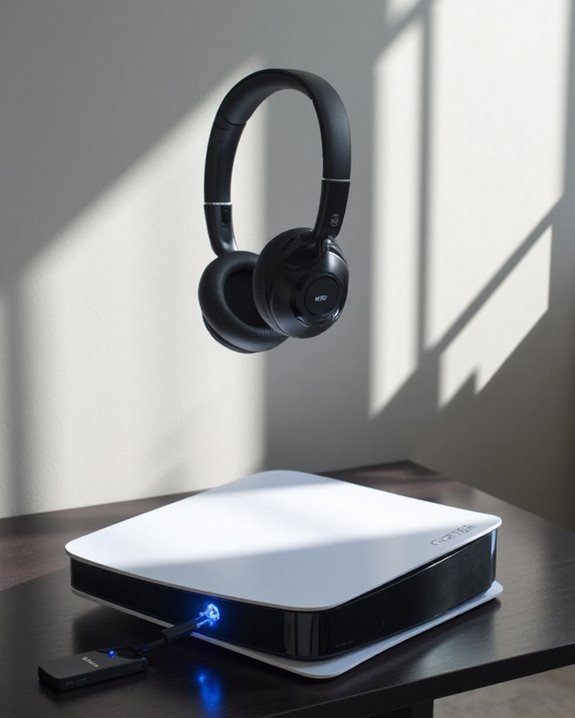
Sony’s Pulse 3D Wireless Headset offers PlayStation 5 users a seamless audio solution designed specifically for the console’s immersive sound capabilities. Setup requires connecting the included USB adapter to any available PS5 USB port, either front or rear.
To pair the device, users simply power on the headset using the dedicated switch, which automatically initiates pairing mode. The status LED indicates connection progress, changing from blinking to steady when successfully paired.
The PS5 recognizes the device immediately, but users should verify proper selection in the console’s audio output settings. The headset provides exceptional Headset Comfort with its ergonomic design and delivers approximately 12 hours of Battery Life per charge. For peak performance, users should make sure both the PS5 firmware and headset are updated regularly.
For gamers seeking extended playtime, some premium headsets now offer impressive 100-hour battery life capabilities that greatly exceed standard models.
Recommended Products

Zero-Latency Audio for Competitive Edge: Dominate your matches with the AOC wireless gaming headset. Featuring ultra-fast 2.4GHz lossless technology (≤20ms latency), this ps5 headset ensures your audio is always perfectly synced with the action. Tuned 50mm drivers deliver clear gaming sound for footsteps, reloads, dialogue, and in-game effects in FPS, action, and open-world games. The closed over-ear design helps keep you focused during Fortnite, Call of Duty, Roblox, Discord chat, online classes, and movie watching.

【Universal 3-Mode Connectivity】Engineered for total compatibility, the TA2000 headset seamlessly connects to all your devices. ① Experience lag-free wireless audio on PC, PS5, PS4, and laptops via the 2.4GHz USB receiver. ② Directly connect to Mac, mobile phones, and modern devices using the included Type-C cable. ③ Enjoy wireless freedom with Bluetooth mode for Switch, Mac, and mobile. (Note: Bluetooth is not compatible with PS5/PS4). ④ For Xbox One, Xbox Series X|S, and other classic consoles, simply use the universal 3.5mm wired connection.
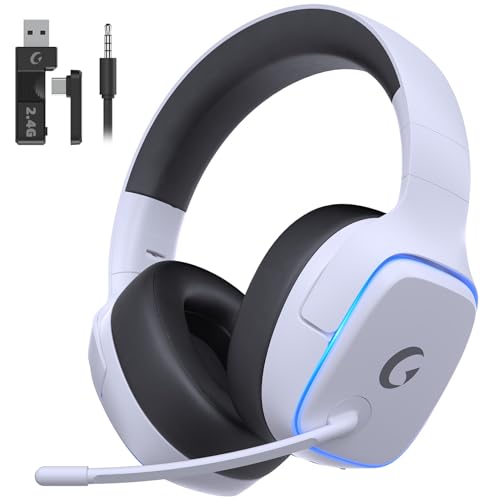
EXCLUSIVE PS5 DESIGN - This wireless gaming headset features a new generation upgraded design aligned with the gaming family, delivering high-end performance for hardcore gamers, eSports athletes and casual gamers.
Pairing Bluetooth Headphones Using Adapters
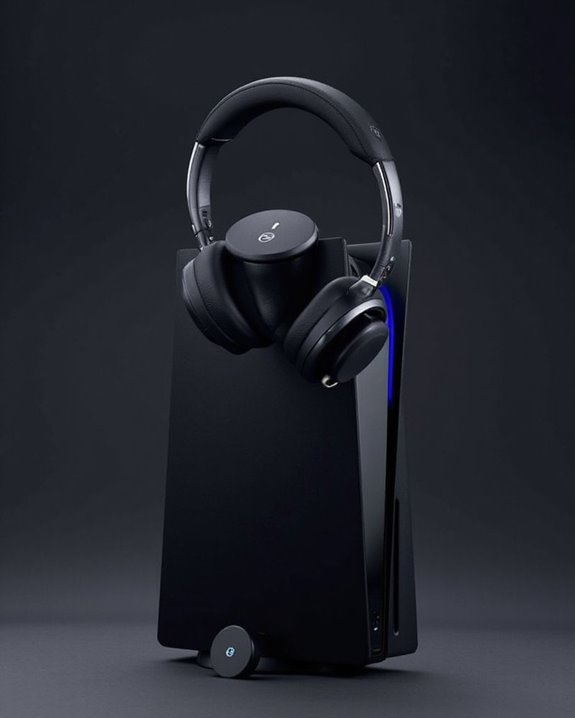
Unlike Sony’s official PlayStation accessories, standard Bluetooth headphones require an adapter to connect with the PS5 console. Adapter compatibility is essential when selecting a Bluetooth dongle, with Bluetooth 5.0 or newer versions delivering best performance. Users should verify that their chosen adapter works specifically with PS5 systems before purchase.
The pairing process involves three key steps:
- Insert the adapter into an available PS5 USB port
- Activate pairing mode on both the adapter and headphones
- Configure audio output in the PS5 settings menu
Pairing security features prevent unauthorized connections, requiring devices to remain in close proximity during initial setup. Some adapters offer dedicated “Talk mode” for microphone functionality, though audio quality may decrease when voice chat is active. For troubleshooting connection issues, restarting both devices often resolves common pairing problems. Using a headset with AI-powered noise cancellation can significantly enhance voice clarity during gameplay.
Recommended Products

User-Friendly: Connect your wireless headphones to your PS5 or other gaming consoles with the UGREEN adapter and enjoy high-quality audio with no wires, drivers, or software required. Also Add Bluetooth audio capability (AUDIO devices ONLY, no data) with ease to your Desktop, Computer, iMac

【For PS5 Users Only】 Specifically designed for PS5 to connect Bluetooth headphones (e.g., AirPods, Bose, & more) for audio playback. For optimal voice chat experience, please use the PS5 controller microphone instead of headphone mics.

Plug and Play: This PS5 bluetooth adapter is designed to work with a wide range of devices and makes it simple for previously unsupported devices to have Bluetooth capability now, adding Bluetooth audio capability (AUDIO devices ONLY, no data) with ease to your PS4, PS5, Switch, Desktop or iMac. No need to install any driver/software. Simply plug the CM668 into your device's USB port, then set your headphones or speakers to pairing mode, and an automatic connection will be made.
Using Wired Headphones With Your PS5
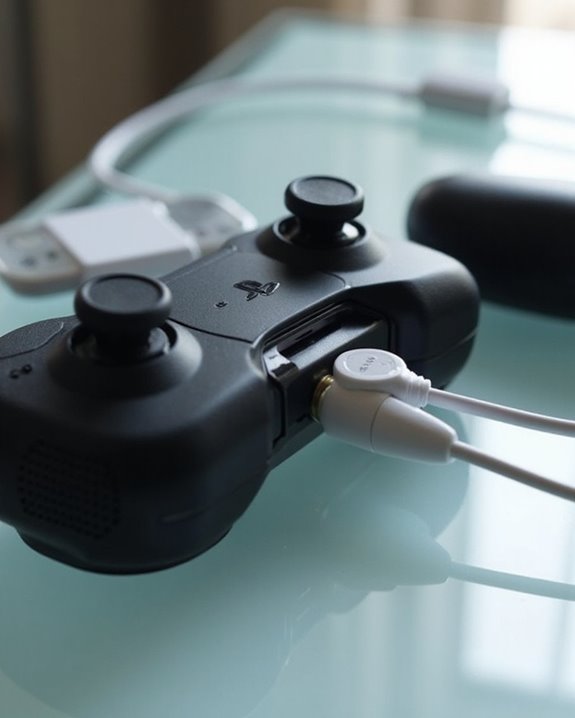
While Bluetooth connections offer wireless freedom, wired headphones provide a simpler, more reliable option for PS5 audio with zero latency and no charging requirements. Users can connect via the controller’s 3.5mm jack or directly to the console using USB-C with compatible models.
To set up wired headphones:
- Insert the 3.5mm connector into the controller until it clicks
- Navigate to Settings > Sound
- Select headphones as the output device
- Test and adjust volume levels as needed
Proper headphone storage and cable organization are essential for maintaining connection quality and extending cable lifespan. Dedicated headphone stands or hooks mounted near the console create an organized gaming station while preventing cable tangles. For troubleshooting, always check connection security and verify audio output settings before more complex solutions.
Recommended Products

【Multi-Platform Compatible】Support PlayStation 4, PlayStation 5, Xbox, Xbox Series X|S, Xbox One, PC, Nintendo 3DS, Laptop, PSP, Tablet, iPad, Computer, Mobile Phone. Please note you need an extra Microsoft Adapter (Not Included) when connect with an old version Xbox One controller.

[198g Featherlight Frame] Only 198g (6.9oz) weight VS mainstream 250g headsets, reduces head pressure by roughly 20%. No sore neck or scalp fatigue during all-night gaming, ultra-light for long-hour wear.

TRIFORCE TITANIUM 50 MM DRIVERS — Our cutting-edge proprietary design divides the driver into 3 parts for the individual tuning of highs, mids, and lows—producing brighter, clearer audio with richer highs and more powerful lows
TV-Based Solutions for Wireless Headphone Connection
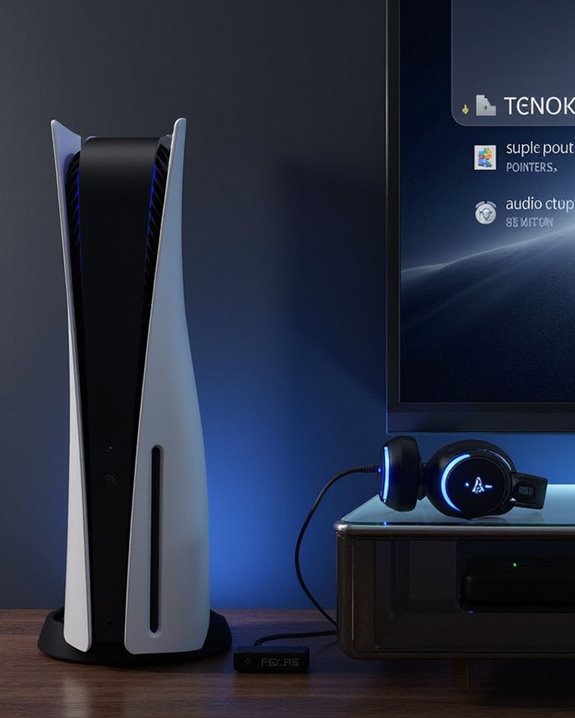
For gamers seeking wireless audio without purchasing specialized PS5-compatible headsets, modern televisions offer several viable alternatives to connect headphones to a PlayStation 5. TV compatibility varies considerably based on available features and connections.
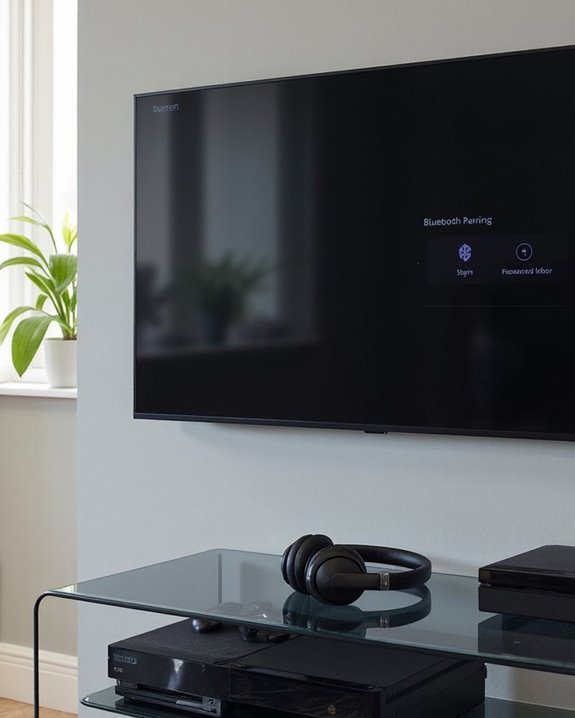
Most smart TVs include built-in Bluetooth functionality, allowing direct pairing with wireless headphones. Users simply activate pairing mode on both devices and connect through the TV’s audio settings menu.
For TVs lacking Bluetooth capabilities, external solutions provide workarounds. Audio extractors can split the HDMI signal from the PS5, routing sound to a Bluetooth transmitter while video continues to the television. This method often delivers lower latency than TV-based Bluetooth.
Media streaming devices plugged into TVs can also serve as Bluetooth transmitters, though most TV-based solutions won’t support microphone functionality for in-game chat.
Recommended Products

The Latest Bluetooth 5.3: The latest Bluetooth 5.3 technology enables your aux Bluetooth adapter backward compatible with Bluetooth 5.2/5.1/5.0/4.2/4.0/3.0/2.0 and it can deliver more stable wireless to your devices.

100% Flight Compatible – Adapter Included: Never get caught off guard by an older aircraft. This airplane bluetooth adapter kit includes a premium dual‑prong adapter for both modern single 3.5mm jacks and older armrest ports, delivering seamless connectivity on any flight.
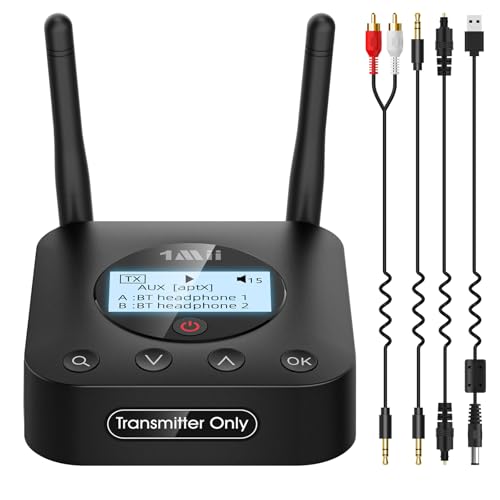
【Enter the Wireless with Minimal Cost】Upgrade your non-Bluetooth TV or PC to pair Bluetooth headphones/speakers to improve your hearing or create a private personal space. It can help you upgrade your old TV without buying a new TV. NOTE: This is a Bluetooth transmitter only, not a receiver
Optimizing 3D Audio Settings for Immersive Gaming
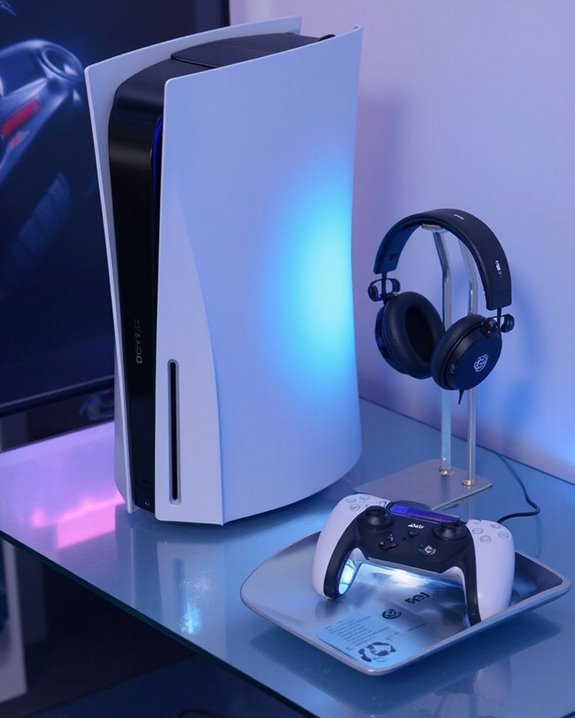
The PlayStation 5’s revolutionary 3D audio technology transforms ordinary gaming sessions into deeply immersive experiences by precisely positioning sound in a three-dimensional space around the player. This spatial audio creates a realistic soundscape that enhances gameplay by accurately conveying directional information.
To maximize this feature, users should access the dedicated 3D Audio settings menu through Sound settings and select an appropriate Audio Calibration profile that matches their headphone type. These profiles (numbered 1-5) optimize sound presentation based on ear shape and headphone fit characteristics.
Adjusting Dynamic Range settings further refines the experience—select HiFi for full range in quiet environments, TV for balanced everyday use, or Night mode to reduce volume variations. Game-specific audio settings, when available, should be configured to complement the PS5’s native 3D audio capabilities.
Troubleshooting Common Connection Problems
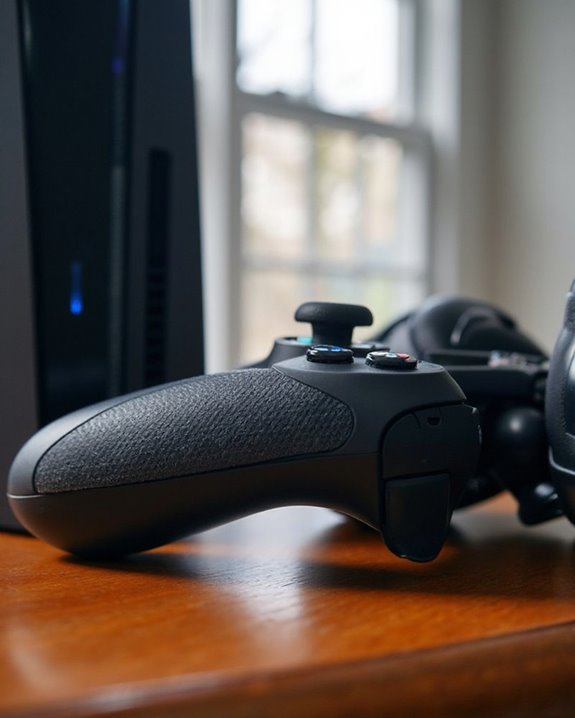
Despite the PS5’s advanced audio capabilities, connection issues with headphones can occasionally disrupt the gaming experience. When problems arise, start with basic troubleshooting by restarting the headset, checking physical connections, and power cycling the console.
For wireless headsets, make sure the USB adapter is properly seated in a PS5 port and remove any unused dongles that might cause interference. Solutions for interference problems include repositioning the console away from other wireless devices and making sure the headset is within ideal range.
Check that audio output settings are configured for “all audio” rather than just “voice chat.” Firmware updates for both controllers and headsets are essential for maintaining compatibility and resolving connection issues. If problems persist, try connecting the headset to another device to determine whether the issue lies with the headset or console.
Best Headphone Recommendations for PS5 Gaming
Choosing premium headphones for PS5 gaming involves exploring a landscape of wireless connectivity options, audio quality considerations, and compatibility features. The SteelSeries Arctis Nova Pro Wireless stands out with dual wireless connectivity and advanced audio features, consistently receiving positive user feedback for its ergonomic design and comfort during extended sessions.
For those preferring wired options, the Epos H3 delivers excellent audio quality with a straightforward connection through the controller’s 3.5mm jack. Budget-conscious gamers might consider more affordable Turtle Beach models that maintain good sound quality while making reasonable compromises on build materials.
Sony’s Pulse Elite headset, specifically designed for PS5, leverages the console’s Tempest Engine for enhanced 3D audio, making it an excellent official option for those seeking seamless integration with PlayStation hardware.
Recommended Products

Stable Connection & Ultra-Low Latency - Acer Wireless Gaming Headset design with powerful 50mm drivers, ultra-low latency (≤20ms), and 2.4GHZ reliable, fast connection for an enhanced gaming and audio experience. The gaming headset deliver high-quality stereo sound, ensuring an immersive experience whether you're gaming or listening to music. The gaming headset ensures pinpoint accuracy in footsteps and in-game directions, giving you an edge in any game.
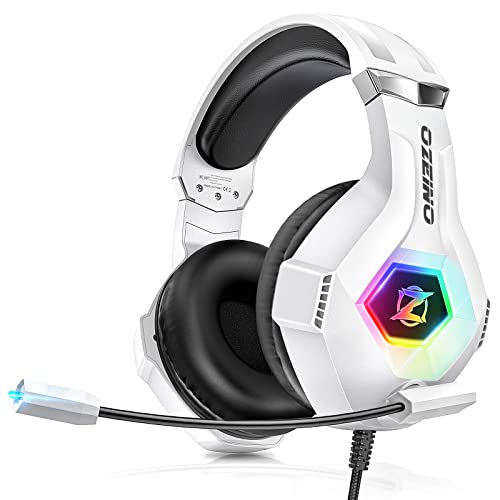
Superb 7.1 Surround Sound: This gaming headset delivering stereo surround sound for realistic audio. Whether you're in a high-speed FPS battle or exploring open-world adventures, this headset provides crisp highs, deep bass, and precise directional cues, giving you a competitive edge.
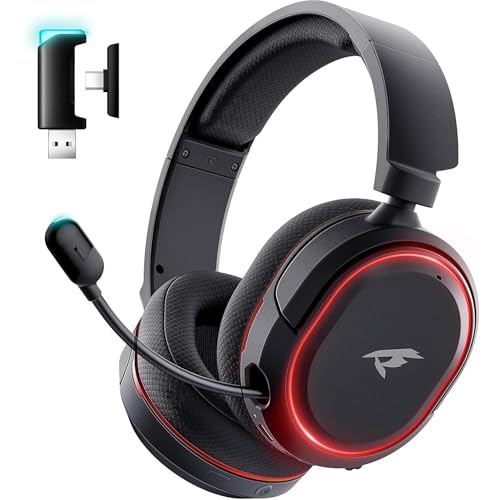
🎵【7.1 Surround Sound & Aesthetic Decorative Light】 UG-08S PC gaming headset can provide you with a cinema 3D stereo surround sound experience, designed specifically for gamers and audiophiles and multi-platform Compatibility. Long-press the 'M' key to activate 7.1 surround sound and dynamic driver reproduces deep bass and clear highs. Which allows you to hear every detail in the game with pin-drop clarity from up to 40 feet away. Such as teammates' voices, footsteps, direction, and more. Double-click the M key to activate the ambient light, then single-click the M key to switch between two modes: steady light and gradient. Valorise wireless pc headset will bring a cooler gaming atmosphere.
Frequently Asked Questions
Can Multiple Headphones Connect to PS5 Simultaneously?
Like a conductor managing multiple instruments, the PS5 can support multiple headphones simultaneously through Audio Multiplexing via Bluetooth adapters, USB ports, and controller connections, though users may experience Connection Conflicts with certain configurations.
Will PS5 Headphones Work With PS4 or Other Consoles?
PS5 headphones offer varying levels of headphone compatibility across platforms. They work with PS4 consoles via wireless dongles or 3.5mm cables, but console adaptation with Xbox or Nintendo may be limited to wired connections only.
Does Using Headphones Affect PS5 Performance or Battery Life?
“All that glitters is not gold.” Headphones cause minimal Performance Impact on PS5 systems. Wireless models drain their own batteries, not the console’s power. Controller battery life may slightly decrease when connecting headphones.
Can I Use Apple Airpods With My PS5?
Yes, AirPods can connect to PS5 using a Bluetooth adapter. The pairing process requires connecting the adapter to the console and putting AirPods in pairing mode. However, users may experience sound delay during gameplay.
How Do I Adjust Microphone Monitoring While Using Headphones?
Microphone Calibration on PS5 is INSANELY simple! Users can access Sound Settings, adjust Microphone Level, and modify Sidetone Effects to hear their own voice through headphones during gameplay or voice chats.