As an Amazon Associate, we earn from qualifying purchases. Some links on this site are affiliate links at no extra cost to you. Our recommendations are based on thorough research and editorial judgment.


How to Pair Bose Quietcomfort Headphones With Any Device

To pair Bose QuietComfort headphones, slide the Power/Bluetooth switch right for three seconds until the blue light blinks and you hear “Ready to connect.” Navigate to Bluetooth settings on your device, select “Bose QuietComfort” from available devices, and confirm connection when the headphone status light turns solid white. For ideal pairing, verify headphones have sufficient battery and remain within 30 feet of your device. The complete connection process varies slightly between smartphones, tablets, and computers.
Key Takeaways
- Activate pairing mode by sliding the Power/Bluetooth switch right for three seconds until you hear “Ready to connect.”
- Enable Bluetooth in your device’s settings menu and select “Bose QuietComfort” from the available devices list.
- Ensure headphones have sufficient battery charge (at least 30%) before attempting to pair for reliable connection.
- Confirm successful pairing when the blue light stabilizes to white and audio properly routes to the headphones.
- For connection issues, try power cycling both devices or performing a hard reset to restore factory settings.
How to Pair Bose Quietcomfort Headphones With Any Device
You may be interested
Can You Connect Bluetooth Headphones to PS5?
May 26, 2025
Connecting Bose QuietComfort headphones to a device requires following a straightforward sequence of steps that work universally across smartphones, tablets, and computers. Users must first activate pairing mode by sliding the Power/Bluetooth switch right for three seconds until they hear “Ready to connect” and observe a blinking blue status light.
Next, enable Bluetooth in the target device’s settings menu and select “Bose QuietComfort” from the available devices list. The headphones will announce successful connection with an audio prompt while the status light changes to solid white.
For best performance, make sure Network Security settings don’t block Bluetooth connections and check for Firmware Upgrades through the Bose companion app. Troubleshooting may include disconnecting previously paired devices, repositioning for better signal, or restarting both headphones and device.
Understanding Your Bose QuietComfort Headphone Model
Before pairing your Bose QuietComfort headphones, identifying your specific model helps guarantee you utilize all available features correctly. The QuietComfort Headphone Evolution includes the recent 2023 updates: the standard QuietComfort model (replacing QC 45) and the premium QuietComfort Ultra (replacing Noise Cancelling 700).
Key Design Features distinguish these models: QuietComfort Ultra offers enhanced headband cushioning and touch-sensitive volume controls, while standard QuietComfort maintains physical buttons similar to earlier generations. The Ultra also delivers upgraded noise cancellation technology and a sound profile with reduced treble.
Model identification can be confirmed through:
- Model numbers on headphones or packaging
- Distinctive physical characteristics (control type, cushioning)
- Feature availability (spatial audio exclusive to Ultra)
- Verification via the Bose app
Additionally, Bose QuietComfort headphones combine active and passive noise cancellation with adjustable EQ settings to provide high-fidelity audio tailored to your preferences.
Recommended Products

NOISE CANCELLING HEADPHONES: Effortlessly combines noise cancellation technology with passive features so you can shut off the outside world, quiet distractions, and take music beyond the beat

Powerful Noise Cancelling Technology: KVIDIO Active noise cancelling headphones block out up to 95% of ambient noise. It could be a lifesaver from TV, podcasts, and traffic noise while studying or working from home, so you concentrate on what’s important to you

All-Day Comfort & Premium Design: Crafted with high-quality materials, these over-ear wireless headphones combine luxury with long-wearing comfort. The adjustable headband ensures a secure fit for all head sizes, while ultra-soft memory foam ear cups minimize pressure. Lightweight and ergonomic, they're ideal for work, travel, or leisure—keeping you comfortable even during extended use
Preparing Your Headphones for the Pairing Process
Proper preparation of Bose QuietComfort headphones guarantees a seamless connection with desired devices. Before initiating the pairing sequence, users should verify headphones have sufficient battery charge. Low power levels frequently cause connection failures or unstable Bluetooth signals.
For best results, implement these Charging Tips:
- Charge headphones completely before first-time pairing
- Maintain at least 30% battery for reliable Bluetooth connection
- Use original charging cables for consistent power delivery
Effective Storage Methods also contribute to pairing success:
- Keep headphones in carrying case when not in use
- Store in moderate temperatures to preserve battery health
- Position within 30 feet of target devices during pairing
When ready to pair, slide the Power/Bluetooth switch toward the Bluetooth icon and hold for approximately 3 seconds until hearing “Ready to connect.” Utilizing Bluetooth 5.2 connectivity can enhance the stability and range of the connection during pairing.
Recommended Products

Compatible with AfterShokz Aeropex, AfterShokz OpenRun, AfterShokz OpenComm, AfterShokz OpenRun Pro, AfterShokz OpenRun mini. Compatible with Shokz charging cable.

【ASTONISHING SOUND PRODUCTION 】: High Definition Stereo Headphones, specially developed software and noise reduction technology designed to prevent you from heating ambient noises and makes you focus on what you want to hear. Lose yourself in immersive music even in the lowest volume levels! The goal that provide Customers with outstanding sound quality is our constant pursuit.

Dual Charging, Zero Downtime: It is designed for the PS5 ecosystem, which can charge your PS5 controller & gaming headset at the same time, fully charging devices in just 6 hours. Featuring charging contacts/interfaces fully compatible with official PS5 accessories, this charging dock eliminates cable clutter and reduces outlet congestion – all designed to maintain a clean, battle-ready setup. The dock does not support charging XBOX series controllers.
Connecting to Smartphones and Tablets
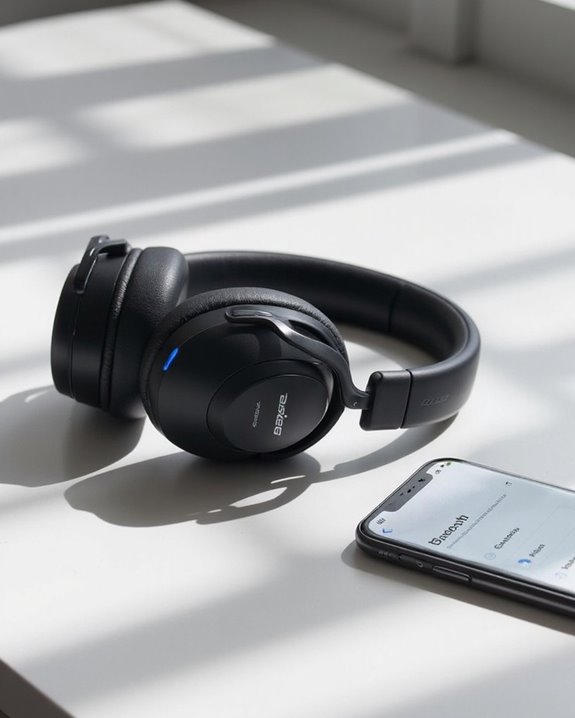
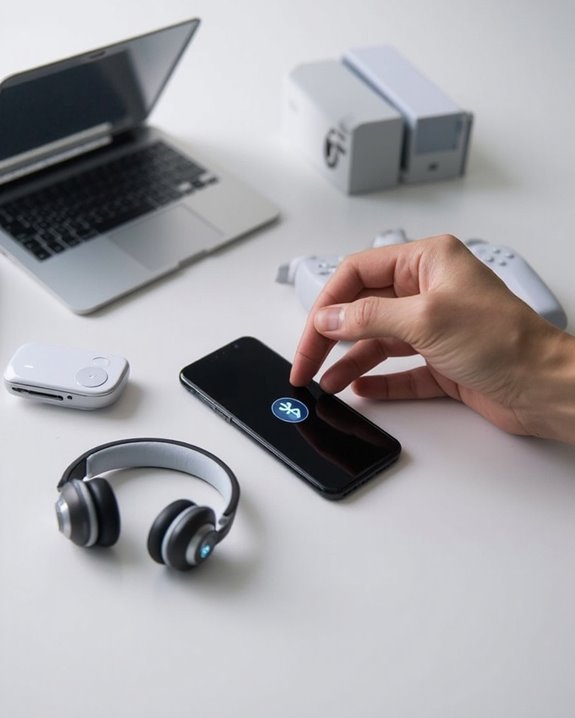
The pairing process reaches its most valuable stage when linking Bose QuietComfort headphones with smartphones and tablets. After activating pairing mode by sliding and holding the Power/Bluetooth switch until the blue light blinks, users must enable Bluetooth on their mobile device.
For iOS tips, navigate to Settings and toggle Bluetooth to green. Android hacks include using Quick Settings by swiping down from the screen top. Both platforms require selecting “Bose QC” from the available devices list.
Successful connection is confirmed when:
- The blue light stabilizes or turns off
- Audio routes correctly to headphones
- Device shows “Connected” status
If connection issues occur, restart both devices, check adequate battery charge, and remove previous pairings. For persistent problems, update firmware through companion apps or perform a factory reset. Using Bluetooth 5.0 or higher can improve connection stability and range when pairing with compatible devices, enhancing the overall experience with advanced wireless connectivity.
Recommended Products

【Open Ear Bone Conduction Headphones for Safe Everyday Listening】 Enjoy music while staying aware of traffic, conversations, and surrounding sounds with these open ear bone conduction headphones. Unlike traditional wireless earbuds that block the ear canal, these bone conduction headphones keep your ears open for greater comfort and situational awareness. Perfect open ear headphones and open ear earbuds for commuting, walking, dog walking, office work, outdoor work, shopping, travel, and everyday listening, helping you stay connected to both your audio and your environment.

NOTE: If headset is too tight we suggest placing them over a ball or something of similar size/shape. Leave undisturbed for at least 24 hours. Repeat if necessary. Please also try length adjustments of either earpiece until both sides best fit you.
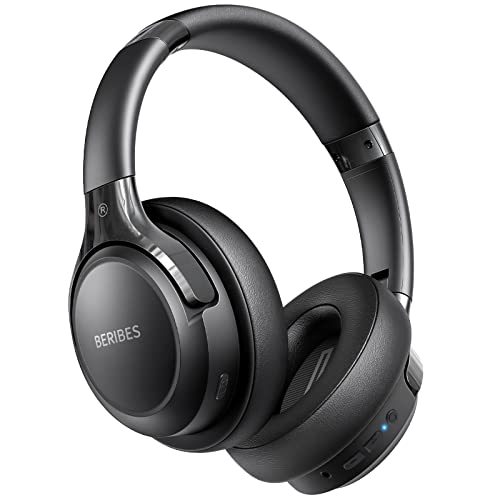
65 Hours Playtime: Low power consumption technology applied, BERIBES bluetooth headphones with built-in 500mAh battery can continually play more than 65 hours, standby more than 950 hours after one fully charge. By included 3.5mm audio cable, the wireless headphones over ear can be easily switched to wired mode when powers off. No power shortage problem anymore.
Pairing With Laptops and Desktop Computers
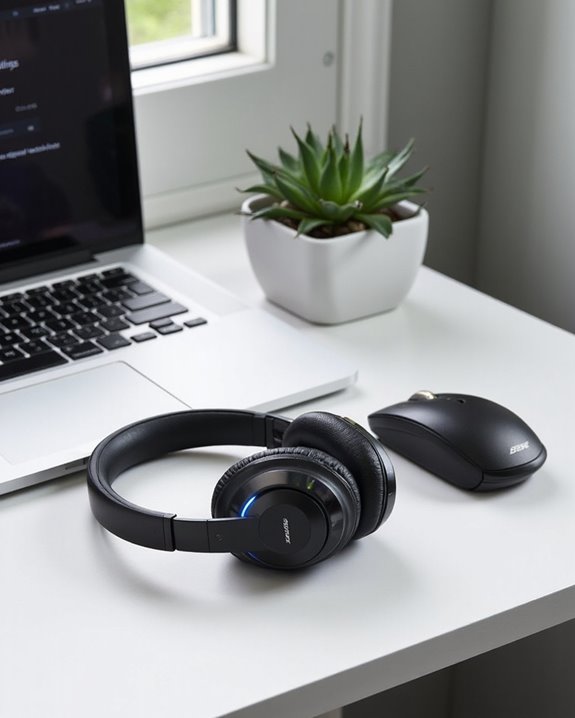
Connecting Bose QuietComfort headphones to laptops and desktop computers follows a similar yet distinct process compared to mobile devices. Users must first place their headphones in pairing mode by sliding the Power/Bluetooth switch right for 3 seconds until hearing “Ready to connect” or seeing a blinking blue light.
For Mac users, open System Settings, navigate to Bluetooth, and select the Bose headphones when they appear. Windows users should access Bluetooth settings through “Bluetooth & devices” and click “Add device” to locate their headphones.
Optimal signal strength guarantees stable audio performance and minimizes latency issues during video conferences or gaming. Users experiencing connection difficulties should update computer Bluetooth drivers, remove previously paired entries, or use a USB Bluetooth dongle for computers lacking built-in Bluetooth functionality.
Troubleshooting Connection Problems
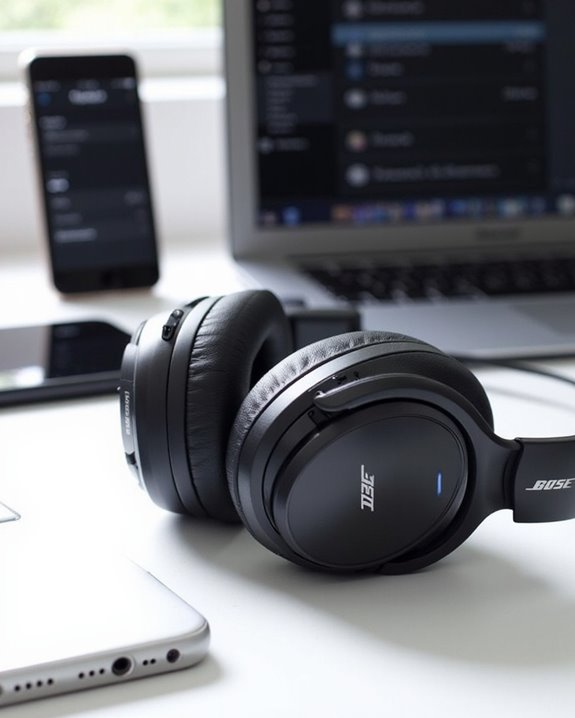
When Bose QuietComfort headphones fail to establish or maintain connections, users can implement several targeted solutions to resolve these issues. Battery troubleshooting should begin with ensuring headphones are fully charged, as low power often causes intermittent connectivity.
For persistent problems, a power cycle of both the headphones and connected device often resolves temporary glitches. Users experiencing continued difficulties should check for firmware solutions through the Bose Music App, as outdated software commonly causes compatibility issues.
Environmental factors like Bluetooth interference from nearby devices or physical obstacles can greatly impact connectivity. In cases where multiple devices are paired, managing these connections through the app prevents conflicts. For severe problems, performing a hard reset may be necessary, restoring factory settings while clearing problematic configurations.
Recommended Products
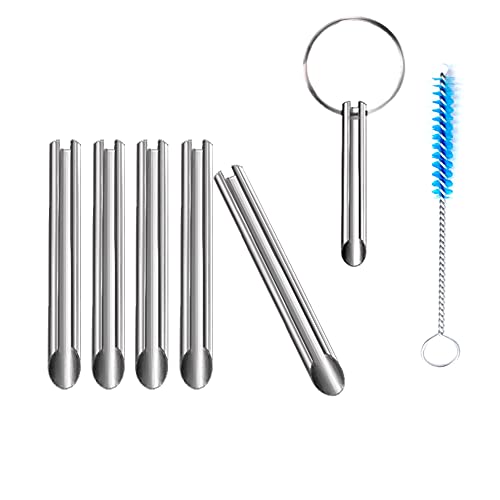
🛠️Applicable To :all models of mobile phones, pads and computers headphone jack, built to easily remove broken 3.5mm headphone plugs from jacks.
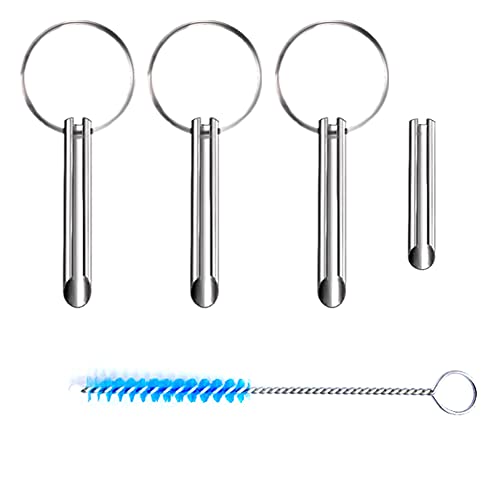
Applicable To:models of mobile phones, ipads and computers headphone jack, is built to easily remove broken 3.5mm headphone plugs from jacks.

[Foldable and Lightweight] The Bluetooth neckband headphones is foldable and lightweight, more flexible and convenient, the attached premium carrying case can protect the headphones from damage and it’s easy to carry in your bag or pocket, provide you with wonderful handsfree experience. The headphones is also sweatproof, great for outdoor sports exercise and indoor entertainment.
Managing Multiple Device Connections
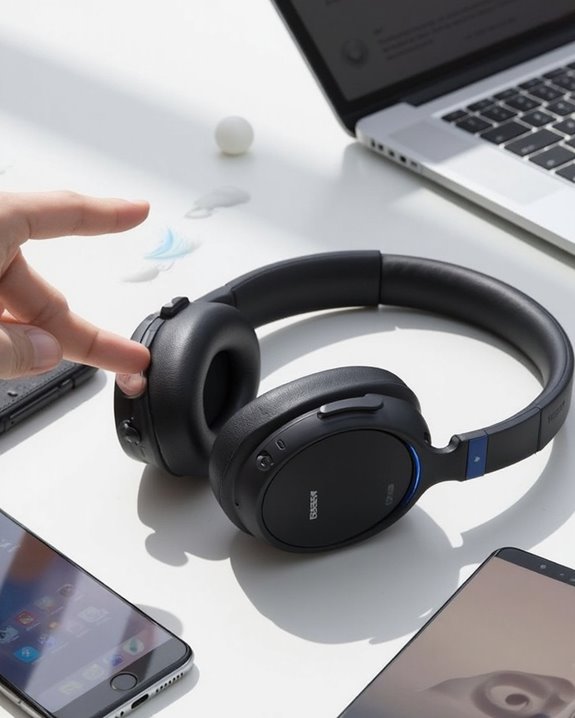
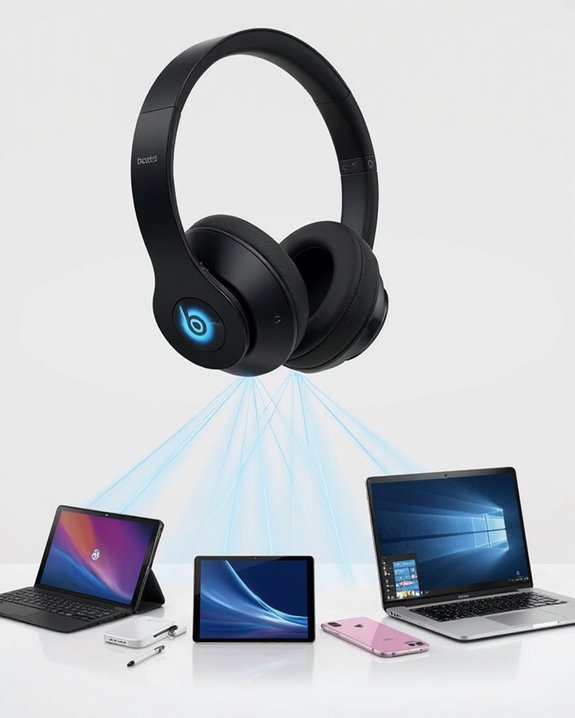
Bose QuietComfort headphones offer varying levels of multi-device connectivity, depending on the specific model owned. The original QuietComfort Earbuds support Bluetooth Multipoint technology, allowing simultaneous connection to multiple devices without disconnecting and reconnecting each time.
The Multipoint Benefits include seamless switching between devices using either the Bose app or the Bluetooth button on the charging case. This feature enhances productivity for users who frequently switch between smartphones, tablets, and computers.
Firmware Requirements must be met to utilize multipoint functionality. Users need Bose app versions iOS 5.0.2 or Android 5.0.1 and firmware update 2.0.7 or newer. QuietComfort Earbuds II owners, however, lack multipoint capability and must manually disconnect from one device before connecting to another, despite remembering up to seven paired devices.
Recommended Products

ALL DAY COMFORT: Light and compact to give you all-day comfort and designed for the ideal fit, for an exceptional all-round listening experience.

Each earbud delivers 5.5 hours of playtime, and the compact charging case extends total listening to 20 hours — enough to cover a full workweek of daily commutes without hunting for an outlet.

2-in-1 Charging Case and Phone Stand: Enjoy hands-free viewing without the hassle. Simply open the back panel of the case, place your phone on the stand, and catch up on your favorite shows—watching while traveling has never been easier!
Frequently Asked Questions
Will Pairing Affect My Headphones’ Battery Life?
“A stitch in time saves nine.” Pairing itself causes minimal battery efficiency impact. While the pairing process creates slight pairing drain, factors like noise cancellation and volume levels affect battery life more considerably.
Can I Pair My Quietcomfort Headphones With Gaming Consoles?
QuietComfort headphones offer limited gaming compatibility with consoles. The gaming variant connects via 3.5mm cable to reduce console latency. Standard models may require adapters, particularly for Xbox systems with restricted Bluetooth support.
How Do I Reset My Bose Quietcomfort Headphones to Factory Settings?
When Amy’s QuietComfort headphones experienced persistent connectivity issues, she needed a factory reset. The standard Reset Procedure involves holding the power/Bluetooth button for 30 seconds, completing a full Data Wiping of paired devices and settings.
Do Quietcomfort Headphones Work With Smart TVS?
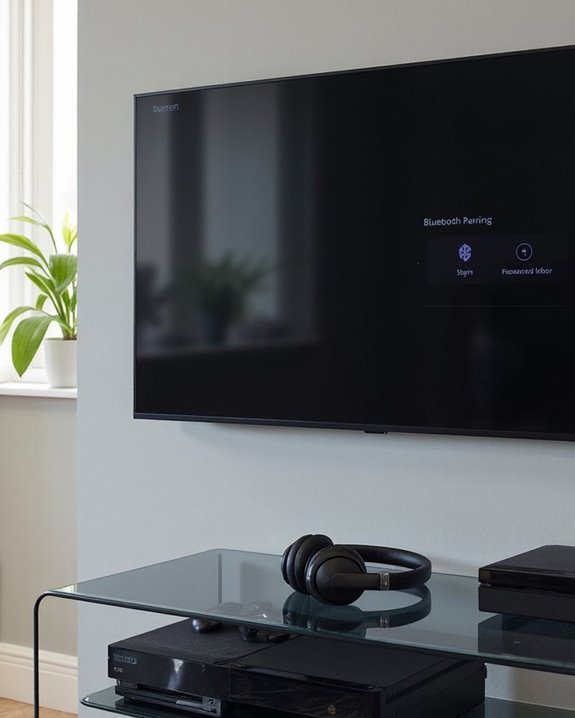
QuietComfort headphones are compatible with smart TVs that have Bluetooth capabilities. For TVs without built-in Bluetooth, users can utilize Bluetooth adapters to establish connection while maintaining excellent audio quality during viewing sessions.
Can I Use Voice Assistants While Paired With Multiple Devices?
Like a conductor who can only lead one orchestra, Bose QuietComfort earbuds experience Assistant Conflicts when paired with multiple devices. Users can access voice features solely from the currently connected device in a Multi Device Voice setup.