As an Amazon Associate, we earn from qualifying purchases. Some links on this site are affiliate links at no extra cost to you. Our recommendations are based on thorough research and editorial judgment.


How to Connect Beats Headphones to Your Iphone

Connecting Beats headphones to an iPhone requires just a few simple steps. First, make sure both devices are charged and within close proximity. Enable Bluetooth on the iPhone through Settings. Next, place the Beats headphones in pairing mode by pressing the power button for 3-5 seconds until the indicator light flashes. Select the Beats device from the iPhone’s Bluetooth menu and tap to connect. The detailed guide below offers solutions for any connectivity challenges.
Key Takeaways
- Enable Bluetooth on your iPhone via Settings, ensuring the toggle switch shows green.
- Place your Beats headphones in pairing mode by pressing the power button for 3-5 seconds until lights flash.
- Select your Beats device from the available Bluetooth devices list on your iPhone.
- Confirm the connection when prompted and verify it shows “Connected” status.
- Test audio playback to ensure successful pairing and maintain proximity within 30 feet.
Preparing Your Devices for Pairing
You may be interested
Can You Connect Bluetooth Headphones to PS5?
May 26, 2025
Before establishing a Bluetooth connection between Beats headphones and an iPhone, proper preparation of both devices guarantees a smooth pairing process. Ensuring adequate Battery Charging is critical; Beats headphones should be fully charged prior to initiating the pairing sequence.
Device Proximity plays a major role in connection stability. Position the headphones adjacent to the iPhone while maintaining distance from potential interference sources such as wireless routers, microwaves, and other Bluetooth devices.
Additional preparation steps include:
- Verifying model compatibility between the Beats headphones and iPhone
- Adjusting volume levels on both devices to facilitate detection
- Accessing the iPhone to enable notification reception
- Placing devices on a stable surface in an interference-free environment
These preliminary measures greatly reduce connection issues and streamline the pairing process. Utilizing headphones with Bluetooth 5.3 technology can enhance connection range and stability during pairing.
Recommended Products

Open-ear Design Brings All-day Comfort: Ortizan wearable stereo sports headphones have a fully innovative open design. You don’t need to enter the ear canal, you can cradle your ears comfortably and enjoy unparalleled listening. Excellent fit can reduce the pressure after wear so that you can expand the use and not damage the comfort. Made of aviation-grade liquid silicone material, the whole machine weighs only 19 grams, making it comfortable to wear when traveling.

AI Music Creation with the Boean App: Bluetooth headphones can connect to the Boean app, which features a variety of built-in instruments and sound effects, as well as customizable melody templates. This provides users with a personalized music creation experience, allowing you to easily create, edit, and share your own unique musical compositions. Ideal for creating workout playlists, editing training background music, or generating unique running soundtracks on the go via the Boean App.

JBL Pure Bass Sound: The JBL Tune 720BT features the renowned JBL Pure Bass sound, the same technology that powers the most famous venues all around the world.
Activating Bluetooth on Your Iphone
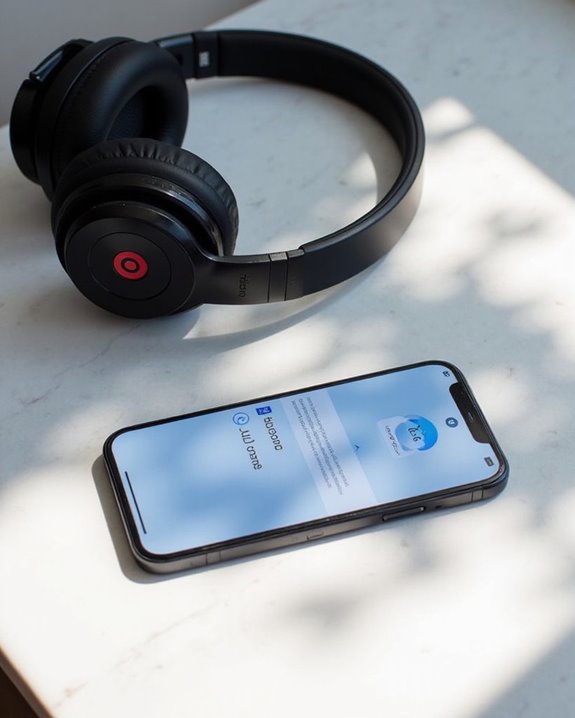
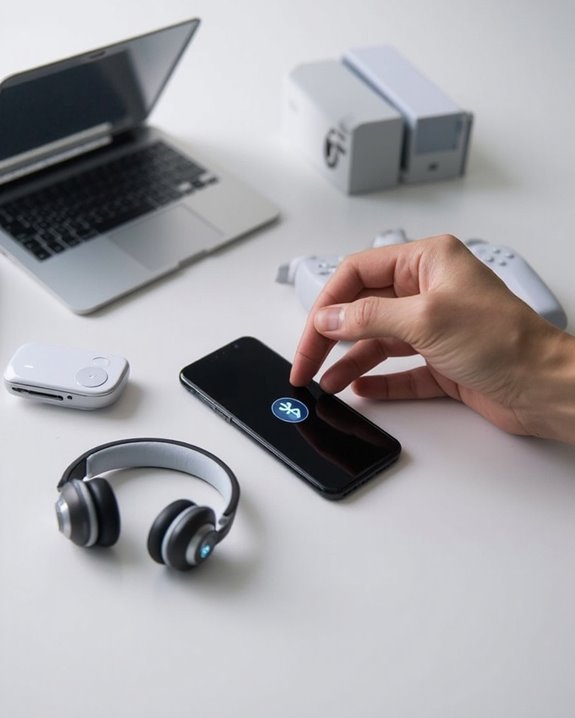
Enabling Bluetooth on an iPhone represents the essential first step when connecting Beats headphones or any wireless audio device. Users can access this feature by opening the Settings app and selecting “Bluetooth” from the menu options. The interface displays a toggle switch that turns green when activated, confirming successful enablement.
The status bar displays a Bluetooth icon when the feature is active, serving as a continuous reminder. Users should remain on the Bluetooth settings page to view available devices, including their Beats headphones, which typically appear under “Other Devices” when in pairing mode.
While Bluetooth connectivity provides wireless convenience, users should be mindful of potential Battery Drain. The various Indicator Lights on both the iPhone’s interface and Beats headphones help confirm proper connection status throughout the pairing process. Unlike wireless options, wired Lightning headphones provide stable connectivity without battery concerns, eliminating the need for charging during use.
Placing Beats Headphones in Pairing Mode
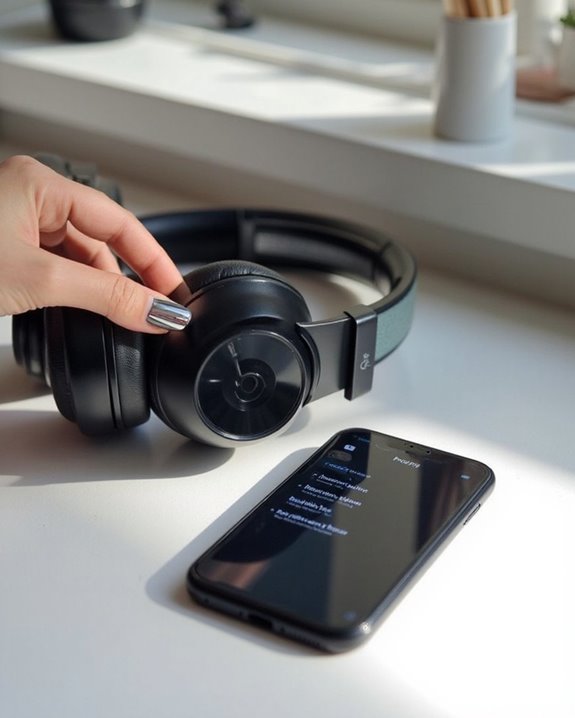
Once the iPhone’s Bluetooth function is active, users must place their Beats headphones in pairing mode to establish a connection. This process varies slightly across different models but follows a consistent pattern.
For most Beats headphones, Manual Activation requires pressing and holding the power or system button for 3-5 seconds until indicator lights begin flashing white or blue. Audio Cues such as repeating tones confirm successful pairing mode entry on select models like Beats Pill speakers.
Specific model instructions:
- Beats Solo3/Studio3: Hold power button for 5 seconds
- Beats Fit Pro/Studio Buds+: Place in open case, press system button
- Solo Buds: Hold button on either earbud until tone repeats
- Beats Flex: Press power button on right control module
If pairing mode fails to activate, make sure headphones are charged before retrying. Many newer earbuds now feature LED battery displays to help monitor charge status during this process.
Completing the Connection Process

After Beats headphones enter pairing mode, they should appear in the iPhone’s Bluetooth device list, ready for the final connection steps. Users should tap the headphones’ name and watch for the status to change to “Connected,” which confirms successful pairing.
Once connected, the iPhone automatically routes audio to the Beats headphones and may display battery status information on screen. For best signal strength, users should remain within 30 feet of their iPhone and avoid interference sources like Wi-Fi routers.
The connection is now secure, with pairing data stored for automatic reconnection in future use. To guarantee best performance, users should check for firmware updates through the Beats app, which can enhance connectivity features and resolve potential connection issues that might arise during regular use.
Automatic Reconnection Features
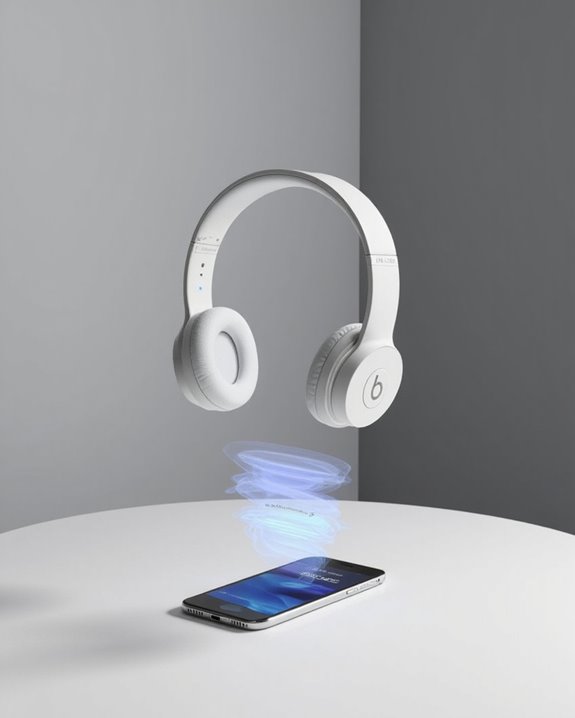
The convenience of Beats headphones extends well beyond the initial pairing process through their sophisticated automatic reconnection capabilities. Powered by Apple’s H1 chip in select models, these headphones detect previously paired iPhones when in Wireless Range and connect without manual intervention.
Proximity detection enables seamless switches between Apple devices, automatically switching audio connections when needed. This functionality requires Bluetooth to be enabled on both devices and benefits from minimal interference in the environment.
Power Management plays a vital role in maintaining reliable automatic reconnection. Keeping Beats headphones adequately charged guarantees consistent connectivity performance. Users experiencing reconnection issues should check battery levels and place earbuds in their charging case to reset the connection.
For ideal performance, installing the latest firmware updates on both the headphones and iPhone is essential, as these updates often enhance automatic reconnection reliability.
Troubleshooting Common Connection Issues
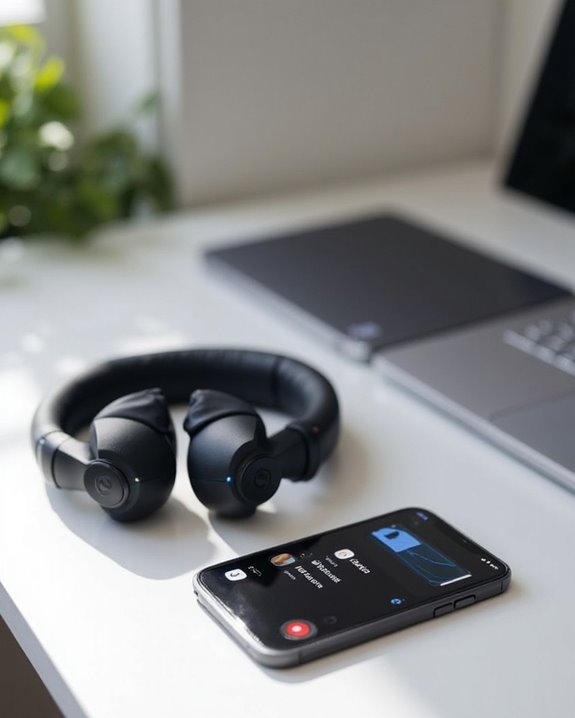
Despite their advanced technology, Beats headphones occasionally encounter connectivity challenges that prevent seamless pairing with iPhones. Environmental Factors often contribute to these issues, including wireless congestion and physical obstructions that disrupt Bluetooth signals.
When connection problems arise, make sure both devices are adequately charged and within the recommended 30-foot range. Toggle Bluetooth off and on in iPhone settings, and verify no other devices are monopolizing the connection.
Compatibility Issues may stem from outdated software. Keep both iPhone iOS and Beats firmware current to maintain best functionality. If problems persist, perform a device reset by holding the power and volume buttons for 10 seconds until indicator lights flash.
For stubborn connectivity issues, forget the Beats device in iPhone Bluetooth settings before attempting to re-pair following manufacturer instructions.
Recommended Products

【Enjoy Wireless Streaming Music】This car Bluetooth adapter can be connected to non-Bluetooth car audio systems, home stereos, speakers, wired headphones via the 3.5mm AUX adapter; And equipped with a Bluetooth 5.0 chip for stable connection / fast transmission / wide signal range. Just pair it with your phone and start listening to your favorite music!

User-Friendly: Connect your wireless headphones to your PS5 or other gaming consoles with the UGREEN adapter and enjoy high-quality audio with no wires, drivers, or software required. Also Add Bluetooth audio capability (AUDIO devices ONLY, no data) with ease to your Desktop, Computer, iMac

Turn Your Wired Earphones, Headphones & Speakers into Wireless Devices!
Optimizing Audio Settings for Best Sound Quality
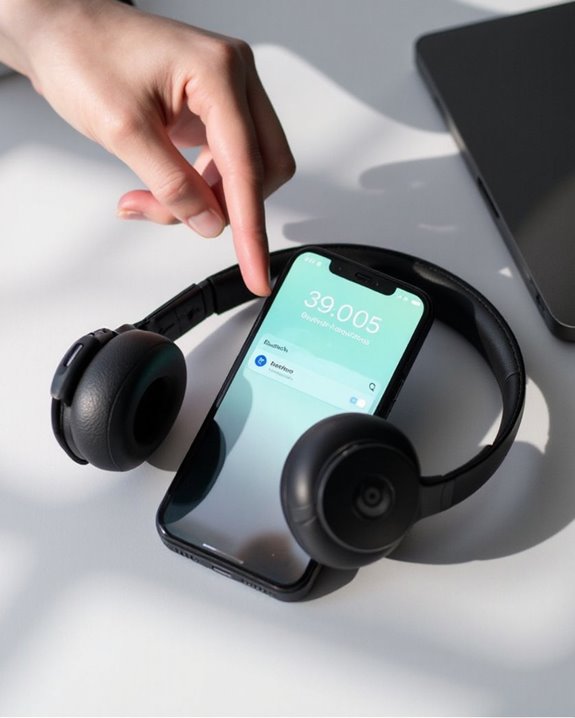
Once your Beats headphones successfully connect to your iPhone, maximizing sound quality becomes the next priority. Users can access Audio Customization options through Settings > Accessibility > Audio & Visual > Headphone Accommodations, where they can follow the Custom Audio Setup for personalized sound profiles.
For EQ Optimization, navigate to Settings > Music > EQ and select from various presets. The “Late Night” option works particularly well with Beats Solo 3, boosting quieter sounds without distortion. Users seeking enhanced bass can select the “Bass Booster” preset instead.
To maximize volume output, adjust the Volume Limit under Music settings. When using ANC-capable Beats models, toggle between Active Noise Cancelation and Transparency modes depending on the environment, further refining sound through Headphone Accommodations for ideal listening experiences.
Recommended Products

【Extremely Comfortable to Wear】: Wrap your child's ears in cloud-like softness! Dr.meter noise cancelling headphone is made of premium memory foam cores with PU leather padding, creating a breathable seal that stays cozy during monster jams, fireworks, concerts, or even long-term sports events. Designed for providing comfortable wearing—no itching or pressure marks!
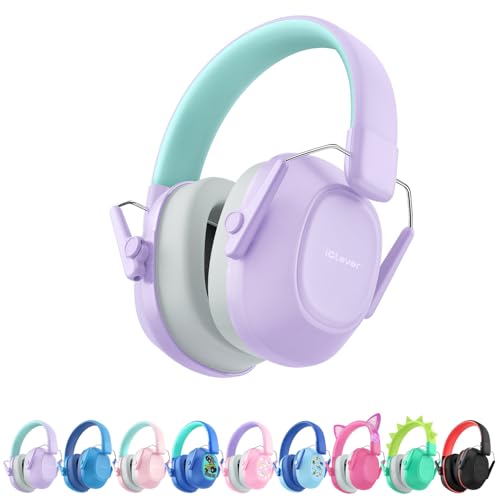
【Double-Certified Safety】Certified to ANSI S3.19-1974 & CE EN 352-1 for reliable hearing protection. We combined the 22mm porous sound-absorbing sponge and custom-made honeycomb acoustic sponge together to absorb and reduce noises while ensuring comfy wearing, achieving an SNR of 29dB and offering reductions up to 46dB under certain scenarios. Please note that earmuffs cannot 100% eliminate noise.

NOISE CANCELLING HEADPHONES: Effortlessly combines noise cancellation technology with passive features so you can shut off the outside world, quiet distractions, and take music beyond the beat
Using Siri With Your Beats Headphones
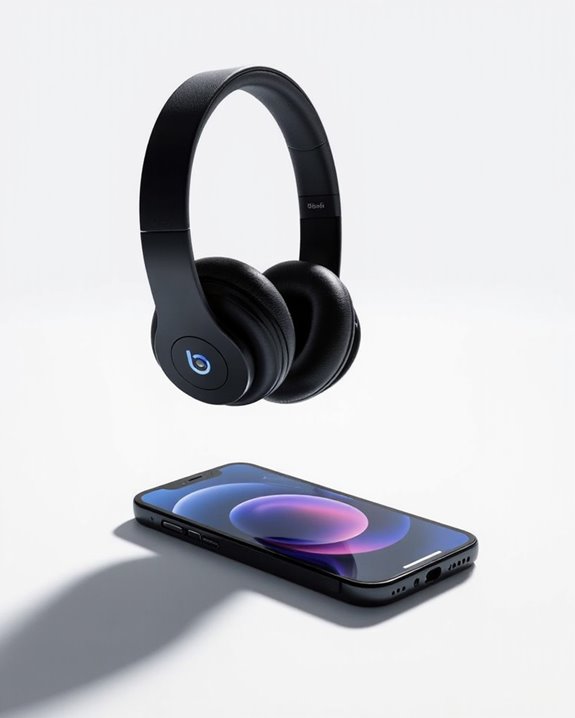
Integrating Siri with Beats headphones elevates the hands-free experience for iPhone users, creating a seamless connection between audio hardware and Apple’s virtual assistant. Compatible models like Beats Fit Pro feature the Apple H1 chip, enabling activation through a simple “Hey Siri” command without touching the iPhone.
This hands-free usage capability streamlines multitasking, allowing users to manage music playback, answer calls, or set reminders while engaged in other activities. For ideal functionality, make sure your iPhone runs iOS 14 or later and maintains a stable Bluetooth connection with your headphones.
Multitasking tips include using Siri to switch between Apple devices automatically or share audio with friends who have compatible Beats or AirPods. Should connectivity issues arise, verify that firmware updates are installed on both devices.
Managing Multiple Device Connections
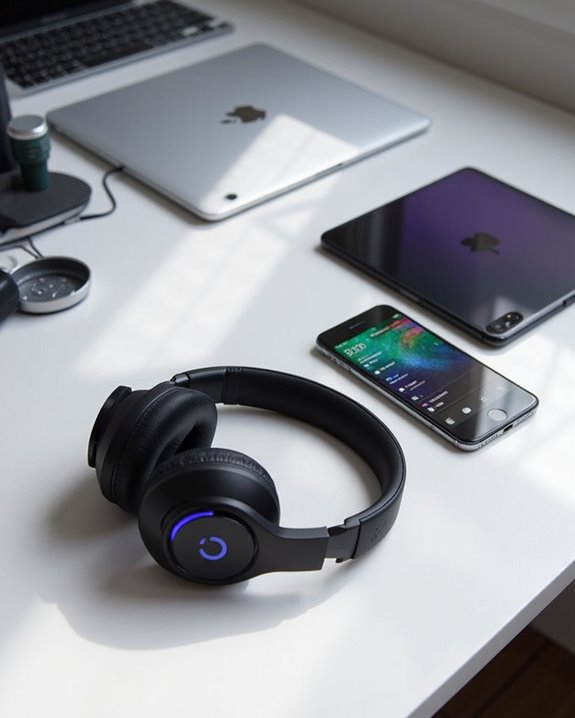
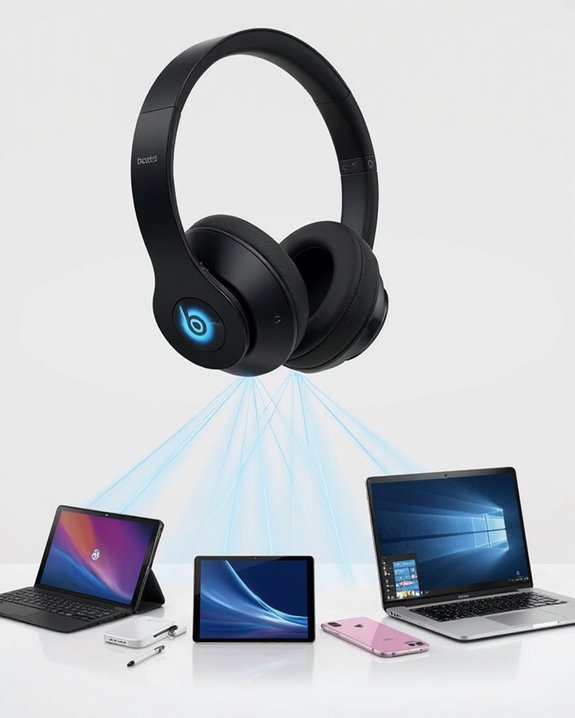
While Apple designed Beats headphones primarily for one-to-one connections, iOS 13 and later versions offer robust options for managing multiple device connections simultaneously. The Audio Sharing feature allows two compatible Beats headphones to connect to a single iPhone without additional hardware. Users can control volume levels independently through the Control Center.
For connecting non-compatible Beats models, third-party solutions provide Adapter Compatibility options. Devices like the AirFly Pro enable multiple headphone connections through the iPhone’s audio port, extending functionality beyond Apple’s ecosystem.
When switching between multiple paired devices, users should note that the iPhone remembers previous connections. For best performance, both devices must remain within 30 feet of the source iPhone, and only two sets of headphones can be connected at once through native iOS sharing.
Recommended Products

Wireless Freedom - Say goodbye to tangled cords with the Twelve South AirFly. Listen to audio from in-flight entertainment, gym equipment, gaming devices, or any 3.5mm audio jack to your AirPods, earbuds, or wireless headphones.

【HDMI Audio Extractor】The HDMI audio extractor can extract audio from HDMI signal and transmit it to AV receiver through optical or 3.5mm Cable.(Note: Devices do not support ARC and eARC.TV is not supported as the input source,otherwise product doesn't p video.)
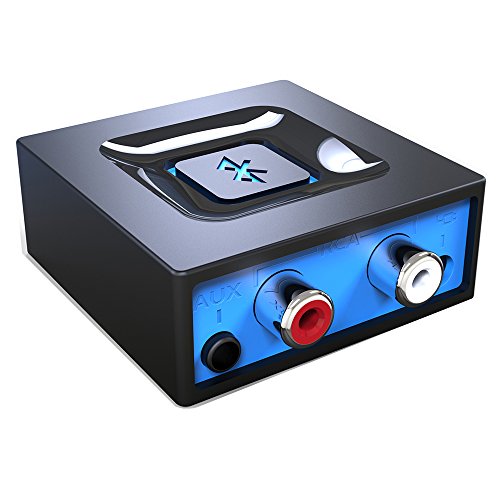
Listen music wireless: Connect with computer speakers, home stereo systems or other speaker systems via the 3.5 mm or RCA cable, then pair with the Bluetooth audio devices such as smartphones or tablet for streaming music.
Caring for Your Beats to Ensure Reliable Connectivity
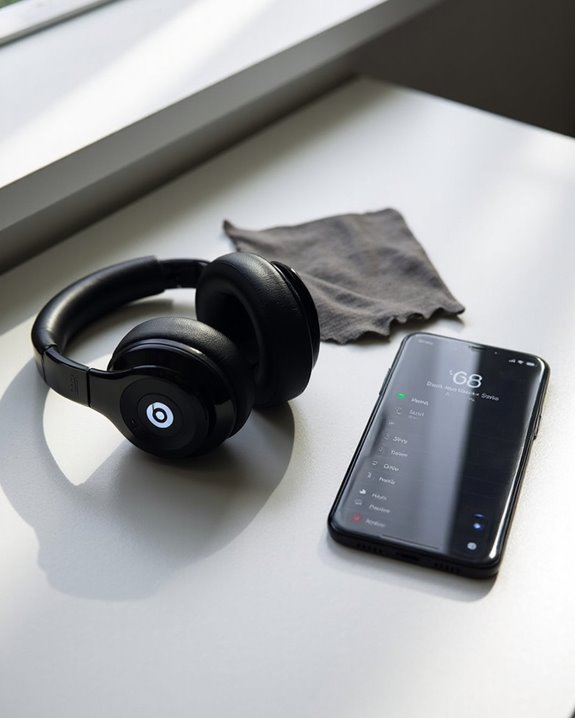
Proper maintenance of Beats headphones plays an essential role in preserving their connectivity performance with iPhones. Regular ear pad cleaning with a dry cloth prevents dust and oil buildup that can interfere with audio quality and connection stability. For deeper cleaning, use a slightly damp cloth with mild soap, guaranteeing thorough drying afterward to prevent moisture damage.
Battery maintenance greatly impacts connection reliability. Users should charge with official cables, avoid overcharging, and maintain moderate battery levels during extended storage periods. Keeping charging ports clean ensures stable power delivery.
Additional maintenance practices include:
- Installing firmware updates regularly
- Storing headphones in protective cases
- Avoiding exposure to extreme temperatures
- Promptly drying after sweat or moisture exposure
- Inspecting cables and connectors for wear
Following these care guidelines helps maintain ideal Bluetooth connectivity between Beats and iPhones.
Recommended Products
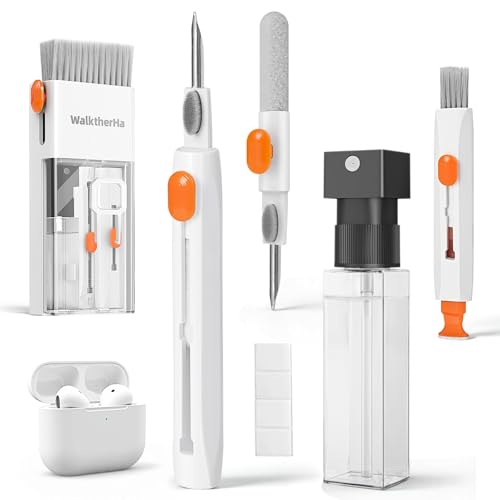
Professional & Powerful: Say goodbye to dirt, grime, and earwax with our 20-in-1 AirPod Cleaner Kit. The metal tip cleans small crevices, sound holes, and charging ports, while the soft brush with high-density bristles gently cleans speaker mesh. The flocking sponge is perfect for earpods charging cases. Airpods cleaning kit also includes a 15ml screen cleaner spray, microfiber cloth, and Airpod cleaning putty for thorough maintenance, preventing build-up and ensuring peak performance

32-IN-1 ALL-IN-ONE SET – One compact kit cleans your iPhone, AirPods, iPad, MacBook, keyboard, earbuds and camera lens, so you stop buying separate tools.

【UPGRADED LAPTOP CLEANING KIT 】 The macbook cleaning kit computer screen cleaner comes with a number of accessories including a retractable large brush, polishing cleaning cloth X 2, keycap puller, metal pen tip, flocking sponge, thin soft brush, soft plastic lens cleaning pen, 5 replacing cloth, large cleaning microfiber cloth. You deserve the comprehensive computer cleaning kit keyboard vacuum at a low cost
Frequently Asked Questions
Can I Connect Beats Headphones to My Iphone During Airplane Mode?
Yes, Beats headphones can connect to iPhones during Airplane Mode. Users need to enable Bluetooth after activating Airplane Mode. This Mode Compatibility guarantees continued audio functionality while maintaining Airplane Bluetooth connectivity during flights.
Will My Beats Headphones Work With Older Iphone Models?
Like autumn leaves seamlessly blending with trees, most Beats headphones will work with older iPhones. Wired models offer universal compatibility while wireless ones require appropriate iOS compatibility and Bluetooth Model Support to function properly.
Can I Share Audio Between Two Beats Headphones From One Iphone?
Yes, Audio Sharing is available for compatible Beats headphones paired with iPhone 8 or later running iOS 13+. Dual pairing allows simultaneous listening with independent volume control for each headset through the Control Center.
How Long Does the Bluetooth Connection Range Extend Between Devices?
Like an invisible tether between digital companions, standard Bluetooth range extends approximately 30 feet unobstructed. Signal obstacles such as walls and electronics can greatly reduce this distance, while Class 1 devices offer enhanced connectivity reach.
Do Water-Damaged Beats Headphones Still Connect Properly to Iphones?
Water-damaged Beats headphones typically experience connectivity issues with iPhones. Internal Bluetooth components may be compromised, making pairing unreliable or impossible. Repair options exist for minor exposure, but severe water damage often requires complete replacement.