As an Amazon Associate, we earn from qualifying purchases. Some links on this site are affiliate links at no extra cost to you. Our recommendations are based on thorough research and editorial judgment.

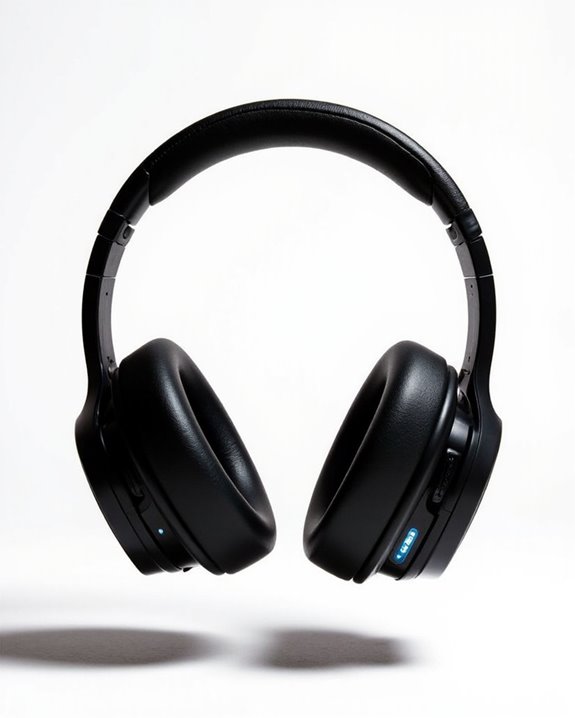
How to Connect Beats by Dre Wireless Headphones

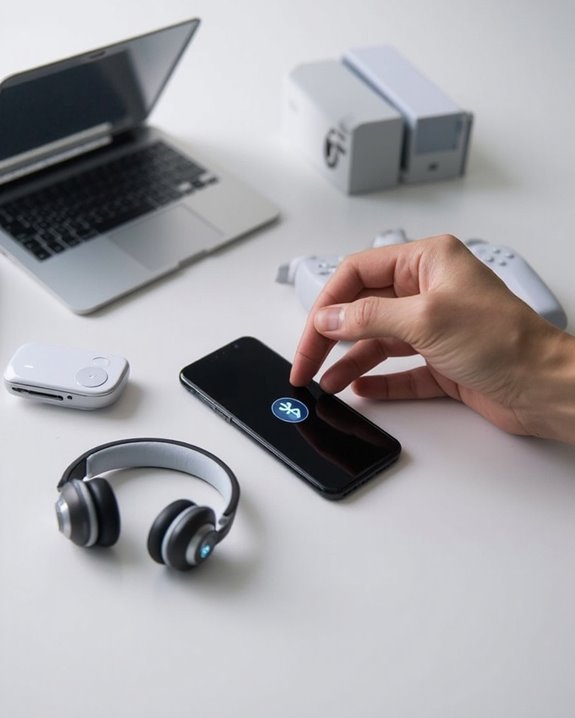
To connect Beats wireless headphones, first make sure they’re charged and put them in pairing mode by holding the power button until LED indicators flash. On your device, open Bluetooth settings and select your Beats model from available devices. For Apple products, the process may be streamlined with automatic detection if your headphones feature the H1 chip. Proximity matters—keep devices within 30 feet for stable connection. The sections below offer model-specific instructions and troubleshooting tips.
Key Takeaways
- Put your Beats headphones in pairing mode by holding the power button until indicator lights flash.
- Open Bluetooth settings on your device and select your Beats headphones from the available devices list.
- Ensure both devices are within 30 feet of each other and fully charged before attempting to pair.
- For Apple devices, Beats with H1 chip enable automatic pairing when placed near your unlocked iPhone.
- If connection fails, reset your headphones by holding the power button for 10 seconds and try pairing again.
Understanding Beats Headphone Models and Connectivity Features
You may be interested
Can You Connect Bluetooth Headphones to PS5?
May 26, 2025
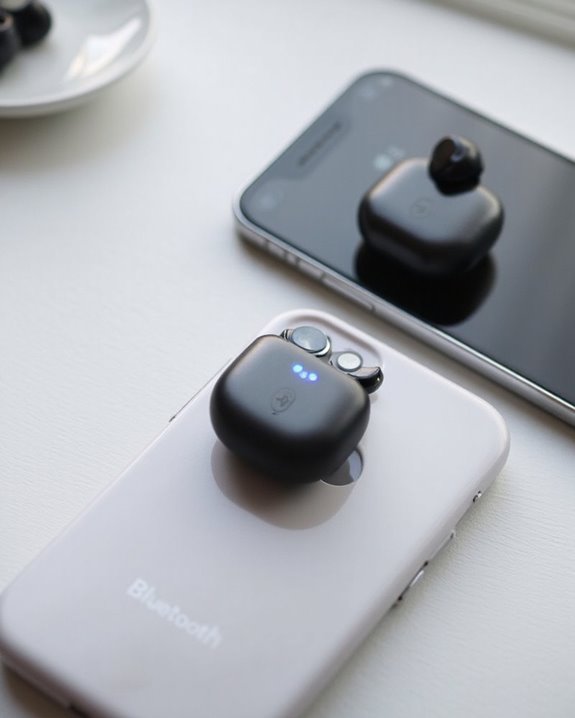
Beats by Dre offers five distinct wireless headphone models, each designed for specific user needs and preferences. The lineup includes the Studio Pro Wireless featuring advanced Noise Cancellation technology, the workout-friendly Powerbeats Pro with IPX4 water resistance, and the compact Studio Buds+ with improved performance.
For Apple users, models equipped with the H1 chip like the Beats Fit Pro provide seamless device pairing and Spatial Audio capabilities. All wireless headphones utilize Bluetooth connectivity with approximately 30-foot range and support multi-device pairing.
Battery Life varies considerably across the collection, with Powerbeats Pro offering up to 11 hours of continuous playback. Most models include charging cases for extended use and feature quick charging capabilities to minimize downtime during active use or travel. The Studio Pro Wireless also delivers 40 hours of battery life combined with thunderous bass-heavy sound for power and endurance.
Recommended Products

All-Day Comfort & Premium Design: Crafted with high-quality materials, these over-ear wireless headphones combine luxury with long-wearing comfort. The adjustable headband ensures a secure fit for all head sizes, while ultra-soft memory foam ear cups minimize pressure. Lightweight and ergonomic, they're ideal for work, travel, or leisure—keeping you comfortable even during extended use

NOISE CANCELLING HEADPHONES: Effortlessly combines noise cancellation technology with passive features so you can shut off the outside world, quiet distractions, and take music beyond the beat

Powerful Noise Cancelling Technology: KVIDIO Active noise cancelling headphones block out up to 95% of ambient noise. It could be a lifesaver from TV, podcasts, and traffic noise while studying or working from home, so you concentrate on what’s important to you
Pre-Pairing Checklist: What You Need Before Getting Started
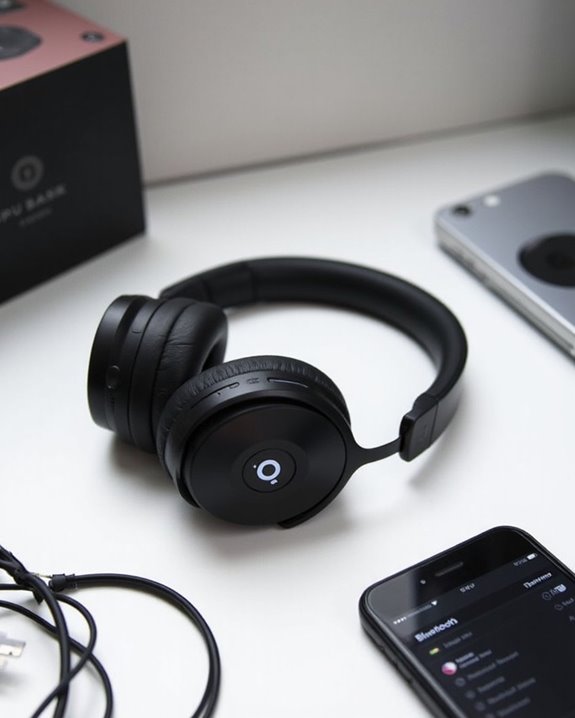
Before initiating the connection process for your wireless headphones, ensuring proper preparation can greatly improve pairing success and prevent common frustrations. Power Readiness is essential—verify that your Beats headphones have sufficient charge to complete the pairing process without interruption.
Create an ideal connection environment by enabling Bluetooth on all devices and keeping them within close proximity. Interference Avoidance should be prioritized by removing competing Bluetooth signals from nearby electronics and establishing a clear line-of-sight between devices.
Confirm device compatibility by checking that your smartphone, tablet, or computer supports the latest Bluetooth standards. For computers without built-in Bluetooth capabilities, consider purchasing an external adapter to enable wireless connectivity.
Additionally, understanding Bluetooth 5.4 technology can enhance your connection experience by providing faster and more reliable pairing.
Recommended Products

Bluetooth 5.4 + Broad Compatibility - Provides Bluetooth 5.4 plus EDR technology and is backward compatible with Bluetooth V5.3/5.0/4.2/4.0/3.0/2.1/2.0/1.1.

Bluetooth 5.4 Technology: This USB Bluetooth adapter features Bluetooth 5.4 technology, delivering faster data transfer speeds and a more stable connection compared to Bluetooth 5.3.
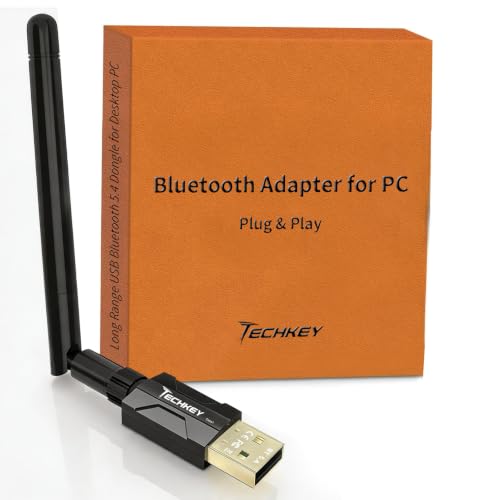
Long Range Bluetooth Adapter: Techkey USB Bluetooth 5.4 dongle utilizes Class 1 radio technology and features an extended antenna, providing a transmission range of up to 500ft/150m in open areas, ensuring that Bluetooth connections are no longer limited by distance. (Please note that physical obstructions and wireless interference may affect the actual transmission range.)
Activating Pairing Mode on Different Beats Models
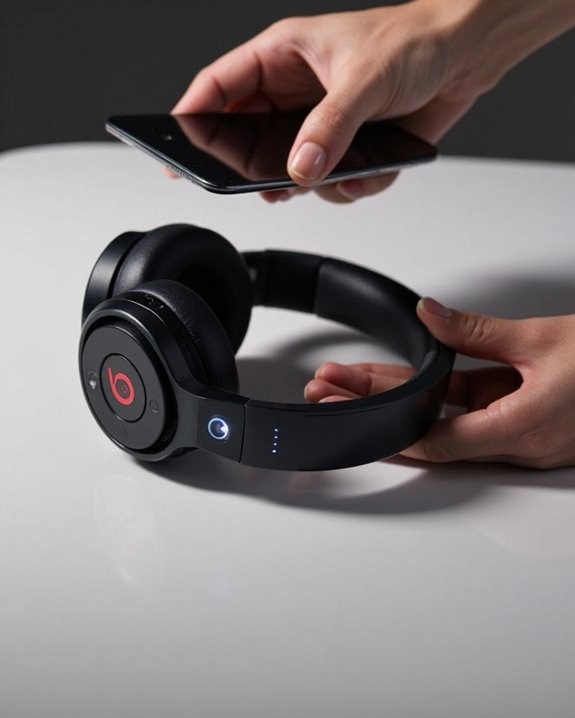
Each Beats headphone model features a unique method for activating pairing mode, though the underlying principle remains consistent across the product line. Button Methods vary by design: Studio3 and Solo3 require holding the power button for five seconds, while Beats Flex uses a similar approach until the indicator light flashes.
Powerbeats models utilize distinct pairing mechanisms. Standard Powerbeats activate via the left earbud button, whereas Powerbeats Pro require pressing the case’s internal pairing button while the lid remains open.
Light Indicators serve as visual confirmation of pairing status across all models. Studio3 and Solo3 display five flashing LEDs, while Studio Pro shows a blinking fuel gauge. Studio Buds feature an LED on the charging case that flashes to signal readiness for connection.
Recommended Products
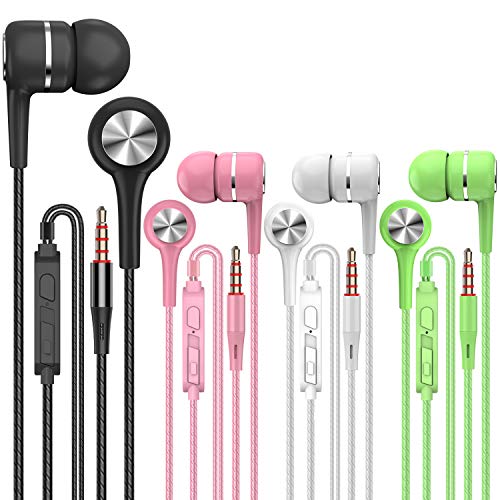
Earplugs with built-in microphones-built-in multi-function buttons and volume adjustment buttons make it more convenient for the headset to answer and control the volume. The solid sound insulation material design can reduce external noise while minimizing the sound leakage, providing you with a clear sound

80H Playtime with Dual LED Display Charging Case: Enjoy uninterrupted music with an ultra-long 80-hour battery life powered by the portable charging case. The digital display on the left clearly shows the remaining case power, while the right LED indicators display the earbuds’ charging status. Each earbud offers up to 8 hours of playtime per charge, and when used alternately with the charging case, total usage extends to an impressive 80 hours, perfect for travel, work, and extended workouts.

ALL DAY COMFORT: Light and compact to give you all-day comfort and designed for the ideal fit, for an exceptional all-round listening experience.
Connecting Beats Headphones to Apple Devices
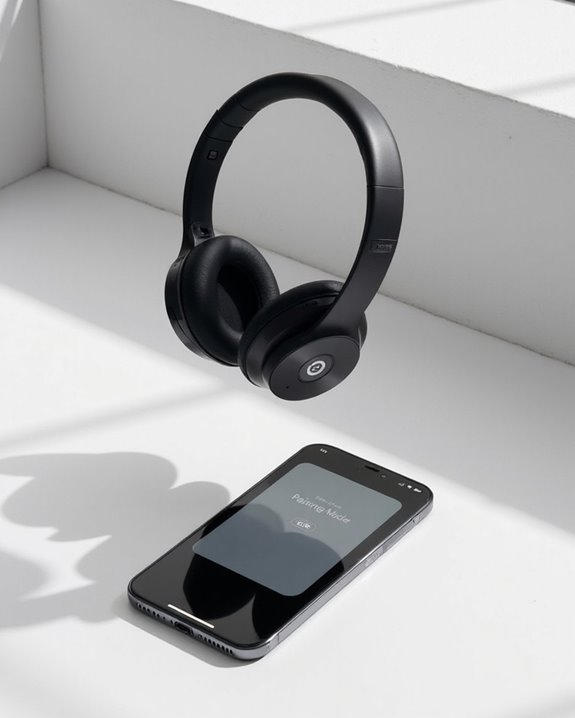
Once the headphones are in pairing mode, connecting them to Apple devices becomes remarkably straightforward thanks to Apple’s integrated ecosystem. Users simply need to open the Settings app, navigate to the Bluetooth section, and select the Beats headphones from the list of available devices.
The Apple-Beats partnership enables seamless functionality across the Apple product range. Users can enjoy Apple Watch integration, allowing for music control directly from their wrist without touching their iPhone. Additionally, CarPlay compatibility lets drivers connect their Beats headphones to their vehicle’s entertainment system for hands-free listening.
For best performance, users should keep their devices updated and within proper Bluetooth range. The Find My feature also helps locate misplaced headphones, while audio sharing enables content streaming to multiple Beats devices simultaneously.
While Beats primarily uses Bluetooth, some users may consider MFi-certified headphones for wired alternatives that provide reliable connectivity without battery concerns.
Recommended Products

SUPERIOR COMFORT — Unlike traditional circular ear buds, the design of EarPods is defined by the geometry of the ear. Which makes them more comfortable for more people than any other ear bud–style headphones.

Game Sound Field Positioning-Better Bass and Accuracy -- Letting you hear every critical step, reload, or vocal in The Legend of Zelda, Fortnite, Call of Duty, and RPG with the 50mm driver plus 2.4G lossless wireless transport. You will be amazed by the range, precision and sound quality that the headset reveals in the gaming world.

2026 Bluetooth 5.4 Technology : The wireless earbuds use the bluetooth 5.4 chipset. There is a faster and more stable signal transmission and has successfully achieved low latency without interruption. With a range of up to 15 m, whether you are at home, in the office, or on the road, you don't have to worry about disconnection of the bluetooth earbuds. Automatic pairing & compatible with multiple devices.
Pairing Beats With Android and Windows Devices
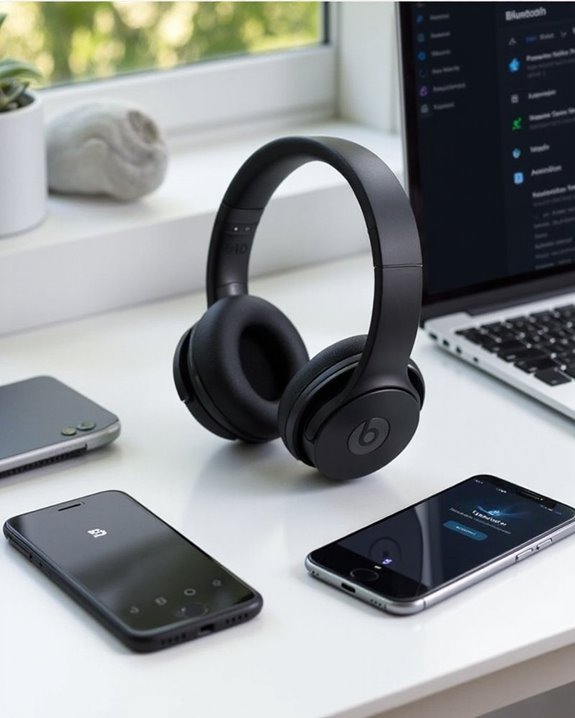
Pairing Beats headphones with Android and Windows devices requires a slightly different approach than with Apple products, though the process remains straightforward. For Android connections, users must first enable Bluetooth in the device settings—accessible through Android widgets for quicker access. Once enabled, put Beats headphones in pairing mode and select them from the discovered devices list.
Windows users follow a similar procedure, utilizing Windows shortcuts to access Bluetooth settings efficiently. Press the power button on Studio3 headphones or the appropriate button on other models until indicator lights flash. Select the headphones from the available devices menu to complete pairing.
For best connection stability, keep devices within range, minimize interference from other Bluetooth devices, and make sure both headphones and operating systems have the latest updates installed.
Recommended Products

SMARTSWITCH DUAL WIRELESS — Instantly switch between high-speed 2.4GHz or Bluetooth mode on the headset for seamless audio when hopping between PC/console and phone during use

ADVANCED BLUETOOTH 5.4 TECHNOLOGY: Features the latest Bluetooth 5.4 connectivity for faster pairing, more stable connection, and lower power consumption with smartphones, tablets, laptops, and computers
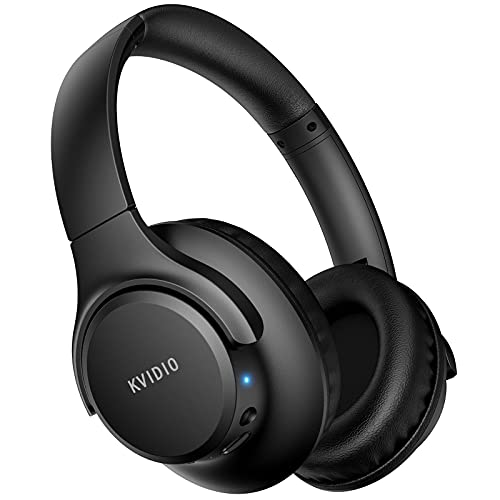
Stereo sound headphones: KVIDIO bluetooth headphones with dual 40mm drivers, offers an almost concert hall-like feel to your favorite music as close as you're watching it live. Provide low latency high-quality reproduction of sound for listeners, audiophiles, and home audio enthusiasts
Multi-Device Connection: Using Beats Across Multiple Platforms
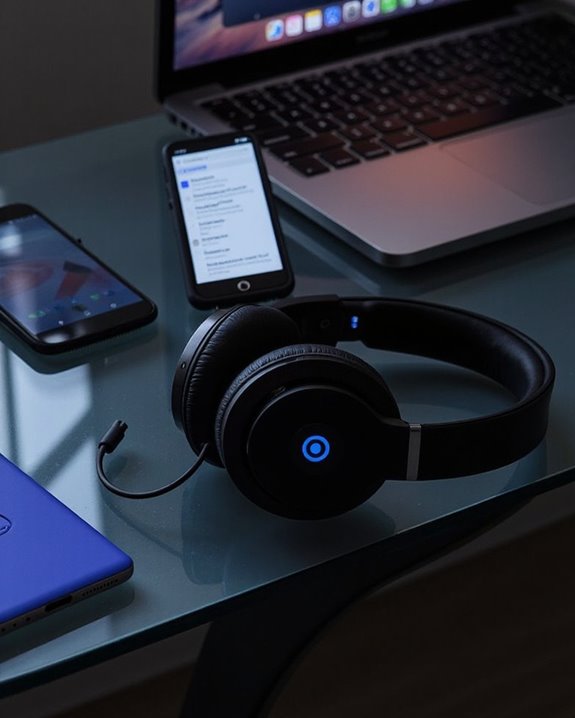
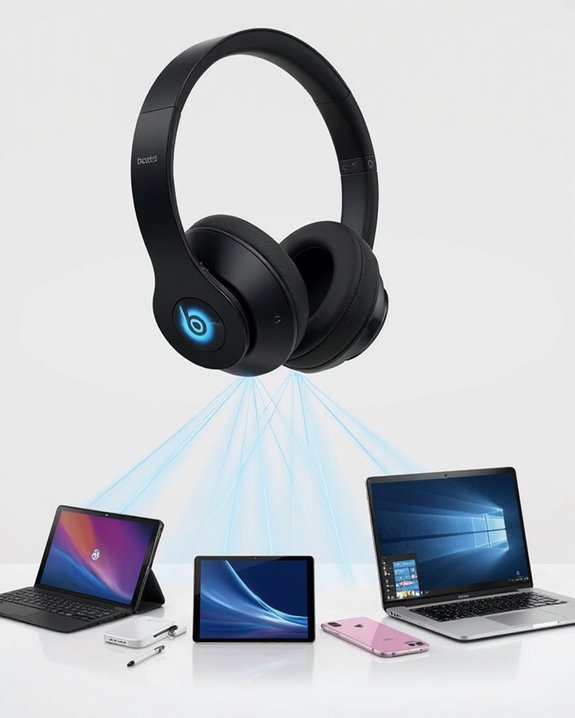
While Beats by Dre wireless headphones offer impressive audio quality, their multi-device connection capabilities have notable limitations. Most Beats models can pair with multiple devices but connect to only one at a time, requiring manual switching between sources.
Unlike headphones featuring multipoint technology, Beats requires users to disconnect from one device before connecting to another, which introduces potential Privacy Risks when switching between personal and work devices. The manual pairing process utilizes standard Bluetooth Security Protocols but lacks the seamless switch found in more advanced headphone systems.
The Audio Sharing feature offers a partial solution for social listening but doesn’t address multi-device connectivity issues. Users primarily benefit from cross-platform compatibility across iOS, Android, and Windows devices, though the experience remains constrained by the need for manual device selection.
Troubleshooting Common Connection Problems
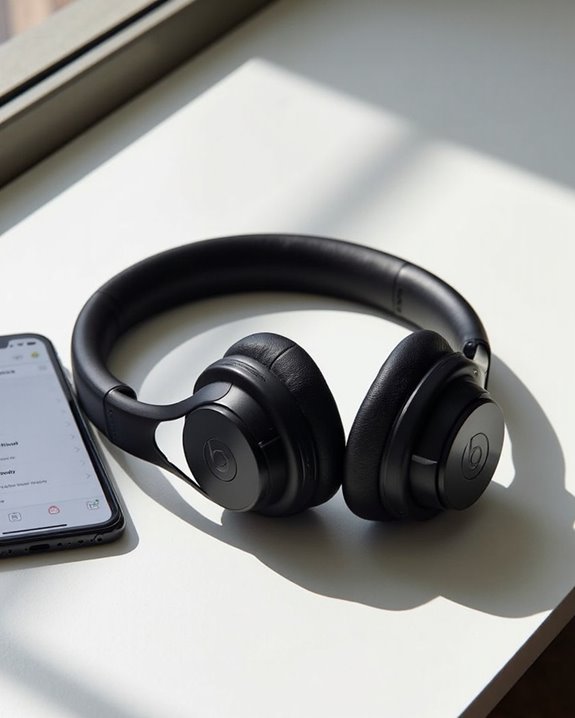
Even the most sophisticated Beats by Dre wireless headphones occasionally encounter connectivity issues that can disrupt the listening experience. Users should first verify devices remain within the recommended 30-foot Bluetooth range and away from potential signal interference sources like microwaves or other wireless devices.
Battery troubleshooting is essential when connections fail unexpectedly. Make sure headphones are adequately charged before attempting to pair, as low power can prevent successful connections. If problems persist, perform a device reset by holding the power button for 10 seconds, then attempt to pair again.
For persistent issues, users should check audio output settings on their device, making sure Beats is selected as the default output. Additionally, removing the headphones from the device’s Bluetooth list and reconnecting often resolves stubborn connectivity problems.
Optimizing Your Beats Connection for Better Performance
Once connection issues are resolved, users can focus on maximizing their Beats headphones’ capabilities. Signal boosting can be achieved by updating to the latest firmware and minimizing device interference in crowded wireless environments.
For ideal audio quality, users should select the appropriate sound profile based on their activity. The Beats Signature offers balanced tuning, while Entertainment mode enhances frequencies for gaming and movies. Conversation mode optimizes voice clarity for calls and podcasts.
Latency minimization is vital for gaming and video watching. Using the included USB-C connection rather than Bluetooth can greatly reduce audio delay. When using Bluetooth, maintaining the latest 5.3 connection and disabling unnecessary Bluetooth connections on other devices can improve stability.
For maximum performance, alternate between connection types based on specific usage scenarios and battery needs.
Advanced Connectivity Tips for Beats Power Users
Power users can unlock the full potential of their Beats headphones through several advanced connectivity techniques rarely covered in basic manuals. Hidden Pairing features, such as concealed buttons on Studio Buds, enable connections with non-standard devices like laptops and gaming consoles.
Managing multi-device relationships becomes effortless with proper configuration. Users with Apple ecosystems benefit from automatic device switching when all products share the same Apple ID. For Android and Windows users, Advanced Settings in the Bluetooth menu can prioritize connection preferences.
When troubleshooting persistent connectivity issues, consider:
- Resetting headphones to factory defaults
- Updating firmware through the Beats app
- Removing potential interference sources
- Clearing device memory before establishing new connections
Mastering these techniques guarantees seamless switches between devices without the frustration of manual reconnection processes.
Frequently Asked Questions
Can I Connect Beats Headphones to My Smart TV?
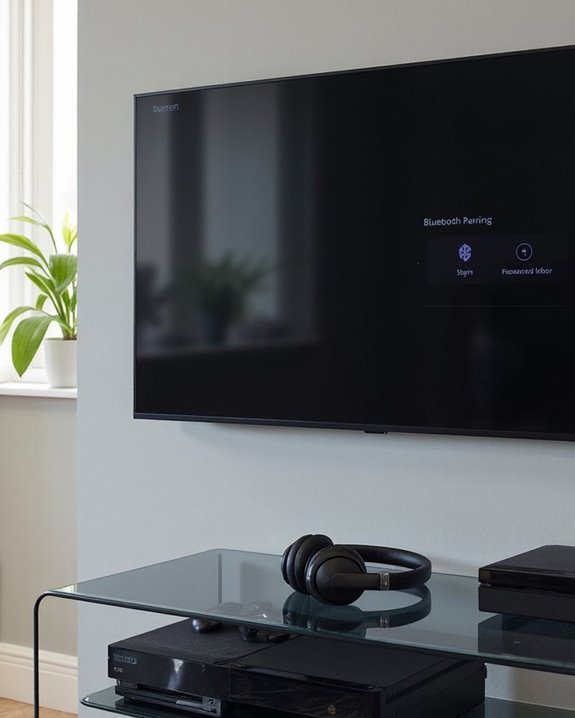
Yes, Beats headphones can connect to smart TVs with built-in Bluetooth. TV compatibility varies by model. For best sound synchronization, users should consider using a Bluetooth transmitter to minimize audio latency during viewing.
Will Beats Headphones Connect Automatically After Initial Pairing?
Beats headphones typically Auto Reconnect to previously paired devices when turned on. Pairing Reliability depends on device proximity, Bluetooth settings being enabled, and absence of interference from other connected devices.
Can I Use Beats for Gaming on Consoles?
Beats headphones have limited console compatibility. They don’t connect wirelessly to Xbox and require adapters for PlayStation. Users can connect via wired 3.5mm cables to avoid gaming latency issues, though microphone functionality may be restricted.
How Do I Check the Battery Level of My Beats?
Like a digital fuel gauge for sonic journeys, Beats battery levels can be checked through iOS Batteries widget, Android Bluetooth settings, LED Level Indicators on cases, or by opening earbuds near compatible devices for battery check notifications.
Can I Connect Beats to Smartwatches for Music Playback?
Most Beats headphones offer smartwatch integration via Bluetooth, allowing for music playback from Apple Watch and Garmin devices. Music compatibility varies by model, with some requiring a connected phone for full functionality.