As an Amazon Associate, we earn from qualifying purchases. Some links on this site are affiliate links at no extra cost to you. Our recommendations are based on thorough research and editorial judgment.

How to Connect Jabra Headphones to Any Device

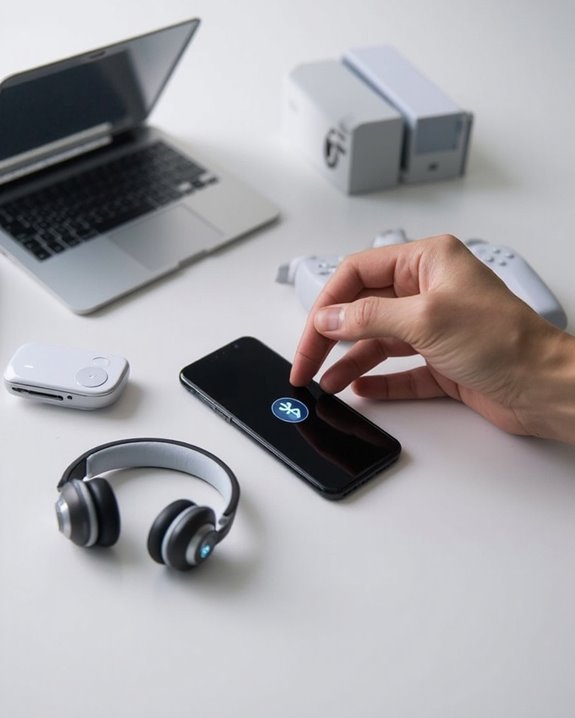
To connect Jabra headphones to any device, first put them in pairing mode by holding the multifunction or power button until LED indicators flash blue. On Windows or Mac, navigate to Bluetooth settings and select “Add device.” For mobile devices, access Bluetooth settings and select your Jabra from the available devices list. Gaming consoles may require adapters for compatibility. Power cycling the headset often resolves persistent connection issues. The detailed guide below offers specific solutions for each device type.
Key Takeaways
- Activate pairing mode by holding the Answer/End button until LED flashes blue on most Jabra headphones.
- Enable Bluetooth in your device settings and select “Add device” or similar option.
- Select your Jabra headphones from the list of available Bluetooth devices.
- Download the Jabra Sound+ app for guided setup, firmware updates, and customization options.
- For non-Bluetooth devices, use adapters connected via USB or audio ports to bridge compatibility.
Preparing Your Jabra Headphones for the Pairing Process
You may be interested
Can You Connect Bluetooth Headphones to PS5?
May 26, 2025
Before establishing a Bluetooth connection, users must properly prepare their Jabra headphones to guarantee a smooth pairing process. Different models require specific preparation methods based on their design.
For mono headsets with charging cases, users should dock the headset and hold the battery status button until the Indicator Lights flash blue, signaling pairing mode activation. Alternatively, headsets without cases typically enter pairing mode by pressing and holding the Answer/End or multifunction button.
Various Charging Methods guarantee ideal performance during pairing. It’s crucial to verify sufficient battery power before attempting to connect. Most Jabra models provide audio prompts or visual cues through Indicator Lights when entering pairing mode or requiring charge.
Over-ear models may utilize different button combinations, typically requiring users to hold the power button for several seconds until pairing indicators activate. Using earbuds with LED battery displays can help monitor charge levels during pairing and use.
Connecting Jabra Headphones to Windows and Mac Computers
Once your Jabra headphones are properly prepared and in pairing mode, connecting them to your computer requires accessing the specific Bluetooth settings of your operating system.
Recommended Products

Bluetooth 5.4 + Broad Compatibility - Provides Bluetooth 5.4 plus EDR technology and is backward compatible with Bluetooth V5.3/5.0/4.2/4.0/3.0/2.1/2.0/1.1.

Upgraded Bluetooth 5.3 Adapter: This bluetooth adapter for pc uses the latest upgraded Bluetooth 5.3 BR+EDR technology, greatly improves the stability of the connection data transfer speed, reduces the possibility of signal interruption and power consumption.

𝐁𝐥𝐮𝐞𝐭𝐨𝐨𝐭𝐡 𝟓.𝟑 𝐒𝐮𝐩𝐩𝐨r𝐭 – Applies the latest Bluetooth 5.3 plus EDR technology and is backward compatible with Bluetooth V4.2/4.0/3.0/2.1/2.0/1.1. UB500 Plus turns non-Bluetooth PC, desktop or laptop into Bluetooth-capable
Windows Setup
For Windows computers, navigate to “Bluetooth and other devices” in Settings. Make sure Bluetooth is enabled, then select “Add device” and choose “Bluetooth.” When your Jabra headphones appear in the available devices list, click on them to initiate pairing. Follow any on-screen prompts to complete the connection.
Mac Setup
On Mac computers, access System Preferences (or System Settings in newer macOS versions) and select Bluetooth. With Bluetooth turned on, your Mac will scan for nearby devices. Select your Jabra headphones from the detected devices list and confirm the pairing when prompted.
For optimal performance, ensure your device supports Bluetooth 5.0 or higher to maintain a stable and high-quality connection.
Pairing Your Jabra Headphones With Ios and Android Devices
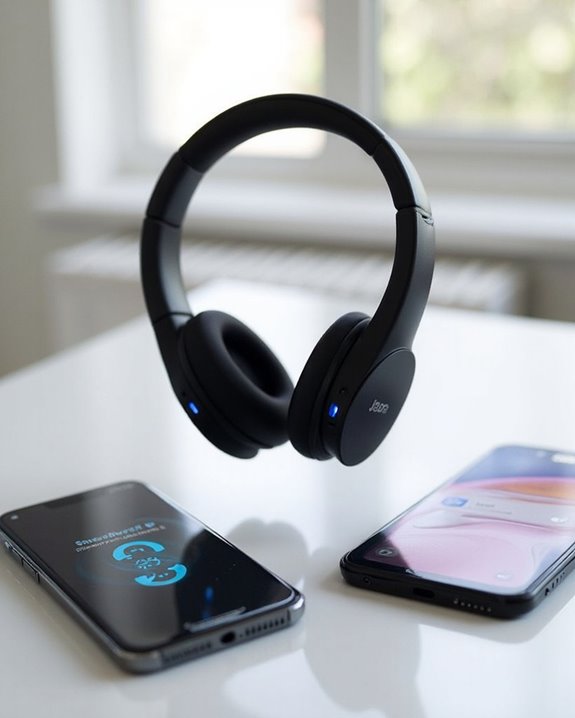
Connecting Jabra headphones to mobile devices involves two primary platforms: iOS and Android. The pairing process reveals notable OS differences, with iOS requiring navigation through Settings > Bluetooth, while Android allows quick access via the notification bar.
For iOS devices, users must first activate pairing mode on their Jabra headphones by holding the multifunction button until the LED flashes blue. The headphones will appear under “Other Devices” in the Bluetooth menu when ready for connection.
Android pairing offers comparable pairing efficiency, requiring users to put headphones in discovery mode before selecting them from the available devices list. For both platforms, maintaining close proximity between devices guarantees ideal connectivity.
The Jabra Sound+ app enhances the experience on both systems, offering guided setup, customization options, and firmware updates to resolve potential connectivity issues. For optimal audio quality and call clarity, pairing Jabra headphones with devices supporting Bluetooth 5.0 is recommended.
Recommended Products
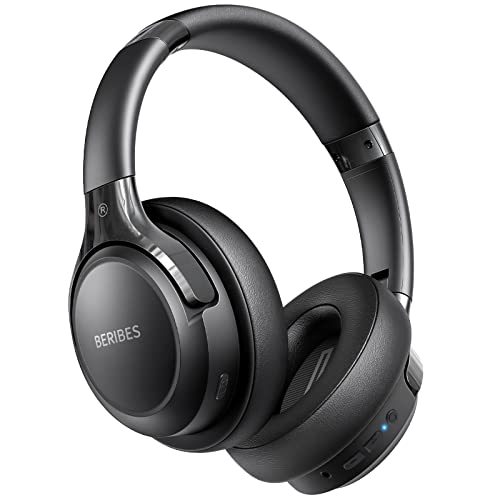
65 Hours Playtime: Low power consumption technology applied, BERIBES bluetooth headphones with built-in 500mAh battery can continually play more than 65 hours, standby more than 950 hours after one fully charge. By included 3.5mm audio cable, the wireless headphones over ear can be easily switched to wired mode when powers off. No power shortage problem anymore.

【ASTONISHING SOUND PRODUCTION 】: High Definition Stereo Headphones, specially developed software and noise reduction technology designed to prevent you from heating ambient noises and makes you focus on what you want to hear. Lose yourself in immersive music even in the lowest volume levels! The goal that provide Customers with outstanding sound quality is our constant pursuit.

USB C Headphones with Microphone for iPhone 17/17 Plus/17 Pro/17 Pro Max, iPhone 15/15 Plus/15 Pro/15 Pro Max,16/16 Pro/16 Plus/16 Pro Max,for Samsung S24/S24+/S24 Ultra,for Google Pixel 9 Pro XL 8a 8 7a 76a 6 5 4,for Samsung Galaxy Z Flip/Fold,S23 FE/S23/S23+/S23 Ultra,A53/A54/A33/A34,S22/S22+/S22 Ultra/S21 FE/S21/S21+/S21 Ultra/S20 FE/S20 Ultra/S20+/S20,Tab S9/S9+/S9 Ultra/S8/S7,for OnePlus 10T/10 Pro/9/Nord/8T/8,for Macbook Pro,for iPad 10/iPad Pro/Mini 6/Air 4 5 6,for motorola,for Nothing Phone,USB-C device without 3.5mm jack
Connecting to Gaming Consoles and Smart TVs
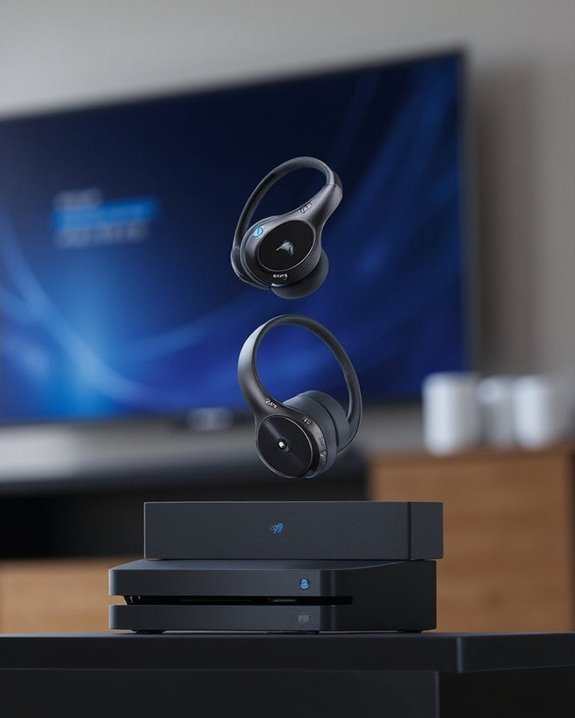
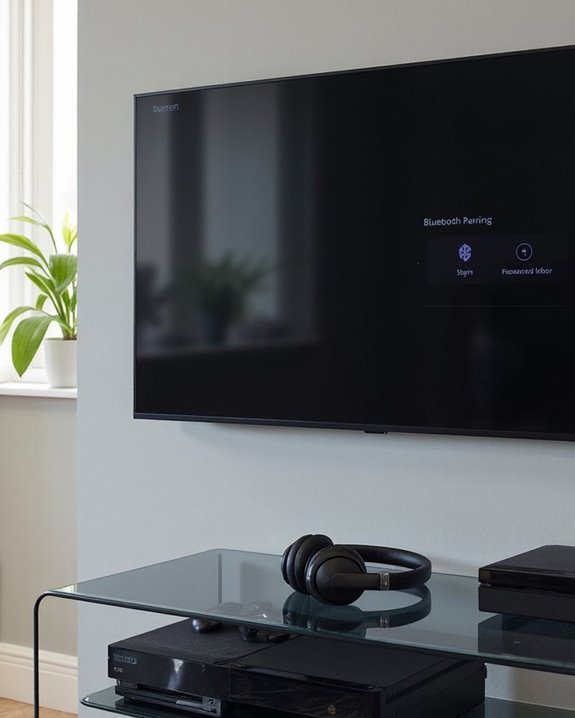
While console gaming and smart TV viewing have become essential entertainment platforms, they present unique challenges for wireless audio connectivity. Many gaming consoles and older smart TVs lack built-in Bluetooth functionality, requiring alternative solutions.
Gaming Adapters provide the necessary bridge between non-Bluetooth consoles and Jabra headphones. These adapters connect via USB or audio ports and create a wireless signal that headphones can detect during pairing mode. Quality and latency can vary considerably between adapter models.
Similarly, TV Transmitters convert standard audio outputs into Bluetooth signals for seamless headphone connection. When selecting transmitters, consider compatibility with both the TV’s available ports and the Jabra headphone model.
For ideal performance, regularly update headphone firmware through the Jabra Sound+ app and position adapters away from potential interference sources.
Recommended Products
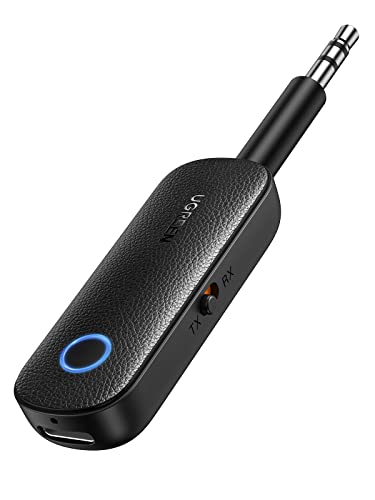
2 in 1 Bluetooth Transmitter Receiver: This UGREEN 3.5mm wireless adapter supports both TX and RX modes. Whether at home, in the car, or on a plane, it can easily meet your wireless Bluetooth needs. Simply connect it to a non-Bluetooth device, such as a plane or car stereo, and enjoy Bluetooth wireless sound. Not only is it a great gadget for enabling wireless Bluetooth, but it's also an airplane travel essential, eliminating the hassle of wired connections!

The Latest Bluetooth 5.3: The latest Bluetooth 5.3 technology enables your aux Bluetooth adapter backward compatible with Bluetooth 5.2/5.1/5.0/4.2/4.0/3.0/2.0 and it can deliver more stable wireless to your devices.

100% Flight Compatible – Adapter Included: Never get caught off guard by an older aircraft. This airplane bluetooth adapter kit includes a premium dual‑prong adapter for both modern single 3.5mm jacks and older armrest ports, delivering seamless connectivity on any flight.
Troubleshooting Common Connection Problems
Even the most sophisticated Jabra headphones occasionally encounter connectivity issues that can disrupt the user experience. When problems arise, start with basic power cycling by turning the headset off completely, waiting a few seconds, and powering it back on to clear temporary glitches.
Battery issues often manifest as intermittent connectivity or sudden disconnections. Check charge levels and verify charging contacts are clean and undamaged. Physical damage to headphone components, particularly connection ports or buttons, can greatly impair functionality.
For persistent Bluetooth problems, remove the headset from paired devices and re-establish fresh connections. Interference from other electronic devices may weaken signals, so maintain proximity between the headphones and connected device. If issues continue after firmware updates and reset attempts, contact Jabra support for advanced diagnostics or replacement options.
Recommended Products
![EXMRAT Compatible with Plantronics Voyager Legend Charger, Replacement USB Charging Cable Dock for Voyager Legend Wireless Bluetooth Headset [ 27cm, 2-Pack ]](https://m.media-amazon.com/images/I/41oiR8euwIL._SL500_.jpg)
Replacement Charger Cable Compatible with Plantronics Voyager Legend Wireless Bluetooth Headset. ( Not compatible with other model. )

Widely used for audio game electronic products, compatible with Bose Beats Sony JBL Sennheiser Xbox Series S X and more.

Dual Charging, Zero Downtime: It is designed for the PS5 ecosystem, which can charge your PS5 controller & gaming headset at the same time, fully charging devices in just 6 hours. Featuring charging contacts/interfaces fully compatible with official PS5 accessories, this charging dock eliminates cable clutter and reduces outlet congestion – all designed to maintain a clean, battle-ready setup. The dock does not support charging XBOX series controllers.
Maintaining Optimal Bluetooth Performance
Reliable Bluetooth connectivity forms the foundation of a satisfying Jabra headphone experience. To achieve stable connections, users should maintain appropriate device proximity and minimize electronic interference from nearby gadgets.
Regular Firmware Updates greatly improve Bluetooth performance and compatibility across devices. These updates often address connection stability issues and enhance overall functionality, making them essential maintenance tasks for best performance.
Battery Monitoring allows users to track power levels and plan charging accordingly. Low battery can compromise Bluetooth stability, so maintaining proper charge levels is essential. Implementing proper charging habits—avoiding overcharging and utilizing quick-charge features when available—extends both battery lifespan and connection reliability.
For maximum stability, users should keep their headphones within recommended range of connected devices and restart both devices when temporary connection issues arise.
Advanced Connection Features for Productivity
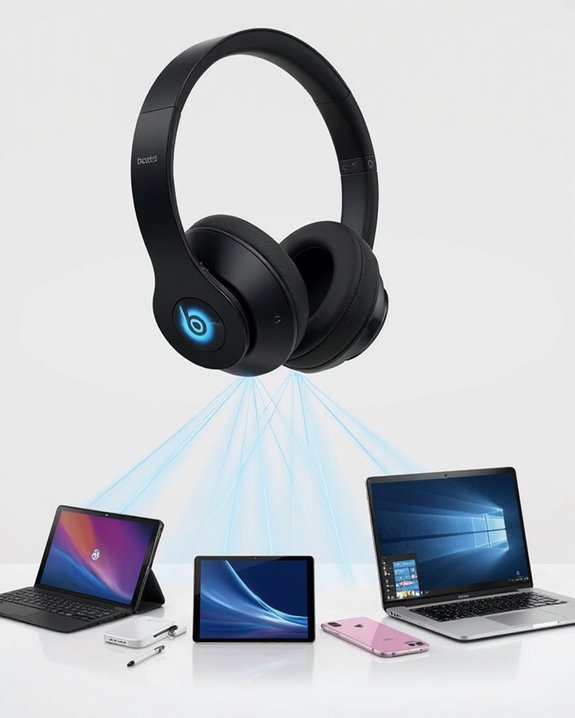
Beyond basic connectivity, Jabra headphones incorporate advanced features that greatly boost productivity and streamline daily workflows. The Multipoint Efficiency technology allows users to connect to two devices simultaneously, eliminating the need to repeatedly pair and unpair devices when switching between them.
Jabra’s integration with voice assistants enables hands-free control for managing calls, messages, and media playback without touching a device. The upcoming Auracast Integration prepares users for next-generation audio sharing in public spaces like airports and gyms.
For professionals, customization options through companion apps allow tailoring audio profiles to specific environments. The combination of stable smartwatch connectivity and advanced codec support guarantees consistent performance regardless of the connected device, making Jabra headphones versatile tools for productivity-focused individuals.
Recommended Products

Unbeatable 70-Hour Battery Life & Fast Charging: Enjoy up to 5 full workdays of music or calls on a single charge. A quick 3-hour USB-C charge powers you through weeks of use, eliminating daily charging hassle

[Open-ear Comfort] Unlike the traditional earphones, this Bluetooth headset with open-ear design don't go in your ears, which can cause less damage to hearing than other in/over-ear earbuds. G9 headset Bluetooth wireless ensures both all-day comfort for long-term wearing and situational awareness & connection with your colleagues. Not only suitable for office/home, but also fit for outdoor activities. Make you safe and never miss friends greeting on your run.

Ultra-Comfort with Open-Ear Design: Experience matchless comfort even for all-day wear with these non-intrusive, open-ear Bluetooth earbuds.
Frequently Asked Questions
Can I Connect My Jabra Headphones to Multiple Devices Simultaneously?
Yes, Jabra headphones support Multi Device Audio through multipoint technology, allowing simultaneous connection to two devices. Users can switch between paired devices without disconnecting, though Connection Limits restrict active connections to two devices maximum.
How Do I Switch Between Previously Paired Devices?
To switch between previously paired devices, users employ different Switch Methods depending on the Jabra model. Most require pausing audio on one device and playing on another, with some models offering Device Prioritization for automatic switching.
Will Jabra Headphones Work With Older Bluetooth Versions?
Jabra headphones are backward compatible with Bluetooth version 2.0 or later. However, protocol differences may limit certain features when using older versions compared to newer Bluetooth standards like 5.0 or higher.
Can I Use Jabra Headphones While They’re Charging?
Like a device that never sleeps, Jabra headphones can indeed be used while charging. This provides uninterrupted usage while maintaining Charging Safety standards. The Battery Performance remains ideal during simultaneous charging and operation.
How Do I Reset My Jabra Headphones to Factory Settings?
To reset Jabra headphones to factory settings, most models require specific button combinations held for 5-10 seconds until LED indicators flash. These reset steps vary by model but typically restore firmware to original configuration.