As an Amazon Associate, we earn from qualifying purchases. Some links on this site are affiliate links at no extra cost to you. Our recommendations are based on thorough research and editorial judgment.

How to Connect Skullcandy Bluetooth Headphones to Iphone

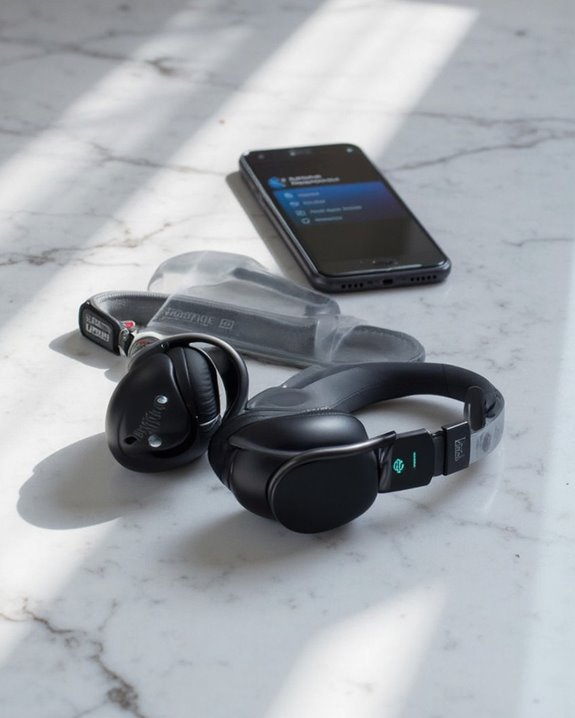
To connect Skullcandy Bluetooth headphones to an iPhone, first make sure both devices have adequate battery. Power on the headphones and hold the power button for 5 seconds until the LED flashes. On your iPhone, navigate to Settings, enable Bluetooth, and select the Skullcandy device from the available devices list. Wait for “Connected” to appear on screen and listen for an audio confirmation tone. The detailed pairing process varies slightly between different Skullcandy models.
Key Takeaways
- Press and hold the power button on your Skullcandy headphones for 5 seconds until the LED flashes, indicating pairing mode.
- Go to your iPhone Settings, turn on Bluetooth, and select your Skullcandy headphones from the available devices list.
- Wait for your iPhone to display “Connected” and listen for an audio confirmation from the headphones.
- Keep your devices within close proximity during the pairing process to prevent connection interference.
- If connection fails, try power cycling both devices or forgetting the headphones in iPhone Bluetooth settings before attempting again.
Understanding Your Skullcandy Headphones
You may be interested
Can You Connect Bluetooth Headphones to PS5?
May 26, 2025
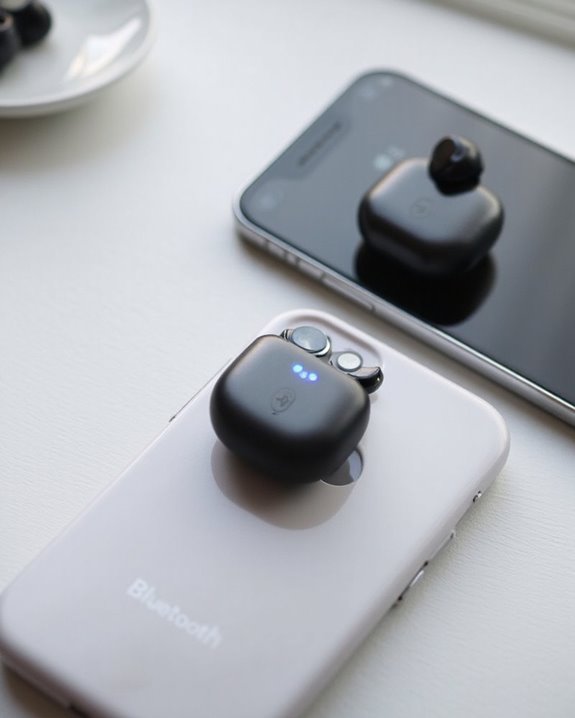
Skullcandy headphones represent a blend of modern audio technology and user-focused design elements. These devices typically feature Bluetooth 5.0 or 5.2 connectivity, ensuring stable connections with iPhones and other devices.
Most Skullcandy models utilize 40mm drivers, which deliver enhanced audio quality with clear highs and rich bass response. This driver size strikes an ideal balance between portability and sound performance.
Battery life varies across the product line, with premium models offering up to 40 hours of playback on a single charge. This extended battery performance makes them suitable for travel and daily commuting without frequent recharging.
The headphones also incorporate practical features like collapsible designs for storage, physical control buttons for easy operation, and compatibility with voice assistants through integrated microphones.
Some models, like the Skullcandy Riff 2, also include advanced features such as Multipoint Pairing and built-in Tile tracking for enhanced usability.
Preparing Your Iphone’s Bluetooth Settings
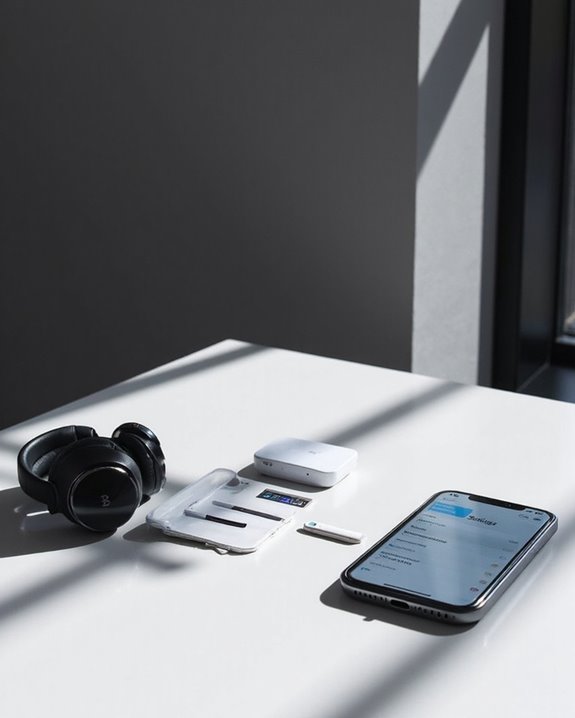
Preparing your iPhone’s Bluetooth settings requires five essential steps to guarantee seamless connectivity with Skullcandy headphones. First, make sure the iPhone is powered on, then navigate to the Settings app and select the Bluetooth option. Toggle the Bluetooth switch to the right to enable it, and remain on this screen during the pairing process.
For best performance, implement proper battery management by turning off Bluetooth when not in use. Regular update maintenance is essential, as iOS updates frequently contain Bluetooth-related improvements and bug fixes.
If connectivity issues occur, troubleshooting options include resetting network settings or checking for interference from other wireless devices. Keeping both the iPhone and Skullcandy headphones updated guarantees compatibility and maintains stable connections during everyday use. Using Bluetooth 5.4 technology also helps provide enhanced security and stable connections for your devices.
Recommended Products
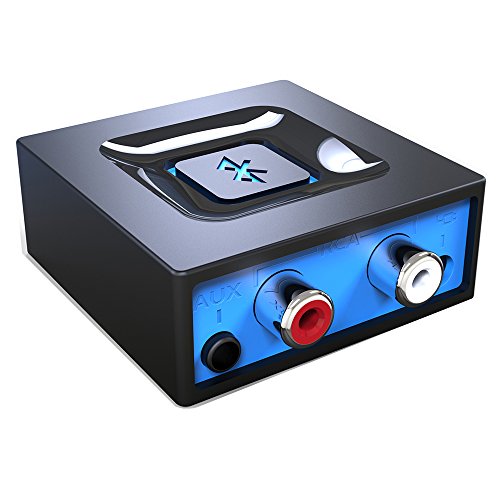
Listen music wireless: Connect with computer speakers, home stereo systems or other speaker systems via the 3.5 mm or RCA cable, then pair with the Bluetooth audio devices such as smartphones or tablet for streaming music.

54W High Power Fast Charging, 4-Port Synchronous Charging: Nulaxy Bluetooth car adapter integrates PD36W and QC18W, offering a high-speed and efficient charging solution. Its innovative four-port design supports parallel charging of multiple devices, effortlessly overcoming battery anxiety and enhancing charging efficiency.
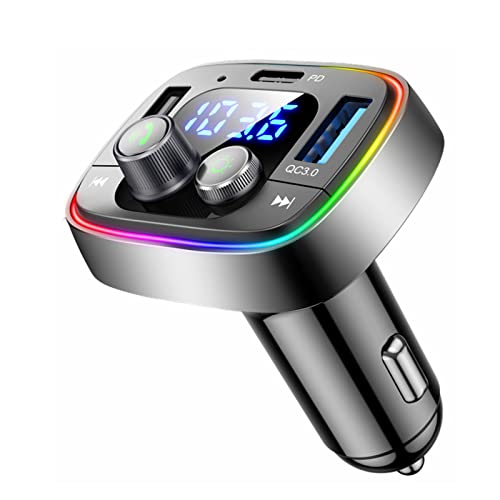
Upgrade any non-Bluetooth car in 30 seconds: Turn any vehicle into a wireless Bluetooth audio system in seconds.
Activating Pairing Mode on Your Headphones
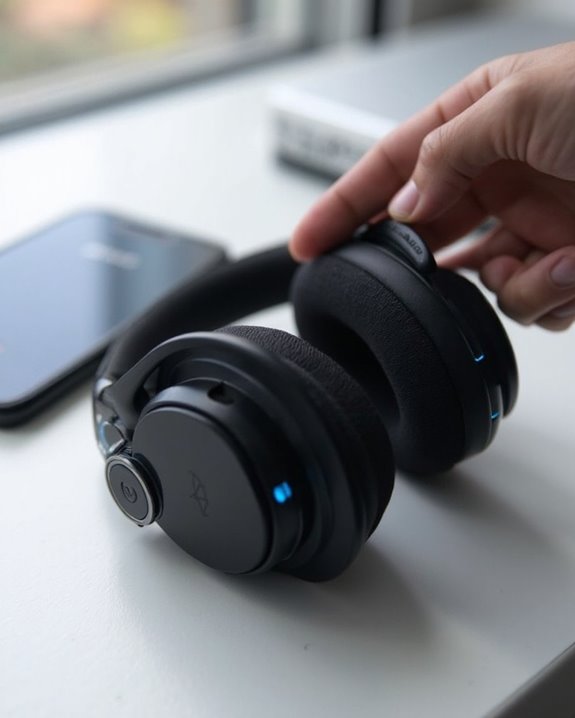
With your iPhone’s Bluetooth settings properly configured, the next step involves activating pairing mode on your Skullcandy headphones. Begin with your headphones powered off and verify sufficient battery status before proceeding.
For standard headphones, press and hold the power button for approximately 5 seconds until the LED indicators flash red and blue alternately. An audio prompt stating “pairing” will confirm activation.
For earbuds with a charging case:
- Remove any protective stickers from the charging contacts
- Place earbuds in the case until LEDs show red
- Keep the lid open to automatically enter pairing mode
- Watch for simultaneous red and blue pulsing lights
Maintain close device proximity during the pairing process to minimize connection interference. The headphones remain discoverable until successfully connected to your iPhone. Many wireless earbuds now feature LED display charging cases that show battery levels to help monitor power during use.
Recommended Products

[Ultra-Lightweight Ear Buds Designed for Small Ears] Each earbud weighs only 3.7g and features a compact, ergonomic in-ear design made especially for small ears. Secure, low-profile, and comfortable for workouts, all-day wear or overnight sleeping.The ultra-slim profile sits flush in your ear with no hard edges poking or rubbing, so you can even sleep on your side without discomfort.

[Hybrid Active Noise Cancelling] With a maximum noise reduction depth of 45dB, Immerse yourself in your music without any distractions from the outside world and focus on what matters most -- your music.

【Sound Isolation Technology】 Bluetooth headphones Built-in chip with sound isolation technology effectively blocks noise and delivers immersive sound. You can enjoy your music with powerful bass, mellow mids, and clear treble.
Completing the Connection Process
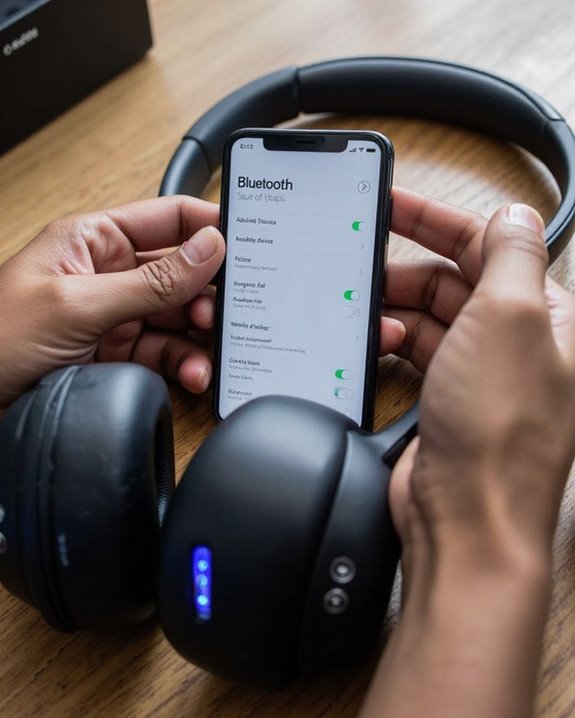
Once your headphones are in pairing mode, going to your iPhone’s Bluetooth settings enables the final connection steps. Users should make sure that Bluetooth is activated on their iPhone and verify that the headphones appear in the list of available devices. Look for the specific model name, such as “Skullcandy Hesh ANC” or “Icon,” then tap it to initiate pairing.
Connection Verification occurs when the iPhone displays “Connected” and the headphones provide confirmation through LED indicators or voice prompts. Audio output should now come through the headphones, which can be tested with music or videos.
After successful pairing, Automatic Linking will activate whenever the headphones are powered on within range of the iPhone. This feature eliminates the need to manually reconnect devices for subsequent use, provided the headphones retain sufficient charge.
Troubleshooting Common Connection Problems
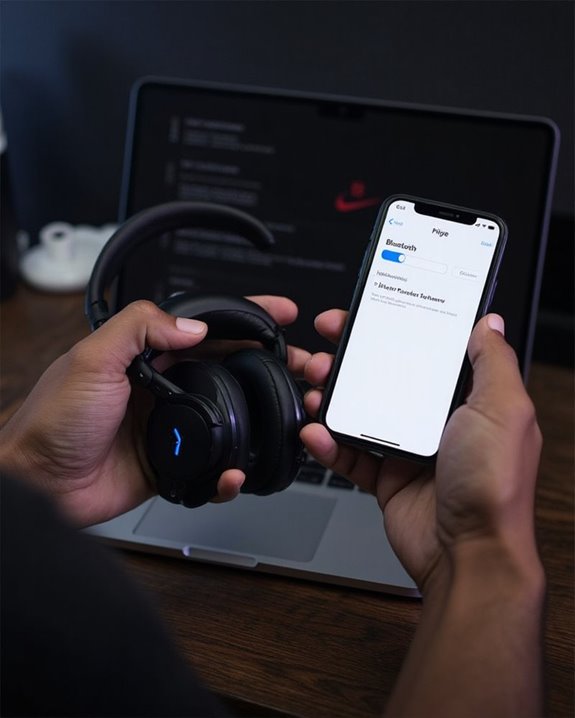
Despite following the proper pairing procedures, users may occasionally encounter difficulties when connecting Skullcandy Bluetooth headphones to their iPhone. When issues arise, simple solutions like ensuring device proximity and power cycling the headphones can resolve most connection problems.
Battery troubleshooting is essential, as low power in either device can prevent successful pairing. Users should verify that both the headphones and iPhone are adequately charged before attempting to connect. Signal interference from other electronic devices, including additional Bluetooth products, may disrupt the connection process.
For persistent issues, users should try “forgetting” the device in iPhone Bluetooth settings before attempting to pair again. Checking for iOS updates and ensuring the headphones are in proper pairing mode can also eliminate common connectivity obstacles.
Recommended Products
![Speakers Charging Cable Charger Cord [Micro 5-ft] for Bose Jbl Beats Sony Anker Wireless Bluetooth Speakers Headphone Headset Earphone, and More](https://m.media-amazon.com/images/I/31+pH9xp0SL._SL500_.jpg)
Experience rapid charging with our USB cable, delivering power up to 50% faster than standard cables. Perfect for USB-Micro wireless bluetooth Speakers, Headphones, Game controller, Game console and other devices, it saves you time and keeps you connected

【ASTONISHING SOUND PRODUCTION 】: High Definition Stereo Headphones, specially developed software and noise reduction technology designed to prevent you from heating ambient noises and makes you focus on what you want to hear. Lose yourself in immersive music even in the lowest volume levels! The goal that provide Customers with outstanding sound quality is our constant pursuit.

Compatible with AfterShokz Aeropex, AfterShokz OpenRun, AfterShokz OpenComm, AfterShokz OpenRun Pro, AfterShokz OpenRun mini. Compatible with Shokz charging cable.
Maximizing Sound Quality After Pairing
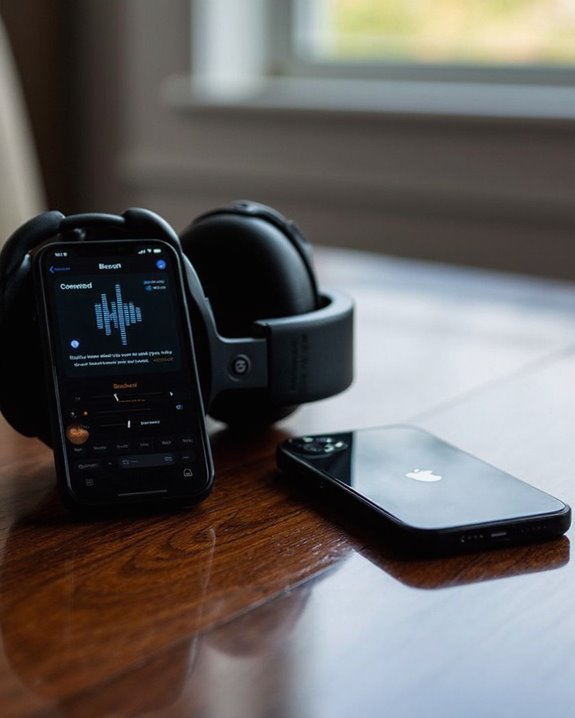
Successfully pairing Skullcandy Bluetooth headphones with an iPhone represents only the first step toward an ideal listening experience. To enhance audio quality, users should optimize several settings on both devices.
Adjusting the iPhone’s volume levels and securing a stable Bluetooth connection greatly impacts sound clarity. Physical obstructions between devices can degrade performance and should be minimized when possible.
The Skull-iQ app offers access to Custom EQ features, allowing listeners to fine-tune audio using a 5-band equalizer. Users can select from pre-configured Sound Profiles such as Music, Podcast, or Movie modes depending on content type.
Regular maintenance practices also contribute to peak sound quality. Cleaning earbuds prevents blockages, while keeping both iPhone and headphone software updated guarantees compatibility and performance improvements over time.
Recommended Products
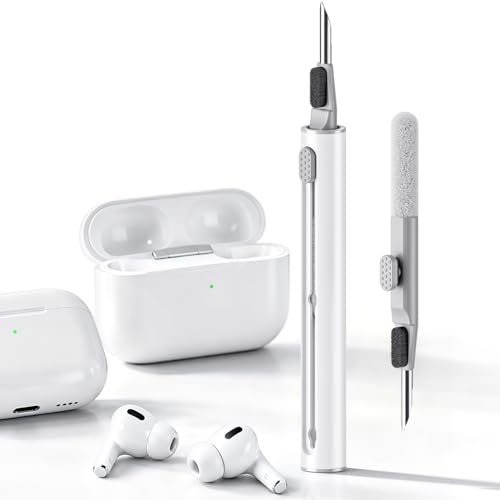
DEEP CLEANING FOR AIRPODS & EARBUDS: Designed to help remove dust, earwax, and buildup from earbuds, charging cases, speaker meshes, and hard-to-reach gaps. Ideal for AirPods Pro, AirPods, wireless earbuds, and daily electronics cleaning.
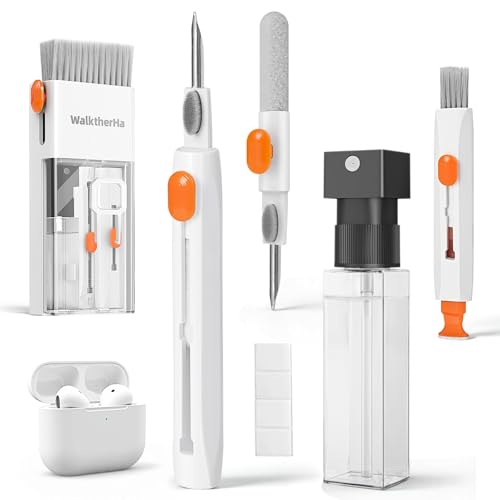
Professional & Powerful: Say goodbye to dirt, grime, and earwax with our 20-in-1 AirPod Cleaner Kit. The metal tip cleans small crevices, sound holes, and charging ports, while the soft brush with high-density bristles gently cleans speaker mesh. The flocking sponge is perfect for earpods charging cases. Airpods cleaning kit also includes a 15ml screen cleaner spray, microfiber cloth, and Airpod cleaning putty for thorough maintenance, preventing build-up and ensuring peak performance

【NEW TECHNOLOGY】 Are you still using dirty headphones? Are you still using those bulky cleaning tools? Our cleaner kit is a pen to clean the entire set of Bluetooth earplugs, from the small hole of the earplug to the charging compartment, 360-degree cleaning without dead ends, making your earplugs more durable.
Managing Multiple Bluetooth Devices
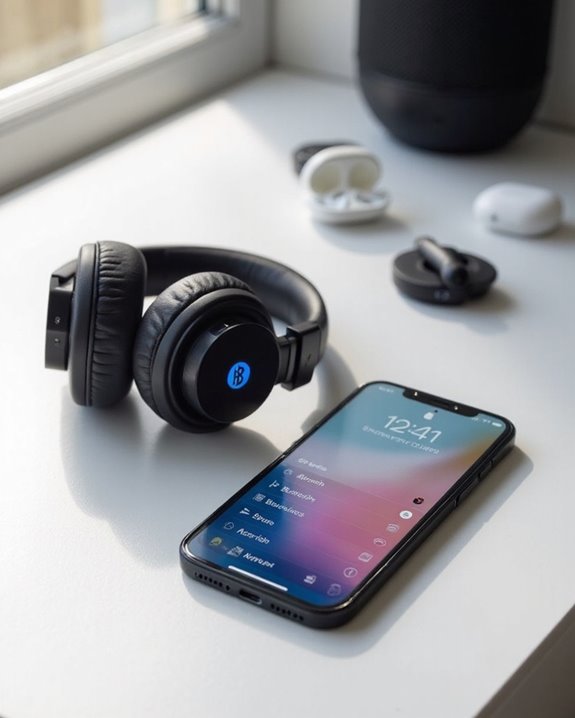
After optimizing sound quality, many iPhone users face the challenge of juggling multiple Bluetooth devices. iPhones can pair with several devices but maintain only one active audio connection at a time, making Multi Device Switching essential knowledge.
To switch between paired Skullcandy headphones and other audio devices, users should access Bluetooth settings and select the desired device. The previously connected headphones will automatically disconnect when a new audio device is selected.
For efficient Bluetooth Battery Management, remove unused devices from the paired list and monitor battery levels through the iOS widget. Keeping firmware updated on both Skullcandy headphones and iPhone improves connection stability and power efficiency.
Remember that while audio is limited to one device, non-audio Bluetooth accessories like keyboards can remain connected simultaneously with headphones.
Recommended Products

User-Friendly: Connect your wireless headphones to your PS5 or other gaming consoles with the UGREEN adapter and enjoy high-quality audio with no wires, drivers, or software required. Also Add Bluetooth audio capability (AUDIO devices ONLY, no data) with ease to your Desktop, Computer, iMac

Bluetooth 5.4 + Broad Compatibility - Provides Bluetooth 5.4 plus EDR technology and is backward compatible with Bluetooth V5.3/5.0/4.2/4.0/3.0/2.1/2.0/1.1.

【Enjoy Wireless Streaming Music】This car Bluetooth adapter can be connected to non-Bluetooth car audio systems, home stereos, speakers, wired headphones via the 3.5mm AUX adapter; And equipped with a Bluetooth 5.0 chip for stable connection / fast transmission / wide signal range. Just pair it with your phone and start listening to your favorite music!
Frequently Asked Questions
Can I Connect Skullcandy Headphones to Multiple Iphones Simultaneously?
Like a skilled juggler, many Skullcandy headphones support Multiple Pairing between two devices simultaneously. Users can enjoy Simultaneous Linking to two iPhones, seamlessly switching between audio streams from either connected device.
How Long Does the Skullcandy Headphone Battery Typically Last?
Skullcandy headphones typically offer around 22 hours of usage time on a full charge. Battery efficiency varies based on features used, with Active Noise Cancellation potentially reducing the overall playback duration compared to standard mode.
Will Skullcandy Headphones Automatically Reconnect After Battery Replacement?
Skullcandy headphones typically Auto Reconnect to previously paired devices after battery replacement. No additional Battery Pairing steps are usually required if they were already connected before the battery died. Manual reconnection may occasionally be necessary.
Can I Use Skullcandy Headphones While They’re Charging?
Many Skullcandy headphones can be used while charging, particularly newer models. Users should check their specific model’s manual as charging safety features vary. Some users report minimal audio distortion when using headphones during charging sessions.
Are Skullcandy Headphones Water-Resistant for Workout Sessions?
In a world where athletes sweat oceans, many Skullcandy models offer water resistance. Select headphones feature workout compatibility with specific IP ratings (IP55, IPX4) for sweat resistance. However, not all models are designed for intense exercise.