As an Amazon Associate, we earn from qualifying purchases. Some links on this site are affiliate links at no extra cost to you. Our recommendations are based on thorough research and editorial judgment.

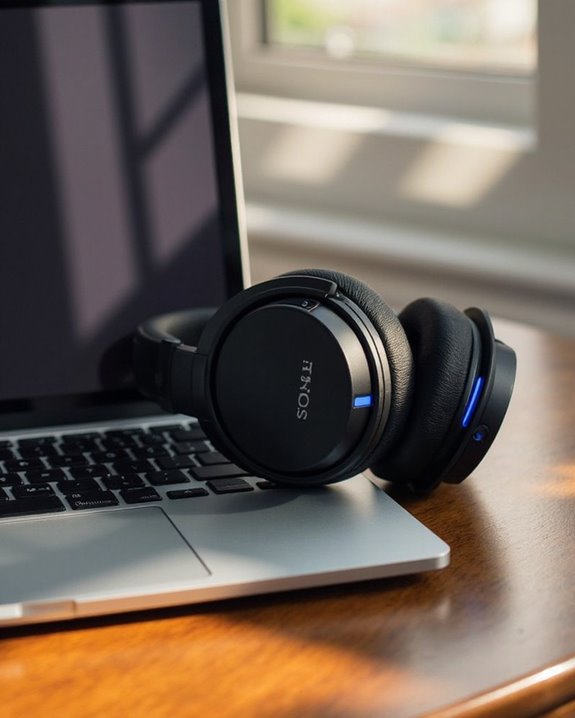
How to Connect Sony Headphones to Your Laptop

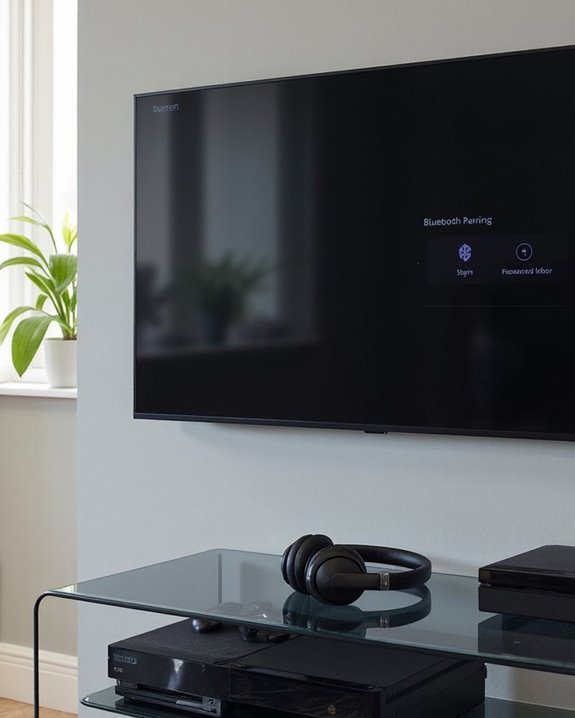
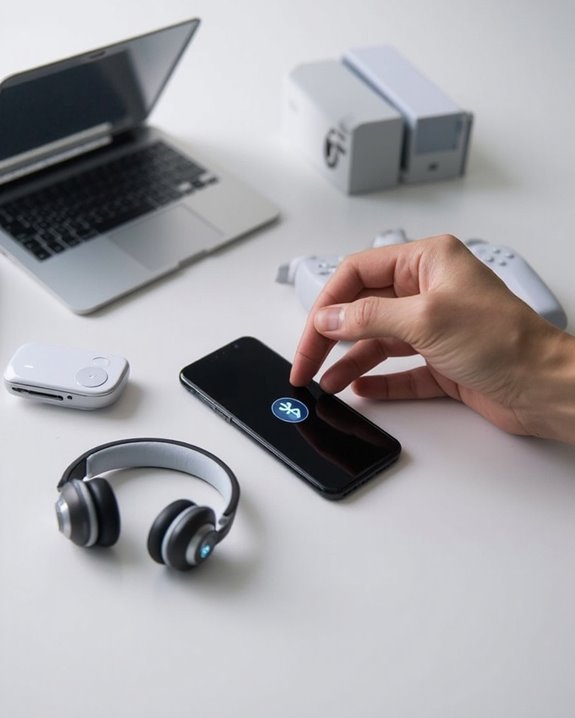
Connecting Sony headphones to a laptop requires just a few simple steps. First, activate pairing mode on the headphones by pressing the power button for 5-7 seconds until the indicator flashes blue and red. Then enable Bluetooth on your laptop through Settings (Windows) or System Preferences (Mac). Select your Sony headphones from the available devices list and click “Connect.” Keep devices within one meter for ideal pairing success and minimal interference. The complete connection process offers additional features to enhance your wireless audio experience.
Key Takeaways
- Put Sony headphones in pairing mode by pressing the power button for 5-7 seconds until the indicator flashes blue.
- Enable Bluetooth on your laptop through Settings > Devices > Bluetooth on Windows or System Preferences > Bluetooth on Mac.
- Select your Sony headphones from the available devices list, identifying them by their model number.
- Keep devices within 1 meter of each other during the pairing process to ensure stable connection.
- Set the headphones as your default audio output in sound settings for automatic audio playback.
Getting Started: What You’ll Need
You may be interested
Can You Connect Bluetooth Headphones to PS5?
May 26, 2025
A successful connection between Sony headphones and a laptop requires several essential components. The user must have Sony Bluetooth headphones compatible with their laptop’s Bluetooth version, along with a computer that features either a built-in Bluetooth adapter or an external USB dongle.
Before beginning the pairing process, a Battery Check is critical—headphones should be fully charged to prevent interruptions during setup. Users should also have the USB charging cable nearby in case power runs low.
Environment Prep is equally important for ideal connectivity. The pairing location should be free from wireless interference caused by other devices like Wi-Fi routers or cordless phones. Both devices should be positioned within one meter of each other during the initial pairing phase to achieve a stable connection.
Sony headphones such as the WH-CH520 model support Bluetooth 5.2 with multipoint pairing, enhancing their connectivity versatility with laptops and other devices.
Recommended Products
Smart Digital Display: Easy-to-read digital display shows the remaining power of the charging case for the refill in time.

🔄 【Dual-Mode Compatibility】One gaming headset with mic, endless gaming possibilities. Press mic 2s to toggle modes. 2.4GHz mode for PS5, PS4, PC, Phone, Laptop, Switch & Mac, and Bluetooth mode for PC, Mac, Switch, Mobile, Laptops & Tablets. ❗ Note: Use 2.4GHz USB + Type-C together for PS5/PS4/PC/Laptop/Mac; cannot be used alone. ❌Both modes are NOT compatible with Xbox. ❌The Mic is NOT compatible with Switch via Bluetooth mode. ❌Bluetooth mode is NOT compatible with PS5/PS4.
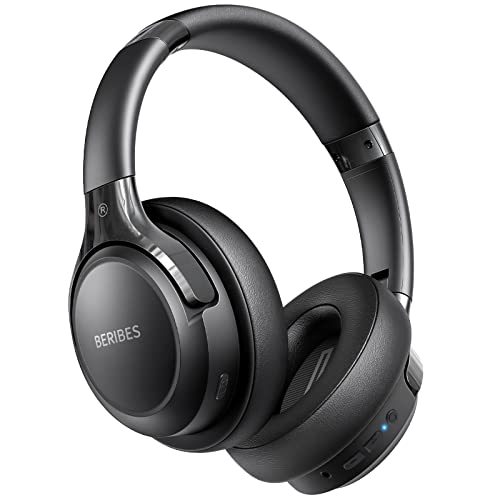
65 Hours Playtime: Low power consumption technology applied, BERIBES bluetooth headphones with built-in 500mAh battery can continually play more than 65 hours, standby more than 950 hours after one fully charge. By included 3.5mm audio cable, the wireless headphones over ear can be easily switched to wired mode when powers off. No power shortage problem anymore.
Preparing Your Sony Headphones for Pairing
For manual activation, users should press and hold the power button for 7 seconds until the indicator light flashes blue and red alternately. Battery maintenance is essential—headphones with low power may fail to pair properly or disconnect unexpectedly during the process.
If difficulties occur, performing a manual reset can resolve connectivity issues. Simply return the headphones to their charging case for 10 seconds before trying again. Always keep headphones within 1 meter of the laptop during pairing to guarantee stable signal transmission. Using devices with the latest Bluetooth 5.4 technology can provide a more stable connection and enhanced security during pairing.
Recommended Products
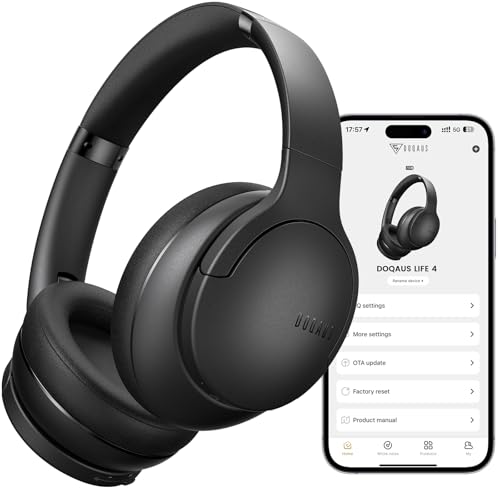
✅ End Charging Anxiety with 90-Hour Marathon Battery Life: Designed for the long-haul commuter or international traveler, these wireless headphones deliver up to 90 hours of playtime. A quick 10-minute charge fuels 5 hours of listening, and the included aux cable is your zero-power backup plan, ensuring your music, podcasts, or movies never stop.

🎵【7.1 Surround Sound & Aesthetic Decorative Light】 UG-08S PC gaming headset can provide you with a cinema 3D stereo surround sound experience, designed specifically for gamers and audiophiles and multi-platform Compatibility. Long-press the 'M' key to activate 7.1 surround sound and dynamic driver reproduces deep bass and clear highs. Which allows you to hear every detail in the game with pin-drop clarity from up to 40 feet away. Such as teammates' voices, footsteps, direction, and more. Double-click the M key to activate the ambient light, then single-click the M key to switch between two modes: steady light and gradient. Valorise wireless pc headset will bring a cooler gaming atmosphere.

【Sleep Headphones & Sports Bluetooth Headband】 LC-dolida Sleep headphones feature a Breathable headband design with wireless headphones inside that allows you to listen to music without having to wear additional headphones and protects you from being disturbed by your messy hair and sweat. Sleep headphones headband headphones are perfectly suitable for travel, gym, running, yoga as well as sleeping.
Enabling Bluetooth on Windows and Mac Laptops
Successfully connecting Sony headphones to a laptop begins with properly enabling the Bluetooth functionality on your device. The process varies depending on your operating system, with notable platform differences in menu navigation and troubleshooting approaches.
For Windows users, access Bluetooth by going to Start > Settings > Devices > Bluetooth & other devices. If connection issues occur, checking Device Manager to disable and re-enable the Bluetooth adapter often resolves problems.
Mac users can enable Bluetooth through either the menu bar icon or System Preferences > Bluetooth. The Mac interface typically requires fewer steps for enabling strategies and doesn’t necessitate service management like Windows does.
Both platforms benefit from keeping devices within ideal range during pairing and ensuring all drivers and software are current for seamless connectivity. Many modern wireless headsets also support advanced Bluetooth 5.0/5.3 connectivity to optimize connection stability and range.
Recommended Products

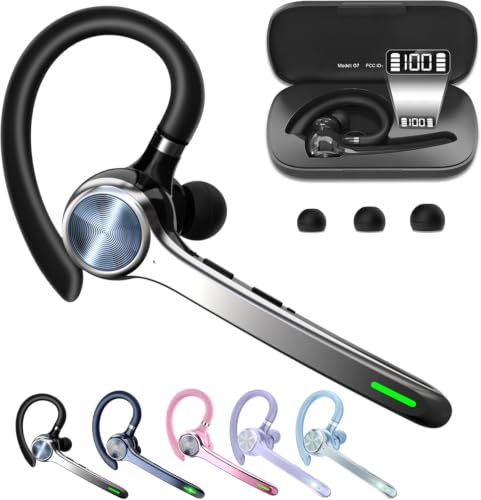
LED DIGITAL DISPLAY & 120H LONG STANDBY TIME : The G7 Wireless Bluetooth Headset comes with a smart LED display that shows the charging status of the earphones and the power of the case. 120 hours of standby time and 72 hours of music playback/talking time with the charging case

【13mm Drivers+Hybrid ANC】–Ear buds features a 13mm dynamic driver with a triple-layer diaphragm, producing tighter bass and cleaner treble across music, calls, and video. Hybrid ANC blocks steady background noise, and four ENC microphones keep your voice focused—so conversations will stay clear even in busy, shared spaces

Excellent Sound & 6EQ Modes: Wireless Bluetooth headphones equipped with 40mm dynamic driver, which produces hi-fi stereo sound, crisp and clean, great balanced Bassup and reduces environmental noise.Switch freely between 6 sound effects with the EQ button: Bass, pop, rock, classic, jazz and vocal. Listening to a variety of music,just like you are in a concert with a wide sense of space
Finding and Selecting Your Sony Headphones
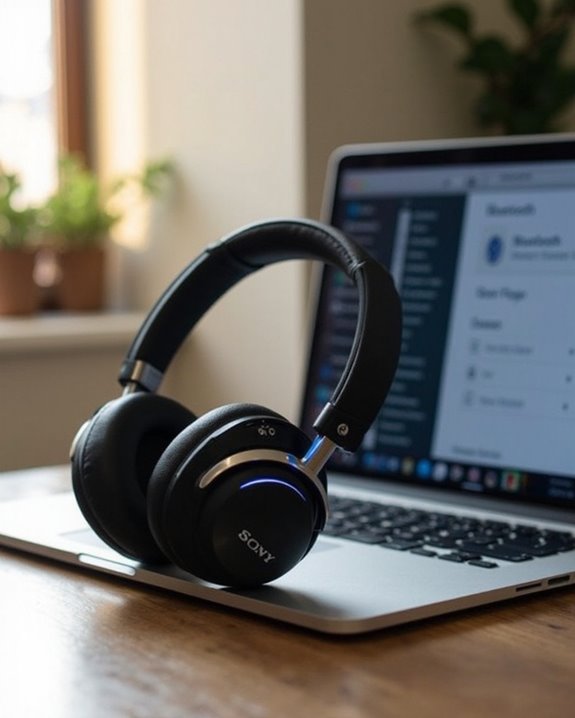
Once Bluetooth is activated on the laptop, the next step involves locating and identifying your Sony headphones in the available devices list. Most Sony headphones enter pairing mode automatically when powered on for the first time, or when manually activated through a dedicated button.
Different Sony models have distinct pairing procedures. For the WH-1000XM4 and WH-1000XM5, users typically press and hold the power button for 5-7 seconds until the indicator flashes blue. The WF-1000XM5 earbuds enter pairing mode when removed from their charging case.
During Model Selection, check your specific headphone instructions, as procedures vary across the product lineup. Feature Comparison becomes important when multiple Sony devices appear in the Bluetooth list—identify your headphones by their exact model number to guarantee connecting to the correct device.
Completing the Connection Process
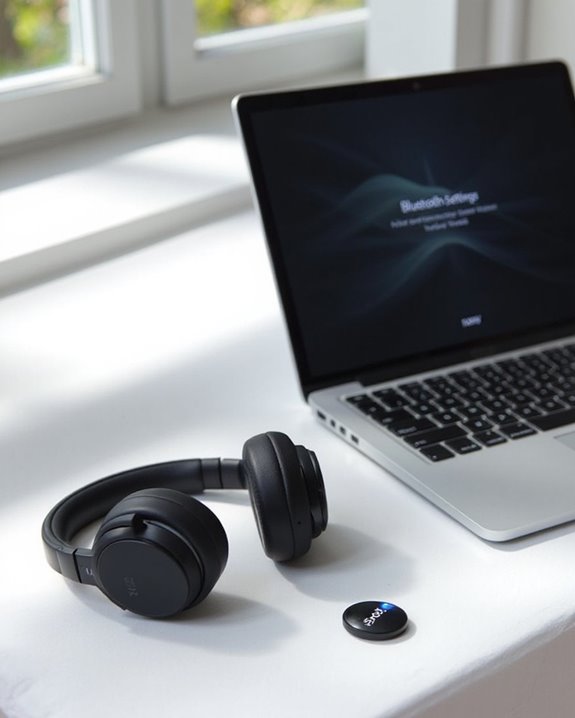
After your Sony headphones have been located in the available devices list, completing the connection process requires several precise steps to establish a stable audio link. Select the headphones by clicking on their name, then confirm any pairing prompts that appear on-screen. Many models will emit an audible confirmation tone or voice message when successfully connected.
Navigate to the laptop’s sound settings to verify the Sony headphones are set as the default audio output device. This guarantees all system audio routes properly through the headphones. Perform Stability Testing by playing audio at various distances from the laptop to confirm connection reliability.
For ideal performance, check for any available Firmware Updates through Sony’s companion app or website. These updates often resolve connectivity issues and introduce enhanced features that improve overall functionality.
Troubleshooting Connection Problems
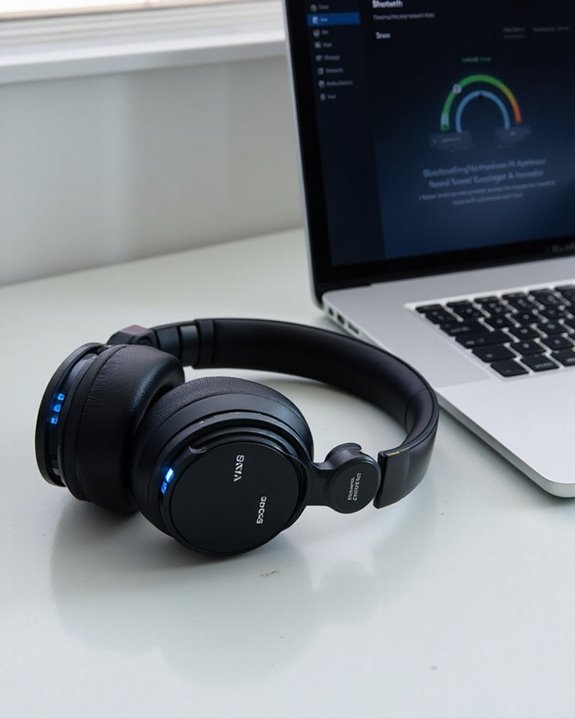
Even with the correct setup procedures, Sony headphones may occasionally refuse to connect properly to laptops. When headphones don’t appear in the Bluetooth device list, users should first verify they’re in proper pairing mode, typically achieved by holding the power button for several seconds.
Firmware issues often cause connection failures. Using the Sony Headphones Connect app to update to the latest firmware version can resolve compatibility problems and enhance functionality. Regularly checking for updates prevents potential pairing difficulties.
Signal interference represents another common obstacle. Users should minimize the distance between devices and remove potential interference sources like other Bluetooth devices, metal objects, or thick walls. When multiple device entries appear (such as “LE_WH-1000XM4” and “WH-1000XM4”), selecting the option without the “LE_” prefix guarantees full functionality.
Recommended Products

Bluetooth 5.4 + Broad Compatibility - Provides Bluetooth 5.4 plus EDR technology and is backward compatible with Bluetooth V5.3/5.0/4.2/4.0/3.0/2.1/2.0/1.1.

Upgraded Bluetooth 5.3 Adapter: This bluetooth adapter for pc uses the latest upgraded Bluetooth 5.3 BR+EDR technology, greatly improves the stability of the connection data transfer speed, reduces the possibility of signal interruption and power consumption.

【For PS5 Users Only】 Specifically designed for PS5 to connect Bluetooth headphones (e.g., AirPods, Bose, & more) for audio playback. For optimal voice chat experience, please use the PS5 controller microphone instead of headphone mics.
Managing Your Paired Devices
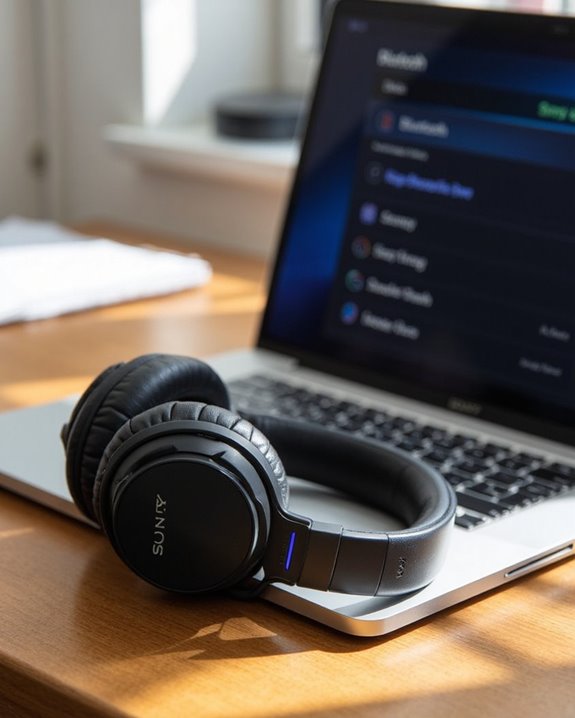
Successfully managing paired Sony headphones with a laptop requires understanding several essential connection settings and options. Users should set their headphones as the default audio device in sound settings to guarantee seamless playback after connection is established.
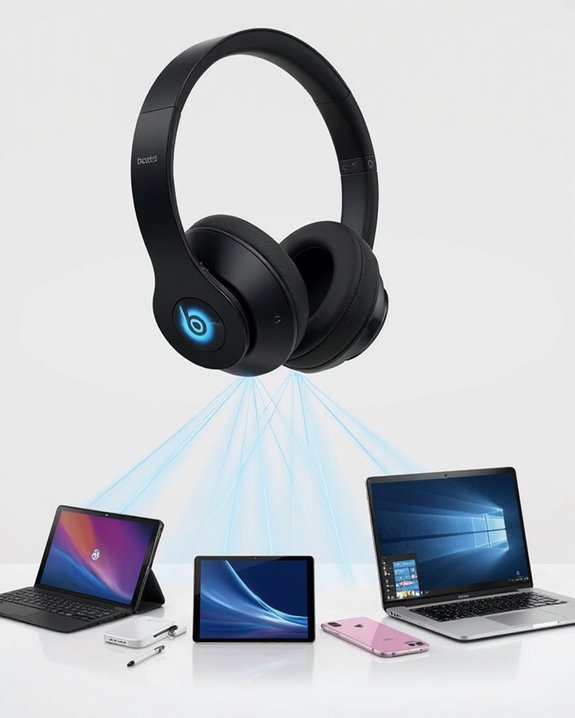
Most Sony models support multi-point connectivity, allowing simultaneous pairing with multiple devices, though connection limits typically exist. Regular firmware upgrades enhance compatibility and strengthen encryption protocols that protect audio data transmission between devices.
For effective device management, users can:
- Identify devices by customizing Bluetooth names in settings
- Switch between paired devices through the laptop’s Bluetooth menu
- Monitor headphone battery levels through operating system interfaces
- Prioritize connections manually when multiple devices are in range
Maintaining devices within appropriate Bluetooth range guarantees both connection stability and security against unauthorized access.
Recommended Products

3-in-1 Desk Clutter Eliminator- All-in-one unit combines a headphone stand, magnetic wireless charger for iPhone (also charge for AirPods), magnetic charger for Apple Watch, and an extra USB-C output port on the base for wired headphone charging. Replaces 3 separate accessories to free up valuable space on desks, gaming setups and nightstands, keeping your space tidy and organized.
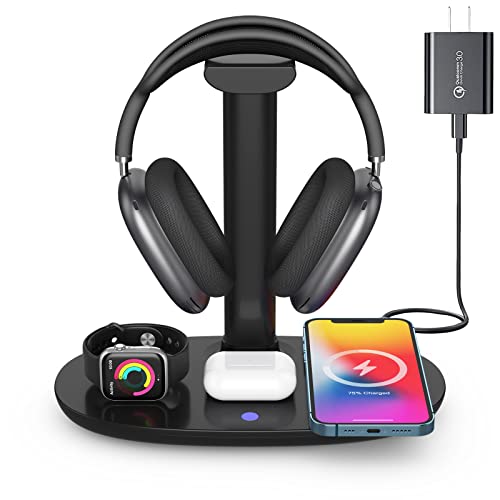
Universal Compatibility: This 15W fast wireless charging stand is compatible with All -Enabled Device(Normally 2~3 hours fully charged). 3W for iWatch series 10/9/8/7/6/SE/5/4/3/2/1. 5W for Airpods pro/Airpods 4/3/2[Only for Wireless Version!] Galaxy buds/buds+. 7.5W fast charging mode for iPhone 17/iPhone 16/iPhone 15/iPhone 14/iPhone 13/13 Mini/iPhone 12/12 Pro/12 Pro Max/12 Mini/11/11 Pro/11 Pro Max/XS Max/XS/XR/X/8/8 Plus. 15W/10W for Samsung S21Ultra/21/S20Ultra/S20/Note10/S10/S10 Plus/S9
2-in-1 Charging Case and Phone Stand: Enjoy hands-free viewing without the hassle. Simply open the back panel of the case, place your phone on the stand, and catch up on your favorite shows—watching while traveling has never been easier!
Frequently Asked Questions
Can I Connect My Sony Headphones to Multiple Devices Simultaneously?
Some Sony headphones support Multi Device Pairing through multipoint technology, enabling Simultaneous Connectivity with two Bluetooth devices. Users must enable the “Connect to 2 devices simultaneously” feature via the Sony | Headphones Connect app.
Will Sony Headphones Automatically Reconnect After Laptop Restart?
As smooth as clockwork, Sony headphones typically reconnect automatically after a laptop restart. Reconnect Reliability varies by model and settings, while Firmware Impact may affect this behavior. Manual reconnection is occasionally necessary.
How Do I Switch Audio Between Sony Headphones and Laptop Speakers?
To switch audio between Sony headphones and laptop speakers, users must manually change AudioSwitching preferences. This requires accessing sound settings and selecting the desired device for OutputRouting through the control panel or settings menu.
Does Connecting Sony Headphones Drain Laptop Battery Faster?
Like a small sip from a large cup, Sony headphones take minimal power. The Battery Drain from Bluetooth headphones is negligible, with Power Impact on laptop batteries being insignificant compared to regular Bluetooth operation.
Can I Use Sony Headphones for Video Conferencing Calls?
Sony headphones can be used for video conferencing calls. Many models offer decent microphone quality and noise cancellation features that enhance call clarity. Users should make sure proper profile selection (HFP/HSP) for best performance during meetings.