As an Amazon Associate, we earn from qualifying purchases. Some links on this site are affiliate links at no extra cost to you. Our recommendations are based on thorough research and editorial judgment.

How to Pair Soundcore Headphones: A Step-By-Step Guide

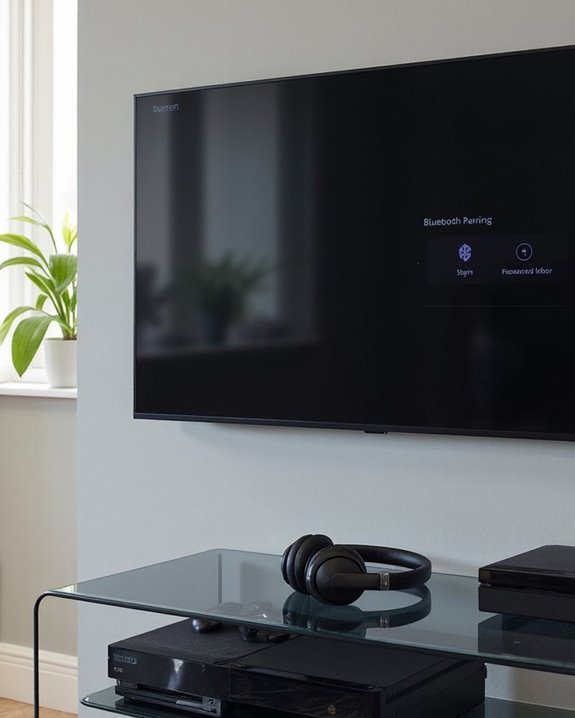
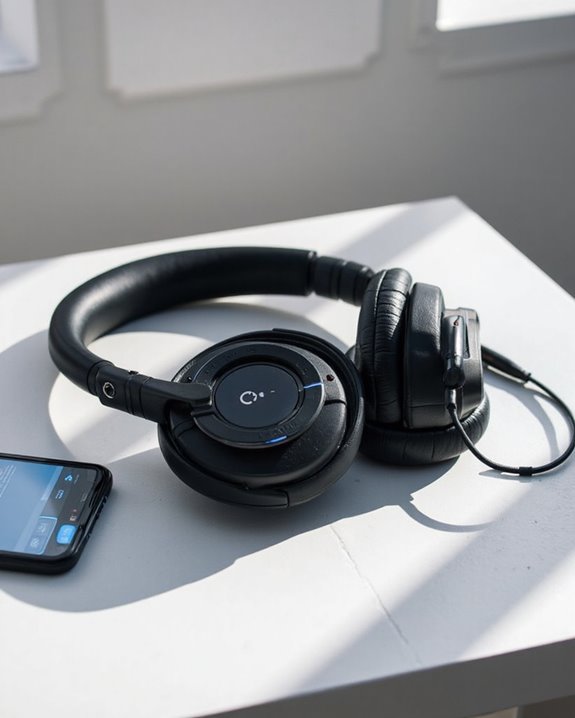
To pair Soundcore headphones, first make sure they’re charged and previous Bluetooth connections are cleared. Press and hold the power button for 5-10 seconds until LEDs flash (model-specific indicators vary). On your device, enable Bluetooth, select “Soundcore [Model Name]” from available devices, and wait for confirmation. Keep devices within 3 feet during initial pairing. If connection fails, reset headphones according to model instructions or clear device Bluetooth cache. The following guide covers model-specific nuances for seamless audio enjoyment.
Key Takeaways
- Ensure headphones are charged, clear previous connections, and keep devices close together during pairing.
- Press and hold the power button for 5-10 seconds until LED indicators flash blue to activate pairing mode.
- Enable Bluetooth on your device, select “Soundcore [Model Name]” from available devices, and wait for confirmation.
- For connection issues, check battery levels, minimize interference, clear Bluetooth cache, or reset headphones.
- Use the multifunction button and Soundcore app to set up connections with multiple devices.
Preparing Your Soundcore Headphones for First-Time Pairing
You may be interested
Can You Connect Bluetooth Headphones to PS5?
May 26, 2025
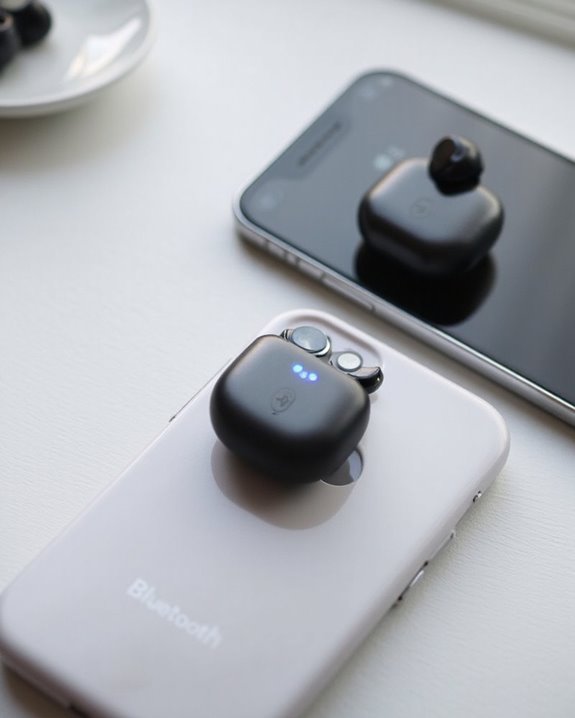
Before attempting to pair Soundcore headphones with any device, users should complete several important preparation steps to guarantee a smooth connection process. Proper Battery Maintenance is essential, ensuring headphones are sufficiently charged before initiating pairing. Users should verify that previous Bluetooth connections are cleared to prevent interference.
For best results, position both the headphones and the intended pairing device in close proximity. A thorough Manual Review is recommended, as specific models may have unique pairing procedures or button combinations. Users should also confirm device compatibility by checking Bluetooth versions and operating system requirements.
If pairing issues occur, users may need to reset the headphones or check for firmware updates. Minimizing nearby electronic interference will further improve connection success rates. Additionally, understanding the Bluetooth 5.0 connectivity used in many headphones can help ensure a stable and effective pairing experience.
Recommended Products
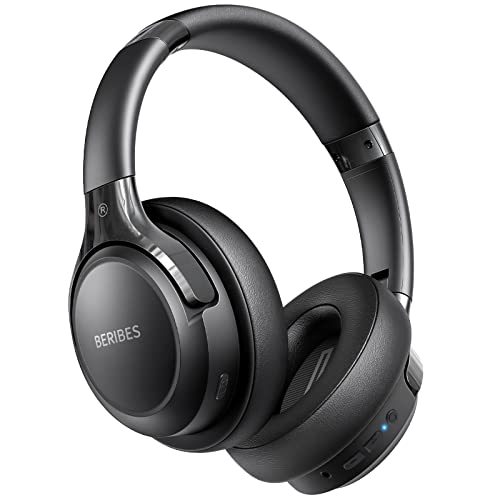
65 Hours Playtime: Low power consumption technology applied, BERIBES bluetooth headphones with built-in 500mAh battery can continually play more than 65 hours, standby more than 950 hours after one fully charge. By included 3.5mm audio cable, the wireless headphones over ear can be easily switched to wired mode when powers off. No power shortage problem anymore.

Zero-Latency Audio for Competitive Edge: Dominate your matches with the AOC wireless gaming headset. Featuring ultra-fast 2.4GHz lossless technology (≤20ms latency), this ps5 headset ensures your audio is always perfectly synced with the action. Tuned 50mm drivers deliver clear gaming sound for footsteps, reloads, dialogue, and in-game effects in FPS, action, and open-world games. The closed over-ear design helps keep you focused during Fortnite, Call of Duty, Roblox, Discord chat, online classes, and movie watching.

JBL PURE BASS SOUND: These wirelss headpones feature the renowned JBL Pure Bass sound, which can be found in the most famous venues all around the world.
Activating Bluetooth Pairing Mode on Different Models
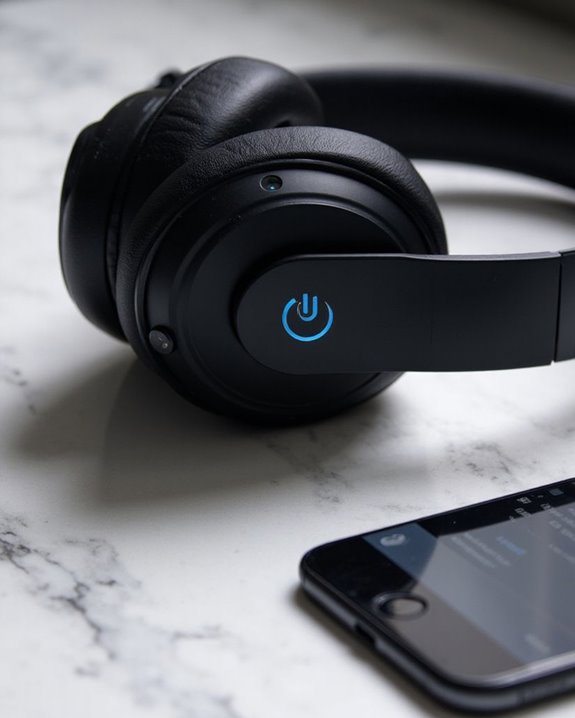
Activating Bluetooth pairing mode varies greatly across different Soundcore headphone models, requiring users to follow model-specific procedures for successful device connections. Historical methods typically involve pressing and holding the power button for 5-10 seconds while the device is powered off, waiting for the blue LED indicator to flash.
For over-ear models like Q20i and Life Q45, users must hold the power button until the blue LED flashes, signaling pairing readiness. Portable speakers such as SoundCore 2, however, utilize a dedicated Bluetooth button that requires just a 2-second press.
These distinctions represent evolutionary improvements in Soundcore’s interface design. Future innovations will likely streamline these procedures further, potentially incorporating automatic pairing technologies that eliminate manual mode activation entirely, following industry trends toward seamless connectivity experiences. Many Soundcore headphones leverage Bluetooth 5.2 technology to provide faster and more stable connections during pairing and usage.
Recommended Products

65 Hours Playtime: Low power consumption technology applied, BERIBES bluetooth headphones with built-in 500mAh battery can continually play more than 65 hours, standby more than 950 hours after one fully charge. By included 3.5mm audio cable, the wireless headphones over ear can be easily switched to wired mode when powers off. No power shortage problem anymore.

【40MM DRIVER & 3 MUSIC MODES】Picun B8 bluetooth headphones are designed for audiophiles, equipped with dual 40mm dynamic sound units and 3 EQ modes, providing you with stereo high-definition sound quality while balancing bass and mid to high pitch enhancement in more detail. Simply press the EQ button twice to cycle between Pop/Bass boost/Rock modes and enjoy your music time!
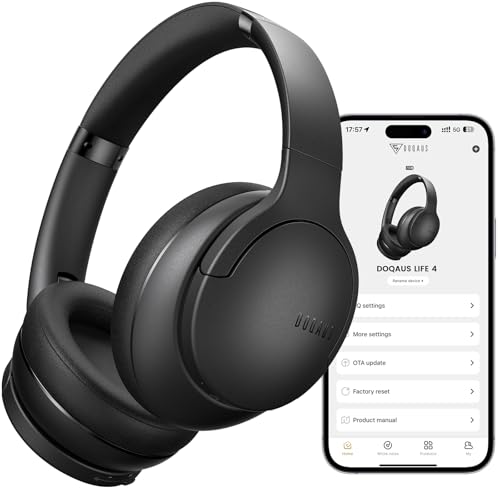
✅ End Charging Anxiety with 90-Hour Marathon Battery Life: Designed for the long-haul commuter or international traveler, these wireless headphones deliver up to 90 hours of playtime. A quick 10-minute charge fuels 5 hours of listening, and the included aux cable is your zero-power backup plan, ensuring your music, podcasts, or movies never stop.
Connecting Your Headphones to Your Device
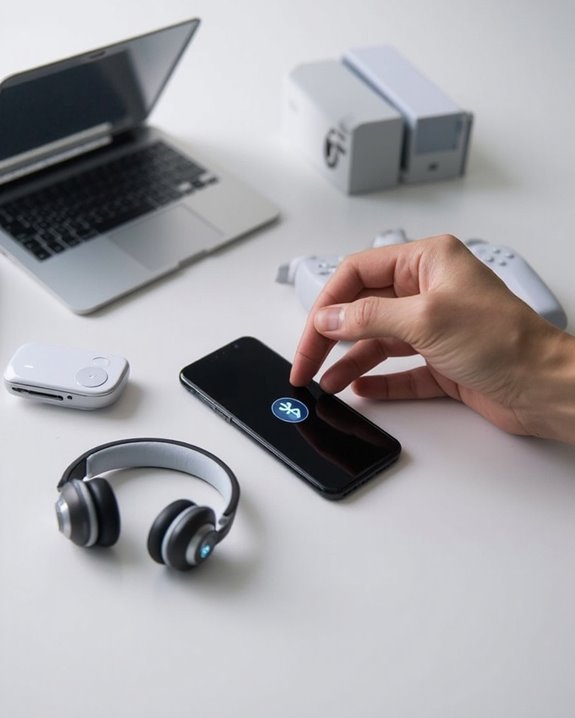
Once Soundcore headphones have been placed in pairing mode, establishing a connection with the target device requires several key preparation steps. Users must make sure their device has Bluetooth enabled and navigate to the Bluetooth settings menu.
For the best connection, position headphones within 3 feet of the device to minimize range limits during initial pairing. Select “Soundcore [Model Name]” from the available devices list and wait approximately 30 seconds for connection confirmation, which typically appears as an indicator light or audio tone. Bluetooth 5.0 or higher ensures a more stable connection with improved security and range.
After successful pairing, test the connection by playing audio and verifying sound quality. Be aware that latency effects may vary between device models and can impact synchronization between audio and video content. If connection issues occur, removing previous device pairings and restarting the pairing process often resolves connectivity problems.
Recommended Products

✅ Never Run Out of Music with 80-Hour Marathon Battery: Experience ultimate freedom. These over ear bluetooth headphones play for 80 hours on a single charge—enough for cross-country flights, a full workweek, or a month of gym sessions. The included AUX cable and quick charge ensure your audio never stops, making them perfect for travelers and busy commuters.
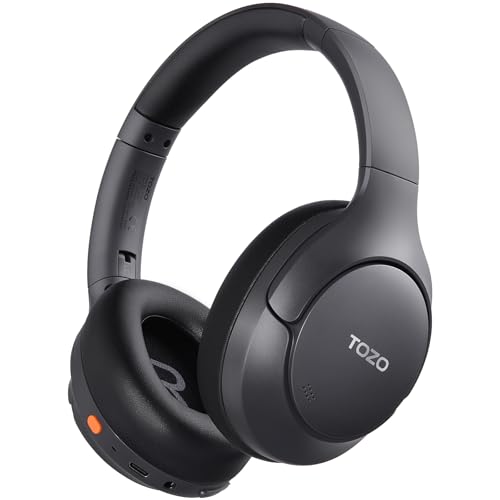
[45dB ANC & Hybrid Noise Cancellation] Enjoy unmatched tranquility with Adaptive ANC and Hybrid Noise Cancellation. Four high-sensitivity microphones continuously detect and adapt to your surroundings—whether you're on a noisy subway, airplane, or in a bustling café. A single press restores complete silence, while a dedicated call mic ensures crystal-clear voice quality, even in noisy environments. Ideal for both calls and music, offering superior audio no matter where you are.

JBL Pure Bass Sound: The JBL Tune 720BT features the renowned JBL Pure Bass sound, the same technology that powers the most famous venues all around the world.
Solving Common Pairing Problems
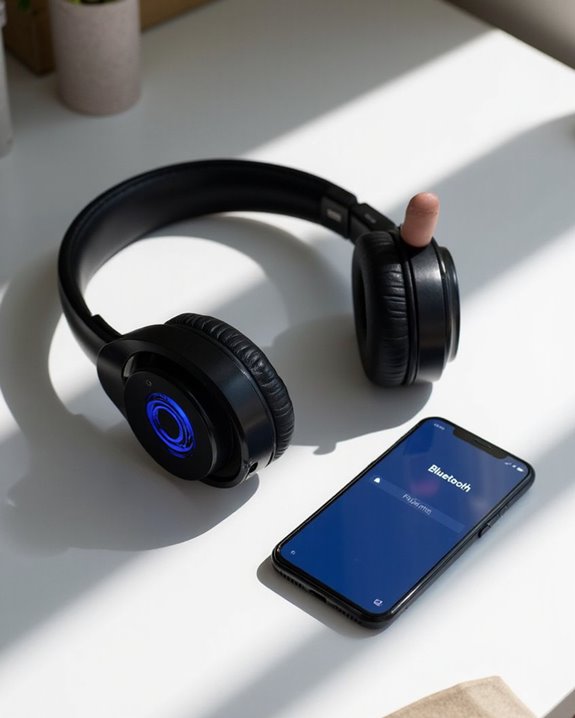
When Soundcore headphones refuse to connect, users often encounter several predictable issues with straightforward solutions. Battery Troubleshooting should be the first step, as insufficient power is a primary culprit. Check both headphones and charging case for adequate battery levels before attempting to pair.
Signal Interference from physical obstacles or nearby electronic devices can disrupt Bluetooth connectivity. Make sure the headphones are within recommended range of the device and away from potential interference sources like Wi-Fi routers.
If problems persist, try these systematic approaches:
- Clear Bluetooth cache on your device
- “Forget” the headphones in Bluetooth settings and re-pair
- Reset the headphones according to model-specific instructions
- Remove any protective film on earbud charging contacts
- Connect to the first device using standard pairing
- Double-click the multifunction button (MFB) to enter multipoint pairing mode
- Connect to the second device while in this mode
For recurring issues, testing with another device can help isolate whether the problem lies with the headphones or connecting device.
Recommended Products

Fashion & Function – Mirror Compact Case + Butterfly Jewelry Powder compact charging case looks like real makeup, with a built‑in mirror for quick touch‑ups. Detachable crystal butterfly ear clips let you switch up your style in seconds.

REBUILT FOR COMFORT — AirPods 4 have been redesigned for exceptional all-day comfort and greater stability. With a refined contour, shorter stem, and quick-press controls for music or calls.
REBUILT FOR COMFORT — AirPods 4 have been redesigned for exceptional all-day comfort and greater stability. With a refined contour, shorter stem, and quick-press controls for music or calls.
Setting Up Multi-Device Connections With Soundcore Products
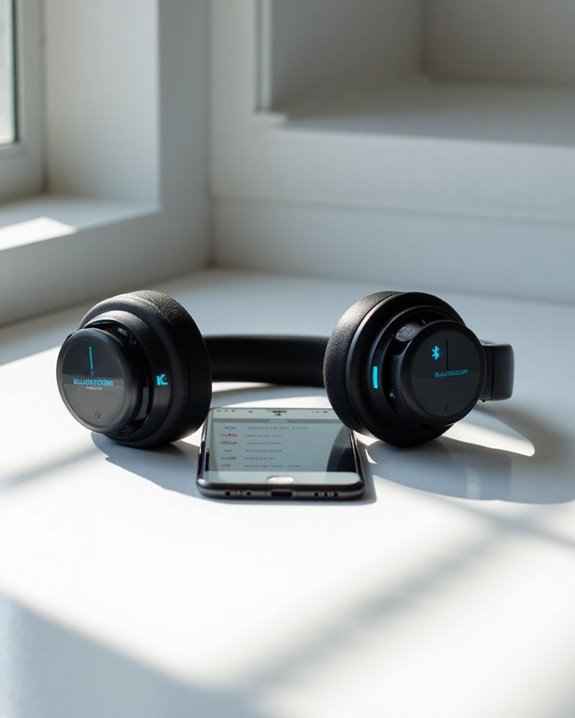
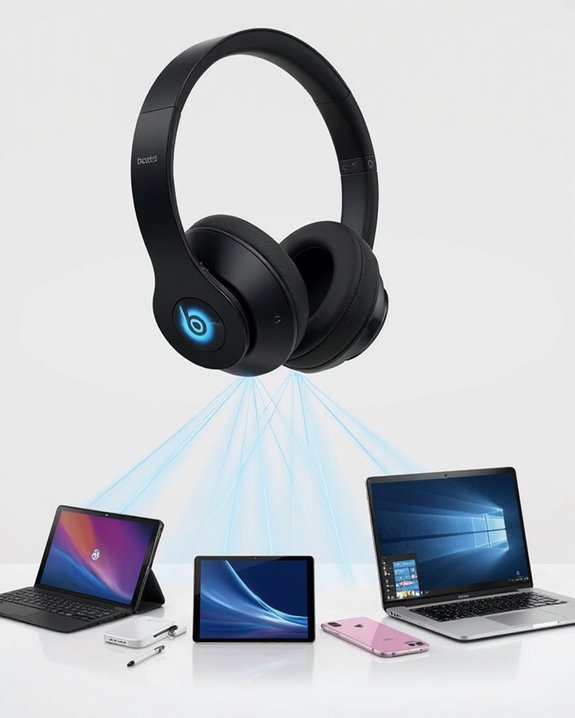
The versatility of Soundcore headphones extends beyond single-device connectivity through their multipoint connection capabilities. Users can simultaneously connect to two different devices, enabling seamless audio switching between them without manual disconnection procedures. This feature proves especially valuable when switching between work and entertainment contexts.
To activate multipoint connections:
Firmware requirements must be current to support multipoint functionality. Users should check for available updates through the Soundcore app before attempting to establish dual connections. LED indicators provide helpful visual feedback throughout the process, with specific flash patterns confirming successful pairing with multiple devices.
Recommended Products

Cutting-edge Noise Cancelling - Bluetooth headset with microphone adopts powerful ENC noise cancellation technology that eliminates 95% of harmful interfering noises, which means that the far-end caller won't notice even if you're calling in the noise-filled airport. Hence well loved by truckers and businessmen.

Advanced Noise Cancellation Technology: Maintain your focus with Life Q30’s hybrid active noise cancellation. Dual noise-detecting microphones pick up and filter out up to 95% of low-frequency ambient sound to ensure nothing distracts you from your music.
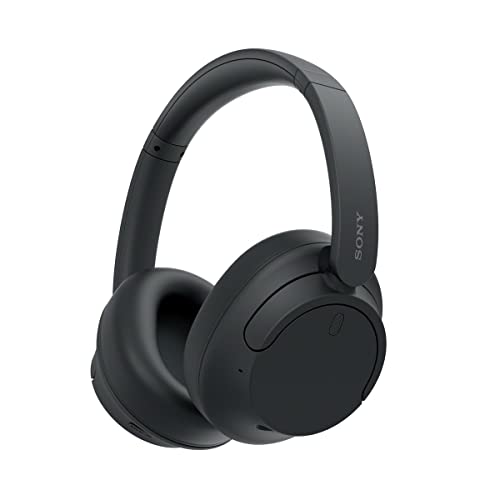
SONY’S LIGHTEST WIRELESS NOISE CANCELING HEADBAND EVER: Weighing just 192g, our lightest overhead wireless headphones with Noise Canceling yet, for incredible comfort without compromising on technology.
Frequently Asked Questions
Can I Pair Soundcore Headphones With Non-Bluetooth Devices?
Connecting Soundcore headphones to non-Bluetooth devices requires additional equipment. Users can employ Bluetooth adapters or transmitters as Adapter Solutions. Some models offer Wired Alternatives through auxiliary connections, though this feature isn’t universal across all Soundcore products.
How Do I Update Firmware on My Soundcore Headphones?
Users can update Soundcore headphone firmware through the mobile app or Windows update tool. The process requires sufficient battery and stable connections. Firmware troubleshooting includes restarting devices if update fails. Update benefits include improved performance and features.
Will Soundcore Headphones Pair With Gaming Consoles?
Yes, Soundcore headphones can pair with gaming consoles, though compatibility varies by model. Console pairing often requires Bluetooth transmitters for Xbox, while PlayStation offers more direct connectivity. Some models minimize gaming latency through wired connections.
Can I Use One Earbud While the Other Charges?
Yes, Soundcore earbuds typically support individual Earbud Usage while the other charges in the case. This feature allows continuous listening by alternating earbuds. Charging Tips: regularly clean contact points for best performance during single-earbud operation.
How Do I Reset Soundcore Headphones to Factory Settings?
Just when all seems lost, Soundcore headphones offer a solution. Users can reset to factory settings through different reset options depending on their model. Troubleshooting steps typically involve holding specific buttons until indicator lights flash.